Cindy’s Column × Senior AI Money
Phones are supposed to make life easier.
But for many adults over 55, a smartphone can quietly become one more source of daily friction.
The text feels too small.
Notifications are easy to miss.
Typing takes too long.
The screen feels cluttered.
A simple call or message can become more tiring than it should be.
The good news is that you usually do not need a new phone.
You need better settings.
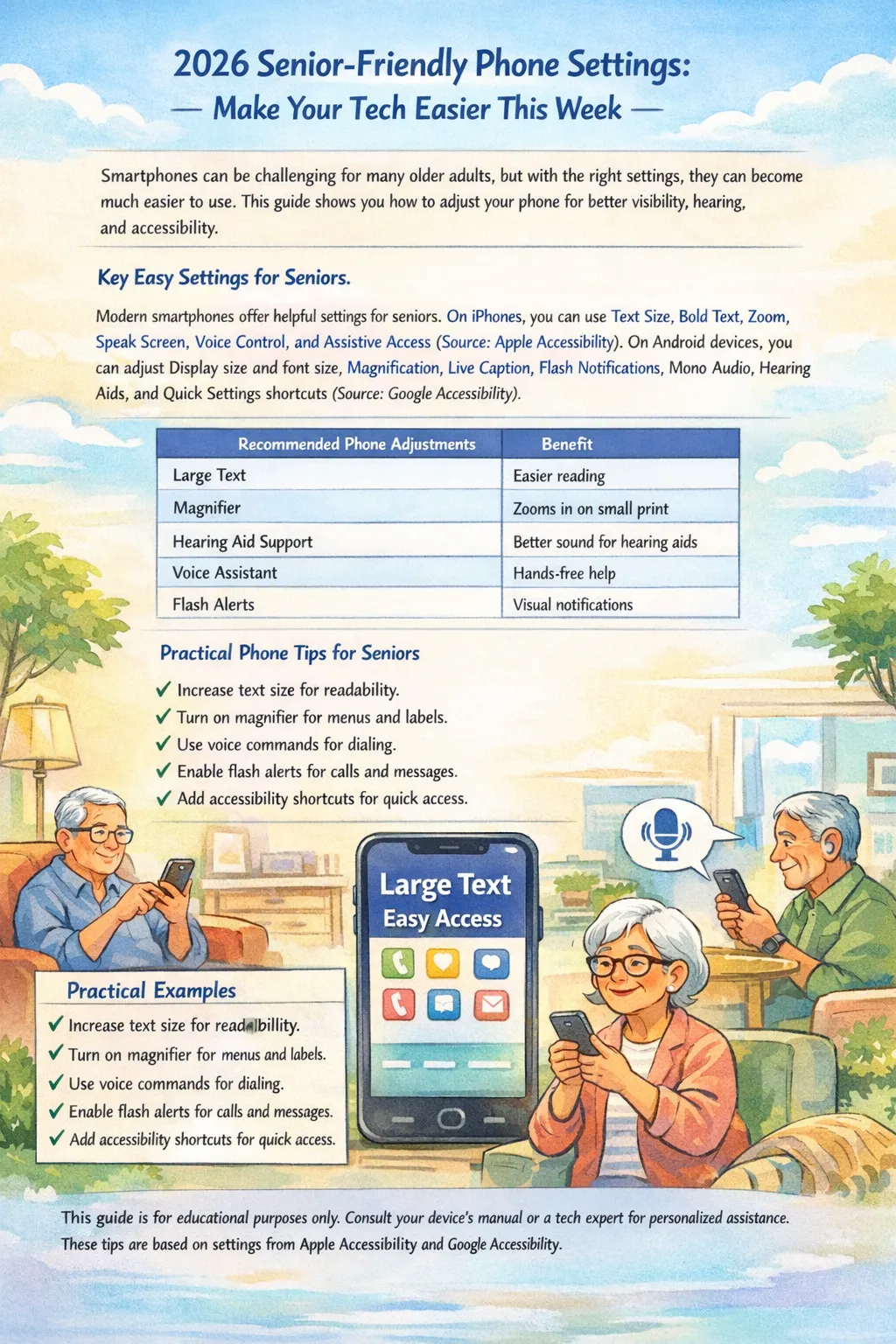
A few changes can make your phone easier to read, easier to hear, easier to tap, and less mentally exhausting. Apple currently documents iPhone options like Text Size, Bold Text, Larger Accessibility Sizes, Speak Screen, Voice Control, Assistive Access, and Accessibility Shortcut. Google’s Android accessibility documentation highlights Display size and font size, Magnification, Live Caption, Flash notifications, Audio adjustment features, Hearing aids, and Quick Settings shortcuts.
This guide focuses on the settings that give the biggest quality-of-life payoff in the shortest time. It is written for older adults who want a phone that feels calmer, clearer, and more useful this week, not someday after a three-hour tutorial.
Why phone frustration grows after 55
Most phone trouble is not really about age.
It is about mismatch.
Default phone settings are often designed for fast eyes, quick thumbs, and people who are comfortable switching between many small icons, banners, apps, gestures, and alerts.
If your vision is a little weaker in the evening, your hearing is less sharp in crowded places, your fingers are less steady than they used to be, or your patience for clutter is lower, the default setup stops working well.
That does not mean you are bad with technology.
It means the phone is not yet adjusted for you.
And that is the mindset shift that matters: your phone should fit your real life, not the other way around.
The Senior-Friendly Phone Rule
Make the phone easier to see, easier to hear, easier to control, and faster to recover when something goes wrong.
That rule matters because most daily phone stress falls into four buckets:
I cannot read it clearly.
I missed the alert.
I tapped the wrong thing.
I cannot find the feature again.
Once you fix those four areas, the phone usually feels much more manageable.
-
Start with reading comfort first
If your phone is hard to read, everything else gets harder.
Messages feel annoying.
Maps feel stressful.
Medication reminders feel easy to miss.
Banking and appointment screens feel more tiring than they should.
That is why text and display settings should be the first place you start.
On iPhone, Apple documents text size controls in Display & Brightness as well as Bold Text and Larger Text in Accessibility display settings. On Android, Google documents Display size and font size, Magnification, contrast and color options, and related display controls in Accessibility.
In practice, this means:
make the text larger than you think you “should”
use bold text if available
increase display size if icons feel too small
turn on magnification if labels, medication bottles, menus, or confirmation screens are hard to read
use dark theme or stronger contrast if bright white screens tire your eyes
Many people wait too long to enlarge text because they feel like it means “giving in.”
It does not.
It means removing strain.
A phone that is slightly oversized for your eyes is usually better than a phone that makes you squint ten times a day.
Table 1. Senior-friendly phone settings that usually help the fastest
| Everyday problem | iPhone setting to check | Android setting to check | Why it helps |
|---|---|---|---|
| Text feels tiny | Text Size, Larger Text, Bold Text | Display size and font size | Reduces eye strain |
| Icons feel too small | Display zoom-style display changes and larger text/display choices | Display size | Makes tapping easier |
| Reading labels or paperwork is hard | Zoom or Magnifier-style tools; Speak Screen for text | Magnification; Select-to-Speak style tools | Helps with small print |
| Bright screens feel harsh | Display & Text Size contrast options | Dark theme, color/contrast options | Improves comfort |
| Too much clutter feels confusing | Assistive Access for eligible use cases | Quick Settings shortcuts + simplified home layout practices | Reduces visual overload |
The Apple and Google setting names above come from current official accessibility documentation; wording and placement can vary somewhat by phone model, Android skin, and software version.
A practical rule: if you have to lean in, squint, or re-read small text more than once, your phone is not set up well enough yet.
-
Fix alerts you keep missing
A lot of adults do not actually have a “phone skill” problem.
They have a missed-alert problem.
They miss calls from the pharmacy.
They do not hear a text from family.
They miss a medical office callback.
They overlook a calendar reminder because the alert was too subtle.
That is frustrating because it creates unnecessary anxiety.
Android officially supports accessibility tools like Live Caption, Flash notifications, Audio adjustment features, Hearing aids, and Real-Time Text, while Apple documents hearing and speech tools as part of iPhone accessibility. Google also documents Sound Notifications for important sounds in the environment on supported devices.
For everyday life, the most helpful changes are usually simple:
raise ringtone and notification volume
choose a ringtone that sounds distinct, not gentle and forgettable
turn on vibration if you keep the phone in a pocket or bag
use flash notifications if sound alone is easy to miss
turn on captions for media if you often struggle to hear speech clearly
connect hearing aids if your phone supports it
You do not need every alert turned on.
In fact, too many alerts can make the phone feel noisier and easier to ignore.
The goal is the opposite.
Fewer, clearer, more noticeable alerts.
For many seniors, the best setup is this:
important people, calendar reminders, medical calls, and security alerts stay on;
shopping promotions, app nudges, and random news pings get reduced or turned off.
A quieter phone is often a friendlier phone.
-
Reduce tapping mistakes and typing fatigue
One reason smartphones feel tiring is that they demand a lot of precision.
A small keyboard.
Tiny links.
Fast double-taps.
Short-lived pop-ups.
Buttons that disappear before you can decide.
That creates errors, and errors create stress.
If you often hit the wrong app, send a half-finished message, or close something by accident, the answer is not “try harder.”
The answer is to remove some of the precision burden.
On iPhone, Apple documents features like Voice Control, Speak Screen, Zoom, and Accessibility Shortcut, plus Assistive Access for a more simplified interface in specific use cases. On Android, Google documents accessibility Quick Settings shortcuts and screen reading or speaking tools under Accessibility.
What helps in real life:
use voice input for longer messages
make the keyboard easier to see by increasing overall display or text size
pin the most-used apps to the first screen
remove apps you never use from the home screen
keep only the essentials in the bottom dock if your phone allows it
add an accessibility shortcut so your most helpful feature is never buried
use voice commands for calling or simple navigation if your hands tire easily
This is also where pride gets in the way for some people.
They think voice tools are only for “serious” needs.
They are not.
They are convenience tools.
Hands-free calling, spoken text, and quick access shortcuts are useful because they lower effort.
That is a win, not a weakness.
-
Make the home screen calmer
Some phones feel hard because they are doing too much at once.
You open the screen and see:
too many icons,
too many badges,
too many folders,
too many notifications,
too many decisions.
That mental clutter matters.
A phone can be physically readable and still feel exhausting.
For some users, Apple’s Assistive Access offers a more focused iPhone experience with larger text and icons, fewer features in view, and a simplified interface; Apple notes it is designed especially for cognitive accessibility use cases. Android’s official materials emphasize quick accessibility access and customizable controls, though the exact home-screen tools vary by brand.
Even without a special mode, a calmer home screen makes a big difference.
Try these rules:
keep only your most-used apps on the first screen
move rarely used apps off the main page
put family, messages, phone, camera, maps, and calendar where your eye expects them
reduce bright red notification badges when possible
keep the wallpaper simple, not busy
rename folders in plain language, or avoid folders if they confuse you
The goal is not to make the phone look impressive.
The goal is to make it predictable.
A predictable phone feels safer and easier to trust.
Table 2. Best settings by the problem you want to solve this week
| This week’s frustration | Best first fix | Why it usually works |
|---|---|---|
| “I can’t read half of what’s on this phone.” | Increase text size and display size; turn on bold text or stronger contrast | Reading strain drops immediately |
| “I miss calls and reminders.” | Raise volume, simplify alerts, add vibration or flash notifications | Important contacts become harder to miss |
| “I hit the wrong thing all the time.” | Enlarge text/display, simplify the first screen, use voice input | Reduces precision pressure |
| “It all feels too complicated.” | Remove clutter, pin essentials, add shortcuts | Cuts decision fatigue |
| “Watching videos is frustrating.” | Turn on captions; adjust audio or hearing support settings | Speech becomes easier to follow |
| “I dread having to find settings again.” | Add Quick Settings or Accessibility Shortcut | Helps you reach helpful tools faster |
The specific capabilities in this table align with Apple’s and Google’s current accessibility materials, especially around display controls, captions, hearing support, and shortcut access.
-
Use a “20-minute reset,” not an all-day project
A common mistake is trying to do a full tech makeover in one sitting.
That usually ends with fatigue and frustration.
Instead, use a 20-minute reset.
Minute 1–5
Increase text size and display size.
Minute 6–10
Fix ringtone, call volume, and key reminders.
Minute 11–15
Move your five most-used apps into obvious places.
Minute 16–20
Add one shortcut for the feature you are most likely to need again.
That is enough for one day.
You do not need to optimize every setting on the phone this week.
You only need to reduce the friction you feel most often.
That is how technology becomes more usable: one high-payoff adjustment at a time.
-
Practical examples older adults will recognize
These are representative examples based on common senior phone problems, not individual case records.
Example 1: The unreadable message problem
You receive a message from a doctor’s office, but the text looks small and crowded. You postpone reading it because your eyes feel tired. Later, you forget to respond.
Best fix:
increase text size, use bold text if available, and turn on magnification or reading help tools for the moments when something still feels too small.
Example 2: The missed-family-call problem
Your daughter calls while the TV is on, and you do not notice until an hour later. The phone was technically working fine, but the alert was too easy to miss.
Best fix:
increase ringtone volume, pick a stronger ringtone, keep vibration on, and use flash notifications if needed.
Example 3: The tapping-the-wrong-thing problem
You try to open Messages but hit the weather app instead. Then you close the wrong screen and feel annoyed before you even start.
Best fix:
enlarge display elements, clear the first home screen, and keep only the most-used apps visible.
Example 4: The “this phone feels too busy” problem
Your screen is full of badges, folders, prompts, shopping alerts, and apps you rarely use. Nothing is individually terrible, but the overall effect is tiring.
Best fix:
reduce nonessential notifications, simplify the main screen, and use a more focused interface or shortcut approach where available.
-
The checklist that gives the biggest payoff
Checklist: Senior-Friendly Phone Setup This Week
✔ Increase text size
✔ Turn on bold text or stronger contrast if available
✔ Adjust display size if icons feel too small
✔ Turn on magnification if you struggle with labels or tiny print
✔ Raise ringtone and reminder volume
✔ Choose a ringtone you can clearly recognize
✔ Turn on vibration for calls and reminders
✔ Add flash notifications if sound alone is not enough
✔ Turn on captions for videos or calls if hearing is a challenge
✔ Connect hearing aids if supported
✔ Keep your five most-used apps on the first screen
✔ Remove clutter from the home screen
✔ Use voice input for longer messages
✔ Add an accessibility shortcut or Quick Settings shortcut
✔ Test the setup with one real task: call, text, reminder, and map
-
What good phone settings really buy you
Better phone settings are not just about comfort.
They support independence.
A better phone setup can make it easier to:
read medication messages,
confirm appointments,
answer family calls,
use maps,
read banking alerts,
join a video call,
and recover quickly when you feel lost.
That is why this topic matters.
A senior-friendly phone is not a luxury detail.
It is part of daily confidence.
EEAT note
This guide is based on practical older-adult usability issues and on current accessibility features documented by Apple and Google. It is written to help readers make everyday phone use easier, not to replace official device support or hands-on setup help.
Final thought
The best phone setup is not the most advanced one.
It is the one that lets you do ordinary things with less strain.
Read the message.
Hear the reminder.
Tap the right app.
Call the right person.
Get back home if you feel lost in the menus.
That is the real goal.
Small settings changes can make your phone feel less like a test and more like a tool.
Disclaimer
This article is for general educational purposes only and does not provide medical, hearing, vision, cybersecurity, or technical repair advice. Device menus, feature names, and availability can vary by model, carrier, manufacturer, and software version. For setup help with hearing aids, accessibility needs, or safety concerns, consult your device manufacturer, carrier, caregiver, or a qualified support professional.