Author: Senior AI Money Editorial Team

  • Identity Freeze in 10 Minutes: Step-by-Step Protection Guide for Seniors (2025)

    🔒 Security Alert: Verify Before You Enter Information

    Before entering your Social Security Number or personal information on any website:
    1. Verify the URL is EXACTLY correct (Equifax.com, Experian.com, TransUnion.com)
    2. Look for the padlock icon (🔒) showing a secure connection
    3. Never click links from emails—type URLs directly into your browser
    4. When in doubt, call the bureaus using phone numbers from their official websites

    Scammers create fake websites that look real. Take 30 seconds to verify you’re on the legitimate site.

    Senior at computer desk confidently completing identity freeze process on laptop, with security shield icon and checkmarks visible on screen, warm encouraging lighting
    Visual Art by Artani Paris | Pioneer in Luxury Brand Art since 2002

    According to the Federal Trade Commission, over 1.1 million Americans reported identity theft in 2023. The FBI’s Internet Crime Complaint Center reports that adults over 60 reported losses exceeding $3.1 billion to fraud that same year—more than any other age group. There’s one powerful protection step that costs nothing and takes approximately 10 minutes: a credit freeze (also called a security freeze). This measure significantly reduces the risk of criminals opening new accounts in your name, even if they somehow obtain your Social Security number or other personal information. This comprehensive guide walks you through the process to freeze your credit at all three major credit bureaus—Equifax, Experian, and TransUnion—with clear, senior-friendly instructions for every step. No technical expertise required. Just approximately 10 minutes of your time for substantial protection.

    What Is a Credit Freeze and Why Seniors Should Consider It

    A credit freeze (security freeze) is a free service that restricts access to your credit report, making it extremely difficult for identity thieves to open new credit accounts, loans, or services in your name. When your credit is frozen, lenders and creditors cannot access your credit report to approve applications—so even if scammers have your personal information, they cannot use it to get credit.

    Why seniors are frequent targets: People over 60 often have excellent credit, substantial savings, and may be less familiar with modern scam techniques. Identity thieves target older adults through phone scams, phishing emails, fake “government” calls, and data breaches.

    How a freeze helps protect you: With a credit freeze in place, if someone tries to open a credit card, take out a loan, set up utility service, or apply for phone service using your information, the creditor’s access to your credit report will be blocked. The application will typically be denied. While no security measure is 100% effective, credit freezes have proven effective in preventing many types of new account fraud.

    What a freeze doesn’t affect: Your existing credit cards, loans, and bank accounts work normally. Your credit score is unchanged. You can still use your current credit, make purchases, and manage existing accounts. The freeze only blocks NEW credit applications. You can temporarily lift or permanently remove the freeze anytime you need to apply for new credit yourself.

    What Credit Freeze DOES What Credit Freeze DOESN’T DO
    ✅ Significantly reduces risk of new credit accounts being opened ❌ Doesn’t affect existing accounts
    ✅ Helps prevent new loans in your name ❌ Doesn’t stop use of existing credit cards
    ✅ Makes utility/phone service fraud more difficult ❌ Doesn’t prevent bank account fraud
    ✅ Free to place and remove (by federal law) ❌ Doesn’t block medical identity theft
    ✅ Lasts until you remove it ❌ Doesn’t stop tax refund fraud
    ✅ Can be lifted temporarily or permanently ❌ Doesn’t protect against existing account takeover
    ✅ Doesn’t hurt your credit score ❌ Doesn’t stop Social Security fraud
    Understanding what a credit freeze helps protect and what it doesn’t—know the full picture

    What You’ll Need Before Starting (5-Minute Preparation)

    Gather these items before you begin. Having everything ready makes the process smoother:

    Essential Information

    • Social Security Number: Your full 9-digit SSN (you’ll need to enter it at each bureau)
    • Current Address: The address where you currently live, including apartment number if applicable
    • Previous Address: If you’ve moved in the past 2 years, have your old address ready
    • Date of Birth: Month, day, and year
    • Phone Number: A phone number where you can be reached
    • Email Address: An active email you check regularly (each bureau will send confirmation)

    Supporting Documents (Have Nearby)

    • Government-issued ID: Driver’s license, state ID, or passport (you may need to verify information from it)
    • Recent Credit Card or Loan Statement: Sometimes bureaus ask security questions based on your actual accounts
    • Pen and Paper: To write down your freeze PINs and confirmation numbers

    Technical Requirements

    • Computer, tablet, or smartphone: Any device with internet access works
    • Stable internet connection: The process requires staying online for approximately 10 minutes
    • Printer (optional): To print confirmation pages for your records

    Important note on PINs: Each bureau will give you a unique PIN or password when you freeze your credit. You’ll need these PINs if you ever want to temporarily lift or permanently remove the freeze. Record them immediately and store them securely. Consider consulting a security professional or your financial institution for personalized guidance on secure information storage based on your specific circumstances. Common options include home safes, locked file cabinets, or reputable password managers. If you lose your PIN, you can typically recover it, but it requires additional verification steps.

    Organized desk with documents laid out: Social Security card, driver license, address book, laptop, and notepad with pen ready for credit freeze process
    Visual Art by Artani Paris

    Step-by-Step: Freeze Your Credit at Equifax (Approximately 3 Minutes)

    ✓ Security Check: Before proceeding, verify you see “https://www.equifax.com” in your browser’s address bar and a padlock icon (🔒) indicating a secure connection. If the URL looks different or you see any security warnings, stop and call Equifax directly at a phone number you find independently by visiting their official website.

    We’ll start with Equifax, one of the three major credit bureaus. The process is straightforward and takes approximately 3 minutes.

    Step 1: Go to the Equifax Freeze Page

    Open your web browser and type this exact address into the address bar:

    https://www.equifax.com/personal/credit-report-services/credit-freeze/

    Or search “Equifax security freeze” on Google and click the official Equifax.com link. Important: Verify the URL shows “equifax.com” exactly—scammers create fake sites with similar-looking names. Never enter personal information unless you’ve independently verified you’re on the legitimate, secure website.

    Step 2: Click “Add a Security Freeze”

    On the Equifax freeze page, you’ll see a blue button that says “Add a Security Freeze.” Click this button. The page will load a form.

    Step 3: Enter Your Personal Information

    Fill out the form with your information:

    • First Name, Middle Initial, Last Name
    • Social Security Number (enter carefully—double-check each digit)
    • Date of Birth
    • Current Address (exactly as it appears on your ID)
    • Previous Address (if you moved within 2 years)
    • Phone Number
    • Email Address

    Tip: Type slowly and carefully. If you make an error, the system may not recognize you and will ask you to call instead.

    Step 4: Answer Security Questions

    Equifax will ask you several security questions to verify your identity. These are based on your actual credit history. Examples:

    • “Which of these addresses have you lived at?” (they’ll list real and fake addresses—pick yours)
    • “Which of these companies have you had a loan with?” (pick the correct one from the list)
    • “What is your monthly mortgage or rent payment range?” (choose the correct range)

    Answer each question based on your actual history. If you’re unsure, choose “None of the above” rather than guessing.

    Step 5: Create Your myEquifax Account (Optional but Recommended)

    Equifax will offer to create a myEquifax account for you. This is optional, but it makes managing your freeze easier in the future. If you create an account:

    • Choose a username and password (record these securely)
    • You’ll use this to lift or remove your freeze later

    Step 6: Receive Your Freeze Confirmation

    Once complete, you’ll see a confirmation page. This page will show:

    • Confirmation number (record this immediately)
    • Your PIN (10-digit number—VERY IMPORTANT: record this and keep it in a secure location)
    • Confirmation that your Equifax credit freeze has been placed

    Critical: Record your PIN right now. Store it securely. You’ll need this PIN to lift or remove your freeze in the future.

    You’ll also receive a confirmation email. Save this email or print it for your records.

    Well done! Your Equifax credit freeze is now in place. One down, two to go.

    Step-by-Step: Freeze Your Credit at Experian (Approximately 3 Minutes)

    ✓ Security Check: Before proceeding, verify you see “https://www.experian.com” in your browser’s address bar and a padlock icon (🔒) indicating a secure connection. If the URL looks different or you see any security warnings, stop and call Experian directly at a phone number you find independently on their official website.

    Now we’ll freeze your credit at Experian, the second major credit bureau. The process is similar to Equifax.

    Step 1: Go to the Experian Freeze Page

    In your web browser, type:

    https://www.experian.com/freeze/center.html

    Or search “Experian security freeze” and click the official Experian.com result. Always verify the URL before entering any personal information.

    Step 2: Click “Add a Freeze”

    On the Experian freeze page, look for the button that says “Add a Freeze” or “Add a Security Freeze.” Click it.

    Step 3: Create an Experian Account

    Unlike Equifax, Experian requires you to create an account before placing a freeze. The process is straightforward:

    • Enter your email address
    • Create a password (record it securely)
    • Click “Continue”

    Step 4: Verify Your Identity

    Experian will ask for your personal information:

    • Full Name
    • Social Security Number
    • Date of Birth
    • Current Address
    • Phone Number

    Then, similar to Equifax, you’ll answer security questions based on your credit history. Answer carefully and truthfully.

    Step 5: Add the Security Freeze

    Once logged into your new Experian account, you’ll see your account dashboard. Look for the “Security Freeze” option (usually in the left menu or center of the page). Click “Add Security Freeze.”

    Confirm that you want to freeze your Experian credit by clicking “Yes” or “Continue.”

    Step 6: Save Your Confirmation

    Experian will display a confirmation message. Unlike Equifax, Experian doesn’t give you a separate PIN—instead, you’ll use your Experian account username and password to manage your freeze in the future.

    Record securely:

    • Your Experian username
    • Your Experian password (or store it in a password manager)
    • The confirmation date

    You’ll receive a confirmation email. Save it with your Equifax confirmation.

    Excellent progress! Your Experian credit freeze is now in place. Two down, one to go.

    Step-by-Step: Freeze Your Credit at TransUnion (Approximately 3 Minutes)

    ✓ Security Check: Before proceeding, verify you see “https://www.transunion.com” in your browser’s address bar and a padlock icon (🔒) indicating a secure connection. If the URL looks different or you see any security warnings, stop and call TransUnion directly at a phone number you find independently on their official website.

    Finally, we’ll freeze your credit at TransUnion, the third major credit bureau. After this, you’ll have comprehensive credit freeze protection in place.

    Step 1: Go to the TransUnion Freeze Page

    In your browser, type:

    https://service.transunion.com/dss/orderStep1_form.page

    Or search “TransUnion credit freeze” and click the official TransUnion.com link. Always verify you’re on the legitimate site before entering personal information.

    Step 2: Click “Add a Freeze”

    On the TransUnion freeze page, locate the button or link that says “Add a Freeze” or “Credit Freeze.” Click it.

    Step 3: Create Your TransUnion Account

    Like Experian, TransUnion requires an account. You’ll be prompted to:

    • Enter your email address
    • Create a password (record it securely)
    • Agree to terms

    Step 4: Verify Your Identity

    TransUnion will ask for:

    • Full Legal Name
    • Social Security Number
    • Date of Birth
    • Current Address (and previous if you moved recently)
    • Phone Number

    Then you’ll answer security questions similar to the other bureaus. These questions verify you based on your credit history.

    Step 5: Place the Security Freeze

    Once verified and logged in, find the “Security Freeze” option in your account dashboard. Click “Place Security Freeze” or “Add Freeze.”

    Confirm your decision by clicking “Yes” or “Submit.”

    Step 6: Record Your Information

    TransUnion, like Experian, uses your account login to manage your freeze rather than a separate PIN.

    Record securely:

    • Your TransUnion username
    • Your TransUnion password
    • Confirmation date

    You’ll receive an email confirmation. Save it with your other freeze confirmations.

    Congratulations! All three of your credit freezes are now in place. You’ve taken a significant step toward protecting yourself from identity thieves opening new accounts in your name.

    Credit Bureau Website Time Required Access Method
    Equifax equifax.com/personal/credit-report-services/credit-freeze/ ~3 minutes PIN-based (record your 10-digit PIN securely)
    Experian experian.com/freeze/center.html ~3 minutes Account-based (username + password)
    TransUnion service.transunion.com/dss/orderStep1_form.page ~3 minutes Account-based (username + password)
    Quick reference: Three bureaus for comprehensive protection—verify all URLs before use
    Senior smiling with relief and confidence at computer, three checkmarks on screen showing Equifax Experian TransUnion all frozen, security shield icon prominent
    Visual Art by Artani Paris


    How to Temporarily Lift Your Freeze (When You Need New Credit)

    Occasionally, you may need to apply for new credit, a loan, or services that require a credit check (apartment rental, phone service, etc.). You can temporarily lift your freeze—it’s straightforward.

    When You Might Need to Lift Your Freeze

    • Applying for a new credit card
    • Getting a car loan or mortgage
    • Renting an apartment (landlords often check credit)
    • Setting up new utility service (some companies check credit)
    • Opening a new cell phone account
    • Applying for some types of insurance

    How to Temporarily Lift (Same General Process for All Three Bureaus)

    Step 1: Go to the bureau’s website and log into your account (or use your PIN for Equifax)

    Step 2: Find the “Security Freeze” or “Manage Freeze” section

    Step 3: Choose “Temporarily Lift Freeze”

    Step 4: Select the time period (1 day, 7 days, 30 days, or specific dates). Most people choose 7 days to give the lender time to access their credit report.

    Step 5: Confirm and save your confirmation number

    The freeze will automatically re-activate after the time period ends. You typically don’t need to do anything—it re-freezes automatically.

    Which Bureau to Lift?

    When applying for credit, ask the lender which credit bureau they use. Most use one specific bureau. You generally only need to lift the freeze at that one bureau, not all three. Common patterns:

    • Credit cards: Often Experian or TransUnion
    • Mortgages: Usually access all three (lift all three for 7-14 days)
    • Auto loans: Often Equifax or Experian
    • Apartment rentals: Varies (ask the landlord which bureau they use)

    If you’re unsure, you can lift all three temporarily to ensure the application processes smoothly, then they’ll all re-freeze automatically after the time period.

    Storing Your Freeze Information Safely

    You now have important information that you’ll need in the future. Store it securely:

    What to Keep

    • Equifax: Your 10-digit PIN and confirmation number
    • Experian: Your username and password
    • TransUnion: Your username and password
    • Confirmation emails from all three bureaus
    • The dates you placed each freeze

    Secure Storage Options

    Consider consulting a security professional or your financial institution for personalized guidance on secure information storage. Common options include:

    Physical storage:

    • Home safe or lockbox
    • Locked file cabinet
    • Bank safety deposit box

    Digital storage:

    • Reputable password manager (research options and choose one that meets your needs)
    • Encrypted document on your computer
    • Secure note on your phone (password-protected)

    Don’t: Store this information in easily accessible places like your purse, wallet, unprotected computer desktop, or written on paper left in plain sight.

    Consider sharing with trusted family: You might give a copy to your spouse or adult child in case you can’t access your records in an emergency. Use your judgment based on your family situation.

    Troubleshooting Common Issues

    Problem: “We couldn’t verify your identity online”

    Possible solutions: This happens if you answered security questions incorrectly or your information doesn’t match their records exactly. Options:

    • Try again: Double-check that your name, address, and SSN are exactly as they appear on your official documents
    • Call instead: Each bureau has phone numbers for freezes (verify these on their official websites as phone numbers can change):
      • Equifax: 1-800-685-1111 (automated) or 1-888-298-0045
      • Experian: 1-888-397-3742
      • TransUnion: 1-888-909-8872
    • Mail it in: You can freeze by mail (download forms from each bureau’s website, though this typically takes 3-5 business days)

    Problem: “I lost my Equifax PIN”

    Possible solution: Go to Equifax.com, log into your myEquifax account (if you created one), and you may be able to view your PIN there. If you didn’t create an account, call Equifax at 1-800-685-1111 and follow the automated prompts to recover your PIN (you’ll need to verify your identity).

    Problem: “I forgot my Experian/TransUnion password”

    Solution: On the bureau’s login page, click “Forgot Password.” Follow the prompts to reset it via email or security questions.

    Problem: “The website says my freeze is already in place”

    Meaning: Someone (likely you or a family member) already froze your credit at that bureau. You can log in to verify and retrieve your PIN/password if needed.

    Problem: “I tried to apply for credit but forgot to lift my freeze”

    Solution: Your application was likely denied. Lift your freeze at the appropriate bureau, then contact the lender and ask them to re-run your credit. Most lenders will accommodate this once your freeze is lifted.

    Real Stories: Seniors Who Used Credit Freezes

    Case Study 1: Data Breach Response (Tampa, Florida)

    Dorothy M., 72 years old

    The situation: Dorothy received a letter notifying her that her personal information—including Social Security number—was exposed in a major healthcare data breach affecting 2 million people. She was concerned but didn’t know what steps to take.

    The action: Following her daughter’s suggestion, Dorothy froze her credit at all three bureaus using steps similar to those in this guide. Total time: approximately 12 minutes. Cost: $0.

    The outcome: Six weeks later, Dorothy received alerts from two different credit card companies saying that applications for credit cards in her name had been denied due to her security freeze. The attempts to open fraudulent accounts were blocked by the freeze. Without the freeze, she might have faced a challenging identity theft recovery process.

    “I’m so glad I took those 12 minutes. The freeze worked in my case—it blocked those applications, and I didn’t experience any fraud. I know not every situation is the same, but I feel more secure knowing I took this step.” – Dorothy

    Note: This case study represents one individual’s experience. Results and outcomes vary significantly based on circumstances, timing, and many other factors. Credit freezes provide substantial protection but do not guarantee prevention of all identity theft or fraud.

    Case Study 2: Proactive Protection (Phoenix, Arizona)

    Robert L., 68 years old

    The situation: Robert received a suspicious phone call from someone claiming to be from “Social Security Administration” saying his Social Security number had been “suspended due to suspicious activity.” The caller pressured him to “verify” his information. Robert, sensing something was wrong, hung up but was concerned about potential information exposure.

    The action: Robert immediately froze his credit at all three bureaus. He also reported the scam call to the real Social Security Administration and the FTC.

    The outcome: For the next year, Robert monitored his accounts carefully. No fraudulent activity appeared. Two years later, when he needed to apply for a home equity line of credit, he temporarily lifted his freeze for 7 days, received approval, and his freeze automatically re-activated. He continues to maintain his credit freezes.

    “That phone call concerned me. Even though I didn’t provide my full Social Security number, I wanted to be cautious. Freezing my credit gave me greater peace of mind. I feel more secure knowing there’s a barrier against someone opening accounts in my name, even though I know no security measure is perfect.” – Robert

    Note: This case study represents one individual’s experience. You don’t need to be a confirmed identity theft victim to consider a credit freeze. However, individual circumstances vary, and what works for one person may differ for another.

    Case Study 3: Temporary Lift for Car Loan (Denver, Colorado)

    Margaret S., 65 years old

    The situation: Margaret had frozen her credit two years earlier as a precaution. When she needed to buy a new car and finance it, she was initially concerned the freeze might complicate the process.

    The action: Before visiting the dealership, Margaret called to ask which credit bureau they typically used (they said Experian). She logged into her Experian account and temporarily lifted her freeze for 7 days. The process took approximately 3 minutes.

    The outcome: At the dealership, her credit application was approved without issues. After 7 days, her Experian freeze automatically re-activated. She didn’t have to take any additional action. Her credit remained frozen while she was able to obtain the car loan she needed.

    “I was concerned that having a freeze would make getting a loan difficult, but the temporary lift process was straightforward in my experience. I was able to get my loan, and the freeze came back automatically. It gave me both protection and access when I needed it.” – Margaret

    Note: This case study represents one person’s experience with temporarily lifting a credit freeze. Individual experiences with lenders and credit applications vary. The temporary lift process and lender requirements may differ in your situation.

    Frequently Asked Questions

    Does freezing my credit hurt my credit score?

    No. A credit freeze has no effect on your credit score. Your score is calculated based on your payment history, amounts owed, length of credit history, new credit, and types of credit used. A freeze simply restricts who can access your credit report—it doesn’t change the information in the report or how your score is calculated. Your score remains the same whether your credit is frozen or unfrozen.

    Can I still use my existing credit cards if my credit is frozen?

    Yes, normally. A credit freeze only affects NEW credit applications. Your existing credit cards, loans, mortgages, and accounts typically continue working as before. You can generally make purchases, pay bills, and use your credit normally. The freeze only prevents anyone (including you, until you lift it) from opening NEW accounts.

    How much does it cost to freeze and unfreeze my credit?

    Under the Economic Growth, Regulatory Relief, and Consumer Protection Act of 2018, it’s free. This federal law requires all credit bureaus to provide free credit freezes and free temporary or permanent unfreezes. While this law remains in effect as of October 2025, laws can change—verify current requirements at FTC.gov. If a website asks you to pay for a freeze, it’s likely a scam—the official bureau websites don’t charge for this service under current law.

    How long does a credit freeze last?

    A credit freeze typically lasts indefinitely until you remove it. It doesn’t expire. Once you freeze your credit, it usually stays frozen for years, decades, or until you choose to lift it temporarily or remove it permanently. You generally don’t need to renew it or maintain it—just set it once.

    What’s the difference between a credit freeze and a fraud alert?

    A credit freeze blocks access to your credit report, making it very difficult to open new accounts. A fraud alert is less restrictive—it requires lenders to take extra steps to verify your identity before opening accounts, but doesn’t block access to your report. Security experts generally consider credit freezes to provide stronger protection. Fraud alerts typically last 1 year (or 7 years for confirmed identity theft victims) and must be renewed. Freezes last until you remove them. Many security experts recommend credit freezes for comprehensive protection, though individual needs vary.

    Do I need to freeze my credit at all three bureaus, or just one?

    Security experts generally recommend freezing at all three major bureaus (Equifax, Experian, TransUnion) for comprehensive protection. Lenders use different bureaus—some check Equifax, others use Experian, others use TransUnion. If you only freeze one or two, there’s a possibility that fraudulent applications could still be processed through lenders who use the unfrozen bureau. The process at each bureau takes approximately 3 minutes each, for about 10 minutes total to achieve more complete protection. However, the decision is yours based on your circumstances.

    What if I’m already a victim of identity theft—should I still freeze my credit?

    If you’re dealing with identity theft, consider freezing your credit as one step in your recovery plan. It can help prevent additional fraudulent accounts from being opened while you address existing problems. Contact the FTC at IdentityTheft.gov to create a comprehensive recovery plan, and consider consulting with a consumer protection attorney or identity theft specialist for guidance specific to your situation.

    Can I freeze my spouse’s credit or my elderly parent’s credit for them?

    You cannot freeze someone else’s credit unless you have legal authority (power of attorney, guardianship, or conservatorship). However, you can help them through the process step-by-step, sitting with them as they complete it themselves. For an elderly parent who cannot manage this themselves, you may need to obtain legal authority first. Consult an elder law attorney for guidance, then contact each bureau’s customer service for assistance with freezing credit on behalf of someone you have legal authority to represent.

    What happens if I need to apply for new credit but forget to lift my freeze?

    Your credit application will likely be denied because the lender cannot access your credit report. This typically isn’t harmful to your credit—it just means you need to lift your freeze and re-apply. Call the lender, explain that you have a security freeze, and ask if you can re-apply once you lift it. Most lenders will accommodate this. Lift your freeze at the specific bureau they use, wait a few hours for it to take effect (timeframes vary), then resubmit your application.

    Will a credit freeze prevent me from checking my own credit report?

    No. You can typically still access your own credit reports even when frozen. Visit AnnualCreditReport.com to request your free annual credit reports from all three bureaus, or log into your account at each bureau to view your credit information. The freeze generally only blocks third parties (lenders, etc.) from accessing your report, not you. However, procedures can vary, so verify current access methods with each bureau.

    Your Approximately 10-Minute Action Plan

    Consider taking action soon. Identity theft can affect anyone, and once it occurs, recovery can take months of effort and stress. Approximately 10 minutes now can provide substantial ongoing protection.

    1. Gather your information (approximately 2 minutes): Get your Social Security number, current address, driver’s license, and a pen and paper ready
    2. Freeze Equifax (approximately 3 minutes): Go to equifax.com/personal/credit-report-services/credit-freeze/ and follow the steps above. Record your PIN immediately in a secure location
    3. Freeze Experian (approximately 3 minutes): Go to experian.com/freeze/center.html and create your account. Record your username and password securely
    4. Freeze TransUnion (approximately 3 minutes): Go to service.transunion.com/dss/orderStep1_form.page and complete the freeze. Record your login credentials securely
    5. Store your information safely (approximately 2 minutes): Put your PINs, usernames, passwords, and confirmation emails in a secure location. Consider consulting a security professional for storage guidance
    6. Mark your calendar (1 minute): Set a reminder for 6 months from now to review your credit reports at AnnualCreditReport.com (this is typically free even with a freeze)

    Total time: Approximately 11 minutes. Protection: Substantial and ongoing.

    Many seniors complete this process every day. The minutes you invest now can provide years of enhanced security knowing that even if a data breach exposes your information or a scammer obtains your Social Security number, they face significant barriers to ruining your credit or stealing your identity. While no security measure is 100% effective, credit freezes have proven effective in many cases of preventing new account fraud.


    ⚠️ Important Legal and Security Disclaimer

    Educational Information Only: This article provides general educational information about credit freezes and identity protection. It is not financial advice, legal advice, credit counseling, or security consultation. This information should not be considered a substitute for professional guidance from qualified experts.

    Verify All Information: While we strive for accuracy, credit bureau procedures, websites, phone numbers, and legal requirements can change. Always verify:
    – Website URLs are correct before entering personal information (check for https:// and padlock icon)
    – Phone numbers on official bureau websites before calling
    – Current legal requirements at FTC.gov or by consulting a consumer protection attorney
    – That you are on legitimate, secure websites—scammers create fake sites that look real

    Website Security Warning: NEVER enter your Social Security Number, date of birth, or other sensitive information on any website unless you have independently verified it is the legitimate, secure site. Look for:
    – Correct URL in the address bar (not similar-looking fake domains)
    – Padlock icon indicating secure connection (https://)
    – No misspellings or unusual characters in the URL
    When in doubt, call the bureau directly using phone numbers you find independently on their official websites.

    No Guarantee of Protection: While credit freezes provide substantial protection against certain types of identity theft involving new credit applications, no security measure is 100% effective. Credit freezes:
    – Do not protect against all forms of identity theft or fraud
    – Do not prevent misuse of existing accounts
    – Do not protect against tax fraud, medical identity theft, or criminal identity theft
    – May not prevent all unauthorized credit inquiries
    – Require you to remember PINs/passwords for future access

    Individual Results Vary: Case studies presented represent specific individual experiences and outcomes. Your experience may differ significantly. Success in one case does not guarantee similar results for others. Many factors influence identity theft risk and protection effectiveness.

    Legal and Regulatory Changes: Laws, regulations, and credit bureau policies change over time. Information presented is current as of October 18, 2025, but may not reflect future changes. The Economic Growth, Regulatory Relief, and Consumer Protection Act of 2018 currently requires free credit freezes, but laws can change. Federal and state laws governing credit freezes vary and may change.

    Technical Issues Possible: Credit bureau websites may experience technical difficulties, changes in procedures, or temporary unavailability. If you cannot complete a freeze online, contact bureaus directly by phone using numbers verified on their official websites.

    Professional Consultation Recommended: For personalized guidance on identity protection strategies suited to your specific circumstances, consult:
    – A consumer protection attorney regarding your legal rights and options
    – A certified financial planner (CFP) regarding how credit freezes fit into your overall financial security plan
    – Your financial institution’s security department for additional protection recommendations
    – Identity theft protection services if you’ve been a victim or are at high risk
    – The Federal Trade Commission (FTC) at IdentityTheft.gov for official guidance

    Scam Warning: Scammers may create fake credit bureau websites, phone numbers, or services to steal personal information. Only use official bureau websites and phone numbers you independently verify. No legitimate service will ask you to pay for credit freezes under current federal law (they are free as of October 2025).

    Lost PIN/Password Issues: If you lose access to your freeze PINs or account credentials, recovery processes may require significant time and identity verification. Store this information securely but accessibly. Consider consulting a security professional about secure storage methods appropriate for your situation.

    Not Sponsored or Endorsed: This article is not sponsored by, endorsed by, or affiliated with Equifax, Experian, TransUnion, or any credit bureau, identity protection service, or government agency. We receive no compensation for directing readers to these bureaus.

    Limitation of Liability: To the fullest extent permitted by law, the author, publisher, and Senior AI Money assume no liability for:
    – Identity theft, fraud, or financial losses that occur despite following this guidance
    – Technical issues, errors, or difficulties encountered when freezing credit
    – Changes to bureau procedures, websites, or contact information
    – Loss of access to your own credit due to lost PINs or passwords
    – Any damages, losses, or consequences resulting from actions taken based on this article

    Your Responsibility: You are responsible for:
    – Verifying all website URLs and phone numbers independently
    – Protecting your personal information and freeze PINs/passwords
    – Monitoring your accounts and credit reports regularly
    – Staying informed about current identity protection best practices
    – Seeking professional advice for your specific situation

    Official Resources:
    – Federal Trade Commission: FTC.gov and IdentityTheft.gov
    – Consumer Financial Protection Bureau: ConsumerFinance.gov
    – Annual Credit Report (official free site): AnnualCreditReport.com

    By following the steps in this guide, you acknowledge understanding these limitations and agree to verify all information independently before taking action. Information current as of October 18, 2025. Always check official sources for the most current information.

    Get Our Free “Complete Identity Protection Checklist”

    Join thousands of seniors taking steps to protect themselves from identity theft and scams. Receive our weekly newsletter with security tips, scam alerts, and step-by-step protection guides. Plus get immediate access to our free “Complete Identity Protection Checklist”—10 essential steps beyond credit freezes to help keep your identity more secure.

    Related Articles


  • Best Voice Assistant for Seniors: Alexa, Siri, or Google? 2025 Guide

    Warm cartoon illustration of senior smiling while speaking to three voice assistant devices on table, Alexa Echo, iPhone with Siri, Google Home, in welcoming pastel home setting
    Your voice is the simplest technology interface you’ll ever master – Visual Art by Artani Paris | Pioneer in Luxury Brand Art since 2002

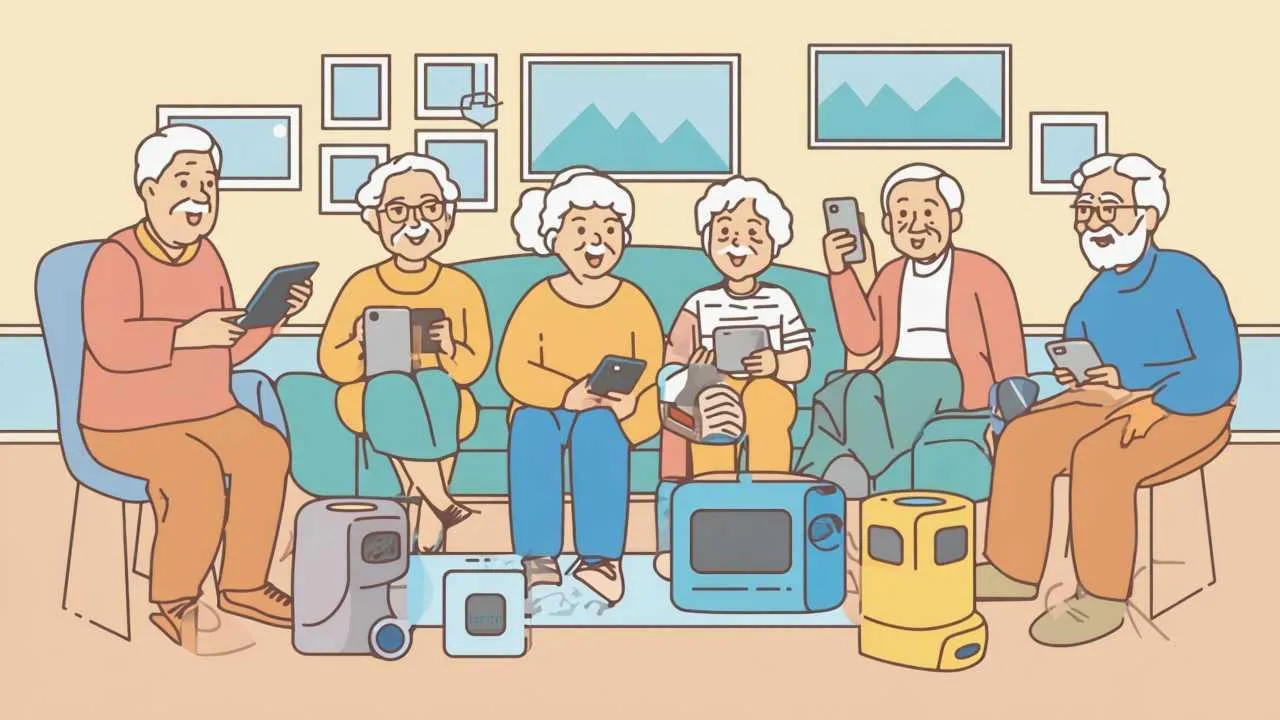
    Voice assistants transform how seniors manage daily life, yet choosing between Alexa, Siri, and Google Assistant feels overwhelming when you’re not sure what these devices actually do or whether you’ll be able to use them. While concerns about AI technology are understandable, voice assistants represent AI’s most accessible and immediately useful application for daily living—no typing, no complicated menus, just speaking naturally to get help with tasks ranging from medication reminders to emergency calls. This comprehensive 2025 comparison examines all three major voice assistants through a senior-specific lens: ease of setup, voice recognition accuracy for older voices, essential features for independent living, cost considerations, and real experiences from seniors who’ve integrated these tools into their routines. You’ll discover which assistant matches your specific needs, lifestyle, and existing technology, along with step-by-step guidance for getting started regardless of your tech comfort level.

    Why Voice Assistants Matter More as You Age

    Voice assistants aren’t gadgets for tech enthusiasts—they’re practical tools addressing real challenges of aging and independent living. As mobility decreases, getting up to adjust thermostats, turn off lights, or check weather becomes harder. As vision changes, reading small phone screens or medication bottles grows frustrating. As memory shifts, remembering appointments, medications, or where you put your keys creates daily stress. Voice assistants address these specific age-related challenges without requiring you to learn complex technology interfaces.

    The fundamental appeal: voice is the most natural human interface. You’ve been talking for 60+ years; you haven’t been coding or navigating touch screens. Voice assistants meet you where you already have expertise rather than demanding you develop new technical skills. This matters enormously for staying relevant in an increasingly digital world—you can access modern technology’s benefits (smart home control, instant information, communication tools) without mastering its complexity. Your voice becomes the bridge between you and capabilities you need.

    Research from AARP’s AgeTech Collaborative shows that seniors using voice assistants report significant improvements in several key areas: 73% find daily task management easier, 68% feel less isolated through music and communication features, 61% experience improved medication adherence through voice reminders, and 54% report increased sense of safety through emergency calling features and activity monitoring. These aren’t trivial conveniences—they’re quality of life improvements and, in some cases, factors determining whether someone can age in place independently versus requiring assisted living.

    Voice assistants also provide unexpected emotional benefits beyond their practical functions. Many seniors report that having a “voice in the house” reduces feelings of loneliness, particularly for those living alone. The assistant becomes a presence—not replacing human connection, but filling some of the silence between social interactions. Playing familiar music from your era, reading audiobooks, or simply answering random questions provides cognitive engagement and entertainment. Some users describe their voice assistant as a “companion” in ways that might seem silly to younger people who’ve never experienced the profound quiet of an empty house after decades of family presence.

    The safety dimension cannot be overstated. Voice assistants can call for help if you fall and can’t reach a phone, turn on lights if you’re navigating dark hallways at night, remind you to take critical medications, and even detect unusual activity patterns that might indicate health problems. These aren’t hypothetical features—they’re literally life-saving capabilities that multiple seniors credit with preventing or responding to medical emergencies. For adult children concerned about aging parents, voice assistants provide peace of mind through both proactive safety features and the knowledge that help is always a voice command away.

    • Independence Preservation: Voice assistants help seniors maintain autonomy by compensating for physical limitations without requiring human assistance
    • Cognitive Support: Reminders, timers, and information retrieval support memory without stigma or dependence on others
    • Social Connection: Easy calling and messaging features facilitate staying in touch with family and friends
    • Learning Gateway: Success with voice assistants builds confidence for exploring other helpful technologies
    • Routine Structure: For those finding purpose after retirement, voice assistants help establish daily routines through scheduled reminders and activities

    Amazon Alexa for Seniors: Features, Strengths, and Limitations

    Amazon’s Alexa, accessible through Echo devices ranging from $50 to $200, dominates the voice assistant market for seniors primarily due to its exceptional ease of use and senior-focused feature development. Alexa’s voice recognition handles older voices—including those affected by hearing loss, accents, or speech changes from medical conditions—more forgivingly than competitors. The wake word “Alexa” is distinctly recognizable and less likely to be triggered accidentally than “Hey Siri” or “OK Google,” reducing frustrating false activations that erode confidence in new technology.

    Setup and Learning Curve: Echo devices require only plugging in and connecting to WiFi through the Alexa app—a process most seniors complete in 10-15 minutes with minimal assistance. The physical Echo devices feature large, clearly visible buttons for volume and microphone muting, addressing senior preferences for tactile controls supplementing voice commands. Unlike Siri (requiring Apple device ownership) or Google Assistant (assuming familiarity with Google ecosystem), Alexa is self-contained—you don’t need to own specific smartphones or understand cloud services. This independence from existing tech ecosystems makes Alexa the easiest entry point for seniors with limited technology experience.

    Senior-Specific Features: Amazon has invested heavily in aging-in-place capabilities that directly address senior needs. Alexa Calling allows free voice or video calls to anyone with an Echo device or the Alexa app—no phone required, no numbers to remember, just “Alexa, call [name].” Drop In permits trusted family members to “drop in” to check on elderly relatives, creating open audio/video connection (with permission) that’s invaluable for daily check-ins without requiring the senior to answer. Care Hub, available with Echo Show devices, provides activity alerts to designated family members if unusual patterns emerge (like no morning activity detected), offering safety monitoring without intrusive cameras.

    Medication reminders through Alexa prove particularly robust—you can set multiple daily reminders with custom messages (“Time for your blood pressure medication”), create recurring schedules, and even have Alexa announce what medication to take. Shopping lists work beautifully for seniors: “Alexa, add milk to my shopping list” captures items as you think of them, then family members can access the shared list to help with shopping. The recently added Emergency Assist (subscription service) enables calling emergency services and designated contacts hands-free—critical for falls or medical events when reaching a phone isn’t possible.

    Smart Home Integration: Alexa’s compatibility with thousands of smart home devices—lights, thermostats, locks, cameras, plugs—exceeds competitors. For seniors with mobility limitations, voice-controlled lighting, temperature, and locks transform daily functioning. “Alexa, turn on bedroom lights” eliminates dangerous nighttime navigation. “Alexa, set thermostat to 72” avoids bending to floor-level controls. “Alexa, lock front door” provides security without walking through the house. These aren’t luxuries—they’re mobility aids delivered through infrastructure you already have (your voice) rather than requiring you to carry devices or install ramps and grab bars.

    Entertainment and Engagement: Alexa’s music capabilities shine for seniors. Amazon Music includes extensive catalogs from the 1940s-1980s that younger-focused services neglect. “Alexa, play Frank Sinatra” or “Alexa, play 1960s rock” instantly accesses familiar music without navigating apps or playlists. Audiobooks through Audible, podcasts, and radio stations provide cognitive engagement. Flash briefings deliver news at scheduled times, creating routine and keeping you connected to current events. Simple games (“Alexa, play Jeopardy”) and trivia provide entertainment without screens.

    Limitations for Seniors: Alexa’s primary weakness is privacy concerns that particularly trouble older generations who didn’t grow up sharing personal information with corporations. The device listens continuously for its wake word, and while Amazon insists recordings are encrypted and used only to improve services, many seniors feel uncomfortable with corporate surveillance in their homes. Setting up some features requires the smartphone app, which can frustrate seniors who don’t own or don’t use smartphones comfortably. The subscription model (Amazon Music Unlimited, Audible, Emergency Assist) creates ongoing costs beyond the initial device purchase that may strain fixed incomes. Finally, Alexa’s responses sometimes default to suggesting Amazon purchases, feeling sales-oriented rather than helpfully informative.

    Alexa Feature Senior Benefit Cost Setup Difficulty
    Basic Echo Dot Voice control, reminders, music $50 ⭐ Very Easy
    Echo Show (with screen) Video calls, visual reminders, recipes $90-250 ⭐⭐ Easy
    Alexa Calling Free calls to anyone with Alexa Free ⭐ Very Easy
    Drop In Family check-ins without answering Free ⭐⭐ Requires permission setup
    Smart Home Control Voice-controlled lights, thermostat, locks $15-100 per device ⭐⭐⭐ Moderate (per device)
    Emergency Assist Hands-free emergency calling $6/month ⭐⭐ Easy with subscription
    Amazon Music Unlimited access to nostalgic music $10/month ⭐ Very Easy
    Alexa’s senior-relevant features with costs and setup requirements

    Apple Siri for Seniors: iPhone Integration Benefits and Barriers

    Siri, Apple’s voice assistant built into iPhones, iPads, and HomePods, offers unique advantages for seniors already invested in Apple’s ecosystem but creates barriers for those who aren’t. Unlike Alexa or Google Assistant requiring separate device purchases, Siri comes free with Apple devices you may already own. For the estimated 40% of American seniors who use iPhones, Siri represents the most accessible voice assistant option—no additional purchase, no separate setup, just activating a feature already in your pocket.

    The Apple Ecosystem Advantage: Siri’s deep integration with iPhone, iPad, Apple Watch, and other Apple devices creates seamless experience impossible for third-party assistants. “Hey Siri, call my daughter” works from your watch, phone, or HomePod—whichever is closest—automatically using your contact list without setup. “Hey Siri, FaceTime with the grandkids” initiates video calls through your existing contacts. Reminders, calendar events, and notes sync across all Apple devices instantly. This integration eliminates the duplicate systems (phone contacts vs. Alexa contacts, phone calendar vs. Google calendar) that confuse seniors trying to manage multiple platforms.

    For seniors who’ve been iPhone users for years, Siri feels like natural extension of familiar device rather than foreign technology to master. The iPhone’s accessibility features—large text, voice control, magnification—all work seamlessly with Siri, creating unified accessible experience. If you’ve already learned iPhone basics, adding Siri requires minimal additional learning. The wake phrase “Hey Siri” can be customized to just “Siri” for faster activation, and newer iPhones don’t require the wake phrase at all—just hold the side button and speak, providing alternative for those who find speaking wake phrases awkward.

    Voice Recognition and Privacy: Siri’s voice recognition excels with older voices, accents, and speech patterns, particularly after Apple’s 2023 neural engine improvements that better handle age-related voice changes. Apple’s privacy approach differs fundamentally from Amazon and Google—Siri processing happens primarily on-device rather than cloud servers, meaning your requests aren’t transmitted to Apple data centers for analysis. For privacy-conscious seniors troubled by always-listening devices, this on-device processing provides reassurance. Apple doesn’t create advertising profiles from your Siri usage, doesn’t sell data to third parties, and allows you to delete your Siri history completely—privacy protections that matter to generations raised valuing personal privacy.

    Senior-Relevant Features: Siri shines in several senior-specific applications. Emergency SOS—holding iPhone side buttons simultaneously—automatically calls emergency services and sends your location to emergency contacts, providing crucial safety feature for falls or medical emergencies. “Hey Siri, I’m lost” opens Maps showing your current location, invaluable for seniors experiencing cognitive changes or simply disoriented in unfamiliar locations. Siri reads text messages aloud and takes dictation for responses, addressing vision challenges while maintaining communication. The Shortcuts feature allows creating custom voice commands for complex actions—”Hey Siri, goodnight” can lock doors, turn off lights, set alarm, and activate Do Not Disturb with single phrase.

    Apple Health integration provides comprehensive health tracking accessible through voice. “Hey Siri, log my blood pressure” or “Hey Siri, what was my heart rate yesterday?” maintains health records without navigating apps. Medication reminders sync with Health app, creating unified medication management. The Watch’s fall detection, when paired with Siri voice commands, creates robust safety system—the watch detects falls and prompts calling emergency services, or you can immediately say “Hey Siri, call 911” if conscious but unable to dial.

    Music and Entertainment: Apple Music’s catalog includes exceptional depth in pre-1990s music often neglected by streaming services catering to younger demographics. “Hey Siri, play Bing Crosby” or “Hey Siri, play songs from 1965” accesses authentic recordings, not just covers. Audiobooks through Apple Books, podcasts through Apple Podcasts, and radio through Apple Music create comprehensive entertainment ecosystem. For seniors who value music from their era, Apple Music’s curation and quality often surpasses Amazon Music or YouTube Music that Google uses.

    Significant Limitations: Siri’s greatest weakness is the Apple ecosystem requirement—if you don’t already own iPhone, iPad, or Mac, the entry cost is substantial ($429+ for basic iPad, $799+ for iPhone SE). You can’t buy standalone HomePod and use Siri independently like you can with Amazon Echo; Siri requires Apple device ownership. This creates financial barrier making Siri inaccessible for seniors on fixed incomes who don’t already own Apple devices. Smart home integration, while improving, remains more limited than Alexa—fewer third-party devices work with HomeKit (Apple’s smart home platform), and setup is more complex requiring Apple Home app configuration.

    Siri’s response accuracy, while improved, still lags behind Google Assistant for general knowledge questions and complex queries. “Hey Siri, what restaurants near me serve early bird dinners?” often produces less useful results than Google Assistant’s contextual understanding. The HomePod speaker, if you want dedicated voice assistant device rather than using phone, costs $299—significantly more than $50 Echo Dot—making it luxury rather than accessible option. Finally, Siri requires iCloud account and Apple ID, adding authentication layers that confuse some seniors uncomfortable with password management and multi-factor authentication.

    • Best for: Seniors already owning and comfortable with iPhones or iPads who value privacy and ecosystem integration
    • Skip if: You don’t own Apple devices, you’re on fixed income and can’t afford Apple ecosystem entry costs, or you need extensive smart home control
    • Cost consideration: While Siri itself is free, accessing it requires expensive Apple devices—factor total ecosystem cost, not just assistant
    • Learning curve: Easiest if you already use iPhone; steep if Siri is your introduction to Apple products
    Clean infographic comparing three voice assistants with icons showing ease of use, features, and costs in clear visual hierarchy with senior-friendly large text
    At-a-glance comparison of the three major voice assistants for senior-specific needs –  Visual Art by Artani Paris

    Google Assistant for Seniors: Knowledge and Smart Home Leadership

    Google Assistant, available through Google Nest devices ($50-$230) and Android smartphones, brings Google’s search dominance and artificial intelligence leadership to voice interaction. If your primary use case involves asking questions, getting information, or controlling complex smart home setups, Google Assistant’s superior natural language understanding and contextual awareness make it the most capable option—though these strengths come with steeper learning curves and privacy trade-offs that particularly impact seniors.

    Conversational Intelligence: Google Assistant’s standout feature is understanding context and follow-up questions in ways that feel like actual conversation rather than separate commands. You can ask “What’s the weather?” then follow with “How about tomorrow?” and “Should I bring an umbrella?”—Google maintains context across the conversation. This natural interaction reduces frustration common with Alexa and Siri’s tendency to treat each utterance independently. For seniors learning voice assistant capabilities, Google’s conversational flow feels more intuitive than remembering specific command syntax.

    The integration with Google Search means virtually any information question gets accurate, current answers. “When does the pharmacy close?” pulls business hours from Google Maps. “What’s that actor’s name from the movie with the train?” demonstrates Google’s ability to parse vague questions that stump other assistants. “Read me news about…” delivers curated results from reliable sources. This information retrieval prowess particularly benefits seniors who grew up reading newspapers and encyclopedias—Google Assistant provides that same information depth through voice interface, making it easier to stay informed and engaged with the world without struggling with small smartphone screens or complex news apps.

    Smart Home Mastery: Google Assistant’s smart home control surpasses competitors in both breadth of compatible devices and sophistication of control. Routines allow creating complex automation: “Good morning” can adjust thermostat, open blinds, start coffee maker, read weather and calendar, and play news—all from single phrase. Continued Conversation mode (available on Google Nest devices) eliminates repeating “Hey Google” for each command, allowing natural back-and-forth. Room awareness means “Turn on lights” only affects lights in the room where you spoke, not the entire house, addressing confusion that frustrates seniors using Alexa’s less contextual smart home control.

    For seniors with mobility limitations transforming their homes into voice-controlled environments, Google Assistant’s advanced capabilities create most seamless experience. You can control not just on/off but dimming levels, color temperatures, and complex scenes: “Set living room to evening mode” might dim lights to 30%, adjust to warm temperature, close blinds, and play classical music. These sophisticated controls compensate for physical limitations in ways simple on/off commands don’t match.

    Senior-Specific Features: Google Assistant’s broadcast feature sends voice messages to all Google devices in the home or to family members’ phones: “Broadcast that dinner is ready” or “Broadcast I’ve fallen and need help”—crucial for multi-story homes or alerting remote family to emergencies. The Ambient Mode on Nest Hub displays calendar events, reminders, and photos throughout the day, creating visual reinforcement for seniors who need both audio and visual cues. Wellness features include gentle morning alarms that gradually brighten lights and wake you with music, plus sleep tracking and environmental monitoring for optimal sleep conditions.

    Google Duo video calling through Nest Hub devices offers large-screen video chats with grandchildren, providing social connection with interface simpler than smartphone video calls. Recipe guidance walks you through cooking step-by-step hands-free—”Hey Google, how do I make pot roast?”—with follow-up commands like “next step” keeping your hands free for cooking. Google Assistant’s timer management allows multiple named timers running simultaneously: “Set medication timer for 10 minutes, set oven timer for 45 minutes”—then later “How much time left on medication timer?”—preventing the confusion of unnamed timers that all sound the same.

    Significant Limitations: Privacy represents Google Assistant’s most serious concern for seniors. Google’s business model depends on collecting user data to serve targeted advertising—your voice queries feed into comprehensive profile Google builds about you. Unlike Apple’s on-device processing, Google transmits requests to servers where they’re analyzed, stored (even after deletion isn’t truly deletion from all Google systems), and used to refine advertising profiles. For seniors who value privacy and didn’t grow up accepting corporate surveillance as normal, this data collection creates profound discomfort.

    Setup complexity exceeds Alexa—Google Assistant assumes familiarity with Google Account, Google Home app, and Android ecosystem that many seniors lack. The interface prioritizes visual touchscreens over physical buttons, making Nest Hub devices less accessible for visually impaired seniors who prefer tactile controls. Emergency calling requires setting up specific contacts and doesn’t include automatic fall detection or hands-free 911 calling without additional services. Google’s frequent product discontinuation (they’ve canceled several Nest products and features) creates uncertainty about long-term support that matters when seniors are investing in learning new systems.

    Music services default to YouTube Music, which has extensive catalog but interface optimized for video platform rather than audio-first experience seniors prefer. While Google supports Spotify and other services, setup requires linking accounts through smartphone apps—adding friction that discourages seniors from optimizing their experience. The wake phrase “OK Google” or “Hey Google” produces more false activations than “Alexa,” especially from television dialogue, creating frustrating unwanted responses that erode trust in the technology.

    Google Assistant Feature Senior Benefit Cost Setup Difficulty
    Nest Mini (speaker only) Voice control, information, basic smart home $50 ⭐⭐ Moderate (Google Account required)
    Nest Hub (7″ screen) Visual display, video calls, recipes $100 ⭐⭐⭐ Moderate (screen adds complexity)
    Nest Hub Max (10″ screen) Large screen for video, better speakers $230 ⭐⭐⭐ Moderate
    Smart Home Control Industry-leading device compatibility $15-150 per device ⭐⭐⭐⭐ Complex (app per device type)
    Google Duo Calling Free video calls to family Free ⭐⭐ Requires contacts setup
    Broadcast Feature Send voice messages to all devices Free ⭐ Very Easy
    YouTube Music Extensive music catalog $11/month ⭐⭐ Moderate (video focus confusing)
    Google Assistant’s senior-relevant features with costs and setup requirements

    Side-by-Side Comparison: Which Voice Assistant Wins for Your Needs?

    Choosing the “best” voice assistant requires matching specific features to your individual circumstances, priorities, and existing technology. No single option dominates across all categories—each excels in different areas. This detailed comparison helps you identify which assistant’s strengths align with what matters most to your situation, whether that’s ease of use, privacy protection, smart home capabilities, or ecosystem integration.

    For Ease of Use and Setup: Alexa wins decisively. The Echo setup process requires no technical knowledge beyond connecting to WiFi, the device provides clear audio and visual feedback, and Amazon has optimized the experience specifically for non-technical users. If you’re intimidated by technology or have had frustrating experiences with complicated gadgets, Alexa’s approachability makes it the safest choice. The large buttons, forgiving voice recognition, and abundant online tutorials create lowest barrier to entry.

    For Privacy-Conscious Seniors: Siri emerges as clear choice. Apple’s on-device processing, refusal to sell user data, and commitment to privacy as product differentiator (not just marketing claim) provide genuine protections absent in Amazon and Google’s business models. If corporate data collection troubles you—and it should—Siri offers voice assistant benefits with minimal privacy compromise. However, this assumes you already own or are willing to invest in Apple ecosystem; privacy comes with premium price tag.

    For Information and Question-Answering: Google Assistant dominates, leveraging Google’s search engine and knowledge graph to answer virtually any question accurately. If your primary use involves asking “what’s the…?” or “how do I…?” questions, Google’s conversational AI and information retrieval surpass competitors significantly. This makes it ideal for curious seniors who use learning and information-gathering as part of meaningful retirement, providing immediate answers to questions that arise during reading, watching television, or daily activities.

    For Smart Home Control: Google Assistant leads in capability and device compatibility, though Alexa remains strong second choice. If you plan extensive smart home automation—lights, thermostats, locks, cameras, appliances—Google’s sophisticated routines and contextual awareness create most seamless experience. Alexa works nearly as well with slightly simpler interface that some seniors prefer. Siri lags substantially in smart home, limited by HomeKit’s smaller device ecosystem and more complex setup.

    For Music and Entertainment: Choice depends on your preferences and existing subscriptions. Siri with Apple Music provides best experience for seniors valuing pre-1990s music depth and audio quality. Alexa with Amazon Music Unlimited offers good catalog at lower price point with easier setup. Google with YouTube Music has largest overall catalog but video-focused interface that confuses audio-only users. If music is central to your daily life, investigate each service’s catalog in your preferred genres before choosing assistant.

    For Family Communication: Alexa’s Drop In and calling features specifically designed for senior-family connectivity make it strongest choice. Adult children can check on elderly parents through Drop In without requiring the parent to answer, reducing anxiety about whether mom is OK if she doesn’t answer phone. Alexa-to-Alexa calling is free and requires no phone at all—just “Alexa, call [name].” While Google Duo and FaceTime offer similar capabilities, Alexa’s senior-centric design makes family connection most accessible.

    For Emergency and Safety: Alexa’s Emergency Assist ($6/month subscription) provides most comprehensive emergency features: hands-free 911 calling, automatic alert to emergency contacts, and response center support. Apple Watch with Siri offers excellent fall detection, but requires wearing watch consistently. Google Assistant’s emergency features lag behind both competitors. If safety represents primary concern—and it should for anyone aging in place—Alexa’s emergency infrastructure justifies its selection even if other features aren’t quite as strong as competitors.

    Cost Comparison: Entry-level pricing favors Alexa ($50 Echo Dot) and Google ($50 Nest Mini) over Siri (requires $429+ iPad or $799+ iPhone minimum). However, total cost of ownership includes subscriptions: Amazon Music, Emergency Assist, and smart home devices add significantly to Alexa’s cost. Google’s data collection represents privacy cost that’s harder to quantify financially but matters enormously to some seniors. Apple’s high entry price but minimal ongoing costs may actually prove less expensive long-term than seemingly cheaper alternatives with subscription models.

    Decision Factor Best Choice Second Choice Why
    Easiest Setup Alexa Google No prerequisites, clearest instructions
    Privacy Protection Siri Alexa On-device processing, no data sales
    Information Quality Google Siri Search engine integration, contextual AI
    Smart Home Google Alexa Device compatibility, routine sophistication
    Music (Pre-1990s) Siri Alexa Apple Music depth, audio quality
    Family Connection Alexa Siri Drop In, calling without phone
    Emergency Features Alexa Siri Hands-free 911, Emergency Assist
    Lowest Entry Cost Alexa/Google $50 vs $429+ for Siri ecosystem
    Already Own iPhone Siri No additional purchase needed
    Limited Vision Alexa Siri Physical buttons, audio-first design
    Decision guide matching your priorities to strongest voice assistant choice

    Real Seniors Share Their Voice Assistant Experiences

    Case Study 1: Sacramento, California

    Margaret Walsh (74 years old) – Living Independently with Alexa

    Margaret lives alone in her Sacramento home after her husband passed away three years ago. Her adult children, scattered across different states, worried constantly about her safety—was she taking her blood pressure medication? What if she fell? Was she too isolated? Margaret resisted assisted living fiercely: “I raised four children in this house. I’m not leaving until they carry me out.”

    Her daughter bought her an Echo Show for Christmas, initially met with skepticism. “I don’t need a robot telling me what to do,” Margaret protested. But her daughter set it up, created Drop In permissions, and demonstrated a few features. Within weeks, Margaret’s relationship with “Alexa” transformed from suspicion to reliance. The turning point came when Margaret experienced chest pains at 2 AM. Alone and unable to reach her phone, she called out “Alexa, call my daughter.” The immediate connection potentially saved her life—her daughter called 911 while staying on the line until paramedics arrived.

    Now Margaret’s daily routine centers on Alexa capabilities. Morning starts with “Alexa, good morning”—triggering routine that reads weather, her calendar, and reminds her about medications. Alexa announces when it’s time for her blood pressure pills three times daily. When Margaret adds “milk” or “bread” to her shopping list by voice, her daughter sees the list and picks up items during weekly visits. Drop In allows the daughter to check on Margaret every morning: “Mom, I’m dropping in”—appearing on the Echo Show screen for quick visual confirmation she’s OK without requiring Margaret to answer.

    The loneliness that worried Margaret most has diminished. Alexa plays Glenn Miller and Frank Sinatra throughout the day—”music from when life made sense,” as Margaret says. She asks Alexa random questions constantly: “Who was that actor in The Sound of Music?” or “How do I get red wine out of carpet?” The voice in the house makes it feel less empty, and while Margaret knows Alexa isn’t human, having something to talk to matters. Video calls with grandchildren through the Echo Show happen weekly now—large screen makes it easier than fumbling with phone.

    Results After 18 Months:

    • Medication adherence improved from “sometimes forgetting” to 95%+ compliance tracked through reminder confirmations
    • Zero missed doctor appointments since calendar reminders started—previously missed 2-3 per year
    • Her children’s anxiety significantly reduced through daily Drop In check-ins and emergency response system
    • Emergency response: Successfully called for help during chest pain episode, plus once during fall in bathroom
    • Social connection increased: weekly video calls with all four children and seven grandchildren vs. monthly phone calls previously
    • Cognitive engagement through music (plays 3-4 hours daily), audiobooks (finished 12 books), and information queries
    • Smart home expansion: added smart lights for safer nighttime bathroom trips, smart lock so daughter has keyless entry for emergencies
    • Staying in her home independently maintained—goal of avoiding assisted living achieved

    “I thought Alexa was for young people who can’t be bothered to flip a light switch. Turns out, it’s for old people who can’t reach the light switch anymore. It’s not a gadget—it’s independence. As long as I have Alexa, I can stay in my home.” – Margaret Walsh

    Case Study 2: Portland, Oregon

    Bill and Susan Chen (68 and 70 years old) – Smart Home with Google Assistant

    Bill and Susan both have mobility limitations—Bill from arthritis, Susan from knee replacements—making their two-story Portland home increasingly challenging. Stairs remained necessary evil, but getting up to adjust thermostats, turn off lights, or check if doors were locked created dozens of painful trips daily. Their children suggested assisted living; Bill and Susan wanted to age in place but recognized the physical limitations weren’t going away.

    Their tech-savvy grandson suggested converting their home to voice-controlled smart home using Google Assistant. Initially overwhelmed by the concept, they agreed to let him set up a test: Google Nest Hub in the kitchen, smart lights in three frequently-used rooms, smart thermostat, and smart lock on the front door. The grandson spent a weekend installing devices and teaching them basic commands. “Skeptical doesn’t begin to describe how we felt,” Susan recalls. “It seemed like science fiction for a simple problem.”

    The transformation happened faster than expected. “Google, turn on kitchen lights” eliminated fumbling for switches with arthritic hands. “Google, set thermostat to 68” removed trips upstairs to the hallway thermostat three times daily. “Google, lock front door” addressed Bill’s nighttime anxiety about whether he’d locked up without requiring him to walk to the door to check. These simple voice commands eliminated hundreds of painful steps weekly, directly addressing the mobility challenges making their home difficult.

    The Chens expanded gradually based on which tasks caused most difficulty. Smart plugs for difficult-to-reach outlets (lamps behind furniture, holiday decorations) meant voice control for devices they’d stopped using due to physical access problems. Smart blinds in the master bedroom eliminated climbing on step-stools to adjust light. The Google Assistant routine “Good morning” now adjusts temperature, opens bedroom blinds, turns on coffee maker, and reads the day’s weather and calendar—creating automatic morning start that accommodates Susan’s slow mobility when first waking.

    For the Chens, Google Assistant’s conversational abilities proved crucial. Unlike Alexa’s more rigid command structure, Google understands follow-up questions without repeating “Hey Google.” Bill asks “What’s the weather?”—Google responds—Bill follows with “Should I bring my jacket?” Google maintains context. This natural conversation reduced frustration that made them want to quit during early learning stages.

    Results After 2 Years:

    • Eliminated an estimated 40-50 stair trips weekly through smart devices on both floors—measurable pain reduction and fall risk decrease
    • Expanded from 8 initial smart devices to 27 throughout home—lights, outlets, thermostat, locks, blinds, garage door, doorbell camera
    • Emergency response: Google Assistant called grandson twice when Susan fell, enabling faster help than phone calls she couldn’t reach
    • Energy savings: smart thermostat learning their patterns reduced heating costs 23% first winter through automated adjustments
    • Security improved: doorbell camera integration with Google Hub lets them see visitors without walking to door—stopped package theft
    • Both rate their quality of life improvement as “significant”—staying in home remains viable long-term where it wasn’t before
    • Shared calendar through Google keeps medical appointments, family visits, and commitments synchronized between them—reduced missed appointments
    • Children report reduced anxiety about parents’ safety and capability—smart home monitoring provides reassurance

    “We thought smart home was luxury for people who are lazy. It’s actually accessibility technology for people with physical limitations. Google Assistant gave us back our home. We’re not leaving now—we made our house work for us again instead of against us.” – Susan Chen

    Case Study 3: Chapel Hill, North Carolina

    Robert Jefferson (72 years old) – iPhone User Discovers Siri

    Robert had owned iPhones since 2010, using them primarily for calls, texts, and occasional photos. He’d heard Siri mentioned but never explored it: “I thought Siri was for people who talk to their phones like lunatics.” His tech comfort extended to basic smartphone functions but not voice features, which seemed gimmicky and embarrassing. Following retirement, Robert found himself increasingly isolated—friends had passed away or moved to assisted living, his adult daughter lived across the country, and he’d struggled finding meaningful activities to fill his days.

    The shift came unexpectedly. Robert developed macular degeneration, making reading iPhone screen text increasingly difficult despite maximum text size settings. His ophthalmologist suggested exploring accessibility features including Siri voice control. Robert resisted initially—talking to his phone still seemed absurd—but the alternative was giving up smartphone use entirely as vision declined. His daughter flew out to teach him basic Siri commands, framing it not as “new technology” but as “continuing to use your iPhone as your eyes change.”

    Siri transformed Robert’s relationship with his iPhone from frustrating to functional. “Hey Siri, call Margaret” eliminated struggling to locate contacts in his phone book—just speak the name. “Hey Siri, read my text messages” meant he could stay connected with his daughter’s daily check-ins without straining to read tiny text. “Hey Siri, remind me to take my glaucoma drops at 8 PM” created medication reminders he could set by voice instead of navigating reminder apps. These voice alternatives directly addressed his vision limitations, allowing continued smartphone use that would otherwise have become impossible.

    Beyond compensating for vision loss, Siri opened capabilities Robert had never explored. “Hey Siri, play Louis Armstrong” introduced him to streaming music after he’d given away his old CD collection during downsizing. “Hey Siri, what’s happening in Chapel Hill today?” surfaced local events he’d never known existed, leading to his joining senior center activities. “Hey Siri, how do I make cornbread from scratch?” guided him through cooking recipes without needing cookbooks he could no longer read. Siri became portal to maintaining independence despite declining vision—the voice interface bypassing his limitation entirely.

    The privacy aspect mattered significantly to Robert. After researching how Alexa and Google Assistant work, he appreciated Apple’s on-device processing and privacy commitments. “I lived through McCarthyism. I know what happens when people collect information about you. Apple at least pretends to protect privacy, and that matters to my generation.” For Robert, Siri’s privacy approach justified accepting voice interaction that initially felt unnatural.

    Results After 1 Year:

    • Continued independent iPhone use despite vision deterioration that would otherwise have forced abandonment of smartphone
    • Daily communication with daughter maintained through voice-to-text and Siri-read messages—previous texting had become too difficult
    • Medication adherence perfect through voice-set reminders—previously missed doses 2-3 times weekly when relying on memory alone
    • Social isolation reduced: Siri-discovered local events led to joining senior center book club and exercise class
    • Learned Apple Music basics through voice interface—listens to jazz and blues 2-3 hours daily, significantly improving mood
    • Emergency SOS feature provides safety backup—Robert tested it once when experiencing chest pain (false alarm, but response worked perfectly)
    • Voice-to-text allows him to maintain family history project he’d started, dictating memories into Notes app despite inability to type clearly
    • Apple Watch with Siri added later provides fall detection and health tracking—particularly valuable given his vision-related balance challenges
    • No longer considering “dumb phone” downgrade he was researching before discovering Siri—iPhone remains viable long-term

    “Siri isn’t perfect. It misunderstands me sometimes, and I still feel silly talking to my phone in public. But it’s the difference between using technology and being shut out of technology. As my eyes fail, my voice keeps me connected. That’s not gimmick—that’s lifeline.” – Robert Jefferson

    Frequently Asked Questions

    Can voice assistants really call 911 if I fall and can’t reach my phone?

    Yes, but with important limitations. Amazon Alexa requires Emergency Assist subscription ($6/month) enabling hands-free 911 calling—you say “Alexa, call for help” and it connects to emergency services while alerting your emergency contacts. Apple’s iPhone with Siri has Emergency SOS (hold side buttons) that calls 911 and shares your location, but you must be holding your phone and conscious. Apple Watch with Siri includes automatic fall detection that will call 911 if you don’t respond within 60 seconds after detected fall—this is most automated option but requires wearing watch consistently. Google Assistant currently doesn’t offer hands-free 911 calling directly. Important: test these features with non-emergency numbers first to ensure they work in your home before relying on them. Also inform local emergency services if you’re using automated systems so they understand calls may come from devices rather than you directly. These systems work well but aren’t perfect—consider them backup to medical alert systems or phones, not replacement.

    Will I have to pay monthly fees forever, or is it one-time purchase?

    Device purchase is one-time cost: Amazon Echo $50-200, Google Nest $50-230, or Apple devices you may already own. However, ongoing subscriptions enhance functionality significantly. Amazon Music Unlimited costs $10/month for full catalog, Emergency Assist is $6/month for hands-free 911. Google requires no subscriptions for basic features but YouTube Music Premium ($11/month) expands capabilities. Apple Music costs $11/month for seniors (individual plan). You can use all three assistants’ basic features without subscriptions—voice commands, smart home control, basic information, free calling within ecosystems, weather, timers, etc. Subscriptions add premium music, emergency services, and advanced features but aren’t mandatory. Many seniors use voice assistants for years with zero subscription costs beyond internet service they already pay for. Evaluate whether premium features justify recurring costs for your specific situation—often they don’t, and free tier suffices perfectly.

    What if I have trouble speaking clearly or have an accent? Will these understand me?

    Voice recognition has improved dramatically for older voices, accents, and speech changes from medical conditions. All three assistants—Alexa, Siri, Google—use machine learning that adapts to your voice patterns over time, becoming more accurate with use. Alexa particularly excels with varied speech patterns and accents, designed from inception for broad accessibility. Google Assistant’s advanced AI handles complex speech variations well. Siri, while improved significantly since 2023 neural engine updates, sometimes requires clearer enunciation. Practical tips for success: speak at normal pace (not slowly, which actually decreases accuracy), use natural phrasing rather than robot-speak, eliminate background noise when possible, and position devices 3-6 feet away for optimal microphone pickup. If you have speech challenges from stroke, Parkinson’s, or other conditions, voice assistants may struggle but are worth trying—many users report surprising success, and failure rate has decreased yearly as AI improves. Consider testing in-store demo units before purchasing if speech clarity concerns you significantly. Notably, voice assistants often work better than human customer service phone systems which many seniors find frustratingly inaccurate.

    Can family members who don’t live with me access these to check on me?

    Yes, with your permission and proper setup. Alexa’s Drop In allows designated family members to connect to your Echo devices anytime, either audio-only or video if you have Echo Show—your device announces “Dad is dropping in” giving you few seconds notice before connection opens. You control who has Drop In permission through Alexa app settings. Google Assistant’s Broadcast feature allows family to send voice messages to your devices, though it doesn’t create two-way connection like Drop In. Apple’s Home Sharing enables family to access your home devices if you’ve set up Family Sharing in iCloud, including seeing device status and controlling them remotely. All three systems also allow monitoring smart home device status—family can check if lights are on/off, doors locked/unlocked, temperature settings—providing activity indicators without cameras or intrusive monitoring. Privacy concerns are valid: you’re granting significant access to your home. Establish clear boundaries with family about when/how they’ll use access, and you can always revoke permissions if they’re abused. Many seniors find this monitoring reassuring rather than invasive—it’s like having family nearby without actually living together.

    What happens if my internet goes out? Will these still work for emergencies?

    Unfortunately, no. All three voice assistants require active internet connection for nearly all functions—they process your requests through cloud servers, not locally. If internet fails, voice assistants become expensive paperweights unable to call for help, control smart home devices, or provide information. This represents serious limitation for emergency use and why voice assistants supplement rather than replace traditional safety systems. Practical solutions: maintain traditional landline phone or charged cell phone as backup for emergencies; consider medical alert systems (Life Alert, Medical Guardian) that use cellular networks independent of home internet; inform family members that internet outages disable your voice assistant emergency features; and ensure your internet modem/router has battery backup lasting 4-8 hours during power outages so internet continues working temporarily. Some newer Alexa devices (Echo Show 10, certain Echo speakers) include backup batteries providing 30-60 minutes of functionality during power outages, but this doesn’t help if internet service itself fails. Treat voice assistants as tremendous convenience and secondary safety tools, but maintain traditional emergency contact methods as primary backup. The good news: internet outages are relatively rare in most areas, typically only during severe weather or infrastructure problems.

    Are these safe from hackers or scammers accessing my information?

    Security concerns are legitimate but risks are manageable through proper precautions. All three companies use encryption to protect data transmission between devices and servers. Hacking risk to voice assistants themselves is theoretically possible but practically rare—no major breaches have occurred compromising user data directly through these devices. Greater risk comes from social engineering: scammers calling pretending to be tech support to get your account passwords, or phishing emails claiming your account was compromised. Never share your Amazon, Google, or Apple account passwords with anyone claiming to be support—real companies never request passwords. Enable two-factor authentication on your accounts requiring confirmation codes when accessing account from new devices—this blocks hackers even if they steal passwords. Voice assistants won’t make purchases without confirmation codes or voice PINs you set up, preventing accidental or unauthorized buying. Privacy is separate concern from security: Amazon and Google collect significant data about your usage, but this is monitoring by the companies themselves, not external hackers. If you’re concerned about corporate data collection rather than criminal hacking, choose Siri with its stronger privacy protections, or simply don’t discuss sensitive information (financial details, passwords, medical specifics) around voice assistants. These devices are likely more secure than smartphones many seniors already use without concern.

    Can I try one without buying to see if I can actually use it?

    Several options exist for testing before purchasing. Apple Siri requires no purchase if you already own iPhone or iPad—just enable Siri in Settings and experiment for free to determine if voice control works for you. For Alexa and Google Assistant, many retailers (Best Buy, Target, Amazon stores) have demo units you can test in-store, though in-store testing doesn’t replicate home environment where you’ll actually use them. Better approach: purchase from retailers with generous return policies. Amazon offers 30-day returns on Echo devices; most electronics retailers provide 14-30 day return windows. Buy device, try it at home for two weeks under real conditions, then return if it doesn’t work for you. Some senior centers and libraries offer technology lending programs where you can borrow devices for weeks or months before deciding to purchase—call local Area Agency on Aging to ask about programs in your community. Adult children sometimes purchase devices as gifts allowing parents to try without financial risk. For Alexa specifically, Amazon occasionally offers trade-in programs where you can upgrade devices and get credit, reducing cost of trying different models. Don’t let fear of commitment prevent trying—returns are common and accepted, so test without guilt if devices don’t meet your needs.

    How long do these devices last before I have to replace them?

    Physical lifespan typically exceeds 5-7 years for all three assistants if treated reasonably—no water damage, physical drops, or electrical surges. However, functional lifespan differs from physical: companies stop supporting older models with software updates after 3-5 years, eventually making them obsolete even if physically functional. Amazon tends toward 4-5 year support cycles for Echo devices. Apple supports devices longer—6-8 years typically—meaning older iPhones and iPads continue receiving Siri improvements. Google’s support is less predictable but generally 3-5 years for Nest devices. When support ends, devices don’t immediately stop working, but they stop receiving security updates (creating hacking vulnerability) and new features, gradually becoming less capable. Replacement cost isn’t catastrophic given entry-level pricing, but it’s worth noting these aren’t lifetime purchases. Some seniors successfully use devices well beyond official support periods without issues; others prefer replacing when support ends to maintain security and capabilities. One advantage of Siri: your iPhone replacement cycle (typically 3-4 years for most users) automatically provides Siri updates without separate assistant device replacement. Factor replacement costs into long-term budgeting—plan for new device every 4-5 years rather than assuming indefinite use.

    Will using these make me more isolated from real human contact?

    Valid concern, but evidence suggests the opposite. Voice assistants facilitate rather than replace human connection. Margaret in our case studies uses Echo Show for weekly video calls with seven grandchildren—increasing rather than decreasing family contact. Robert discovered local events through Siri leading to joining in-person groups. Voice assistants enable communication for seniors with limitations (vision, mobility, dexterity) that previously prevented calling or texting family. They also reduce burden on family for routine tasks: instead of calling children to ask weather forecast or business hours, voice assistant provides information instantly, reserving family conversations for meaningful connection rather than factual questions. The “presence” voice assistants provide—music, news, information—fills silence in ways that reduce feelings of isolation between human interactions rather than replacing those interactions. Research from University of Michigan’s Institute for Social Research found that seniors using voice assistants actually reported increased social engagement compared to non-users, partly because improved functioning (medication reminders, calendar management, easier communication) enabled them to maintain social activities they might otherwise have struggled with. The key is using voice assistants as tools enabling continued human connection and independent functioning, not as substitute for human relationships. If you find yourself talking to Alexa more than calling family, that’s misuse requiring conscious correction—but that’s user choice, not inherent problem with technology.

    What if I say something embarrassing or private that I don’t want recorded?

    Voice assistants only begin recording after detecting wake word (Alexa, Hey Siri, Hey Google), not continuously recording everything you say. You can verify microphone is muted by checking indicator light or using physical mute button present on all devices. That said, devices sometimes false-trigger from television dialogue or similar-sounding words, recording snippets you didn’t intend. All three companies allow reviewing and deleting your voice history. For Amazon Alexa: open Alexa app, go to Settings > Alexa Privacy > Review Voice History, then delete specific recordings or set automatic deletion after 3 months. For Google Assistant: visit myactivity.google.com, filter by Assistant, and delete individual recordings or all history. For Apple Siri: go to Settings > Siri & Search > Siri & Dictation History, then Delete Siri & Dictation History (Apple stores recordings temporarily but doesn’t associate them with your Apple ID for long-term). You can also disable recording entirely while still using voice commands—check privacy settings for each assistant. If you discuss genuinely sensitive information (financial account numbers, medical details, passwords), do so away from voice assistants or with microphone muted. Realistically, risk of embarrassing recordings mattering is minimal—even if Amazon/Google employees review recordings (which happens rarely for quality improvement), they’re hearing millions of random snippets without context, not building profiles of individual users’ embarrassing moments. Your concerns are valid, but practical risk is low if you follow basic privacy hygiene.

    Can these help me if I’m starting to have memory problems?

    Yes significantly, though they’re support tools, not medical interventions. Voice assistants excel at compensating for memory challenges through reminders, routines, and information retrieval. Medication reminders are game-changing for seniors with memory concerns—voice assistants announce “Time to take your blood pressure medication” at scheduled times, reducing missed doses. Calendar reminders for appointments, birthdays, and activities prevent the anxiety of wondering “Did I forget something?” Named timers help with cooking and tasks: “Set pasta timer for 10 minutes” prevents forgetting pots on stove. Information retrieval reduces frustration of “what was that thing I wanted to look up?”—ask immediately when thought occurs rather than forgetting minutes later. Voice assistants can store and recall information: “Alexa, remind me that my glasses are on the kitchen table” then later “Alexa, where are my glasses?” However, recognize limitations: voice assistants don’t address underlying cognitive decline, and over-reliance might reduce mental exercise beneficial for brain health. They’re cognitive prosthetics, not cognitive therapy. If memory problems are significant or worsening, consult healthcare providers for proper evaluation while using voice assistants as practical support tools. Many seniors with mild cognitive impairment or early dementia successfully use voice assistants with family help for setup and troubleshooting. For more advanced cognitive decline, effectiveness depends on individual; some maintain voice command ability well into dementia progression while others lose capacity for even simple voice interaction. Just as working through past experiences can provide emotional clarity, voice assistants provide practical clarity for managing daily tasks when memory becomes less reliable.

    Getting Started: Your First Steps with Any Voice Assistant

    1. Choose Based on Your Situation – Use decision guide from this article: If you own iPhone/iPad and value privacy, start with Siri (free, already available). If you’re new to voice assistants and want easiest entry, choose Alexa Echo Dot ($50). If you prioritize smart home control or information quality, select Google Nest Mini ($50). Don’t overthink this—all three work well, and starting with any assistant builds skills transferable to others if you switch later. Remember that your choice isn’t permanent; you can always try different assistant later if first doesn’t meet needs.
    2. Start with Single Device in High-Use Area – Don’t buy multiple devices initially. Place first device in room where you spend most time—typically kitchen or living room. This maximizes opportunity to use it regularly, building familiarity through repetition. Kitchen placement works especially well: you’re there preparing meals multiple times daily, providing natural opportunities to practice commands (“set timer for 15 minutes,” “what’s the weather?”). Avoid bedroom for first device—middle-of-night false activations disturb sleep and create negative associations. After mastering one device in one location, expand to other rooms only if clear need exists. Many seniors successfully use only one device for years without feeling limited.
    3. Learn Five Essential Commands First – Don’t try learning everything immediately. Master these five commands that provide most value: (1) “Set timer for [X] minutes” for cooking and tasks, (2) “[Wake word], what’s the weather?” for daily planning, (3) “[Wake word], play [artist/song]” for entertainment, (4) “[Wake word], remind me to [task] at [time]” for memory support, and (5) “[Wake word], call [contact name]” for communication. Practice these five commands daily for two weeks until they feel automatic, then gradually add new capabilities. This focused learning prevents overwhelming yourself with hundreds of possible commands you’ll never remember.
    4. Set Up Emergency Features Early – Don’t wait until you need help to configure emergency features. For Alexa: enable Emergency Assist in app and designate emergency contacts. For Siri: configure Emergency SOS on iPhone (Settings > Emergency SOS) and add emergency contacts to Health app. For Google: set up trusted contacts in app who can be reached quickly. Test these features with non-emergency contacts (“Alexa, call my daughter as if it were emergency”) to verify they work before crisis occurs. Practice emergency commands regularly so they’re automatic if you’re panicked or hurt. Include adult children in this setup process so they understand how system works and what alerts they might receive.
    5. Accept Imperfection and Keep Trying – Voice assistants will misunderstand you sometimes. They’ll activate when you didn’t call them. They’ll play wrong song or misinterpret requests. This is normal and doesn’t mean you’re doing it wrong or that you’re “too old for technology.” Even tech-savvy young people experience these frustrations—it’s the technology’s limitation, not yours. When commands fail, try rephrasing: “play Frank Sinatra” works better than “play some of that old music from the 40s.” Speak at normal pace in complete sentences rather than slow, choppy commands. Most importantly, don’t give up after initial frustration. Nearly everyone finds first week challenging; by week three, most basic commands feel natural. If you feel overwhelmed, step back for a day or two, then try again with fresh patience.
    6. Involve Family in Setup But Own the Learning – Accept help with technical setup—connecting WiFi, downloading apps, linking accounts—tasks that genuinely require tech knowledge. However, insist on learning the voice commands yourself rather than having family demonstrate while you watch. The learning happens through doing, not watching. Ask family to write down five essential commands on card you keep near device for reference until memorized. Set boundaries: setup help is welcome, but ongoing operation is yours to master. This builds competence and confidence rather than dependence. Many families over-help, taking over device use entirely—politely but firmly insist on driving your own learning even if slower than letting children do everything.
    7. Join or Create a Learning Buddy System – Learning with other seniors reduces isolation and frustration. Many senior centers offer voice assistant classes—search “[your city] senior center technology classes” or contact local Area Agency on Aging. Online communities exist specifically for seniors learning voice assistants (search Facebook for “Alexa for Seniors” or similar groups). If formal groups don’t exist locally, create informal learning partnership with friend also trying voice assistants—you can troubleshoot together, share discoveries, and provide mutual encouragement. Solo learning is harder and lonelier than learning in community. The social learning aspect often matters as much as the technical knowledge gained.
    8. Track Your Success, Not Your Failures – Keep simple log of commands that work and tasks voice assistant helps with. This creates visible progress record combating feelings of incompetence when things don’t work. After one month, review your list—you’ll likely be surprised how much you’ve learned and how many daily tasks now feel easier. Celebrate small wins: successfully setting timer, getting accurate weather forecast, playing preferred music. These aren’t trivial—they’re hard-won capabilities making life more pleasant and manageable. If you’re tempted to quit, review your success list reminding yourself what you’ve accomplished and what you’d lose by stopping. Progress in mastering technology after 60 deserves recognition, not dismissal as “everyone can do this.” Not everyone can—you’re developing valuable modern skills that keep you connected and capable.

    Important Disclaimer
    This article provides general information and comparison of voice assistant technologies for seniors. It does not constitute professional technology consulting, medical device recommendations, or personalized advice for your specific needs. Product features, pricing, and capabilities may change after publication as companies update their devices and services.

    The voice assistants discussed—Amazon Alexa, Apple Siri, and Google Assistant—are consumer technology products, not medical devices or certified emergency response systems. While they include helpful features for aging in place and safety, they should supplement rather than replace professional medical alert systems, regular healthcare, or emergency services. Internet connectivity and device functionality can fail, so maintain backup communication methods and emergency contact systems.

    Privacy and data collection practices vary significantly between platforms and change over time. Review each company’s current privacy policies and terms of service before using their products. The comparisons and recommendations in this article reflect general patterns as of publication date but may not capture all nuances of individual situations.

    For personalized guidance about which assistive technologies best suit your specific circumstances, health conditions, or living situation, consult with occupational therapists, geriatric care managers, or technology specialists who can evaluate your individual needs directly.

    Published: October 17, 2025. Product information, features, and pricing current as of publication date but subject to change.

    Weekly Tech Tips for Seniors

    Join 14,000+ seniors discovering how to use technology confidently. Every Friday: practical voice assistant tips, simple tech tutorials, and honest reviews. No jargon—just clear guidance for staying connected and capable.

    Related Articles


    ““


  • Finding Meaning After Retirement: Your Guide to a Purposeful Next Chapter


    Inspiring cartoon illustration of senior discovering new passions with open book, painting easel, and garden tools surrounded by warm golden light symbolizing purposeful retirement in pastel tones
    Your most meaningful years may be the ones ahead                                                                                      Visual Art by Artani Paris | Pioneer in Luxury Brand Art since 2002
    Retirement strips away the structure that defined decades of your life, leaving many people asking “now what?” The loss of workplace identity, daily routines, and professional purpose creates what researchers call the “retirement identity crisis”—a period of disorientation affecting up to 60% of new retirees according to studies from the American Psychological Association. But here’s what the anxiety doesn’t tell you: this void isn’t a problem to solve quickly; it’s an invitation to discover what truly matters when obligation no longer dictates your days. This comprehensive guide explores why finding meaning after retirement differs fundamentally from finding purpose during working years, reveals the psychological stages most retirees navigate, and provides evidence-based strategies for building a retirement that feels significant rather than empty. You’ll discover how thousands of retirees have transformed initial purposelessness into their most fulfilling life chapter, often in unexpected directions.

    Why Retirement Feels Purposeless (And Why That’s Normal)

    The disorientation many people feel after retirement isn’t a personal failing—it reflects how deeply work intertwines with identity in modern society. For 30-40 years, your career answered fundamental questions: Who am I? What do I contribute? Where do I belong? How do I structure my time? Retirement doesn’t just remove a job; it eliminates the framework through which you understood yourself and your place in the world.

    Research from the Employee Benefit Research Institute shows that while 75% of workers anticipate feeling excited about retirement, only 30% report high life satisfaction during their first two years post-retirement. This expectation-reality gap emerges because people underestimate how much meaning they derived from work beyond the paycheck—professional identity, daily structure, social connections, achievement markers, and the simple answer to “what do you do?”

    The purposelessness intensifies because retirement happens suddenly while meaning-building takes time. One Friday you’re a professional with clear role and responsibilities; the following Monday you’re… what exactly? The construction of new identity and purpose requires months or years of exploration, experimentation, and integration. Expecting to immediately replace 40 years of workplace meaning with retirement activities sets unrealistic expectations that breed unnecessary anxiety.

    Cultural narratives about retirement compound the problem. Advertising portrays endless leisure—golf, beaches, grandchildren—as the retirement ideal. When this lifestyle feels empty after initial novelty wears off, many retirees assume something’s wrong with them rather than recognizing that humans need purpose beyond consumption and relaxation. Leisure provides recovery from work stress, but it cannot substitute for the meaning that comes from contribution, growth, and connection to something larger than yourself.

    Gender differences in retirement adjustment often go unrecognized. Men, whose identities frequently centered on careers, often struggle more intensely with purpose loss. Women who combined careers with caregiving may experience retirement differently—sometimes as liberation if caregiving continues to provide purpose, sometimes as double loss if adult children’s independence coincides with career ending. LGBTQ+ seniors may face unique challenges if workplace provided primary community, especially for those whose generation faced discrimination limiting family connections.

    What Work Provided Why It Matters Retirement Challenge
    Identity (“I’m a teacher/engineer/manager”) Core sense of self and social recognition Who am I without my job title?
    Structure (daily routine, weekly schedule) Organizing principle for time and energy How do I fill 2,500+ hours annually?
    Social connection (colleagues, professional network) Belonging, friendship, community Where do I find new social circles?
    Achievement markers (promotions, projects, recognition) Progress feedback and accomplishment How do I measure personal growth?
    Contribution (value creation, helping others) Feeling useful and needed What’s my purpose without career?
    Cognitive stimulation (problem-solving, learning) Mental engagement and challenge How do I stay mentally sharp?
    Understanding what work provided helps identify what retirement must replace for meaningful living

    The Four Stages of Finding Retirement Meaning

    Research on retirement adjustment identifies predictable stages most people navigate, though timeline and intensity vary. Understanding these phases normalizes your experience and helps you recognize where you are in the journey. Not everyone experiences all stages, and movement isn’t strictly linear—you may cycle between phases—but awareness of the pattern provides reassurance during difficult periods.

    Stage 1: The Honeymoon (Months 1-6): Initial retirement often feels wonderful. Freedom from workplace stress, ability to sleep in, travel, or pursue postponed interests creates euphoria many describe as extended vacation. You’re busy exploring newfound freedom, visiting family, tackling home projects, or simply savoring the absence of obligations. This phase can last weeks or many months depending on savings, health, and accumulated leisure deficit from working years. The honeymoon masks deeper questions about purpose because novelty and relief provide temporary meaning.

    Stage 2: The Disenchantment (Months 6-18): Gradually, constant leisure loses appeal. You’ve traveled, slept late, and completed projects. The activities that felt liberating now feel empty. Many retirees describe this phase as surprisingly depressing—waking without purpose, feeling invisible in society, questioning their relevance. Depression rates peak during this stage as the reality sets in: retirement isn’t extended vacation, it’s permanent life restructuring requiring new sources of meaning. This disillusionment, while painful, represents necessary grief for the life that ended and creates space for discovering what comes next.

    Stage 3: Reorientation and Exploration (Months 12-36): After disenchantment comes gradual reorientation. You begin experimenting with activities, relationships, and identities that might provide meaning. This phase involves trial and error—volunteering that doesn’t resonate, classes that bore you, groups that don’t fit—interspersed with discoveries that energize you. The task is testing possibilities without premature commitment, gathering data about what works for this phase of life rather than recreating work-life patterns. Many people report this stage as simultaneously frustrating (nothing feels quite right) and hopeful (occasional experiences hint at future direction).

    Stage 4: Integration and Stability (Year 2+): Eventually, new patterns emerge. You’ve identified activities, relationships, and routines creating sustainable meaning. This doesn’t mean every day feels purposeful or that you’ve “figured it out” permanently, but you’ve constructed a life structure that generally satisfies your needs for contribution, connection, growth, and achievement. Integration doesn’t return you to pre-retirement state—you’ve become someone new. Many retirees describe this phase as paradoxically requiring less external validation than working years; meaning becomes more intrinsic and personally defined.

    Important Note About Professional Support: If disenchantment extends beyond two years with no signs of reorientation, or if you’re experiencing symptoms of clinical depression (persistent sadness, loss of interest in all activities, sleep disturbances, thoughts of hopelessness), consult a mental health professional. Retirement adjustment challenges are normal; clinical depression requires professional treatment. The two can coexist, and addressing potential depression doesn’t mean your retirement concerns aren’t valid—it means you deserve support navigating both.

    • Timeline Variation: These stages aren’t rigid—some people skip honeymoon (especially if retirement was involuntary), others remain in reorientation for years
    • Multiple Cycles: Major life changes (spousal death, health crisis, relocation) can restart the cycle even after achieving integration
    • Individual Differences: People with strong non-work identities (hobbies, volunteering, family roles) often transition faster than those whose identity centered exclusively on career
    Clear visual timeline showing four stages of retirement adjustment with emotional curve and milestone markers in encouraging gradient from blue to warm gold tones
    The journey to meaningful retirement follows predictable patterns—knowing the path helps you navigate it                                   Visual Art by Artani Paris

    Five Pillars of Meaningful Retirement Living

    Research on successful aging and retirement satisfaction reveals five domains that consistently predict whether retirees experience their lives as meaningful or empty. You don’t need perfection in all five areas—balance and personal fit matter more than achievement—but intentionally addressing each domain increases likelihood of building sustainable retirement purpose. Think of these as needs requiring ongoing attention rather than problems to solve once and forget.

    Pillar 1: Connection and Community
    Humans are fundamentally social beings; isolation predicts poor outcomes across virtually every wellbeing measure. Work provided built-in community through colleagues, clients, and professional networks. Retirement requires intentionally building new social infrastructure. This doesn’t mean maintaining pre-retirement social volume—many people prefer smaller circles in retirement—but it means ensuring regular meaningful connection. Strategies include: joining interest-based groups providing repeated interaction, volunteering where you’ll see same people regularly, taking classes fostering relationships, attending religious or spiritual communities, hosting regular gatherings, or joining walking groups/fitness classes. Quality matters more than quantity; even 2-3 regular social connections supporting mutual vulnerability and authentic sharing significantly impact life satisfaction.

    Pillar 2: Contribution and Generativity
    Psychologist Erik Erikson identified “generativity”—concern for guiding the next generation and contributing to something beyond yourself—as the central psychological task of later adulthood. Retirement can fulfill or thwart this need depending on how you structure your time. Contribution takes many forms: mentoring younger people, volunteering for causes you care about, sharing expertise through teaching or consulting, helping family members, creating art or writing leaving legacy, environmental stewardship, or advocacy for issues you care about. The key is feeling that your actions matter to someone or something beyond yourself. Even small-scale contribution (tutoring one child, maintaining a community garden plot, helping neighbors with technology) provides this meaning.

    Pillar 3: Growth and Learning
    The human need for growth doesn’t retire. Stagnation breeds depression regardless of age; continued learning supports cognitive health and provides sense of progress. Retirement offers unprecedented opportunity for learning driven by genuine interest rather than career necessity. Explore: subjects you’ve always been curious about, skills you wanted to develop, creative pursuits postponed during working years, languages, musical instruments, crafts, academic subjects, technology, or physical activities. The goal isn’t mastery or productivity—it’s the engagement and satisfaction that comes from developing capabilities and expanding understanding. Many retirees report learning for its own sake feels more satisfying than career-driven learning because stakes are lower and intrinsic motivation is purer.

    Pillar 4: Structure and Routine
    Complete freedom sounds appealing until you experience its emptiness. Humans need some structure—not rigid schedules, but rhythms and routines creating predictability and organizing time meaningfully. Without external structure work provided, you must create internal structure. Successful retirees typically develop: morning routines establishing productive mindset, regular activities occurring weekly (volunteer shifts, classes, group meetings), projects providing short-term goals, seasonal rhythms (gardening in spring, different activities in winter), and balance between scheduled time and open time. Too much structure recreates work stress; too little creates aimlessness. Find your personal balance through experimentation.

    Pillar 5: Purpose and Identity
    The most abstract pillar but perhaps most important. Who are you when occupation no longer defines you? What makes your life feel meaningful? These questions have no universal answers—purpose is deeply personal and evolves over time. For some, purpose centers on family (grandparenting, supporting adult children). For others, it’s creative expression, spiritual development, learning, social justice, or simply being present to life’s beauty. Your retirement purpose may differ dramatically from your working-life purpose, and that’s not just acceptable—it’s often desirable. The task isn’t finding THE purpose but building a life that feels significant to you, even if you can’t articulate exactly why. Trust that meaning emerges from living aligned with your values rather than from intellectual discovery of perfect purpose.

    Pillar Signs It’s Being Met Signs It Needs Attention
    Connection Regular meaningful interactions; feeling understood; sense of belonging Days without speaking to anyone; loneliness; feeling invisible
    Contribution Feeling useful; receiving appreciation; seeing impact of your efforts Feeling irrelevant; questioning your value; missing being needed
    Growth Excitement about learning; sense of progress; mental stimulation Boredom; mental fog; feeling stagnant; no new challenges
    Structure Days feel organized; time passes purposefully; productive rhythm Aimless days; unsure how time passes; lacking motivation
    Purpose Life feels meaningful; satisfied with how you spend time; clear values Existential questioning; emptiness; wondering “what’s the point?”
    Self-assessment guide for five pillars of meaningful retirement

    Practical Pathways to Purpose

    Understanding pillars conceptually helps, but translating them into action requires concrete strategies. These pathways represent approaches thousands of retirees have used successfully to build meaningful retirement lives. Not every path suits every person—matching strategies to your temperament, values, and circumstances matters more than doing everything. View these as menu options rather than requirements.

    Volunteering with Impact: Volunteering consistently ranks among highest-satisfaction retirement activities, but not all volunteering feels equally meaningful. Maximize impact by: choosing causes genuinely mattering to you rather than what “should” matter, committing to regular schedules (weekly shifts) creating relationships rather than sporadic help, using professional skills for organizations needing your expertise, taking leadership roles allowing decision-making input, and selecting size organization where your contribution feels visible. Small nonprofits, schools, libraries, hospitals, animal shelters, environmental organizations, and food banks perennially need reliable volunteers. Research from Corporation for National and Community Service shows regular volunteers report 30% higher life satisfaction than non-volunteers among retirees.

    Part-Time Work or Consulting: Some retirees discover meaning through continued work, but on their terms. Part-time employment, consulting, or freelancing provides structure, social connection, continued contribution, and often supplemental income without full-time demands. Considerations include: choosing work aligned with interests rather than just income, maintaining flexibility and control over schedule, using expertise in new contexts (teaching, mentoring, advisory roles), exploring encore careers in completely different fields, or creating small businesses around passions. Many retirees report that working 10-20 hours weekly in roles they choose feels entirely different from full-time career obligations—more like engaged hobby than labor.

    Creative Expression and Making: Retirement provides time for creative pursuits postponed during busy working years. Writing (memoir, poetry, fiction), visual arts (painting, photography, sculpture), crafts (woodworking, quilting, pottery), music (learning instruments, joining choirs or bands), gardening, cooking, or any form of making engages you in flow states and creates tangible expressions of your inner life. Creative work doesn’t require talent, sales, or external validation to provide meaning—the process itself satisfies. Many community centers, senior centers, and adult education programs offer low-cost classes helping you start. Online communities connect you with other learners. The meaning comes from creating something that didn’t exist before, expressing yourself, and developing skills.

    Learning and Intellectual Engagement: Retirement universities (Osher Lifelong Learning Institutes at 120+ colleges), community college courses, MOOCs (Massive Open Online Courses), book clubs, lecture series, and informal study groups provide structured learning opportunities. Consider: subjects you’re genuinely curious about regardless of “usefulness,” mixing depth (sustained study of one topic) with breadth (sampling many subjects), balancing independent learning with social learning environments, and pursuing certifications or degrees if formal credentials motivate you. Many retirees describe academic learning in retirement as revelatory—enjoying subjects for their own sake without pressure of grades or career relevance feels liberating.

    Mentoring and Knowledge Transfer: Your accumulated expertise and life experience represent valuable resources younger people need. Mentoring through: formal programs (SCORE for entrepreneurs, Big Brothers Big Sisters, school tutoring programs), informal relationships with younger colleagues staying in touch, teaching classes in your area of expertise, writing blogs or guides sharing knowledge, coaching or advising in professional or personal domains, or simply making yourself available to younger family members or community members seeking guidance. Many retirees report mentoring provides reciprocal learning—teaching clarifies your own knowledge while learning from mentees’ fresh perspectives.

    Physical Activities and Wellness: Physical movement contributes to meaning not just through health benefits but through community, challenge, and embodied experience. Walking groups, fitness classes, yoga, swimming, cycling clubs, dancing, martial arts, or sports leagues provide social connection while improving physical health. Regular physical activity supports cognitive function and mood regulation—both critical for experiencing life as meaningful. Many retirees discover activities they never tried during working years (pickleball, tai chi, ballroom dancing) become central to retirement satisfaction.

    • The 20-Hour Guideline: Research suggests committing approximately 20 hours weekly to purposeful activities (volunteering, part-time work, serious hobbies, learning) provides optimal balance—enough for meaning without recreating work stress
    • Portfolio Approach: Rather than seeking single “retirement purpose,” many successful retirees build portfolios of 3-5 meaningful activities providing different satisfactions and preventing over-reliance on any single source of meaning
    • Seasonal Rhythms: Consider activities with natural seasons—intensive gardening spring-fall, indoor hobbies winter, different volunteering by season—creating variety and anticipation throughout year

    Real Stories: Finding Meaning in Unexpected Places

    Case Study 1: Madison, Wisconsin

    Thomas Chen (66 years old) – From Corporate Executive to Community Garden Coordinator

    Thomas retired as marketing VP from a Fortune 500 company after 35 years climbing corporate ladder. He expected to love retirement—he’d fantasized about it for years. The first six months felt wonderful: sleeping in, traveling, playing golf, spending time with grandchildren. But by month eight, Thomas felt increasingly empty. Golf bored him. Grandchildren had their own busy lives. His identity as “successful executive” had evaporated, leaving him unsure who he was without business card and corner office.

    Depression crept in gradually. His wife suggested he “find something to do,” which irritated him—he’d worked hard for decades and deserved rest. But the aimlessness grew unbearable. On his wife’s urging, Thomas visited their local community center offering free intro classes. On a whim, he tried beginning gardening, having zero experience beyond mowing lawns.

    Something unexpected happened: gardening captivated him. The combination of physical work, learning (so much to know!), visible progress, and being outdoors felt entirely different from corporate life’s abstractions. He joined the community garden, allocated a 10×10 plot, and became obsessed. He took classes, read voraciously, experimented with heirloom vegetables, and started sharing his produce with neighbors.

    Two years later, Thomas volunteers 15 hours weekly coordinating the community garden—managing plot assignments, teaching new gardeners, organizing seasonal events, and maintaining common areas. He’s taken master gardener certification classes and leads workshops on organic growing. His leadership skills from business translate surprisingly well to garden coordination, but the culture feels wonderfully different—collaborative rather than competitive, focused on growth (literal and metaphorical) rather than profits.

    Results After 3 Years:

    • Built strong social community through garden—attends weekly potlucks, formed close friendships with 8-10 regular gardeners
    • Reports life satisfaction scores (self-rated) higher than final decade of corporate career
    • Lost 25 pounds through physical activity; blood pressure normalized without medication
    • Mentors 15+ beginning gardeners annually, finding satisfaction in teaching he never expected
    • His produce feeds his own family plus provides donations to local food bank—tangible contribution he values
    • Depression resolved without medication through combination of purpose, community, physical activity, and nature exposure

    “I thought retirement meaning would come from golf or travel—expensive leisure activities. Instead, it came from dirt under my fingernails and teaching someone how to grow tomatoes. My corporate success feels distant now. This—helping things grow, building community—feels like what I was meant to do. I just needed 65 years to discover it.” – Thomas Chen

    Case Study 2: Tucson, Arizona

    Barbara Morrison (70 years old) – From Nurse to Literacy Volunteer and Poet

    Barbara worked 40 years as hospital nurse—demanding, meaningful work she loved but that left her exhausted. She retired at 67, ready for rest. Unlike Thomas, Barbara didn’t experience honeymoon phase. She felt immediately adrift. Nursing had provided structure, purpose, close colleague relationships, and daily reminders of her positive impact on people’s lives. Retirement removed all of this simultaneously.

    Barbara spent months trying activities she thought she “should” enjoy—book club (boring), fitness classes (fine but not fulfilling), babysitting grandchildren (loved them but found full days exhausting). Nothing filled the nursing-sized hole in her life. She considered returning to nursing part-time but recognized that physical demands at 68 exceeded her energy, plus she needed to move forward, not backward.

    Her breakthrough came accidentally. Her church asked for adult literacy volunteers—teaching English to immigrants and helping adults with limited literacy. Barbara had never considered teaching, but something about helping people develop skills to navigate their lives reminded her of nursing’s care ethos. She completed training and began meeting weekly with two students—one Ethiopian woman learning English, one American man who’d hidden his illiteracy for decades.

    The work resonated deeply. The one-on-one relationships, witnessing visible progress, and knowing she was genuinely changing lives provided meaning similar to nursing but without physical demands. She expanded to teaching GED preparation classes at the library three mornings weekly, coordinating other volunteers, and developing curriculum materials.

    Unexpectedly, Barbara also started writing poetry—something she’d dabbled in as young woman but abandoned during career and child-rearing. She joined a senior writing group, took online poetry workshops, and submitted work to literary magazines. At 70, she published her first poem in a small journal and is working on a chapbook about aging, immigration, and literacy. The poetry provides creative outlet balancing literacy work’s service orientation.

    Results After 3 Years:

    • Teaches 8-10 adult literacy students weekly; reports feeling “useful” again after retirement’s initial purposelessness
    • Witnessed 12 students achieve GED certificates she helped prepare them for—tangible impact she treasures
    • Published 7 poems in literary journals; gives occasional readings at local bookstore and library
    • Built new social circle through writing group—deeper intellectual friendships than she had during nursing career
    • Reports retirement now feels like “finding myself” rather than losing herself—discovering parts of identity nursing didn’t allow space for
    • The combination of teaching (contributing to others) and poetry (creative expression) fulfills different needs—neither alone would feel complete

    “I thought I knew who I was: I was a nurse. Retirement terrified me because I didn’t know who I’d be without that. Three years later, I’m a teacher, poet, immigrant advocate, and mentor. I’m more versions of myself than I was during working years. Retirement didn’t take my identity—it freed me to develop new ones.” – Barbara Morrison

    Case Study 3: Portland, Maine

    David and Ellen Rodriguez (both 68) – From Careers to Shared Purpose

    David retired from teaching high school math; Ellen from social work. Both had strong professional identities and initially planned separate retirement pursuits—David wanted to fish and build furniture, Ellen planned extensive volunteering. They retired within months of each other, expecting individual transitions.

    What surprised them: they struggled with the sudden 24/7 togetherness after 40 years of separate daytime worlds. They loved each other but hadn’t anticipated retirement’s impact on their relationship. David’s furniture workshop in the garage became his refuge; Ellen volunteered increasingly to maintain separate identity. They were drifting apart despite finally having time together.

    A conversation with their adult daughter shifted everything. She asked what they dreamed of doing together, not just individually. Both realized they’d planned retirement as parallel lives rather than shared adventure. After much discussion, they identified a common passion: neither had explored during careers: travel combined with service. They’d both wanted to see the world but felt guilty about “tourist” travel that didn’t contribute meaningfully.

    They discovered Global Volunteers and similar organizations coordinating short-term volunteer trips for retirees—teaching English abroad, building infrastructure, supporting community projects. Their first trip: three weeks teaching at rural school in Guatemala. The experience transformed their retirement vision. They’d found purpose (helping communities), learning (immersion in new culture), growth (challenging themselves), connection (with each other, host community, and fellow volunteers), and adventure.

    They now spend 3-4 months annually on volunteer trips—alternating between international projects and U.S. domestic programs. Between trips, they work part-time (David tutors math, Ellen does consulting for nonprofits) funding their travel, maintain their home, enjoy grandchildren, and plan next adventure. The rhythm works: intense purposeful activity followed by home-based rest and preparation.

    Results After 4 Years:

    • Completed volunteer projects in 8 countries across 4 continents—taught, built, organized, and connected across cultures
    • Their marriage feels revitalized—shared purpose and adventures created new dimensions of partnership beyond parenting and careers
    • Learned conversational Spanish, improved construction skills, developed cross-cultural competencies neither had during careers
    • Built international friendships with host families and fellow volunteers—expanded social circle dramatically
    • Maintained health through active travel and purpose—both report better physical and mental health than final working years
    • Created model their adult children admire—reframing retirement as service and adventure rather than withdrawal
    • Part-time work funds travel while keeping skills sharp and providing lighter-touch professional engagement they enjoy

    “We almost made the mistake of retiring into separate lives after 40 years of marriage. Finding shared purpose—combining travel with service—saved our retirement and deepened our relationship. We’re partners in adventure now, not just life logistics. This phase feels like our second act as couple, and it’s better than the first.” – Ellen Rodriguez

    Frequently Asked Questions

    How long should I expect to feel purposeless before finding meaning in retirement?

    Research suggests most retirees experience 6-24 months of adjustment before establishing sustainable sense of purpose, though timelines vary significantly. Factors affecting duration include: how central work was to your identity, whether retirement was voluntary or forced, strength of non-work relationships and interests, financial security, and health status. If you’re still feeling persistently purposeless after two years of genuine exploration (not just waiting for purpose to find you), consider consulting a therapist or retirement coach. Some degree of existential questioning is normal, but prolonged emptiness despite active searching may indicate depression or other issues warranting professional support. Remember: finding meaning is active process requiring experimentation, not passive waiting for revelation.

    What if nothing I try feels meaningful enough to replace my career?

    This common experience reflects unrealistic expectation that retirement activities should immediately match career’s cumulative meaning. Consider: you spent 30-40 years building career satisfaction through relationships, expertise development, and achievement—retirement meaning requires similar time investment. Rather than seeking single activity equaling career significance, many successful retirees build portfolios of smaller meaningful pursuits that collectively provide satisfaction. Also examine whether you’re comparing fairly: did your entire career feel meaningful, or mainly highlights? Many romanticize work retrospectively, forgetting mundane or frustrating aspects. Give retirement pursuits time to develop depth before judging them. If after honest effort nothing resonates, explore whether depression or unresolved grief about retirement might be affecting your ability to engage. Professional guidance can help distinguish between needing more time versus needing support addressing underlying emotional barriers.

    I feel guilty pursuing personal interests when I could be helping family or earning money. How do I justify “selfish” retirement?

    This guilt, especially common among women and caregivers, reflects internalized beliefs that personal fulfillment is selfish or that your value depends on serving others. Consider: you worked decades contributing to family and society. Retirement isn’t reward requiring justification—it’s life phase where you can pursue interests while still contributing meaningfully. False dichotomy: personal growth and helping others aren’t mutually exclusive. Pursuing passions often enhances your ability to contribute—you bring more energy, creativity, and satisfaction to relationships when your own needs are met. If family needs genuine help, consider balanced approach meeting their needs while protecting time for personal fulfillment rather than completely self-sacrificing. Resentment from constant service without personal satisfaction ultimately harms relationships more than balanced boundaries. If guilt persists despite logical analysis, therapy exploring its roots may help.

    Is it normal to feel like retirement is a waste of my skills and experience?

    Absolutely normal, and this feeling often signals opportunity rather than problem. Your accumulated expertise represents valuable resource that many retirees find ways to deploy meaningfully. Consider: mentoring (formally through programs like SCORE, or informally with younger colleagues), consulting or part-time work using your skills, volunteering for organizations needing your expertise, teaching (community colleges, workshops, online courses), writing or creating content sharing your knowledge, serving on nonprofit boards, or advocacy in your professional field. The shift is using expertise on your terms rather than employer’s terms—often in service of causes you care about rather than profit motives. Many retirees report this feels more satisfying than career use of same skills because alignment with personal values makes work meaningful differently. If skills feel truly wasted, that’s information suggesting you need to actively redirect them rather than passively accepting their dormancy.

    What if my spouse and I have completely different ideas about meaningful retirement?

    Divergent retirement visions commonly create relationship stress but don’t have to. Strategies include: accepting that meaningful retirement doesn’t require identical activities—partners can pursue separate interests while maintaining connection through shared activities; scheduling both together-time and apart-time rather than assuming all free time should be shared; trying each other’s activities occasionally to understand their appeal even if not adopting them; finding compromise activities meeting both people’s needs; and most importantly, discussing openly what each partner needs to feel fulfilled rather than assuming or demanding partner share all interests. Many successful retired couples report that maintaining some independence in pursuits while sharing core values and regular quality time strengthens rather than threatens relationships. If differences create persistent conflict, couples counseling can help navigate this transition together. Remember: you’re both learning to retire—it’s new territory for both of you.

    How can I find purpose when health limitations restrict what I can do?

    Health constraints require creativity but don’t preclude meaningful living. Many purposeful activities require minimal physical capability: mentoring and advising (phone, video calls, or short in-person meetings), writing (memoir, poetry, family history, blogs), reading to children or homebound adults, telephone reassurance programs for isolated seniors, online tutoring or teaching, arts and crafts within your abilities, virtual volunteering, participating in online communities around your interests, or advocacy work. Focus on what you can do rather than what you can’t. Many people discover that physical limitations force them toward activities they might never have tried otherwise—and find unexpected satisfaction. Organizations like VolunteerMatch offer searchable databases of opportunities filterable by physical requirements. Senior centers often have programs specifically designed for people with various limitations. Consider: meaning doesn’t require grand gestures—small contributions within your capability still provide sense of purpose and connection.

    What if I realize retirement isn’t what I want and I miss working?

    Some people discover after retiring that they preferred working life—and that’s completely valid information. Options include: returning to work full-time if possible and desirable (some employers welcome experienced workers back), pursuing part-time employment or consulting providing work benefits without full-time demands, exploring “encore careers” in different fields matching current interests, starting small businesses combining work and passion, or volunteer work providing similar satisfaction without employment stress. There’s no rule requiring you to stay retired if it’s not working. Some people need the experiment of retirement to realize they derived more meaning from work than they recognized. The key is distinguishing between missing specific aspects of work (which you might recreate through volunteering or part-time work) versus missing work entirely. Career counselors specializing in retirement transitions can help clarify what you truly miss and how to address it.

    How do I deal with feeling like I have nothing interesting to say at social gatherings now that I don’t work?

    This common anxiety reflects how deeply professional identity becomes conflated with interesting personhood. Reality: you are not your job, and interesting conversation never depended solely on work updates. Strategies include: developing retirement interests and activities giving you things to discuss, asking others questions rather than focusing on self-presentation, recognizing that retirees discussing their pursuits (gardening, volunteering, learning, travel) are just as interesting as workers discussing careers, reframing retirement as having richer life to discuss because you’re exploring diverse interests rather than single career track, and choosing social circles valuing who you are over what you do professionally. If anxiety persists, examine whether it reflects external judgment (are others actually bored?) or internalized beliefs about your worth depending on professional achievement. Many retirees report that freeing themselves from needing to perform professional success makes social interactions more authentic and satisfying.

    What resources or programs help people find retirement purpose?

    Numerous organizations and resources specifically support retirement transitions and purpose-finding. Consider: Encore.org (connecting retirees with purpose-driven work), Osher Lifelong Learning Institutes (educational programs at 120+ colleges), AARP Foundation Experience Corps (tutoring), SCORE (mentoring entrepreneurs), VolunteerMatch (searchable volunteer opportunities), National Council on Aging (resources and programs), local senior centers (classes, activities, volunteering), faith communities (often have purpose-finding programs), retirement coaches (professionals specializing in transition support), and books like “The Third Chapter” by Sara Lawrence-Lightfoot or “From Strength to Strength” by Arthur Brooks. Many communities have retirement transition workshops through libraries, community colleges, or adult education programs. Online communities like RetiredBrains.com or NextAvenue.org provide articles and forums. Your local Area Agency on Aging can connect you with community-specific resources.

    Is it too late to find meaning if I’ve been retired for several years and still feel lost?

    It’s never too late to build more meaningful retirement, regardless of how long you’ve been retired. Many people experience multiple transitions throughout retirement as circumstances change (health shifts, spousal death, relocations) requiring new purpose-building. The strategies outlined here work regardless of when you implement them. However, if you’ve been actively trying to find purpose for many years without success, consider whether depression, unresolved grief, or other mental health concerns might be barriers requiring professional attention before you can fully engage with purpose-building activities. Persistent inability to find meaning despite genuine effort over extended time often signals need for therapeutic support addressing underlying issues. This isn’t failure—it’s recognizing when professional help is appropriate. Many people discover that addressing mental health concerns finally allows them to access satisfaction from activities that previously felt empty.

    Your 90-Day Purpose-Finding Action Plan

    1. Days 1-15: Self-Assessment and Reflection – Journal daily about: What did you love about your career (beyond paycheck)? What activities make time disappear? What did you dream of doing “someday”? What causes make you angry or passionate? What do you want to be remembered for? Complete online assessments like VIA Character Strengths or retirement purpose worksheets from AARP. Review your life identifying moments when you felt most alive and engaged. No decisions yet—just gathering data about yourself.
    2. Days 16-30: Research and Information Gathering – Explore possibilities without commitment. Research three areas that intrigued you during self-assessment. Read blogs by retirees pursuing similar interests. Join online communities exploring these topics. Attend free introductory sessions, workshops, or volunteer orientation meetings. Talk to three people living the kind of retirement that appeals to you. Visit senior centers, libraries, community colleges seeing what’s available locally. Create list of 10-15 possibilities worth testing.
    3. Days 31-50: Low-Risk Experimentation Begins – Choose three very different activities from your list and commit to trying each for 2-3 weeks. Examples: volunteer somewhere weekly, take a class, join a group, start a creative project, reconnect with old hobby. Keep journal noting: What energizes you? What drains you? What do you look forward to? What creates sense of accomplishment or connection? Rate each activity for meaning, enjoyment, and sustainability. Be honest—it’s fine if things disappoint you. That’s valuable information.
    4. Days 51-70: Social Connection Building – While continuing experiments from previous phase, deliberately focus on relationship-building. Attend social events related to your activities. Initiate conversations beyond small talk. Invite someone for coffee. Join or start a regular meetup around shared interest. Volunteer for roles involving teamwork. Connection often emerges as unexpected source of meaning, and relationships take time to develop. Don’t evaluate this phase too quickly—friendships need months to deepen.
    5. Days 71-80: Assessment and Adjustment – Review your journals from experimentation phases. Which activities do you want to continue? Which can you drop? What patterns emerged about what provides meaning for you? Assess five pillars: Are you getting enough connection? Contribution? Growth? Structure? Purpose? Identify which pillars need attention. Design next round of experiments based on learning. Consider increasing commitment to activities that resonated while trying 1-2 completely new things addressing unmet pillars.
    6. Days 81-90: Creating Sustainable Structure – Based on your learning, create weekly structure balancing purposeful activities with rest and spontaneity. Commit to regular schedule for most meaningful activities (eg, volunteer every Tuesday, write Wednesday mornings, exercise class Thursdays). Build in flexibility—structure isn’t rigidity. Share your emerging retirement plan with supportive people. Schedule 90-day check-in with yourself to assess and adjust. Remember: this is iterative process, not one-time solution. Purpose-building continues throughout retirement.


    Important Disclaimer
    This article provides general information and perspectives on retirement transitions and finding personal meaning. It does not constitute professional psychological counseling, mental health treatment, financial advice, or personalized life coaching. Every individual’s retirement experience, needs, and circumstances are unique. The suggestions and strategies discussed represent general approaches that some people have found helpful, not prescriptions guaranteed to work for everyone.

    When to Seek Professional Help: If you’re experiencing symptoms of clinical depression (persistent sadness lasting weeks, loss of interest in all activities, significant sleep or appetite changes, feelings of hopelessness, or thoughts of self-harm), please consult a licensed mental health professional immediately. Retirement adjustment challenges are normal; clinical depression requires professional treatment. The National Suicide Prevention Lifeline is available 24/7: 988.

    For personalized guidance about your specific retirement situation, consider consulting appropriate professionals: licensed therapists or counselors for emotional and psychological concerns, certified financial planners for financial matters, or certified retirement coaches for structured transition support.
    Published: October 17, 2025. Content reflects general information about retirement transitions.

    Weekly Inspiration for Purposeful Retirement

    Join 14,000+ retirees discovering meaning in their next chapter. Every Wednesday: real stories, practical strategies, and honest reflections on building retirement that matters. No platitudes—just genuine support for the journey.

    Related Articles


  • Will AI Replace My Job? 2025 Outlook for Seniors

    The future of work combines human wisdom with AI capabilities
    Visual Art by Artani Paris | Pioneer in Luxury Brand Art since 2002
    The anxiety about artificial intelligence replacing jobs is real, especially for seniors in the workforce. In 2025, AI has advanced rapidly, but the reality is more nuanced than headlines suggest. Whether you’re still working at 60+, planning retirement, or re-entering the workforce, understanding AI’s actual impact on your career is essential. This comprehensive guide examines which jobs are truly at risk, which are safe, and how seniors can not only survive but thrive in an AI-augmented workplace. You’ll discover practical strategies to AI-proof your career, leverage your decades of experience, and position yourself as indispensable in the age of automation.

    Understanding AI’s Current Capabilities in 2025

    Before addressing job displacement fears, let’s establish what AI can and cannot do in 2025. Artificial intelligence has made remarkable strides in specific areas: data analysis, pattern recognition, language processing, and routine task automation. Tools like ChatGPT, Claude, and industry-specific AI systems can now write reports, analyze financial data, generate code, and even provide customer service.

    However, AI still struggles significantly with tasks requiring emotional intelligence, complex judgment, creative problem-solving in novel situations, and understanding nuanced human contexts. A 2025 McKinsey study found that while AI can automate approximately 30% of tasks across most occupations, complete job automation affects only about 5% of all jobs. For seniors with 30-40 years of experience, your accumulated wisdom, relationship skills, and contextual understanding remain irreplaceable assets.

    The technology excels at handling repetitive, rules-based work with clear parameters. It falters when situations require empathy, ethical judgment, reading between the lines, or drawing on deep industry experience. Your years of navigating workplace politics, managing crises, and building trust with colleagues and clients represent skills AI cannot replicate. Understanding this distinction is the first step in positioning yourself strategically.

    What AI Does Well What AI Cannot Do Your Senior Advantage
    Data processing and analysis Understand emotional context Decades of relationship building
    Routine report generation Navigate office politics Institutional knowledge
    Pattern recognition Make ethical judgments Wisdom from experience
    24/7 availability Build genuine trust Reputation and credibility
    Fast calculations Mentor and inspire Teaching and guiding skills
    Language translation Handle unprecedented crises Crisis management experience
    Comparing AI capabilities with senior worker strengths in 2025

    Jobs Most at Risk: What the Data Shows

    Research from MIT, Oxford, and leading consultancies has identified specific job categories facing higher automation risk. For seniors, understanding which roles are vulnerable helps you make informed decisions about career pivots, skill development, or retirement timing. The highest-risk positions share common characteristics: highly repetitive tasks, minimal human interaction requirements, and rule-based decision-making.

    High-Risk Categories (60-80% automation potential): Data entry clerks, telemarketers, bank tellers performing routine transactions, assembly line workers, bookkeepers handling straightforward accounts, and customer service representatives managing simple inquiries. If your job involves primarily entering information into systems, following strict scripts, or performing identical tasks daily, AI poses a significant threat within 3-5 years.

    Moderate-Risk Categories (30-50% automation potential): Paralegals doing document review, financial analysts creating standard reports, administrative assistants scheduling meetings, retail workers in checkout positions, and transportation/delivery drivers. These roles will likely evolve rather than disappear entirely. AI will handle routine aspects while humans manage exceptions, complex situations, and relationship elements.

    Low-Risk Categories (5-20% automation potential): Healthcare providers requiring physical presence, teachers and trainers, creative professionals, managers and executives, skilled tradespeople, and roles requiring complex problem-solving. For seniors in these fields, your job security remains relatively strong. The key is adapting how you work with AI as a tool rather than viewing it as a replacement.

    A critical insight from 2025 research: age discrimination combined with AI adoption creates compound risk for senior workers in vulnerable positions. Employers may use “modernization” as cover for pushing out older employees. However, age discrimination laws still apply, and companies need your institutional knowledge during AI transitions. Understanding your rights and strategic value is essential.

    The Skills That Keep You Irreplaceable

    Your survival and success in an AI-dominated workplace depends less on competing with machines and more on emphasizing uniquely human capabilities. As a senior professional, you possess skills that took decades to develop and cannot be programmed into algorithms. Recognizing and actively showcasing these abilities positions you as indispensable regardless of technological advances.

    Emotional Intelligence and Relationship Management: Your ability to read a room, understand unspoken concerns, build trust over time, and navigate interpersonal conflicts represents irreplaceable value. AI cannot sense when a colleague is struggling personally, know which clients need extra attention, or mediate disputes with the nuance human relationships require. If you’ve spent years cultivating networks, mentoring younger employees, or managing difficult personalities, these skills become more valuable as AI handles technical tasks.

    Strategic Thinking and Complex Judgment: AI excels at optimization within defined parameters but struggles with ambiguous situations requiring judgment calls. Your experience making decisions with incomplete information, balancing competing priorities, and considering long-term implications that aren’t immediately obvious gives you an edge. When faced with unprecedented situations—and every workplace faces them regularly—human judgment remains essential.

    Institutional Knowledge and Context: You understand why certain procedures exist, what failed in the past, who the key stakeholders really are, and how to get things done in your organization’s unique culture. This tacit knowledge cannot be easily transferred to AI systems. Companies eliminating senior employees often discover too late that critical institutional memory has walked out the door. Document your knowledge strategically, making yourself the essential bridge between past and future.

    Ethical Reasoning and Values-Based Decision Making: AI operates on algorithms and training data, but human work frequently involves ethical dilemmas with no clear right answer. Your years of experience navigating gray areas, understanding stakeholder impacts, and making decisions aligned with organizational values represent capabilities AI cannot replicate. As companies grapple with AI ethics themselves, having senior voices in decision-making becomes increasingly important.

    • Mentorship and Knowledge Transfer: Training junior employees, passing on industry wisdom, and developing talent
    • Crisis Management: Handling unexpected situations drawing on pattern recognition from decades of experience
    • Creative Problem-Solving: Generating innovative solutions by connecting disparate experiences and insights
    • Client Relationship Management: Maintaining long-term relationships built on trust and understanding
    • Cultural Translation: Bridging generational gaps and helping organizations navigate change
    • Quality Control and Oversight: Catching errors and inconsistencies AI might miss

    How to AI-Proof Your Career: Practical Strategies

    Rather than fighting AI adoption, smart seniors position themselves as AI-empowered professionals who combine technology’s efficiency with human wisdom. This approach makes you more valuable, not less, as organizations implement AI tools. The goal is becoming proficient enough with AI to amplify your capabilities while emphasizing the human skills that differentiate you.

    Strategy 1: Become an AI Power User
    Learn to use AI tools relevant to your field as productivity enhancers. If you’re in finance, master AI-powered analytics platforms. In healthcare, understand AI diagnostic support tools. For administrative roles, become expert in AI scheduling and workflow management. When you demonstrate capability using AI to do your job better—not replacement but enhancement—you become the model for how AI should be implemented. Companies need champions who can train others and troubleshoot adoption challenges.

    Strategy 2: Position Yourself as the AI Supervisor
    AI systems require human oversight, error checking, and quality control. Volunteer to become the person who reviews AI outputs, catches mistakes, and ensures quality standards. This role leverages your experience while building new skills. You become essential as the bridge between AI capabilities and organizational standards. Document instances where your oversight prevented problems—this demonstrates ongoing value.

    Strategy 3: Emphasize Relationship-Dependent Aspects of Your Role
    Actively shift your job focus toward elements requiring human connection. If you’re in sales, emphasize relationship building over transaction processing. In management, focus on mentoring and team development. For consulting work, highlight strategic advisory over routine analysis. Make yourself visible in roles AI cannot fill: client dinners, mentorship programs, conflict resolution, and organizational culture initiatives.

    Strategy 4: Document and Share Your Institutional Knowledge
    Create systems for capturing your experience: write process guides, record video tutorials, develop training materials, and maintain knowledge bases. This seems counterintuitive—won’t documenting everything make you replaceable? Actually, it demonstrates your value while making you the go-to resource for interpreting and applying that knowledge. AI can store information but needs humans to understand context and application.

    Strategy 5: Develop Complementary Skills
    Identify skills that work alongside AI rather than compete with it. Learn prompt engineering (how to get better AI outputs), understand AI limitations and biases, develop data literacy, and improve your ability to synthesize AI-generated information into actionable insights. These meta-skills become increasingly valuable as AI adoption accelerates.

    Career Stage AI-Proofing Strategy Timeline
    Still 5+ years from retirement Invest in AI skills training, position as AI champion 3-6 months to build proficiency
    2-4 years from retirement Emphasize mentorship, knowledge transfer, oversight roles Immediate shift in focus
    Considering retirement Negotiate consulting role, part-time advisory position 6-12 months transition planning
    Recently retired but open to work Position as experienced consultant/interim leader Ongoing opportunity seeking
    Tailoring AI-proofing strategies to your career timeline

    Industries Where Senior Experience Matters Most

    Not all industries face equal AI disruption, and senior professionals hold particularly strong positions in certain sectors. Understanding where your experience carries premium value helps you make strategic career decisions, whether continuing current work, pivoting to adjacent fields, or planning consulting opportunities post-retirement.

    Healthcare and Elder Care: The aging population creates unprecedented demand for healthcare professionals, and this sector requires high-touch human interaction AI cannot replicate. Nurses, doctors, therapists, and caregivers with decades of experience bring invaluable pattern recognition to diagnosis and treatment. Moreover, older patients often prefer working with age-peer professionals who understand their concerns. If you’re in healthcare at 60+, your job security is strong. The industry faces worker shortages, not surpluses.

    Education and Training: While AI can deliver content, effective teaching requires understanding individual learning styles, motivating students, and adapting approaches based on subtle feedback cues. Senior educators bring life experience, patience, and relationship-building skills that enhance learning outcomes. The shift toward lifelong learning and adult education creates opportunities for older professionals to transition into teaching roles, sharing industry expertise with next-generation workers.

    Skilled Trades: Plumbers, electricians, HVAC technicians, carpenters, and similar professionals face minimal AI displacement risk. These jobs require physical presence, problem-solving in unpredictable environments, and hands-on skills developed over years. Many trades face worker shortages as younger generations pursue college degrees. Senior tradespeople can command premium rates and choose their projects. If you’re in trades, AI is an ally (for scheduling, inventory, invoicing) not a threat.

    Hospitality and Personal Services: High-end hospitality, personal fitness training, counseling, and beauty services rely fundamentally on human connection and personalized attention. While budget segments may automate (think self-service kiosks), premium services emphasize the human touch. Senior professionals in these fields can position themselves in upscale market segments where clients pay specifically for experienced human service providers.

    Consulting and Advisory Services: Organizations pay consultants for wisdom, not just information. Your ability to understand complex organizational dynamics, provide strategic guidance based on having “seen it before,” and deliver recommendations with credibility makes consulting an ideal second career for seniors. AI can provide data analysis, but clients want human advisors to interpret results and guide decision-making. Many successful consultants start their practices in their 60s after building decades of industry credibility.

    Cartoon illustration of a senior professional working alongside AI technology with pastel blue and rose pink accents showing collaboration between human and artificial intelligence""
    The future of work combines human wisdom with AI capabilities /  Visual Art by Artani Paris

    Legal Protections: Understanding Your Rights

    As AI transforms workplaces, seniors need to understand their legal protections against age discrimination disguised as “modernization” or “digital transformation.” The Age Discrimination in Employment Act (ADEA) prohibits discrimination against employees 40 and older, and these protections remain fully in force during technological transitions.

    What Constitutes Age Discrimination: If your employer targets older workers for layoffs while claiming AI implementation requires “fresh perspectives” or “digital natives,” this may constitute illegal age discrimination. Similarly, denying training opportunities to seniors while providing them to younger workers, or creating performance metrics that disadvantage older employees during AI rollouts, potentially violates ADEA. Document any patterns where age appears to be a factor in AI-related employment decisions.

    Your Right to Training: Employers cannot refuse to train older workers on new AI systems while training younger employees. If your company implements AI tools, you have the right to adequate training and reasonable time to adapt. Requests for training accommodations—such as additional practice time, written materials to supplement video tutorials, or one-on-one coaching—are generally reasonable and should be provided.

    Layoff Protections: If AI implementation leads to workforce reductions, layoff criteria must be non-discriminatory. Disproportionate impact on older workers requires legitimate business justification beyond age. If you’re selected for layoff, carefully review the severance package and consider consulting an employment attorney before signing any agreements, especially those waiving your right to sue for age discrimination.

    Documentation Strategies: Keep records of your performance reviews, emails recognizing your contributions, and any communications suggesting age bias. Note if training opportunities are denied, if you’re excluded from AI-related projects, or if younger, less experienced workers receive preferential treatment. This documentation becomes crucial if you need to challenge discriminatory actions.

    • EEOC Filing: You can file age discrimination complaints with the Equal Employment Opportunity Commission within 180 days of the discriminatory action
    • State Laws: Many states provide additional protections beyond federal ADEA requirements—research your state’s specific laws
    • Consultation Rights: You have the right to consult an attorney before signing severance agreements or arbitration clauses
    • Retaliation Protections: Employers cannot retaliate against you for asserting your age discrimination rights

    Real Stories: Seniors Thriving Despite AI

    Case Study 1: Phoenix, Arizona

    Robert Chen (64 years old) – Financial Services Manager

    Robert’s bank implemented AI-powered customer service chatbots and automated loan processing systems in 2024. Initially anxious about his role’s future, Robert took a different approach. He volunteered to lead the AI implementation team, leveraging his 35 years of banking experience to ensure the AI systems aligned with customer service standards and regulatory requirements.

    Rather than competing with AI, Robert positioned himself as the “AI supervisor”—the human expert who reviews complex cases, handles customer escalations, and ensures quality control. He developed training programs teaching other employees to work alongside AI tools effectively.

    Results:

    • Received a 15% salary increase for his AI oversight role
    • Extended his retirement timeline by 5 years due to new opportunities
    • Became his company’s go-to expert on AI implementation in financial services
    • Developed consulting opportunities for other banks navigating AI adoption

    “I realized AI wasn’t replacing me—it was freeing me to do the high-level work that truly required my experience. The technology handles routine transactions while I focus on complex problem-solving and relationship management.” – Robert Chen

    Case Study 2: Tampa, Florida

    Margaret Sullivan (67 years old) – Medical Billing Specialist

    Margaret’s healthcare employer introduced AI software automating 70% of routine billing tasks. Rather than waiting for potential layoffs, Margaret proactively enrolled in certification programs for medical coding auditing and compliance. She studied AI systems’ common errors and positioned herself as the quality control expert.

    She created a hybrid role combining her decades of billing knowledge with oversight of AI-generated claims. Margaret identifies patterns in AI errors, trains the system through feedback, and handles the most complex cases requiring human judgment about medical necessity and coverage determinations.

    Results:

    • Transitioned from a potentially automated role to a higher-level compliance position
    • Increased her annual income by $18,000 due to additional responsibilities
    • Developed expertise in AI quality control now in demand across the healthcare industry
    • Plans to consult part-time after retirement, helping medical practices implement AI systems

    “The key was not fighting the technology but understanding where it needed human expertise. AI is excellent at following rules but struggles with exceptions and edge cases—exactly where my experience shines.” – Margaret Sullivan

    Case Study 3: Austin, Texas

    David Martinez (62 years old) – Corporate Trainer

    David faced potential obsolescence when his company adopted AI-powered e-learning platforms delivering standardized training content. Instead of accepting early retirement, David reinvented his role. He now designs training programs that combine AI-delivered content with human coaching, mentorship, and hands-on practice.

    David focuses on soft skills training—leadership development, conflict resolution, communication skills—areas where AI cannot replace human interaction and feedback. He uses AI tools to handle administrative tasks like scheduling, progress tracking, and initial content delivery, while concentrating his energy on high-value human interactions.

    Results:

    • Expanded his training portfolio into executive coaching, a growing field
    • Increased his client base by 40% by offering hybrid AI-enhanced coaching programs
    • Commands premium rates for personalized leadership development services
    • Published a book on “Human Skills in the AI Age” that became an additional income stream

    “AI can teach ‘what’ and ‘how,’ but it struggles with ‘why’ and the emotional intelligence needed to apply skills in real workplace situations. That’s where experienced trainers like me provide irreplaceable value.” – David Martinez

    Frequently Asked Questions

    Should I learn to code or master AI programming to keep my job?

    No, most seniors don’t need to become programmers. Instead, focus on becoming proficient users of AI tools relevant to your industry. Learn “prompt engineering”—how to effectively communicate with AI systems to get useful outputs. Understand AI’s capabilities and limitations in your field. Think of AI as a powerful tool you learn to operate, not something you need to build from scratch. Basic digital literacy and willingness to learn new software matters more than programming skills.

    Is it too late to change careers at 60+ if AI threatens my current job?

    It’s never too late, though strategic pivoting works better than complete career changes. Look for adjacent roles that leverage your existing expertise while moving toward less automation-prone work. For example, an accountant might shift toward financial advisory or forensic accounting; a journalist might move into corporate communications or content strategy. Your experience remains valuable—it’s about repositioning how you apply it. Many successful second careers launch in people’s 60s, especially in consulting, teaching, or skilled services.

    How can I tell if my employer is using AI as an excuse for age discrimination?

    Warning signs include: targeting primarily older workers during “modernization” layoffs, denying training opportunities to seniors while providing them to younger employees, creating new performance metrics that disadvantage experienced workers, sudden negative performance reviews after years of positive evaluations coinciding with AI implementation, and excluding older employees from AI-related projects or planning. Document these patterns and consult an employment attorney if you suspect discrimination. The ADEA prohibits age discrimination regardless of technological changes.

    What if I’m uncomfortable learning new technology—am I doomed?

    Discomfort with technology is common but manageable. Start small: take one AI tool relevant to your work and commit to learning it thoroughly. Many employers offer training, and community colleges provide affordable courses for seniors. YouTube tutorials, online workshops, and patient younger colleagues can help. Remember, you’ve adapted to major technological changes throughout your career—from typewriters to computers, from paper files to digital systems. This is another transition, and you have the learning capability. Focus on relevant tools, not trying to master everything.

    Will AI replace doctors, lawyers, and other professional jobs?

    AI will transform these professions but not replace them entirely. In medicine, AI assists with diagnosis and treatment planning, but doctors make final decisions and provide patient care requiring empathy and judgment. In law, AI handles document review and legal research, but attorneys still provide strategic counsel, courtroom representation, and client relationships. These professions will likely see roles evolve: more focus on interpretation, strategy, and human interaction, with AI handling analytical and administrative tasks. Senior professionals with deep expertise and client relationships face minimal displacement risk.

    Should I accept early retirement if my company offers it during AI implementation?

    Consider carefully—early retirement offers during AI transitions may be strategic on the employer’s part but disadvantageous for you. Evaluate: your financial readiness for retirement, whether you’d miss working, alternative job opportunities, the generosity of the severance package, and whether age discrimination might be occurring. Consult a financial advisor before accepting. If you’re not ready to retire, declining and positioning yourself as an AI-savvy employee might be smarter. Consider negotiating for a consulting arrangement instead of full retirement.

    Can I successfully freelance or consult in my 60s and 70s despite AI competition?

    Absolutely. Consulting and freelancing increasingly favor experienced professionals. Clients hire consultants specifically for wisdom, strategic guidance, and seasoned judgment—exactly what AI cannot provide. Your network, reputation, and deep expertise become assets in consulting. Many successful consultants start after 60, offering services like interim leadership, strategic planning, specialized problem-solving, and mentoring. AI tools can actually enhance your consulting practice by handling research, document preparation, and administrative tasks while you focus on high-value client interactions.

    How do I explain my value when competing against younger workers who are “digital natives”?

    Flip the narrative: emphasize complementary strengths rather than competing on the same terms. Younger workers may learn technology quickly, but you bring context, judgment, relationship skills, and pattern recognition from decades of experience. Position yourself as the “interpreter” who helps integrate new technology with organizational realities. Offer to mentor younger employees, combining their technical skills with your strategic knowledge. Many employers value multi-generational teams that blend digital fluency with seasoned expertise. Your value isn’t despite your age—it’s because of it.

    What are the best online resources for seniors to learn about AI and stay current?

    Start with AARP’s technology resources, which cater specifically to older adults learning new skills. LinkedIn Learning offers courses on AI basics, tailored by industry. Coursera and edX provide university-level AI courses with senior-friendly pacing. YouTube channels like “TechSeniors” and “SeniorPlanet” offer practical tutorials. Your local library likely provides free access to learning platforms like Lynda.com. Community colleges often have affordable continuing education courses on AI and technology. Join professional associations in your field—many now offer AI-focused webinars and resources for members.

    If I’m forced out due to AI, what are my options beyond unemployment?

    Multiple paths exist: consulting in your field of expertise, teaching or training (community colleges, corporate training, online courses), starting a small business leveraging your experience, part-time work in less automation-prone areas, joining the “gig economy” with flexible freelancing, volunteering that builds new skills while giving back, and semi-retirement with strategic part-time work. Many seniors find unexpected fulfillment in second careers that weren’t available during their primary working years. Age discrimination laws provide some financial cushion if you’re illegally terminated. Career coaches specializing in senior transitions can help identify options.

    Action Steps: Your 30-Day AI-Proofing Plan

    1. Week 1 – Assessment: Honestly evaluate your job’s automation risk using online tools like the Oxford AI Job Risk Calculator. Identify which tasks are routine versus requiring judgment and relationships. Research how AI is being implemented in your industry specifically.
    2. Week 2 – Skill Inventory: List your uniquely human skills: relationship networks, institutional knowledge, crisis management experience, mentoring abilities, and complex judgment expertise. These are your competitive advantages. Identify gaps where basic AI literacy would help.
    3. Week 3 – Learning Initiative: Choose one AI tool relevant to your work (ChatGPT for writing, Copilot for productivity, industry-specific AI applications) and commit to learning it. Dedicate 30 minutes daily to practice. Ask IT department or younger colleagues for help getting started.
    4. Week 4 – Strategic Positioning: Schedule a meeting with your manager to discuss your role in AI implementation. Volunteer for AI-related committees or pilot programs. Document your institutional knowledge in useful formats (process guides, training materials, case studies). Update your resume emphasizing AI-adjacent skills and adaptability.
    5. Ongoing – Network Building: Join professional associations focused on AI in your industry. Connect with other senior professionals navigating similar transitions. Consider finding a mentor or coach specializing in career development for older workers.
    6. Plan B Development: Simultaneously explore consulting opportunities, part-time alternatives, or adjacent career paths in case your current position becomes untenable. Having options reduces anxiety and increases negotiating power.

    Disclaimer
    This article is for informational purposes only and does not constitute legal, financial, or career counseling advice. Employment law varies by jurisdiction, and AI’s impact on specific jobs depends on numerous factors. For personalized guidance regarding your employment situation, consult with qualified professionals including employment attorneys, financial advisors, and career counselors. Information about AI capabilities and job market trends reflects 2025 research but continues evolving rapidly.
    Published: October 17, 2025. Information current as of publication date. Laws, technology, and workplace practices may change.

    Stay Informed: Weekly AI Career Updates for Seniors

    Receive practical strategies, success stories, and early warnings about AI developments affecting senior workers. Our weekly newsletter delivers actionable advice you can implement immediately—no technical jargon, just straightforward guidance.

    Related Articles


  • Beginner’s Guide to Using Smartphones for Seniors

    Encouraging cartoon illustration of seniors confidently using smartphones for calls, photos, messages, and apps in friendly learning environment with large clear screens
    Master smartphone basics at your own pace with step-by-step guidance
    Visual Art by Artani Paris | Pioneer in Luxury Brand Art since 2002

    Smartphones have evolved from complex gadgets requiring technical expertise into essential communication tools that seniors can master with proper guidance and patience, providing independence, safety, and connection to loved ones in ways impossible with traditional phones. According to Pew Research Center’s 2024 Technology and Aging study, 61% of Americans 65+ now own smartphones—up from just 18% a decade ago—with users reporting dramatically improved quality of life through easier communication with family, access to health information, navigation assistance, and emergency preparedness capabilities. The key to smartphone success for seniors isn’t age or technical background but rather choosing appropriate devices, learning fundamentals systematically, and focusing on features genuinely useful in daily life rather than attempting to master every capability. Modern smartphones offer accessibility features specifically designed for aging eyes, arthritic hands, and hearing challenges, transforming potential frustration into empowering tools when properly configured. This comprehensive beginner’s guide provides step-by-step instruction for seniors new to smartphones, covering device selection, basic operations, essential apps, accessibility settings, and troubleshooting common problems, helping you gain confidence and independence with technology that keeps you connected to the people and information that matter most.

    Choosing Your First Smartphone: iPhone vs Android

    The first and most important decision when entering the smartphone world is choosing between iPhone (made by Apple) and Android phones (made by various manufacturers including Samsung, Google, and Motorola). This choice affects everything about your smartphone experience, so understanding the differences helps you select the right option for your needs and circumstances.

    iPhone: Simplicity and Support
    iPhones offer the most consistent, intuitive experience with excellent accessibility features and unmatched customer support through Apple Stores. Every iPhone runs the same iOS operating system, ensuring uniform experience regardless of which model you choose. This consistency makes learning easier—instructions from friends, family, or online tutorials apply to your device regardless of iPhone model or age.

    Apple’s ecosystem provides seamless integration if family members use iPhones, iPads, or Mac computers. FaceTime video calling works effortlessly between Apple devices with one-tap calling. iMessage sends texts, photos, and videos to other iPhone users without SMS charges or file size limitations. Photos sync automatically across all your Apple devices through iCloud, so pictures taken on your iPhone appear instantly on your iPad.

    The primary drawback is cost—iPhones start at $429 for iPhone SE (3rd generation) and reach $1,199 for iPhone 15 Pro Max. However, older models work excellently for senior needs. The iPhone 13 ($599-699 new, $400-500 refurbished) provides all capabilities most seniors need at more accessible prices. Apple supports iPhones with software updates for 5-7 years, meaning even older models remain secure and functional.

    Apple Stores provide free in-person support through Genius Bar appointments and Today at Apple sessions teaching device basics in patient, senior-friendly environments. This accessible expert help proves invaluable when you’re stuck or confused—simply walking into Apple Stores and asking for assistance solves most problems quickly.

    Android: Flexibility and Affordability
    Android phones offer greater variety and generally lower prices than iPhones. Samsung Galaxy phones ($150-1,200 depending on model) lead in quality and features, with excellent displays and cameras. Google Pixel phones ($499-999) provide pure Android experience with guaranteed software updates. Budget options like Motorola Moto G ($200-300) or Samsung Galaxy A series ($250-400) offer solid performance at fraction of iPhone costs.

    The Android ecosystem’s flexibility is both strength and weakness. Customization allows adjusting virtually everything to personal preferences, but complexity can overwhelm beginners. Different manufacturers modify Android differently—Samsung phones work differently than Google Pixel phones despite both running Android. This variability makes universal instructions impossible and complicates getting help from friends using different Android brands.

    Android excels at Google service integration—Gmail, Google Maps, Google Photos, and Google Calendar work seamlessly. If you’re already comfortable with Google services on computers, Android phones feel familiar. Voice Assistant Google Assistant often understands natural language better than Siri, making voice commands more intuitive for some seniors.

    Support varies dramatically by manufacturer. Samsung offers decent support through Samsung Care, Google provides good Pixel support, but budget Android brands typically offer minimal assistance. This support gap creates challenges when problems arise and you need help beyond what family can provide.

    Making Your Decision
    Choose iPhone if: most family members use iPhones (enabling FaceTime and easy photo sharing), you value in-person support through Apple Stores, you prefer simplicity over customization, or you’re willing to invest more for user-friendly experience and long-term reliability.

    Choose Android if: budget is primary concern (quality Android phones cost 30-50% less than equivalent iPhones), family uses Android devices and can provide support, you’re already invested in Google services (Gmail, Google Photos), or you prefer larger screen options (Android offers more variety in phone sizes).

    If truly uncertain, iPhone SE ($429) provides entry to Apple ecosystem at Android-competitive prices, allowing you to experience iPhone advantages without flagship model investment. This phone includes all essential iPhone features in compact, affordable package perfect for testing whether Apple’s approach suits you.

    Mastering Basic Smartphone Operations

    Once you’ve chosen and acquired your smartphone, learning fundamental operations allows you to use the device confidently for everyday tasks. Start with these essential skills before exploring advanced features or downloading additional apps.

    Turning Your Phone On and Off
    Power on your phone by pressing and holding the side button (iPhone) or power button (Android) for 2-3 seconds until the screen illuminates and shows the Apple or phone manufacturer logo. The first startup takes longer than subsequent ones—be patient as the phone completes initial setup.

    To turn off iPhone: Press and hold the side button and either volume button simultaneously until “slide to power off” appears, then slide the power icon right. On Android: Press and hold the power button until a menu appears, then tap “Power off” or “Restart.” Most people rarely turn phones completely off, instead letting them sleep when not in use—this is normal and conserves battery while keeping phones ready instantly.

    Understanding the Home Screen
    Your home screen displays app icons—small pictures representing different programs. Tapping icons opens corresponding apps. The dock (bottom section on iPhone, varies on Android) contains most-used apps for quick access. Multiple home screen pages exist—swipe left or right to view additional pages containing more apps.

    iPhone home screens have fixed layouts with apps arranged in grids. Android home screens allow flexible positioning and widgets (live-updating information boxes showing weather, calendar appointments, news headlines) directly on home screens. While customization is nice, focus first on finding and opening essential apps rather than perfecting layouts.

    Making and Receiving Phone Calls
    To make calls, open the Phone app (green icon with phone handset). Tap the keypad icon (looks like a calculator) and enter the phone number, then press the green call button. For contacts you’ve saved, tap Contacts, find the person’s name, and tap their number to call. Recent calls appear in the Recents tab—tap any number to call it again.

    When receiving calls, your phone rings and displays caller information. Slide or tap the green answer button to accept calls. Slide or tap the red decline button to send calls to voicemail. Volume buttons on the phone’s side adjust ringer volume during incoming calls or speaker volume during active calls.

    Enable Speaker Phone during calls by tapping the speaker icon on the call screen—useful when you need hands-free conversation or have difficulty hearing through the earpiece. Bluetooth headsets ($30-150) provide even better hands-free calling but require initial pairing setup (ask for assistance with this if interested).

    Sending Text Messages
    Text messaging (SMS) allows sending written messages to other phones. Open the Messages app (green icon with white speech bubble on iPhone, varies on Android). Tap the compose icon (looks like a pencil and paper or plus sign) to start new messages. Enter recipient’s phone number or select from contacts, type your message in the text field at bottom, and tap the send button (usually an arrow icon).

    Messages you receive appear as notifications—banners sliding down from top of screen alerting you to new texts. Tap notifications to open and read messages, then type replies in the same way you composed original messages. Conversations thread together chronologically, creating continuous chat-like displays making message history easy to follow.

    iPhone’s iMessage (blue bubbles) offers advantages over standard SMS (green bubbles) when texting other iPhone users—sent messages show “Delivered” and “Read” confirmations, you can send high-quality photos and videos without size limits, and group chats work more smoothly. These features only work when messaging other iPhones; Android users receive standard green bubble SMS messages.

    Taking and Viewing Photos
    Modern smartphone cameras often rival dedicated cameras in quality while being infinitely more convenient since your phone is always with you. Open the Camera app (icon showing a camera), point your phone at subjects, and tap the large white circle button to take photos. The screen shows exactly what the camera sees—what you see is what you photograph.

    Photos save automatically to your Photos app (icon showing a multicolored flower on iPhone, varies on Android). Open Photos to view all pictures you’ve taken, organized by date. Tap any photo to view it full-screen. Swipe left or right to browse through photos. The trash icon deletes unwanted photos, while the share icon (square with arrow) allows sending photos via text, email, or other methods.

    Cameras have front and rear lenses—the rear camera (on phone’s back) is higher quality for photographing subjects in front of you, while the front camera (screen side) is for selfies. Tap the camera-with-arrows icon to switch between front and rear cameras. Flash (lightning bolt icon) provides light in dark situations—tap it to toggle between Auto, On, or Off modes.

    Connecting to WiFi
    WiFi (wireless internet) at home, libraries, cafes, or other locations provides faster internet than cellular data while avoiding data usage charges. Go to Settings app (gear icon), tap WiFi (iPhone) or Network & Internet (Android), and toggle WiFi switch to On position. Available networks appear as list below the switch—your home network name should appear if you’re at home.

    Tap your network name and enter the WiFi password (often printed on router stickers or provided by internet service company). Check “Auto-Join” or “Connect Automatically” so your phone remembers this network and connects automatically whenever within range. Once connected, WiFi icon (fan-shaped symbol) appears in status bar at screen top, indicating active WiFi connection.

    Public WiFi at cafes, libraries, or stores is convenient but less secure than home WiFi. Avoid accessing banking or other sensitive accounts on public WiFi without VPN protection. For casual browsing, checking weather, or reading news, public WiFi is perfectly fine and saves cellular data.

    Helpful cartoon showing smartphone accessibility settings including text size adjustment, hearing aids, voice control, and touch accommodations for senior users
    Learn essential smartphone operations step by step at your comfortable pace
    Visual Art by Artani Paris

    Essential Apps Every Senior Should Know

    Apps (applications) are programs adding specific capabilities to smartphones beyond basic calling and texting. While app stores contain millions of apps, seniors need only a small selection covering communication, health, safety, and daily convenience. Start with these essential apps before exploring others.

    Communication Apps
    FaceTime (iPhone only, free, pre-installed) enables video calling to other iPhone, iPad, or Mac users with one-tap simplicity. Open FaceTime, tap the plus sign, select a contact, and tap Video to initiate calls. Family members with Apple devices should be in your FaceTime contacts for easy connection. Android users can achieve similar functionality through Google Meet (free) or WhatsApp (free)—both require installation from app stores but work across all phone types.

    WhatsApp (free, iPhone and Android) provides messaging, voice calls, and video calls to anyone worldwide with WhatsApp installed, regardless of phone type. This cross-platform compatibility makes it ideal for families using mixed devices. Download from App Store (iPhone) or Google Play Store (Android), verify your phone number, and grant requested permissions to enable all features. WhatsApp’s interface closely resembles standard text messaging, minimizing learning curve.

    Health and Medication Apps
    Medisafe (free with optional premium features $5 monthly) provides medication reminders with visual pill identification helping you take correct medications at scheduled times. Set up each medication with its name, dosage, and schedule, then receive notifications when it’s time to take pills. Mark medications as taken within the app, and the app tracks adherence over time, generating reports shareable with doctors during appointments.

    MyChart or similar patient portal apps (free, varies by healthcare system) provide access to medical records, test results, appointment scheduling, and messaging with doctors. Most major healthcare systems offer custom apps—ask your doctor’s office which app connects to your records. Once configured with your medical record number and password, these apps eliminate waiting on hold for appointment scheduling and allow viewing test results the moment they’re available rather than waiting for mailed letters or return calls.

    Navigation and Transportation Apps
    Google Maps (free, pre-installed on Android, downloadable on iPhone) provides turn-by-turn navigation whether driving, walking, or using public transportation. Enter destinations by typing addresses or business names, select transportation mode (car, walking, transit), and tap Start. Voice guidance announces upcoming turns, displays route visually on map, and estimates arrival times. Real-time traffic information automatically suggests faster alternative routes when heavy traffic is detected.

    Uber or Lyft (free apps with per-ride charges) enable requesting rides without phoning taxi companies. Open the app, enter destination, confirm pickup location, and tap Request. App shows estimated costs before confirming rides, charges your pre-loaded credit card automatically, and displays driver information including car photo and license plate. Drivers receive your destination through the app, eliminating need to provide directions. Both services cost more than traditional taxis but offer convenience and reliability particularly valuable for seniors without cars or who no longer drive.

    Weather and News Apps
    Weather apps (built into iPhones, downloadable Weather Channel or AccuWeather for Android—all free) provide current conditions and forecasts helping you plan appropriate clothing and activities. Hourly forecasts show temperature changes throughout days, while 10-day forecasts help schedule outdoor activities around expected weather. Severe weather alerts notify you about dangerous conditions in your area.

    News apps including Apple News (iPhone, free), Google News (Android, free), or NPR News (both platforms, free) aggregate news from multiple sources in easy-to-read formats. Customize which topics and sources appear, creating personalized news feeds matching your interests. Reading news on smartphones provides larger text, better photos, and easier navigation than printed newspapers while staying current with local and national events.

    Emergency and Safety Apps
    Most smartphones include built-in emergency features activating with button combinations. iPhone’s Emergency SOS (press side button five times rapidly or hold side and volume buttons together) calls 911 and texts emergency contacts with your GPS location. Android phones have similar features (press power button five times on most models). Configure emergency contacts in Health app (iPhone) or Emergency Information (Android Settings) so these systems know who to notify during emergencies.

    Consider medical alert apps like Medical Guardian ($30-40 monthly after app-included equipment purchase) or Life Alert providing 24/7 emergency monitoring beyond standard 911 calls. These services connect you to trained operators who dispatch appropriate help and notify family members, offering additional security layer beyond built-in phone emergency features.

    App Category Best Free Option Platform Learning Difficulty (1-10)
    Video Calling FaceTime / WhatsApp iPhone / Both 3/10
    Medication Reminders Medisafe Both 4/10
    Navigation Google Maps Both 5/10
    Ride Services Uber / Lyft Both 6/10
    Weather Weather (built-in) Both 2/10
    News Apple News / Google News iPhone / Android 3/10
    Health Records MyChart (or hospital app) Both 5/10
    Banking Your bank’s app Both 6/10
    Essential smartphone apps for seniors with learning difficulty ratings

    Accessibility Settings for Aging Eyes, Ears, and Hands

    Smartphones include extensive accessibility features specifically designed for users with vision, hearing, or dexterity challenges common among seniors. Proper configuration transforms phones from frustrating to empowering, so spending time adjusting these settings dramatically improves your smartphone experience.

    Vision Accessibility Features
    Text size adjustment is the most important setting for aging eyes. On iPhone, go to Settings > Display & Brightness > Text Size, then drag the slider right to increase text size throughout system apps. For even larger text, enable Settings > Accessibility > Display & Text Size > Larger Text and drag the slider further right. On Android, go to Settings > Display > Font Size and select larger options, or Settings > Accessibility > Visibility Enhancements > Font Size and Style for maximum enlargement.

    Display zoom enlarges everything on screen, not just text. iPhone: Settings > Display & Brightness > View > Zoomed (requires restart). Android: Settings > Display > Screen Zoom and move slider right. This setting makes all interface elements larger including icons, buttons, and images, helpful if standard views feel cramped or difficult to see clearly.

    Magnifier uses your phone’s camera as digital magnifying glass for reading restaurant menus, medicine bottles, or other small print. iPhone: Settings > Accessibility > Magnifier (toggle on), then triple-press side button to activate. Android: Settings > Accessibility > Magnification and enable appropriate options. The camera zooms in on subjects, and you can freeze frames to examine details without holding objects steady.

    Contrast and color adjustments help if you struggle distinguishing similar colors or need sharper definition between text and backgrounds. iPhone: Settings > Accessibility > Display & Text Size > Increase Contrast removes transparency effects making text more readable. Android: Settings > Accessibility > Visibility Enhancements > High Contrast Text and Color Correction provide similar improvements. Experiment with these settings to find combinations maximizing your readability.

    Hearing Accessibility Features
    Volume normalization and sound adjustments help if you have difficulty hearing calls or media. First, increase phone volume using physical volume buttons on the phone’s side. For calls, enable Settings > Accessibility > Audio/Visual > Phone Noise Cancellation (iPhone) or Settings > Accessibility > Hearing Enhancements > Amplify Ambient Sound (Android) reducing background noise and amplifying voices.

    Headphone accommodations customize audio output for your specific hearing capabilities. iPhone: Settings > Accessibility > Audio/Visual > Headphone Accommodations applies custom audio tuning maximizing what you can hear through headphones or AirPods. Android offers similar features through Settings > Accessibility > Hearing Enhancements > Adapt Sound, which performs hearing tests and adjusts audio profiles accordingly.

    Visual alerts supplement or replace audio alerts if you have difficulty hearing rings, alarms, or notifications. iPhone: Settings > Accessibility > Audio/Visual > LED Flash for Alerts causes camera flash to blink for incoming calls and notifications. Android: Settings > Accessibility > Advanced Settings > Flash Notification makes screen flash for alerts. These visual indicators ensure you don’t miss important notifications even if you don’t hear audio alerts.

    Live Caption (Android) or Live Captions (iPhone 14 and later) automatically transcribes spoken audio in videos, calls, and media into on-screen text captions. This feature proves invaluable for those with hearing challenges, providing written records of conversations and media content. Enable through Accessibility settings and activate as needed when you want captions for particular content.

    Touch and Dexterity Accessibility Features
    Touch accommodations help if arthritis or tremors make precise touch interactions difficult. iPhone: Settings > Accessibility > Touch enables “Hold Duration” (requiring you to hold touches longer before registration, preventing accidental activations) and “Ignore Repeat” (preventing multiple unintended activations from shaky contacts). Android: Settings > Accessibility > Interaction Controls offers “Touch and Hold Delay” and similar adjustments.

    AssistiveTouch (iPhone) or Assistant Menu (Android) adds on-screen buttons providing easier access to common functions without physical button presses or complex gestures. Particularly helpful if pressing physical side buttons is difficult or if you struggle with pinch, swipe, or multi-finger gestures. Once enabled, floating button appears on screen allowing one-tap access to home, volume controls, screenshots, and other functions typically requiring button combinations.

    Voice Control allows operating phones entirely by voice commands without touching screens—revolutionary for those with severe arthritis or limited hand mobility. Both iPhone and Android support voice control, though setup requires patience and practice learning command syntax. While initial learning curve is steep, mastery enables phone operation without any physical interaction, providing independence despite mobility limitations.

    Staying Safe: Security and Scam Prevention

    Smartphones contain personal information and provide access to banking, email, and other sensitive accounts, making security crucial. Following basic security practices and recognizing common scams protects you from identity theft, financial loss, and privacy violations.

    Setting Strong Security
    Enable passcode or biometric unlock (fingerprint or face recognition) preventing unauthorized access if your phone is lost or stolen. Go to Settings > Face ID & Passcode (iPhone) or Settings > Security > Screen Lock (Android) and set six-digit passcode minimum (longer is more secure). Enable Face ID (iPhone) or fingerprint unlock (Android) for convenient unlocking while maintaining security—these biometric methods can’t be guessed like passcodes.

    Enable Find My iPhone (iPhone) or Find My Device (Android) allowing you to locate lost phones, remotely lock them, or erase data if theft occurs. iPhone: Settings > [Your Name] > Find My > Find My iPhone (toggle on). Android: Settings > Security > Find My Device (enable). Should you lose your phone, sign into iCloud.com/find (iPhone) or android.com/find (Android) from any computer to see your phone’s location on a map and take protective actions remotely.

    Automatic software updates install security patches protecting against newly discovered vulnerabilities. Enable Settings > General > Software Update > Automatic Updates (iPhone) or Settings > System > System Update > Auto-Download Over Wi-Fi (Android). While updates occasionally introduce minor annoyances, security improvements far outweigh any temporary inconveniences, so keeping systems current is non-negotiable for safety.

    Recognizing Phone Scams
    Telephone scammers impersonate government agencies (IRS, Social Security), tech companies (Microsoft, Apple), or utilities claiming you owe money, have computer problems, or need to verify account information. Key warning signs: calls claiming to be from government agencies demanding immediate payment via gift cards, wire transfers, or cryptocurrency; calls claiming computer infections requiring remote access to fix; urgent requests for Social Security numbers, bank account information, or passwords; threats of arrest, account closure, or service termination unless you provide information immediately.

    Legitimate organizations never call demanding immediate payment via untraceable methods, never request remote computer access through unsolicited calls, and never ask for passwords or full Social Security numbers over phone. If suspicious of any call, hang up and contact the organization directly using phone numbers from their official websites (type addresses yourself rather than clicking links) or from bills and statements you’ve received in mail.

    Text Message and Email Scams
    Phishing via text (smishing) and email attempts to steal login credentials or personal information by impersonating legitimate companies. Messages claim account problems, package deliveries, or security alerts requiring you to click links and enter passwords. Never click links in unexpected messages, even if they appear to come from known companies. Instead, open apps directly or type web addresses yourself.

    Verify any unexpected requests by contacting companies through official channels rather than responding to messages. If your bank supposedly texts about account problems, call the phone number on the back of your credit card rather than responding to the text. Package delivery alerts should be verified through carrier apps (UPS, FedEx, USPS) rather than clicking text message links potentially leading to fake websites stealing information.

    App and Download Safety
    Only download apps from official App Store (iPhone) or Google Play Store (Android)—never through links in text messages, emails, or random websites. Even within official stores, verify developers before installing apps. Check reviews and ratings, noting whether negative reviews mention scams or security issues. Be suspicious of apps requesting unnecessary permissions—a flashlight app doesn’t need access to contacts, messages, or location.

    Free apps sometimes collect excessive personal data or display intrusive advertising. Read permission requests carefully during installation and deny requests for information unrelated to app functions. Periodically review installed apps through Settings > Privacy (iPhone) or Settings > Apps (Android), deleting any you don’t recognize or use—apps you never opened after installing can still access permissions granted during installation.

    Scam Type Warning Signs How to Respond Prevention
    Phone Call Scams Urgent demands, gift card payments, threats of arrest Hang up, call back using official numbers Never give personal info on unsolicited calls
    Text Phishing (Smishing) Unknown numbers, urgent account problems, links Delete without clicking, contact company directly Never click links in unexpected texts
    Email Phishing Suspicious sender addresses, grammar errors, urgent demands Delete, verify through official channels Type website addresses yourself, don’t click email links
    Fake Tech Support Pop-ups claiming virus infections, unsolicited calls Close browser, never call numbers in pop-ups Real companies don’t call about computer problems
    App Scams Apps outside official stores, excessive permissions Delete immediately, check bank/credit statements Only use official App Store / Google Play
    Common smartphone scams targeting seniors with prevention strategies

    Troubleshooting Common Smartphone Problems

    Problem Common Causes Quick Fix When to Seek Help
    Phone won’t turn on Dead battery, frozen system Charge 30 min, force restart After trying both solutions
    Apps crashing Outdated app, low storage Force close, update app After reinstalling app
    Poor battery life Screen brightness, background apps Reduce brightness, close apps If battery health below 80%
    No WiFi connection Wrong password, router issue Forget network, reconnect If other devices connect fine
    Storage full Too many photos/videos Delete unused photos/apps If can’t identify what’s using space
    Slow performance Full storage, old software Free up space, update software If phone is 4+ years old
    Common smartphone problems with troubleshooting solutions for seniors

    Smartphones occasionally malfunction or behave unexpectedly. Understanding basic troubleshooting steps solves most problems without needing professional help, saving time and money while building your confidence in managing technology independently.

    Phone Won’t Turn On or Charge
    If your phone appears completely dead, first ensure it’s actually out of battery rather than frozen. Connect to charger and wait 15-30 minutes—completely drained batteries require charging time before phones power on. Use the charging cable and power adapter that came with your phone or certified replacements; cheap third-party chargers sometimes fail to charge properly or damage battery over time.

    If phone still won’t turn on after 30 minutes charging, try forcing restart. iPhone 8 and later: quickly press volume up, quickly press volume down, then press and hold side button until Apple logo appears. Android varies by model: typically press and hold power button 10-20 seconds. This forced restart resolves many freezing problems and doesn’t erase any data.

    Check charging cable and port for damage or debris. Lightning ports (iPhone) and USB-C ports (most modern Android) accumulate pocket lint over time, preventing proper connection. Carefully inspect ports and remove any visible debris using toothpick or compressed air (never metal objects that could damage sensitive contacts). Try different charging cables if available—cables fail more frequently than phones themselves.

    Apps Crashing or Not Working
    When specific apps stop working properly, first try force-closing and reopening them. iPhone: swipe up from bottom and pause mid-screen to view open apps, then swipe problem apps up and off screen to close them. Android: tap square or recent apps button, then swipe problem apps away. Reopen apps fresh after closing—this resolves most temporary app glitches.

    If force-closing doesn’t help, check for app updates. Outdated apps sometimes malfunction after system updates. Open App Store (iPhone) or Google Play Store (Android), tap your profile icon, and view available updates. Update the problem app specifically or update all apps at once. Restart your phone after updating for good measure.

    As last resort, delete and reinstall problem apps. This erases app data, so avoid this solution for apps containing important information you haven’t backed up elsewhere. To delete: press and hold app icon until menu appears, then tap Delete App (iPhone) or Uninstall (Android). Reinstall from app stores as if downloading fresh. This clean installation often resolves persistent app problems when nothing else works.

    Poor Battery Life
    If battery drains faster than expected, first check battery health and usage statistics. iPhone: Settings > Battery shows battery health percentage and which apps consume most power. Android: Settings > Battery displays similar information. Apps running in background, location services, and screen brightness are biggest battery drains for most users.

    Reduce screen brightness to comfortable minimum rather than maximum brightness. Enable auto-brightness so phones adjust to ambient light conditions automatically rather than staying unnecessarily bright indoors. Disable location services for apps not requiring them—Settings > Privacy > Location Services (iPhone) or Settings > Location (Android) shows which apps access location and allows toggling permissions off for specific apps.

    Close background apps you’re not actively using. While smartphones manage background apps reasonably well, force-closing resource-intensive apps when you’re finished with them can extend battery life. Enable Low Power Mode (iPhone: Settings > Battery) or Battery Saver (Android: Settings > Battery) when battery drops below 20%—these modes disable some features and reduce performance slightly but dramatically extend remaining battery life until you can charge.

    Can’t Connect to WiFi or Cellular
    WiFi connection problems usually resolve by “forgetting” the network and reconnecting fresh. Go to WiFi settings, tap the “i” or information icon beside your network name, select Forget Network, then reconnect by selecting the network and entering password again. This clears any corrupted connection data causing problems.

    For cellular connection issues (no service, no data), toggle Airplane Mode on for 10 seconds, then off again. This forces your phone to search for cellular towers and reestablish connections. If problems persist, power off phone completely, wait 30 seconds, then power back on. Contact your cellular carrier if you still have no service—they can verify account status and check for network outages in your area.

    If you’re in an area with poor cellular signal, WiFi calling allows making calls and sending texts through WiFi connections rather than cellular networks. Enable in Settings > Phone > WiFi Calling (iPhone) or Settings > Network & Internet > Mobile Network > WiFi Calling (Android). This feature proves invaluable in rural areas or buildings with poor cell reception but available WiFi.

    Phone Storage Full
    “Storage almost full” warnings indicate you need to delete photos, videos, apps, or other data. Check storage usage in Settings > General > iPhone Storage (iPhone) or Settings > Storage (Android) showing how much space various app categories consume. Photos and videos typically consume most space for average users.

    Delete unwanted photos and videos through Photos app. Review old photos and videos, deleting blurry shots, duplicates, and content you don’t need. Remember to also delete from Recently Deleted album (Photos app bottom tabs) to free space completely. Consider backing up precious photos to computer, external hard drive, or cloud storage before deleting from phone.

    Enable Optimize iPhone Storage (Settings > Photos) or equivalent Android setting uploading full-resolution photos to cloud storage while keeping space-saving versions on phone. This setting maintains access to all photos while dramatically reducing phone storage consumption. Delete unused apps consuming significant space—apps listed in storage settings show size, allowing you to prioritize which apps to remove for maximum space recovery.

    Helpful cartoon showing smartphone accessibility settings including text size adjustment, hearing aids, voice control, and touch accommodations for senior users
    Customize your smartphone with accessibility features designed for your needs
    Visual Art by Artani Paris

    Getting Help When You’re Stuck

    Even with this guide’s comprehensive instruction, you’ll occasionally encounter situations requiring additional help. Knowing where to find reliable assistance prevents frustration and keeps you moving forward in your smartphone journey.

    Built-In Help and Tutorials
    Both iPhone and Android include searchable help systems. iPhone: open Settings app and tap search bar at top, then type questions like “how to delete apps” or “change text size.” Relevant settings appear with direct links to appropriate menus. Tips app (pre-installed on iPhone) provides short video tutorials covering common tasks.

    Google’s support website (support.google.com) offers extensive Android help articles, videos, and interactive tutorials. Apple’s support site (support.apple.com) provides similar resources for iPhone. Both include search functions allowing you to describe problems in your own words and receive relevant solutions written for non-technical users.

    Manufacturer and Carrier Support
    Apple Stores offer free Genius Bar support (make reservations through Apple Support app or apple.com/retail) where technicians help with any iPhone problems. Today at Apple sessions provide free group classes teaching iPhone and iPad basics in welcoming, beginner-friendly environments. Apple Phone Support (1-800-MY-APPLE) offers remote assistance though wait times can be long during peak hours.

    For Android phones, support quality varies by manufacturer. Samsung offers decent support through Samsung Care app and phone support. Google Pixel support (support.google.com/pixelphone or 844-726-7546) helps Pixel users. Your cellular carrier (Verizon, AT&T, T-Mobile) provides basic smartphone support regardless of phone brand—visit carrier stores or call customer service for assistance with device-related questions.

    Community Classes and Workshops
    Senior centers, public libraries, and community colleges frequently offer free or low-cost smartphone classes specifically for seniors. Instructors at these classes understand senior-specific challenges and teach at appropriate paces with patient explanations. Group learning environments allow you to ask questions freely and discover you’re not alone in finding technology confusing initially.

    AARP offers smartphone tutorials through their website (aarp.org/technology) and local chapters sometimes host in-person classes. Many Apple Stores schedule senior-focused learning sessions by appointment—call stores directly to inquire about these programs. Check local community education programs and library event calendars for smartphone workshops and ongoing technology help sessions.

    Online Video Tutorials
    YouTube contains thousands of smartphone tutorial videos. Search “how to [specific task] iPhone” or “Android smartphone basics for seniors” to find step-by-step video guides. Look for videos from reputable channels like AARP, Tech Boomers, or manufacturer official channels (Apple Support, Samsung) rather than random users whose advice may be outdated or incorrect.

    Video learning advantages include being able to pause, rewind, and re-watch demonstrations as many times as needed. Many tutorial creators speak slowly and show exactly what buttons to press and menus to navigate, providing visual learning often clearer than written instructions. Watch videos while sitting with your phone, following along step-by-step to practice tasks immediately.

    Asking Family and Friends
    Tech-savvy family members and friends can be valuable resources, though remember they may not always have patience for repeated questions. When asking for help, be specific about problems rather than vague frustrations—”I can’t get texts from Mary anymore” is easier to troubleshoot than “my phone isn’t working right.” Take notes during explanations so you can reference them later without asking again.

    Consider scheduling regular “tech support” times with helpful family members rather than calling with every small question immediately. Batch multiple questions into single sessions, making helping you less burdensome for family while allowing you to learn several things at once. Some families establish video call sessions where tech-savvy members can actually see your screen while walking you through solutions remotely.

    Real Success Stories

    Real Success Stories

    Case Study 1: Milwaukee, Wisconsin

    Helen K. (69 years old)

    Helen resisted smartphones for years, insisting her flip phone worked perfectly fine for calling and that she didn’t need “a computer in her pocket.” However, after her husband’s death, she found herself increasingly isolated living alone. Her children lived in different states, and she saw grandchildren only twice yearly during visits. Phone calls felt insufficient for maintaining close relationships, and she noticed herself withdrawing socially as loneliness deepened.

    Her daughter purchased an iPhone SE ($429) for Helen’s birthday and spent a weekend teaching her basics—making calls, texting, and most importantly, FaceTime video calling. Helen felt overwhelmed initially, convinced she’d never master the device. Her daughter set up all essential contacts, adjusted text size to comfortable levels through accessibility settings, and created a one-page laminated cheat sheet listing steps for Helen’s most common tasks: answering calls, making calls, opening messages, and starting FaceTime calls.

    Within two weeks, Helen discovered FaceTime transformed her family relationships. Video calling her grandchildren became daily routine—she “attended” soccer games via FaceTime held by parents on sidelines, helped with homework through screen sharing, and read bedtime stories to grandchildren hundreds of miles away. She learned to take and text photos of her garden to children, receiving instant reactions and gardening advice. Her children taught her Weather app checking forecasts, Photos app viewing pictures, and later added medication reminder apps managing her daily pills.

    Results:

    • Video calls with family increased from 0 to 15-20 weekly, with some brief check-ins and others extended conversations lasting 30-60 minutes
    • Depression scores (Geriatric Depression Scale) improved from 11 (moderate depression) to 4 (normal) over 4 months
    • Reported feeling “connected to daily family life” versus previously feeling like “outsider who just heard about things after they happened”
    • Mastered 8 apps independently after initial resistance—Phone, Messages, FaceTime, Photos, Camera, Weather, Medisafe, and Apple News
    • Total investment $429 for iPhone SE plus $10 monthly for basic cellular plan transformed social connection and emotional wellbeing

    “I thought I was too old to learn smartphones and didn’t see the point when my flip phone worked fine. But seeing my grandkids’ faces every day instead of just hearing their voices once a week—that changed everything. I’m not great with technology, but I can FaceTime my grandkids, text pictures to my children, and check the weather. That’s all I really need, and it keeps me connected to my family in ways I didn’t know were possible.” – Helen K.

    Case Study 2: Austin, Texas

    James P. (72 years old)

    James stopped driving after a minor accident revealed declining reaction times and peripheral vision problems. Suddenly dependent on others for transportation to medical appointments, grocery shopping, and social activities, he felt his independence vanishing. His adult children worked full-time and couldn’t always provide rides when needed. Traditional taxis were unreliable in his suburban neighborhood, and he hated imposing on friends for routine errands.

    His son taught James to use Uber on an Android Samsung Galaxy A54 ($450) during a visit home. James was skeptical about requesting rides through an app rather than calling taxi companies, and the initial learning curve proved frustrating. His son spent three sessions teaching him the complete process: opening the Uber app, entering destinations using voice dictation (easier than typing for James), confirming pickup locations on maps, requesting rides, and understanding pricing before confirming. They practiced with several real rides together until James felt comfortable.

    The smartphone also enabled Google Maps navigation when James did accept rides from friends—he could provide turn-by-turn directions without fumbling with paper maps or depending on his own increasingly unreliable memory of routes. His son added medication reminder apps, the MyChart app for his healthcare system allowing appointment scheduling and viewing test results, and weather apps. James slowly expanded his smartphone use beyond transportation, discovering conveniences he hadn’t anticipated.

    Results:

    • Uber usage averaged 12-15 rides monthly for medical appointments, grocery shopping, social activities, and restaurant visits—restoring independence after driving cessation
    • Transportation costs averaged $180-220 monthly through Uber versus $300-400 previously spent on occasional taxis and imposing on family for rides (when children took time off work to drive him)
    • Attended 3 social events monthly versus previous 0-1, reconnecting with friends he’d stopped seeing after driving cessation
    • Medical appointment adherence improved from 70% (missing appointments when he couldn’t arrange transportation) to 98% with reliable Uber access
    • Total investment $450 for phone plus $35 monthly cellular plan and $180-220 monthly Uber costs maintained independence and quality of life after driving stopped

    “Losing my license felt like losing my independence—I hated having to ask my kids or friends for rides everywhere. Learning Uber on my smartphone gave me my freedom back. I can go anywhere I need to go, whenever I need to, without imposing on anyone. The app was confusing at first, but my son was patient teaching me, and now I use it almost every day. I also love that I can track my rides and see exactly what I’m spending, unlike taxis where you never knew the final cost until you arrived.” – James P.

    Case Study 3: Boise, Idaho

    Carol and Robert S. (both 68 years old)

    This retired couple managed complex medication regimens—Carol took 6 different medications at varying times, Robert took 8 including some requiring precise timing relative to meals. Both frequently forgot doses, took medications at wrong times, or couldn’t remember whether they’d already taken specific pills. Their pill organizers helped somewhat but didn’t address the fundamental problem of remembering to take pills at correct times or confirming whether they’d taken them already.

    Their daughter set up iPhones (iPhone 13, $599 each purchased refurbished for $450 each) for both parents with Medisafe medication reminder apps fully configured. She entered every medication with photos, dosages, schedules, and special instructions (“take with food,” “take on empty stomach,” “take at bedtime”). The app sent notifications at scheduled times for each medication, and both parents had to mark pills as taken within the app, creating records of adherence visible to their daughter remotely for peace of mind without invasive daily check-in calls.

    Beyond medication management, smartphones enabled texting with grandchildren (who rarely answered phone calls but responded quickly to texts), FaceTime video calls for virtual family gatherings, photos sharing with family, and WhatsApp group chats keeping them connected to extended family spread across multiple states. The technology investment solved their immediate medication management crisis while unexpectedly improving overall family communication and connection.

    Results:

    • Medication adherence improved from approximately 75% (missing 2-3 doses weekly between them) to 97% (missing less than one dose monthly) based on app tracking
    • Carol’s blood pressure stabilized at target levels (averaging 124/76 versus previous 142/88) with proper medication timing
    • Robert’s diabetes management improved with HbA1c decreasing from 7.8% to 6.7% over 5 months with consistent medication adherence
    • Both reported reduced anxiety about medication management—knowing the app would remind them and they could verify whether they’d taken pills eliminated constant worry
    • Family communication increased dramatically with text messaging and FaceTime becoming daily occurrences versus weekly phone calls previously
    • Total investment $900 for two refurbished iPhones plus $50 monthly for shared cellular plan solved medication crisis and improved family connection

    “We were constantly worried about our medications—did I take that already? Did I miss my morning pills? Is it too late to take this one now? The smartphone medication app solved all that stress. It tells us exactly when to take each pill, and we can check the app to see what we’ve taken already. Our daughter can even check remotely if we’re staying on track, giving her peace of mind without having to call us every day asking if we took our medications. Plus, we love texting with our grandkids and seeing them on FaceTime—that was an unexpected bonus we didn’t anticipate when we got these phones for medication management.” – Carol S.

    Frequently Asked Questions

    Should I get an iPhone or Android phone?

    For most seniors new to smartphones, iPhone offers the simplest learning experience with the best support infrastructure through Apple Stores. However, Android phones provide excellent value at lower prices and work well if your family uses Android devices and can provide support. Choose iPhone if most family uses iPhones (enabling FaceTime and easy photo sharing), you value in-person Apple Store support, or you’re willing to invest more for ease of use. Choose Android if budget is primary concern, your family can provide Android support, or you’re already comfortable with Google services like Gmail. If truly uncertain and budget allows, iPhone SE ($429) provides Apple experience at Android-competitive prices.

    How long does it take to learn to use a smartphone?

    Basic operations like making calls, sending texts, and taking photos become comfortable within 2-3 weeks of regular use. Full confidence with additional apps and features typically develops over 2-3 months of consistent use. The key is patience and regular practice—using your phone daily for real tasks builds skills naturally. Most seniors find the learning curve initially steep but then plateaus as fundamental operations become automatic. Don’t expect to master everything immediately. Start with 2-3 essential functions, use them until comfortable, then gradually add new capabilities. Most users never master every feature, and that’s perfectly fine—focus on functions genuinely useful in your daily life.

    What if I accidentally delete something important?

    Modern smartphones make accidental permanent deletion difficult through multiple safeguards. Deleted photos go to Recently Deleted folders where they remain for 30 days before permanent deletion, allowing recovery if you delete accidentally. Deleted messages often remain recoverable through carrier or backup systems. Deleted apps reinstall easily from app stores at no additional cost. To minimize deletion anxiety, enable automatic backups (iCloud for iPhone, Google Backup for Android) ensuring your data exists in cloud storage even if deleted from devices. The worst-case scenario—complete phone failure—recovers through these backups when you get replacement devices. Critical items like photos should also backup to computers or external drives for additional security beyond phone backups.

    Can I keep my current phone number when getting a smartphone?

    Yes, absolutely. When purchasing smartphones through carriers (Verizon, AT&T, T-Mobile) or activating new service, simply request to transfer (port) your existing phone number to the new device. This process typically completes within a few hours to one business day. Keeping your existing number means friends, family, doctors’ offices, and other contacts can reach you without learning new numbers. If buying phones outright (not through carriers), contact your current carrier about obtaining SIM cards for smartphones while keeping existing numbers and plans. Number portability is standard practice, and carriers handle the technical details—you simply need to request it during activation.

    What happens if I lose my smartphone or it gets stolen?

    If Find My iPhone (iPhone) or Find My Device (Android) is enabled before loss, you can locate phones on maps, remotely lock them, display messages with contact information for honest finders, or completely erase all data if theft is suspected. Access these features through iCloud.com/find (iPhone) or android.com/find (Android) from any computer. Contact your cellular carrier to suspend service, preventing thieves from making calls or using data at your expense. Your carrier can also blacklist the stolen phone, rendering it unusable even if thieves try selling it. Insurance through carriers ($7-15 monthly) or homeowners/renters insurance may cover replacement costs. Enable Find My features and automatic backups before loss occurs—reactive measures after theft provide limited help.

    Do I need to buy apps, or are they free?

    Many essential apps are completely free—WhatsApp, Google Maps, weather apps, news apps, Medisafe medication reminders, and countless others cost nothing to download or use. Some free apps display advertisements or offer premium versions with additional features for monthly fees, but basic functionality remains free. Banking apps from your bank are free. Health system apps like MyChart are free. Games vary—many are free with ads or in-app purchases. Before buying apps, search for free alternatives—paid apps rarely offer capabilities unavailable in free options for senior users’ typical needs. When apps do cost money, prices typically range $1-10 for one-time purchases or $3-15 monthly for subscriptions. Read reviews and descriptions before purchasing to ensure apps actually provide advertised features.

    How do I avoid running out of data on my cellular plan?

    Connect to WiFi at home and other available locations (libraries, cafes) whenever possible—WiFi usage doesn’t count against cellular data limits. Disable cellular data for apps you only use at home through Settings > Cellular (iPhone) or Settings > Network & Internet > Mobile Network > App Data Usage (Android), allowing only essential apps like Phone, Messages, Maps, and emergency apps to use cellular data. Monitor data usage through Settings to identify which apps consume most data—video streaming and social media are typically biggest users. Most cellular carriers offer unlimited data plans ($60-90 monthly) eliminating usage concerns entirely, though these plans cost more than limited plans (1-10GB data monthly for $30-60). If you frequently exceed data limits on limited plans, switching to unlimited plans often saves money compared to overage charges.

    What should I do if my phone gets too slow?

    Phone slowness typically stems from full storage, too many apps running simultaneously, or outdated software. First, check storage (Settings > General > iPhone Storage or Settings > Storage) and delete unused apps, old photos, and videos if storage is nearly full. Close background apps by swiping them away from the app switcher (swipe up from bottom on iPhone, tap recent apps button on Android). Restart phones completely—power off, wait 30 seconds, power on—which clears temporary files and refreshes systems. Update to latest software version through Settings > General > Software Update (iPhone) or Settings > System > System Update (Android) as updates often include performance improvements. If these steps don’t help and your phone is 4+ years old, it may be time to consider replacement—technology improvements in newer models often justify upgrades after 4-5 years of use.

    Can I use my smartphone without internet or cellular service?

    Smartphones require either WiFi or cellular service for most functions involving communication or internet access—calling, texting, email, web browsing, maps with current traffic, app downloads all need connectivity. However, many features work offline: taking photos and videos, viewing previously downloaded photos, playing music or videos stored on device, using downloaded maps for navigation (Google Maps allows downloading regions for offline use), reading previously loaded emails or messages, using calculator, notes, and calendar apps. Some apps like Kindle for reading downloaded books work completely offline. Smartphones still provide value without constant connectivity, but communication and real-time information require either WiFi or cellular service. Most seniors benefit from at least basic cellular plans ($30-50 monthly) ensuring phones work anywhere, not just at home WiFi.

    Should I get a smartphone case and screen protector?

    Yes, absolutely invest in protection. Cases ($20-60) protect phones from drops and daily wear, dramatically extending device lifespan. Look for cases with raised edges protecting screens when phones lie face-down, and consider cases with extra grip if you worry about dropping your phone. Screen protectors ($10-30) prevent scratches from keys, coins, or other pocket items. Tempered glass screen protectors are most protective and feel most like bare screens. Apply screen protectors carefully following instructions, or ask store employees to install them when purchasing phones—many stores offer free installation with protector purchase. The $30-90 total investment in case and screen protector protects $400-1,000 phones, making it among the smartest accessories purchases. Even inexpensive phones deserve protection since replacement costs and data migration hassles outweigh protection costs significantly.

    How often should I replace my smartphone?

    Smartphones typically remain functional for 4-7 years with proper care. Replace when your current phone no longer meets needs—battery won’t hold charge through full days, performance becomes frustratingly slow despite troubleshooting, apps you need won’t run on older operating systems no longer supported, screen cracks and replacement costs approach new phone prices, or camera quality has degraded significantly. Many seniors successfully use phones for 5-6 years before replacement becomes necessary. Avoid replacing phones just because new models released—marginal improvements in new models rarely justify costs for typical senior users. Software support matters more than hardware age—iPhones receive 5-7 years of updates, while Android support varies by manufacturer (Google Pixel gets 5-7 years, Samsung 4-5 years, budget brands often 2-3 years). When security updates stop for your model, consider replacement even if hardware still functions well, as outdated software creates security vulnerabilities.

    Action Steps to Start Your Smartphone Journey

    1. Decide between iPhone and Android based on your budget, family ecosystem, and local support availability—ask family which they use and whether they can help you learn
    2. Purchase appropriate smartphone from reputable retailers (Apple Store, carrier stores, Best Buy, or certified online retailers) and arrange setup assistance from sales staff, family, or paid services
    3. Spend first week learning only basic operations without attempting advanced features—master turning on/off, making calls, sending texts, and taking photos before adding complexity
    4. Configure accessibility settings appropriate for your vision, hearing, and dexterity needs—increase text size, enable hearing aids compatibility, adjust touch sensitivity as needed
    5. Set up essential security features including passcode or biometric unlock, Find My Device activation, and automatic backups ensuring your data stays protected and recoverable
    6. Download and configure 2-3 essential apps addressing your most important needs (video calling family, medication reminders, or navigation)—master these before adding more apps
    7. Create written quick-reference guide listing steps for your most common tasks—keep this physical cheat sheet near your phone during learning period
    8. Schedule weekly practice sessions with patient family members or attend community smartphone classes providing structured learning and peer support
    9. Protect your investment with quality case and screen protector preventing damage from inevitable drops and daily wear
    10. Give yourself permission to learn slowly and make mistakes—everyone finds smartphones confusing initially, and frustration is normal during first month of learning

    Disclaimer
    This article is provided for informational purposes only and does not constitute professional technology consulting, technical support, or purchasing advice. While smartphone recommendations and strategies discussed generally benefit many seniors, individual needs, technical aptitude, and circumstances vary significantly. Technology capabilities, prices, features, and availability change rapidly—verify current specifications, pricing, and compatibility before purchasing devices or services. Security best practices evolve continuously—consult current cybersecurity resources for latest protection strategies. Product recommendations do not constitute endorsements, and we receive no compensation from manufacturers or carriers. Research multiple sources, read current user reviews, and when possible, test devices before purchasing. Apps and services mentioned may have changed features, pricing, or availability since publication. Cellular carrier plans, coverage, and pricing vary by region and change frequently—verify current offerings through carriers directly.
    Information current as of October 2, 2025. Smartphone technology, operating systems, app features, and pricing change frequently. Always verify critical details with manufacturers, carriers, and official sources before making purchase decisions or relying on technical procedures described.

    Get Weekly Smartphone Tips for Seniors

    Join thousands of seniors mastering smartphone technology at their own pace. Receive step-by-step tutorials, troubleshooting advice, app recommendations, and security alerts delivered to your inbox every Tuesday morning.

    Related Articles


  • Starting Over After 60: Why Change Matters More Than You Think

    Uplifting cartoon illustration of senior standing at crossroads with multiple colorful paths ahead, sunrise in background symbolizing new beginnings in soft pastel tones
    Every ending opens doors you never knew existed
                   Visual Art by Artani Paris | Pioneer in Luxury Brand Art since 2002
    Starting over after 60 terrifies many people, yet research shows it often becomes the most fulfilling chapter of their lives. Whether you’re facing job loss, divorce, widowhood, relocation, financial setback, or simply feeling stuck in a life that no longer fits, the prospect of reinvention at this age triggers deep fears about time running out, diminished opportunities, and being “too old” for fresh starts. This comprehensive guide challenges those limiting beliefs with evidence, real stories, and practical frameworks for successful reinvention. You’ll discover why your 60s and 70s offer unique advantages for change that younger decades lack, how to navigate the psychology of late-life transitions, and concrete steps for building a next chapter aligned with who you’ve become rather than who you once were. Change after 60 isn’t just possible—for millions of seniors, it’s transformational.

    Why Society Gets Late-Life Change Wrong

    Popular culture peddles damaging myths about aging and change: that meaningful transformation belongs to the young, that personalities become fixed after middle age, that career changes or relationship renewals are desperate rather than courageous, and that contentment in later life means accepting decline rather than pursuing growth. These narratives aren’t just wrong—they’re contradicted by decades of psychological research and millions of lived experiences proving the opposite.

    Developmental psychology once assumed personality solidified by 30, but longitudinal studies tracking people across lifespans reveal continued evolution well into 80s and beyond. The Baltimore Longitudinal Study of Aging, following participants since 1958, documents significant personality changes in later decades: increased agreeableness, emotional stability, and what researchers call “wisdom-related knowledge.” Far from becoming rigid, many people become more adaptable with age as they accumulate experiences navigating change successfully.

    The “crisis” framing of major life changes after 60—whether divorce, career shift, or relocation—reveals ageist assumptions. When a 35-year-old changes careers, society celebrates “finding themselves.” When a 65-year-old makes the same choice, people worry about instability or irresponsibility. Yet research from Stanford Center on Longevity shows career transitions after 60 often reflect increased self-knowledge and clarity about priorities rather than confusion. You’re not having a crisis—you’re exercising hard-won wisdom about what matters.

    Society particularly struggles with women starting over after 60. A woman leaving a long marriage, starting a business, or pursuing education faces scrutiny men escape. “What about your grandchildren?” people ask, as though personal growth and family connection are mutually exclusive. These gendered double standards reflect outdated expectations about women’s roles in later life, ignoring that longer lifespans create decades for multiple chapters beyond caretaking.

    The most pernicious myth: that starting over after 60 means admitting failure. In reality, the opposite is true. Continuing in situations that no longer serve you—relationships that died years ago, careers providing paychecks but no fulfillment, living arrangements that worked for a different life stage—represents resignation, not success. Starting over demonstrates courage, self-awareness, and commitment to living authentically. Failure is spending your remaining decades pretending everything’s fine when it isn’t.

    Common Myth Reality from Research Why It Matters
    “Too old to change” Brain plasticity continues throughout life; learning ability remains strong You can develop new skills and perspectives at any age
    “Running out of time” Life expectancy at 65 is 18-20 additional years—entire adult lifetime You likely have 20+ years to build new chapter
    “Should be settled by now” Multiple career/relationship phases across lifespan is increasingly normal Serial chapters reflect modern longevity, not instability
    “Change is risky at this age” Staying in wrong situation creates documented health risks Status quo can be riskier than thoughtful change
    “No one starts over after 60” 25% of adults 60+ make major life changes; often unreported You’re part of large, invisible community of reinventors
    “People will judge you” Most judgment comes from projection of others’ fears Living authentically matters more than others’ opinions
    Debunking common myths about starting over in your 60s and beyond

    The Unique Advantages You Have Now

    Starting over after 60 isn’t starting from scratch—it’s building on decades of accumulated wisdom, resources, and self-knowledge that younger people lack. Your age isn’t a disadvantage; it’s your competitive edge. Understanding these advantages helps you approach change strategically rather than defensively, leveraging strengths you’ve spent a lifetime developing.

    Clarity About What Matters: By 60, you’ve experienced enough to distinguish essential from trivial, temporary from lasting, and authentic from performative. You know which relationships energize versus drain you, what work feels meaningful versus soul-crushing, and which sacrifices you’re willing to make. This clarity eliminates years of trial-and-error younger people endure. When starting over, you can design toward what you know works for you rather than experimenting blindly.

    Financial Resources and Credit History: While not universal, many 60-somethings have accumulated assets—home equity, retirement accounts, Social Security eligibility—providing cushions unavailable to younger reinventors. Even modest savings represent security younger people lack. Your credit history spans decades, making loans and leases easier to obtain. You may qualify for senior-specific programs and discounts reducing costs of fresh starts. These resources don’t guarantee success, but they buffer against catastrophic failure.

    Relationship and Professional Networks: Six decades of living creates extensive networks of former colleagues, friends, acquaintances, and community connections representing enormous social capital. When starting over, these networks provide: introductions opening doors, references validating your capabilities, emotional support during transitions, and practical assistance with logistics. Young people build networks from nothing; you activate existing ones accumulated across a lifetime.

    Proven Resilience: You’ve survived recessions, job losses, health crises, relationship failures, family tragedies, and countless smaller setbacks. This track record proves you possess resilience—the ability to recover from adversity. When facing change after 60, you’re not wondering “can I handle this?”—you have evidence you can. Your history of overcoming challenges provides confidence younger people lack when facing their first major reinvention.

    Freedom from Certain Obligations: Many 60-somethings enjoy freedoms unavailable earlier: children are typically independent, mortgages are paid or nearly so, career pressure to impress bosses has diminished, and caring what others think has declined. These freedoms create space for authentic choices rather than obligation-driven ones. You can pursue changes aligned with personal fulfillment rather than external expectations.

    Emotional Regulation and Perspective: Research consistently shows emotional intelligence peaks in later decades. You experience emotions fully but are less likely to make impulsive decisions driven by temporary feelings. You understand that difficult periods pass, setbacks aren’t permanent, and situations often look different with time. This emotional maturity makes you better equipped to navigate the uncertainty and setbacks inherent in major life changes than you were at 30 or 40.

    • Advantage of Experience: You’ve made mistakes and learned from them—this wisdom accelerates success in new ventures
    • Advantage of Time Perspective: Understanding that “this too shall pass” helps you weather difficult transition periods
    • Advantage of Self-Knowledge: Decades of self-observation reveal your authentic preferences, not what you think you should want
    • Advantage of Reduced Fear: Having survived previous challenges reduces catastrophic thinking about future ones
    Inspiring infographic showing six interconnected advantages of starting over after 60 with icons and growth arrows in encouraging pastel palette
    Your accumulated advantages make starting over more feasible now than ever before   –    Visual Art by Artani Paris

    Common Triggers: Why People Start Over After 60

    Understanding why people reinvent themselves after 60 helps normalize your own experience and identify which change category you’re navigating. While circumstances vary, most late-life reinventions cluster around several common triggers—some involuntary, others chosen, but all requiring similar navigation skills.

    Involuntary Job Loss or Forced Retirement: Age discrimination, corporate restructuring, industry disruption, or health limitations force many from careers they’d planned to continue. This trigger feels particularly unfair—you weren’t ready to stop, but circumstances decided for you. The challenge here involves mourning lost identity while discovering what’s next. Many people initially seek similar roles, then gradually realize forced endings create opportunities to explore what they actually enjoy rather than what they’re credentialed for.

    Divorce or Widowhood: Relationship endings—whether through death or divorce—fundamentally alter life structure. Married identity dissolves, coupled social circles often disappear, living situations change, and financial realities shift. Starting over here means rebuilding life as a single person, often after decades of partnership. The process involves rediscovering individual preferences separate from couple identity and creating new routines, social connections, and purpose independent of the relationship that defined previous decades.

    Empty Nest or Caregiver Role Ending: When children launch or elderly parents pass away, the caregiver identity that structured years or decades suddenly ends. Many people, especially women, discover they’ve postponed personal dreams indefinitely while caring for others. The trigger isn’t loss of love—it’s liberation from constant responsibility, creating space to ask “what do I want?” Some feel guilty about relief accompanying these transitions. Starting over means giving yourself permission to prioritize personal fulfillment after years of prioritizing others.

    Health Crisis or Mortality Awareness: Serious illness, death of peers, or simple awareness that “time is finite” motivates many to reassess how they’re spending remaining years. Health scares often create urgency: “if not now, when?” This trigger generates energy for change but requires balancing enthusiasm with practical health limitations. Starting over here means aligning daily life with values rather than continuing patterns established when mortality felt distant and abstract.

    Geographic Dislocation: Retirement relocations, downsizing, moving near family, or escaping high costs force starting over in new communities without established support systems. Geographic change is particularly challenging because it compounds other transitions—you’re not just building a new life, you’re doing it among strangers. Success requires intentional community-building and accepting that deep friendships take years to develop, though satisfying social connections can emerge faster.

    Voluntary “This Isn’t Working” Realizations: Some people wake up realizing their current life, while not terrible, doesn’t reflect who they’ve become or what they value. The marriage works on paper but lacks intimacy. The career pays well but feels meaningless. The lifestyle is comfortable but unstimulating. These voluntary changes are hardest to explain to others—everything looks fine externally, so why change? But internal misalignment creates slow-burning dissatisfaction that eventually becomes unbearable. Starting over here requires trusting your own assessment over others’ observations.

    Change Trigger Unique Challenge Primary Task Timeline
    Job Loss/Forced Retirement Identity loss, wounded pride Redefine self beyond career 6-18 months to stabilize
    Divorce/Widowhood Rebuilding as single person Create independent life structure 1-3 years for adjustment
    Empty Nest/Caregiver End Permission to prioritize self Discover personal desires 3-12 months to clarify
    Health Crisis Balancing dreams with limitations Align life with values urgently Ongoing adjustment
    Geographic Relocation Building community from scratch Establish new support network 1-2 years to feel settled
    Voluntary “Not Working” Justifying change to others Trust internal assessment Varies widely
    Common triggers for starting over after 60 with typical challenges and timelines

    The Psychology of Late-Life Transition

    Major life changes after 60 follow predictable psychological patterns. Understanding these phases helps you recognize where you are in the process, what’s normal versus concerning, and what tools help at each stage. Transition isn’t linear—expect to move back and forth between phases—but awareness of the overall arc provides reassurance during difficult periods.

    Phase 1: Ending (Letting Go): All transitions begin with endings—leaving jobs, relationships, identities, or situations that defined previous chapters. Psychologist William Bridges calls this the “neutral zone” before new beginnings emerge. This phase involves grief, even when change is chosen. You’re mourning not just what’s lost but who you were in that context. Common experiences include sadness, anger, confusion, relief (sometimes simultaneously), and identity disorientation. The task here isn’t rushing to “what’s next” but honoring what’s ending. Rituals help: creating memory books, writing goodbye letters (sent or not), holding closure ceremonies, or simply sitting with feelings rather than suppressing them.

    Phase 2: Neutral Zone (Wilderness): After endings but before new beginnings solidify, you enter what feels like wilderness—the old life is gone but the new one hasn’t crystallized. This disorienting phase can last months or years. You might try multiple directions, change your mind repeatedly, or feel paralyzed by options. Depression, anxiety, and existential questioning peak during this phase. Many people panic, believing something’s wrong because they haven’t figured it out yet. Actually, this exploration is the work—testing possibilities, discovering what doesn’t fit, gradually clarifying what does. The task is tolerating ambiguity while experimenting, resisting pressure to commit prematurely just to end uncertainty.

    Phase 3: New Beginning (Integration): Gradually, new patterns, identities, and structures emerge. This phase feels qualitatively different—energy returns, decisions become clearer, and new life starts feeling like “yours” rather than temporary experiment. Integration doesn’t mean everything’s perfect or uncertainty disappears entirely, but you’ve created sustainable new normal aligned with current self. The task here involves commitment—investing fully in new chapter rather than hedging bets by maintaining escape routes back to old life.

    Emotional Challenges Specific to 60+: Late-life transitions carry emotional loads younger reinventors don’t face. Fear of running out of time creates urgency that can lead to poor decisions. Shame about “not having it figured out by now” adds unnecessary self-judgment. Awareness that this might be your last major reinvention raises stakes. Comparison to peers who seem settled triggers inadequacy. Grief isn’t just about what’s ending but accumulated losses across lifetime. These additional layers require extra self-compassion—you’re not just navigating practical changes but processing decades of experience and confronting mortality.

    Support Needs During Transition: Different phases require different support. During endings, you need people who allow grief without rushing you to move on. In the neutral zone, you need companions comfortable with ambiguity who won’t pressure premature decisions. During new beginnings, you need cheerleaders celebrating progress and helping you commit. Identify which phase you’re in and seek appropriate support. Therapy, coaching, support groups for specific transitions (divorce after 60, career change, widowhood), and trusted friends who’ve navigated similar changes all serve different purposes.

    • Normal: Feeling lost, uncertain, scared, excited, relieved, and confused simultaneously
    • Normal: Taking 1-3 years to feel settled in major transitions
    • Normal: Questioning your decision repeatedly during the neutral zone
    • Normal: Grieving even when change was your choice
    • Concerning: Suicidal ideation, inability to function for months, complete social withdrawal—seek professional help
    • Concerning: Self-medication with alcohol or drugs to manage transition stress

    Practical Strategies for Successful Reinvention

    Understanding psychology helps, but successful starting over requires concrete strategies. These aren’t theoretical concepts—they’re battle-tested approaches from people who’ve successfully reinvented themselves after 60. Not every strategy applies to every situation, but building your personal toolkit from these options increases success likelihood.

    Start with Experiments, Not Commitments: The biggest mistake in late-life reinvention is making premature binding decisions. Don’t immediately sell your house, quit your job without a plan, or move across the country. Instead, design low-risk experiments testing possibilities. Want to live in a new city? Rent for six months before buying. Considering a career change? Volunteer or freelance in that field part-time first. Thinking about solo living after divorce? Try a short-term lease before committing. Experiments provide real-world data about whether fantasies match realities, saving you from expensive mistakes.

    Protect Your Financial Foundation: Change consumes resources—emotional, social, and financial. Secure your financial baseline before making major moves. This might mean working longer than preferred to build cushion, living below means during transitions, or accepting temporary compromises. Financial stress amplifies every other challenge, while financial security provides freedom to make choices aligned with values rather than desperation. Consult financial advisors specializing in retirement transitions before major decisions affecting assets, income, or long-term security.

    Build Transition Communities: Isolation during major life changes predicts poor outcomes. Intentionally build communities supporting your transition. Join groups specific to your change: divorce support groups for seniors, career transition workshops, newcomer clubs in new cities, or online communities for specific reinventions. These transition-specific communities understand your experience in ways general friends, who mean well but haven’t lived it, cannot. Supplement rather than replace existing friendships, but recognize that some relationships won’t survive your evolution—and that’s okay.

    Honor Grief While Moving Forward: Don’t choose between grieving losses and building new life—do both simultaneously. Create specific times and rituals for processing grief (journaling, therapy, memorials, conversations with trusted friends) while also taking concrete actions toward new chapter (exploring interests, meeting new people, trying new activities). Grief that’s suppressed leaks out in destructive ways, but dwelling exclusively in grief prevents forward movement. The balance is dynamic and personal, but both processes are essential.

    Embrace “Both/And” Thinking: Resist binary thinking that forces false choices. You can honor your past while building different future. You can feel grateful for what was while acknowledging it’s no longer right. You can love people while recognizing relationships need to end. You can feel scared and move forward anyway. Much suffering in transitions comes from believing you must choose one feeling, one identity, one path, when actually you contain multitudes. Both/and thinking reduces internal conflict and expands possibilities.

    Develop Identity Flexibility: Starting over requires loosening attachment to former identities while building new ones. If you’ve been “John’s wife” for 40 years, who are you as single person? If you’ve been “the accountant” since college, who are you without that career? Identity work—exploring “who am I becoming?” rather than clinging to “who I was”—is core transition work. Journaling, therapy, trying new activities, and spending time with diverse people all support identity exploration. Give yourself permission for answers to evolve rather than forcing premature definition.

    Strategy How to Implement Expected Outcome
    Low-Risk Experiments Test ideas for 30-90 days before major commitments Reality-check fantasies, reduce costly mistakes
    Financial Foundation Build 6-12 month cushion before major changes Reduced stress, freedom to make authentic choices
    Transition Communities Join 2-3 groups specific to your change type Reduced isolation, practical guidance, emotional support
    Honor Grief Schedule specific times for processing losses Healthier emotional processing, less suppression
    Both/And Thinking Journal about contradictions without forcing resolution Reduced internal conflict, expanded possibilities
    Identity Flexibility Try new activities, meet diverse people, explore interests Gradual clarity about emerging self
    Practical strategies for navigating starting over after 60
    Clear visual roadmap showing transition phases with actionable strategies at each stage, designed in warm encouraging colors with milestone markers
    Your roadmap for successful reinvention with strategies for each phase
    Visual Art by Artani Paris

    Real Stories: Seniors Who Started Over Successfully

    Case Study 1: Portland, Oregon

    Sandra Williams (64 years old) – Divorced After 38-Year Marriage

    Sandra’s husband filed for divorce unexpectedly at age 62, shattering her identity as wife, homemaker, and partner. They’d married young; she’d never lived alone or managed finances independently. The first year was devastating—she described feeling like “the floor disappeared.” Friends from her married life gradually faded, unable to navigate her new single status comfortably.

    Rather than rushing into new relationship or moving near her adult children (who suggested it), Sandra gave herself two years to discover who she was outside marriage. She rented a small apartment, took a part-time job at a bookstore (always her dream), joined a divorce support group for seniors, and started therapy. She tried activities she’d been curious about: pottery, book club, volunteering at animal shelter, hiking groups.

    The breakthrough came 18 months in when she realized she enjoyed living alone—a surprise given her fear of loneliness. She discovered preferences suppressed during marriage: quiet mornings, spontaneous decisions, decorating her own way. At 64, she’s building life centered on her authentic interests rather than coupled compromise.

    Results After 2 Years:

    • Created satisfying social circle of single women friends who understand her experience
    • Manages finances confidently after taking community college financial literacy course
    • Reports higher life satisfaction now than during last decade of marriage
    • Pursuing pottery seriously—first solo art show scheduled at local gallery
    • Open to future relationship but from position of wholeness, not neediness

    “The divorce destroyed the life I knew, but it created space for me to discover who I actually am. I wouldn’t have chosen this path, but I’m grateful for who I’m becoming. At 64, I’m finally meeting myself.” – Sandra Williams

    Case Study 2: Asheville, North Carolina

    Marcus Thompson (67 years old) – Career Reinvention After Layoff

    Marcus spent 35 years as corporate IT manager before being laid off at 65 during company restructuring. Despite strong performance reviews, he was “too expensive” and “not a cultural fit” with younger team—thinly veiled age discrimination he couldn’t prove legally. Job searches revealed brutal reality: dozens of applications, zero interviews, and clear message he was unemployable in his field at 65.

    After six months of frustration and depression, Marcus reframed his situation. Rather than seeking another corporate role, he identified what he actually enjoyed about his career: teaching less technical colleagues, solving complex problems, and mentoring. He started offering tech consulting to small businesses and nonprofits—organizations that couldn’t afford IT staff but needed expertise.

    Marcus built his practice slowly through word-of-mouth, church connections, and local small business associations. He charges less than big consulting firms but more than he earned hourly in corporate work. Most importantly, he works 20-25 hours weekly on his schedule, choosing clients whose missions he supports.

    Results After 18 Months:

    • Earning 70% of former salary working half the hours—adequate for his retirement needs
    • Serves 12 regular clients (small businesses, nonprofits, churches)
    • Reports dramatically lower stress without corporate politics and ageism
    • Finds work more meaningful serving community organizations than Fortune 500 clients
    • Plans to continue consulting into 70s as long as he enjoys it
    • Mentors three younger IT professionals—gives him satisfaction his corporate role never provided

    “Getting laid off felt like the end. Turns out it was liberation. I was so focused on staying employed I never asked if I wanted that job. Now I work on my terms, with people I respect, doing work that matters. I wish I’d made this change years ago.” – Marcus Thompson

    Case Study 3: Sarasota, Florida

    Patricia and John Chen (both 69) – Relocated After Children Launched

    The Chens spent 40 years in Minneapolis, raising three children and building careers—Patricia as nurse, John as high school teacher. When their youngest graduated college and they’d both retired, they faced question: stay in Minneapolis near adult children or fulfill long-held dream of living in warmer climate? Guilt about “abandoning” children (who were 30, 32, and 35) paralyzed them for two years.

    Finally, they recognized staying solely for grown children wasn’t sustainable—resentment would build, and their children had own busy lives anyway. They sold their Minneapolis home, bought a modest condo in Sarasota, and committed to visiting children quarterly while welcoming them to Florida. The first year was harder than expected: they missed grandchildren daily, felt guilty about not being available for babysitting, and struggled building social connections in new community.

    Gradually, patterns emerged. They joined pickleball leagues, volunteered at local theater, took community college classes, and connected with other retirees. Their relationships with adult children evolved—fewer casual drop-bys but more intentional quality time during visits. Grandchildren loved Florida vacations. Patricia and John discovered interests they’d had no time for during working/parenting years.

    Results After 3 Years:

    • Built satisfying social community through shared activities and volunteering
    • Maintain strong relationships with children through video calls and planned visits
    • Report better health due to year-round outdoor activity and reduced winter stress
    • Pursuing interests (theater for Patricia, photography for John) dormant during working years
    • Adult children initially upset but now supportive, recognizing their parents’ right to own lives
    • No regrets about relocation—would make same choice again

    “We almost didn’t move because we felt selfish. But staying purely for adult children would have bred resentment. Moving taught our children important lesson: retirement is your time for your priorities. They respect us more, not less, for choosing ourselves.” – Patricia Chen

    Frequently Asked Questions

    How do I know if I’m making a smart change versus running away from problems?

    The distinction lies in whether you’re moving toward something or away from something. Running away means you’re primarily escaping discomfort without clear vision of what you want instead—this often leads to recreating similar problems in new contexts. Smart change involves both: acknowledging what isn’t working AND having emerging clarity about what would work better. Test this by asking: “If I make this change, what am I moving toward?” If you can articulate positive vision beyond “not being in current situation,” you’re likely making thoughtful change. If your only answer is escaping pain, slow down and develop clearer direction first. Consider working with a therapist or coach to distinguish healthy growth from avoidance patterns.

    What if I start over and it doesn’t work out? I can’t afford to fail at this age.

    This fear keeps many people stuck in unsatisfying situations. Reality: you can survive “failure” at 60+ just as you survived setbacks earlier in life—you have evidence of resilience from past challenges. Strategies to reduce risk: start with reversible experiments rather than irreversible commitments, maintain financial cushion providing security during transitions, build support systems before making major changes, and define “success” realistically rather than perfectionist. Most importantly, reframe “failure”—trying something that doesn’t work provides valuable information guiding better choices. The real failure is spending remaining decades in situations that don’t serve you because you’re paralyzed by fear of imperfection. Consult trusted advisors before major decisions, but don’t let fear of outcomes you can handle prevent living authentically.

    My family thinks I’m crazy for wanting to start over. How do I handle their resistance?

    Family resistance often reflects their anxiety rather than your actual capabilities. They may fear: losing their version of you, having to adjust to your changes, or confronting their own unlived lives. Strategies: communicate your thinking process so they understand you’re being thoughtful, not impulsive; set boundaries around unsolicited advice while staying open to genuine concerns; recognize you may need to proceed despite disapproval if you’ve genuinely considered their input; find support outside family who encourage your growth; give them time to adjust—many resistant family members eventually come around after seeing you thrive. Remember: you’re not asking permission to live your life, you’re informing them of your decisions. If family relationships are genuinely supportive overall, most will adapt once they see you’re committed and thriving. If relationships are controlling, this may reveal existing dynamics requiring attention.

    How long should I expect major life transitions to take before I feel settled?

    Research on life transitions suggests 1-3 years for major changes, though this varies by: type of change (career shifts often faster than relationship transitions), your support systems (strong networks accelerate adjustment), complexity (multiple simultaneous changes take longer), and personal resilience factors. Markers of being “settled”: you’re making decisions from new identity rather than old one, energy has returned to normal levels, you’ve established routines and community in new life, grief about endings has softened though not disappeared, and you’re investing fully rather than hedging bets. Don’t rush this—premature closure prevents adequate exploration. Equally, don’t stay indefinitely in exploration phase when commitment would serve you. If you’re still feeling completely unsettled after 3+ years, consider whether you’re avoiding commitment or need professional support addressing underlying blocks.

    Is starting over just a distraction from depression or legitimate personal growth?

    This is a crucial distinction requiring honest self-assessment. Depression signals: changes feel compulsive rather than considered, you’re escaping rather than moving toward, nothing satisfies you regardless of circumstances, changes don’t improve mood sustainably, and you’re isolating from support systems. Legitimate growth signals: changes align with longstanding values, you’ve considered pros and cons thoughtfully, mood improves when taking meaningful action toward changes, you’re building rather than burning bridges, and trusted people see your increased wellbeing. The two can coexist—depression can trigger awareness that current life isn’t working, sparking legitimate desire for change. If unsure, consult mental health professional before major decisions. Treating underlying depression doesn’t mean staying in situations that aren’t working; it means addressing mood disorders while thoughtfully reshaping your life. Both/and, not either/or.

    What if I don’t know what I want—I just know my current life isn’t it?

    This is completely normal during transitions and actually represents self-awareness, not confusion. Knowing what’s wrong is the first step; clarity about what’s right emerges through experimentation, not analysis. Strategies: try activities you’re curious about without committing to them becoming “your thing,” spend time with people living lives that intrigue you, journal about moments you feel energized versus depleted, notice what you’re drawn to rather than what you “should” want, and give yourself permission to explore without forcing premature conclusions. Many people waste years waiting for lightning-bolt clarity when actually, clarity emerges from action. Your task isn’t figuring it all out before moving; it’s taking small steps toward what interests you, gathering data about what works, and iterating. Ambiguity tolerance is the skill to develop here—comfort with not knowing while continuing to explore.

    Can I start over if I have limited money and can’t afford to take risks?

    Financial constraints require more creativity but don’t prevent reinvention. Strategies: focus on low-cost or free changes first (social circles, daily routines, volunteer work, hobbies, education through libraries or community colleges), make changes incrementally rather than all at once, research assistance programs for specific goals (job training, education grants, housing assistance), leverage assets you do have (skills, time, networks, home equity if applicable), and consider changes that improve finances rather than consuming resources (downsizing, geographic moves to cheaper areas, skills development for income generation). Some of the most successful reinventions come from financial constraints forcing creative solutions rather than expensive but superficial changes. Not having money to “buy” a new life often leads to more authentic transformation than having resources to escape through consumption. Connect with Area Agencies on Aging or nonprofit career counselors for free guidance on reinvention with limited resources.

    How do I build new social connections when starting over after 60?

    Social connection requires intentional effort and patience—deep friendships take 200+ hours of interaction according to friendship research. Strategies: join activity-based groups (not just social groups) where repeated contact happens naturally, volunteer for causes you care about, take classes or workshops creating regular interaction, say yes to invitations even when you don’t feel like it initially, host small gatherings inviting acquaintances to deepen connections, be vulnerable and authentic rather than putting on social performance, and recognize that quantity of connections matters less than quality. Many people report their 60s friendships feel more authentic than earlier decades because they’re choosing based on genuine compatibility rather than proximity or obligation. Give relationships 6-12 months to develop before deciding they won’t work—initial awkwardness doesn’t predict long-term potential. Senior centers, faith communities, hobby groups, and volunteering provide richest friendship opportunities for many.

    What if starting over means leaving behind my entire support system?

    This represents one of the hardest aspects of some reinventions—particularly geographic moves or leaving communities tied to old identity (church, work colleagues, couple friends after divorce). You’re facing real loss requiring mourning. Strategies to maintain supports while building new ones: use technology maintaining distant relationships (video calls, messaging, visits), identify which relationships are portable and invest heavily in those, build new supports before completely leaving old ones when possible, recognize some relationships may not survive transition but new ones will emerge, and create transition community of people navigating similar changes even if they’re not permanent friend group. You cannot simultaneously hold onto everything old while building something new—some loss is inherent in growth. The question isn’t avoiding loss but ensuring you’re building adequate new supports while grieving losses. Therapy or coaching specifically focused on transitions can provide professional support bridging old and new.

    How do I maintain hope when the transition feels endlessly difficult?

    Difficult transitions test resolve and hope, especially during the middle “wilderness” phase when old life is gone but new one hasn’t gelled. Hope-maintaining strategies: connect with others who’ve successfully navigated similar transitions (proof it’s possible), document small wins and progress even when big picture feels stalled, remember past challenges you’ve survived (evidence of your resilience), identify what is working rather than fixating on what isn’t, seek professional support when feeling overwhelmed (therapy, coaching, support groups), practice self-compassion rather than self-criticism about struggle, and recognize that difficulty doesn’t mean you made wrong choice—meaningful change is inherently challenging. Sometimes “maintaining hope” means simply continuing to show up for your life even when you don’t feel hopeful, trusting that feelings lag behind actions. Many people describe their transitions as desperately hard in the middle but couldn’t imagine returning to old life once through it. The difficulty is part of the transformation, not evidence of failure.

    Your 60-Day Starting Over Action Plan

    1. Days 1-10: Reality Assessment – Honestly evaluate your current situation without judgment. Journal about what’s working and what isn’t. Identify which trigger category you’re in (involuntary job loss, relationship ending, voluntary change, etc.). List resources you have (financial, social, skills, health). Acknowledge what you’re afraid of. Share assessment with trusted friend or therapist. This foundation prevents reactive decisions.
    2. Days 11-20: Vision Exploration – Without censoring or committing, explore what you’re drawn toward. Complete exercises: “If money/age weren’t issues, how would I spend my days?”, “What did I love doing before responsibilities took over?”, “Who do I admire and why?”, “What do I want to be remembered for?” Research people who’ve made similar changes—read blogs, memoirs, join online communities. You’re not deciding yet, just gathering possibilities.
    3. Days 21-30: Stakeholder Conversations – Have honest conversations with people affected by potential changes (spouse, children, close friends, financial advisor if applicable). Frame as exploratory: “I’m considering… what concerns you?” Listen without defending. Their input matters but isn’t veto power. Identify who supports your growth versus whose resistance reflects their issues. Build team of supporters for what’s ahead.
    4. Days 31-40: Small Experiments Begin – Design three low-risk experiments testing directions that intrigue you. If considering relocation, visit for extended stay. If exploring career change, volunteer in that field. If contemplating relationship status change, join relevant support group. Experiments provide reality-checks preventing expensive mistakes while building confidence through small wins. Track what you learn.
    5. Days 41-50: Support System Building – Intentionally build infrastructure supporting transition. Join support group specific to your change type. Start therapy or coaching if helpful. Identify transition mentor—someone who’s successfully navigated similar change. Create simple self-care practices maintaining stability during disruption. Line up practical help (financial advisor, attorney, career counselor) you might need. Don’t try to do this alone.
    6. Days 51-60: Initial Decisions and Timeline – Based on first 50 days, make initial (still reversible) decisions. If experiments felt right, commit to next level. If they revealed problems, pivot to other possibilities. Create realistic timeline for major changes accounting for financial, emotional, and practical realities. Identify which decisions are time-sensitive versus which benefit from more exploration. Share plans with support team. Schedule check-in with yourself in 90 days to assess and adjust.

    Disclaimer
    This article provides general information about life transitions and personal growth. It does not constitute psychological counseling, financial advice, legal guidance, or medical recommendations. Every individual’s circumstances, resources, and needs are unique. Major life decisions—including relationship changes, career transitions, relocations, or financial commitments—should be made in consultation with qualified professionals as appropriate: therapists, financial advisors, attorneys, or medical providers. If you’re experiencing depression, anxiety, or thoughts of self-harm during transitions, please seek immediate professional mental health support.
    Published: October 17, 2025. Content reflects general transition principles but individual experiences vary significantly.

    Weekly Inspiration for Life Transitions

    Join 12,000+ seniors navigating change after 60. Every Monday: real stories, practical strategies, and encouragement for building your next chapter. No toxic positivity—just honest support for the journey.

    Related Articles


  • How to Stay Valuable When AI Changes Everything? 2025 Guide for Seniors

    Cartoon illustration of confident senior professional standing at intersection of traditional expertise and modern AI technology with pastel blue and rose pink flowing paths symbolizing adaptation Visual Art by Artani Paris | Pioneer in Luxury Brand Art since 2002

    Artificial intelligence isn’t just changing jobs—it’s transforming what “valuable” means in the workplace. For professionals over 60, this shift feels particularly unsettling after decades of mastering your craft. But here’s the truth: the very skills that come naturally after 30-40 years of experience are becoming more valuable, not less, as AI proliferates. Your ability to navigate ambiguity, build trust, exercise judgment, and provide context represents exactly what machines cannot replicate. This comprehensive guide reveals how to position your experience as irreplaceable in 2025, transform your career anxiety into strategic advantage, and thrive professionally regardless of technological disruption. You’ll discover specific actions to take this week, this month, and this year to ensure your value only increases as AI becomes ubiquitous.

    Why Your Experience Matters More Than Ever

    The AI revolution creates a paradox: as technology handles more routine tasks, organizations desperately need people who can do what AI cannot. Your decades of accumulated wisdom, pattern recognition from countless real-world situations, and ability to read between the lines become premium skills. Companies implementing AI discover quickly that technology alone creates chaos without experienced professionals providing context, oversight, and strategic direction.

    Consider what happens when organizations rely too heavily on AI without senior expertise. A 2025 Harvard Business Review study tracked companies that aggressively automated decision-making while simultaneously pushing out expensive senior employees. Within 18 months, 73% faced serious problems: AI systems making recommendations that violated industry norms, customer relationships deteriorating due to lack of nuanced understanding, and critical failures because nobody recognized warning signs that experienced professionals would have caught immediately.

    Your value isn’t despite your age—it’s because of it. You’ve witnessed multiple technology transitions, economic cycles, industry disruptions, and workplace transformations. This longitudinal perspective allows you to ask better questions, anticipate unintended consequences, and provide the “this reminds me of…” insights that prevent costly mistakes. AI can analyze data from the past five years; you can draw on patterns spanning four decades.

    The key is making this value visible and articulating it clearly. Many senior professionals take their wisdom for granted, assuming everyone understands their contributions. In an AI-focused environment where younger managers may not recognize experience-based value, you must actively demonstrate and communicate what you bring. This doesn’t mean boasting—it means strategic positioning and documentation of your unique contributions.

    Traditional Value Drivers AI-Era Value Drivers Your Advantage
    Technical expertise Judgment and context Pattern recognition from experience
    Speed of execution Quality of decisions Avoiding costly mistakes
    Individual productivity Team effectiveness Mentoring and development
    Following processes Improving processes Understanding why things work
    Quantity of output Strategic impact Big-picture thinking
    Technical skills Relationship capital Trust networks built over years
    How value metrics shift in AI-augmented workplaces

    The Seven Core Competencies AI Cannot Match

    Understanding which competencies remain uniquely human helps you focus development efforts and position yourself strategically. These seven capabilities represent where senior professionals hold insurmountable advantages over artificial intelligence, now and for the foreseeable future. Emphasizing these areas in your daily work makes you indispensable.

    1. Contextual Intelligence: AI operates on data and patterns but struggles with understanding “why” behind information. You bring contextual awareness: knowing that certain clients are price-sensitive due to recent industry downturns, understanding that particular processes exist because of past compliance failures, recognizing when data anomalies reflect real problems versus system glitches. This contextual intelligence prevents organizations from making decisions that look good on paper but ignore crucial realities.

    2. Ethical Judgment: Business decisions frequently involve ethical gray areas where right answers aren’t obvious. Should we pursue this profitable opportunity given its social impact? How do we balance stakeholder interests when they conflict? What’s fair versus what’s legal? Your years navigating these dilemmas develop moral reasoning AI cannot replicate. As companies grapple with AI ethics themselves, having senior voices in decision-making becomes critical for maintaining organizational integrity.

    3. Relationship Capital: Trust-based relationships take years to build. Your network of colleagues, clients, partners, and industry contacts represents irreplaceable organizational assets. When problems arise, you know whom to call. When opportunities emerge, you have connections to make things happen. AI can identify potential relationships but cannot build the trust and rapport that make relationships valuable. Your Rolodex (or LinkedIn network) is a strategic weapon.

    4. Crisis Management: When unprecedented situations occur—and they always do—experienced professionals shine. You’ve handled crises before, know how to stay calm under pressure, can quickly assess situations, and make decisions with incomplete information. AI can provide data analysis during crises but cannot exercise the judgment required when every option has downsides and time is limited. Your crisis management experience becomes more valuable as business environments grow more complex.

    5. Cultural Translation: Modern workplaces span generations, geographies, and cultures. Your ability to bridge these divides—explaining older systems to younger workers, helping organizations navigate generational differences, translating between technical and business languages—represents crucial value. You understand both pre-digital and digital work cultures, making you uniquely positioned to help organizations transition smoothly rather than creating destructive generational conflicts.

    6. Institutional Memory: Organizations constantly face situations where understanding “what we tried before” prevents repeating mistakes. You remember why certain approaches failed, what worked unexpectedly well, who the key players were in past initiatives, and what organizational landmines to avoid. This institutional memory cannot be easily captured in databases. When senior employees leave without transferring this knowledge, organizations often spend years and significant resources relearning painful lessons.

    7. Mentorship and Development: Developing talent requires more than information transfer—it demands understanding individual strengths and weaknesses, providing motivation, sharing cautionary tales, and offering perspective that only comes from experience. Your ability to mentor junior employees, help them avoid career pitfalls, and accelerate their development creates multiplier effects throughout organizations. AI can deliver training content but cannot provide the nuanced, personalized guidance that transforms potential into performance.

    • Bonus Competency – Skepticism: Experience teaches healthy skepticism about trends, vendor promises, and “guaranteed” solutions
    • Bonus Competency – Resilience: Having survived past disruptions, you know organizations and careers survive change
    • Bonus Competency – Perspective: Understanding what’s truly important versus temporary urgencies that will fade

    Positioning Strategies: Making Your Value Visible

    Possessing valuable skills isn’t enough—you must make your contributions visible to decision-makers. This becomes especially important when organizations focus on AI implementations and younger managers may not automatically recognize experience-based value. Strategic positioning isn’t about self-promotion; it’s about ensuring your organization understands what they’d lose if you weren’t there.

    Document Your Impact: Start systematically recording instances where your experience prevented problems or created opportunities. When you catch an error in AI-generated analysis, document it. When your industry knowledge helps close a deal, note it. When your crisis management skills save the day, record specifics. Build a “value file” with concrete examples: “Identified billing error AI missed, saving $47,000” or “Leveraged relationship with Johnson account to secure $200K contract.” These documented contributions become powerful during performance reviews and budget discussions.

    Become the Translator: Position yourself as the bridge between AI capabilities and organizational needs. Volunteer to explain AI outputs to non-technical stakeholders, translate business requirements for technical teams, and help colleagues understand how to use new AI tools effectively. This translator role makes you central to AI adoption rather than peripheral to it. You become essential infrastructure for making technology actually work in your organization’s specific context.

    Teach Publicly: Share your knowledge through presentations, internal workshops, written guides, or mentoring programs. When you teach, you accomplish multiple goals simultaneously: documenting institutional knowledge, demonstrating expertise, building relationships, and making your value visible to leadership. Consider offering “Lessons from 30 Years in [Your Industry]” workshops or writing “What I Wish I’d Known” guides for junior employees. This positions you as a respected knowledge resource.

    Lead AI Integration: Rather than resisting AI adoption, volunteer to lead implementation in your area. Your combination of domain expertise and willingness to embrace technology makes you uniquely valuable. You can ensure AI tools are implemented thoughtfully, catch potential problems early, and help colleagues adapt. This leadership role transforms you from potential victim of AI displacement to essential champion of successful AI integration.

    Build Cross-Generational Alliances: Form partnerships with younger, technically skilled colleagues. Offer your strategic insight and industry knowledge in exchange for their help mastering new technologies. These partnerships benefit both parties while demonstrating your adaptability and collaborative approach. When leadership sees you effectively partnering across generations, they recognize the value of diverse teams combining different strengths.

    Positioning Strategy Time Investment Impact Level Visibility to Leadership
    Document impact instances 15 min/week High (performance reviews) Medium (when shared)
    Become AI translator 2-3 hours/week Very High (essential role) High (visible contribution)
    Teach workshops 4-6 hours/month High (multiplier effect) Very High (public platform)
    Lead AI integration 5-10 hours/week Very High (strategic) Very High (leadership role)
    Cross-gen partnerships 1-2 hours/week Medium-High (skill building) Medium (demonstrated adaptability)
    Write process guides 3-4 hours/month High (lasting documentation) Medium-High (permanent record)
    ROI comparison of different positioning strategies for senior professionals

    Skills to Develop: Strategic Learning Priorities

    Staying valuable doesn’t mean becoming a programmer or AI expert—it means developing skills that complement AI capabilities and amplify your existing strengths. Strategic learning focuses on high-leverage areas where modest time investment yields significant value increases. For professionals over 60, choosing the right skills to develop matters more than quantity of learning.

    AI Literacy (Not Mastery): You don’t need to understand AI algorithms or coding, but you should understand AI’s basic capabilities, limitations, and appropriate uses in your field. Spend 2-3 hours learning about AI fundamentals through senior-friendly resources like AARP’s technology guides or industry-specific webinars. Focus on practical knowledge: What can AI do well? Where does it fail? How do you interpret AI outputs? This literacy allows you to have informed conversations about AI implementation and catch unrealistic vendor promises.

    Prompt Engineering: Learning to communicate effectively with AI tools represents one of the highest-value skills you can develop quickly. Prompt engineering—the art of asking AI systems the right questions to get useful answers—typically requires only 4-6 hours of practice to reach competency. Services like ChatGPT, Claude, and industry-specific AI tools respond dramatically better to well-crafted prompts. This skill immediately increases your productivity while demonstrating technological adaptability.

    Data Interpretation: As AI generates more analysis and reports, the ability to interpret data critically becomes premium. You don’t need to perform complex statistical analysis, but you should develop comfort reading charts, understanding what metrics mean, and asking smart questions about data quality and relevance. Short courses on “data literacy for non-technical professionals” (typically 6-10 hours) provide sufficient foundation. Your experience then allows you to spot patterns and anomalies AI might miss.

    Digital Communication: Remote work and digital collaboration tools have become permanent fixtures. If you’re not already comfortable with video conferencing, project management platforms, and instant messaging tools, invest time becoming proficient. These aren’t optional anymore—they’re baseline requirements. Community colleges often offer inexpensive “Digital Workplace Skills” courses designed for older learners. Mastering these tools removes barriers that might otherwise marginalize you.

    Strategic Storytelling: The ability to synthesize complex information into compelling narratives becomes increasingly valuable as data proliferates. AI can generate reports, but humans must turn those reports into strategic stories that drive decisions. Develop your skills in presentation, visual communication, and narrative structure. Books like “Made to Stick” or online courses on business storytelling (10-15 hours) can significantly enhance this capability that directly leverages your experience.

    • What NOT to Learn: Don’t waste time on coding, advanced statistics, or becoming AI expert—these aren’t differentiators for senior professionals
    • What NOT to Learn: Avoid trying to compete with younger workers on technical skills—play to different strengths instead
    • What NOT to Learn: Skip trendy technologies unrelated to your industry—focus on tools you’ll actually use
    • Learning Resources: LinkedIn Learning (senior-friendly), AARP Tek courses (age-appropriate pacing), community college continuing ed (affordable, supportive)

    Your Week-by-Week Action Plan

    Transforming from anxious about AI to strategically positioned requires concrete action. This phased approach breaks the process into manageable steps, allowing you to build confidence and demonstrate value progressively. Each phase builds on previous work, creating cumulative impact over 12 weeks that fundamentally changes your professional positioning.

    Weeks 1-2 (Foundation): Begin by conducting honest self-assessment. List your five most valuable contributions at work—what would be hardest to replace if you left? Identify which fall into the seven core competencies discussed earlier. Then research how AI is being used in your industry specifically. Read three articles or watch two webinars about AI applications in your field. Finally, initiate conversation with your manager about AI plans and express interest in being involved. Don’t wait to be invited—proactively position yourself.

    Weeks 3-4 (Skill Building): Choose one AI tool relevant to your work and commit to learning it. If you work with documents, try AI writing assistants. For research tasks, explore AI-powered search and analysis. In creative fields, experiment with AI idea generation. Dedicate 30 minutes daily to practice. Simultaneously, start your “value documentation file”—create a simple document where you record contributions each week. Note three specific instances where your experience, judgment, or relationships created value.

    Weeks 5-6 (Visibility Building): Share what you’re learning. Write an email to your team about interesting AI capabilities you’ve discovered or limitations you’ve identified. Offer to demonstrate tools you’ve mastered. Volunteer for one AI-related project or committee. Start having coffee meetings with younger colleagues—offer mentorship while learning about technologies they use comfortably. These relationship investments pay dividends throughout your remaining career.

    Weeks 7-8 (Value Communication): Schedule a meeting with your manager specifically to discuss how your role might evolve with AI implementation. Come prepared with ideas about where you can add most value—perhaps as AI supervisor, quality controller, or strategic advisor on implementation. Share examples from your value documentation file. Propose specific ways you can help the organization navigate AI adoption successfully. Position yourself as solution, not problem.

    Weeks 9-10 (Teaching Phase): Create one piece of knowledge transfer content—either a written guide about processes you understand deeply, a recorded video explaining complex concepts, or a workshop proposal for junior employees. This serves multiple purposes: documents institutional knowledge, demonstrates expertise, and creates tangible evidence of your value. Start developing your first mentee relationship formally—schedule regular meetings with one junior employee you can guide.

    Weeks 11-12 (Strategic Positioning): Review progress and adjust strategy. Update your resume emphasizing AI-adjacent skills and experience managing through technological transitions. If appropriate, explore external opportunities (consulting, board positions, advisory roles) that value senior expertise. Even if you plan to stay in current role, understanding your market value strengthens your negotiating position. Schedule quarterly check-ins with leadership to discuss your evolving contributions.

    Week Focus Area Key Actions Expected Outcome
    1-2 Foundation Self-assessment, research, initial conversation Clear understanding of your value
    3-4 Skill Building Learn one AI tool, start documentation Basic AI competency demonstrated
    5-6 Visibility Share knowledge, volunteer, build relationships Recognized as AI-engaged professional
    7-8 Communication Formal discussion with manager Clear role in AI transition
    9-10 Teaching Create content, establish mentorship Documented expertise and legacy
    11-12 Strategic Review Assessment, resume update, market exploration Strong positioning and options
    12-week transformation roadmap for senior professionals in AI era

    Real Success Stories: Seniors Who Redefined Their Value

    Case Study 1: Seattle, Washington

    Patricia Rodriguez (65 years old) – Healthcare Administrator

    Patricia’s hospital system implemented AI-powered scheduling, resource allocation, and patient flow optimization in late 2024. Initial plans suggested administrative staff reductions might follow efficiency gains. Rather than waiting anxiously, Patricia volunteered to lead the “Human-AI Collaboration Committee.”

    She positioned herself as the bridge between clinical staff who distrusted AI and administrators pushing adoption. Patricia spent three weeks learning the new systems thoroughly, then created simple guides helping nurses and doctors use AI tools effectively. She established herself as the “go-to” person for AI questions and problems.

    Most importantly, Patricia documented 23 instances during the first quarter where AI recommendations required human override due to patient-specific factors the system couldn’t consider. Her expertise in hospital operations allowed her to recognize when AI suggestions, while technically efficient, would create downstream problems.

    Results:

    • Promoted to Director of AI Integration—new role created specifically for her skills
    • Salary increased by 22% due to expanded responsibilities and demonstrated value
    • Extended career runway by 5+ years in meaningful, respected leadership position
    • Now consulted by three other hospitals implementing similar systems
    • Featured in healthcare administration journal article on successful AI adoption

    “I stopped worrying about AI replacing me and started thinking about how I could make AI work better. Turns out organizations desperately need people who understand both the technology and the human side of their operations.” – Patricia Rodriguez

    Case Study 2: Charlotte, North Carolina

    James Wilson (63 years old) – Manufacturing Quality Manager

    James’s company introduced AI-powered quality control systems using computer vision to inspect products—technology that theoretically could replace human inspectors. After 38 years in quality assurance, James initially felt obsolete. His turning point came when he recognized what AI couldn’t do: understand why defects occurred and how to prevent them.

    James repositioned himself from “inspector” to “quality improvement strategist.” He used AI-generated defect data to identify patterns, then applied his decades of manufacturing knowledge to trace root causes and implement solutions. He created a hybrid system where AI handled routine inspections while he focused on analysis, process improvement, and training.

    James documented a critical safety issue the AI system had classified as cosmetic defect. His understanding of how the product was used in the field—knowledge gained from 30+ years of customer feedback—allowed him to recognize potential safety implications the AI’s training data didn’t include.

    Results:

    • Defect rate reduced by 34% in six months through James’s root cause analysis
    • Prevented potential product recall that would have cost company $2.7 million
    • Transitioned from hourly to salaried position with 18% pay increase
    • Developed training program teaching younger engineers to work alongside AI systems
    • Company featured his approach in recruitment materials as “the future of quality”

    “AI sees defects. I understand why they happen and how to stop them. That’s the difference between data and wisdom, and wisdom only comes from years of experience.” – James Wilson

    Case Study 3: Denver, Colorado

    Linda Chang (68 years old) – Financial Planning Associate

    Linda’s wealth management firm adopted AI-powered portfolio optimization and automated financial planning tools. The technology could generate comprehensive financial plans in minutes versus Linda’s hours of work. She faced a choice: resist and become irrelevant, or adapt and evolve.

    Linda chose evolution. She spent one month learning the AI planning tools thoroughly, then repositioned herself as a “Financial Planning Interpreter.” She used AI to handle calculations and projections, freeing her time for what clients really valued: empathetic listening, understanding family dynamics affecting financial decisions, and providing seasoned judgment about life transitions.

    Her breakthrough insight: AI plans were technically perfect but emotionally tone-deaf. Linda added the human layer—understanding why a widow wasn’t ready to sell her home despite financial logic, recognizing when family conflicts required delicate handling, knowing when to push clients and when to be patient. She became the “relationship manager” while AI handled analytics.

    Results:

    • Client retention rate: 96% (firm average: 78%)
    • Client satisfaction scores increased 31% after AI+Linda hybrid model implemented
    • Referral rate tripled as clients specifically requested “the planner who really listens”
    • Annual compensation increased 27% through performance bonuses and profit-sharing
    • Developed proprietary “Human-Centered AI Planning” methodology firm now uses company-wide
    • Plans to transition to consulting role at 70 rather than retiring

    “The AI makes the plan. I make it work for real people with real emotions and real complications. Clients don’t want perfect algorithms—they want someone who understands them. That takes decades of life experience, not machine learning.” – Linda Chang

    Frequently Asked Questions

    I’m 65 and not tech-savvy. Is it too late to adapt to AI changes?

    No, it’s absolutely not too late, and you don’t need to become tech-savvy in the traditional sense. Focus on understanding AI’s capabilities and limitations in your specific field rather than mastering technology generally. Think of AI as a powerful tool you learn to use, like you’ve learned countless other tools throughout your career. Most organizations offer training, and resources designed specifically for older learners (like AARP Tek) make learning easier. Your biggest advantage is decades of judgment and experience—you just need basic AI literacy to apply that wisdom effectively. Start with one relevant tool and practice 20-30 minutes daily for two weeks. That modest investment will build sufficient competency.

    How do I prove my value when younger workers seem more adaptable to AI?

    Stop competing on adaptability and emphasize different strengths entirely. Younger workers may learn AI tools quickly, but they lack your pattern recognition from decades of experience, industry relationships, institutional knowledge, and judgment developed through navigating countless real-world situations. Document specific instances where your experience prevented problems or created opportunities—these concrete examples demonstrate value clearly. Position yourself as the “AI supervisor” who ensures technology implementations align with organizational realities. Your value isn’t learning AI fastest; it’s knowing when AI’s recommendations make sense and when they don’t—wisdom that only comes from extensive experience.

    Should I volunteer for AI-related projects even if I find technology intimidating?

    Yes, absolutely volunteer—but frame your contribution appropriately. Don’t volunteer as technical expert; volunteer as domain expert helping ensure AI implementations work in practice. Your role is providing the organizational context, industry knowledge, and user perspective that technologists often lack. This positioning allows you to contribute meaningfully without needing deep technical skills. The intimidation you feel is normal, but AI adoption needs voices from experienced professionals who understand the work being automated. Your perspective is valuable precisely because you’re not a technologist—you represent the users and operational realities that must be considered.

    What if my company is using AI as an excuse to push out older, higher-paid employees?

    This happens, and it’s often illegal age discrimination. Document everything: emails suggesting age bias, being excluded from AI training while younger colleagues receive it, performance reviews suddenly turning negative coinciding with AI implementation, or layoff patterns disproportionately affecting older workers. Consult an employment attorney if you see these patterns. Simultaneously, protect yourself by making your value indisputable—document contributions, build relationships with decision-makers, and position yourself as essential to successful AI transition. Sometimes the best defense is being too valuable to lose. If the company is determined to discriminate despite your efforts, you may need to pursue legal action or find an employer that values experience.

    How can I stay valuable if AI is better than me at my core job function?

    Reframe what your “core function” really is. If you think your job is producing outputs that AI can now generate faster, you’re missing the bigger picture. Your real function includes judgment about which outputs matter, quality control ensuring outputs are appropriate, relationship management with stakeholders, strategic thinking about how outputs connect to goals, and organizational knowledge about how to implement recommendations effectively. AI generates analysis; you determine whether that analysis makes sense in context. AI creates reports; you explain what those reports mean for decision-making. Shift your role focus toward these higher-level functions that AI cannot handle. Your job isn’t producing—it’s ensuring what’s produced actually works.

    Is it worth learning AI skills if I plan to retire in 3-5 years?

    Yes, for several reasons. First, even modest AI literacy makes your remaining years more productive and less stressful—you’ll feel in control rather than anxious. Second, understanding AI opens consulting and part-time opportunities post-retirement; many organizations need experienced professionals who can bridge technology and operations. Third, demonstrating willingness to learn new skills strengthens your negotiating position for retirement timing and terms—you’re choosing to retire, not being pushed out. Finally, AI skills have applications beyond work: managing personal finances, researching health information, staying connected with family. The 10-20 hours invested in basic AI competency pays dividends across multiple life areas, not just your final work years.

    How do I balance learning new AI tools with doing my actual job?

    Integrate learning into your work rather than treating it as separate. Choose AI tools that directly improve tasks you already perform—this way, learning time is productive work time. For example, if you write reports, learn AI writing assistants while drafting actual reports. If you analyze data, explore AI analytics tools on real projects. Start with 15-20 minutes daily rather than trying to find large blocks of time. Most AI tools have sufficiently shallow learning curves that you’ll reach basic competency in 1-2 weeks of this modest daily practice. Many employers provide AI training during work hours—request this if available. If your workload genuinely allows no learning time, that’s a conversation to have with your manager about professional development priorities.

    What industries value senior experience most despite AI advancement?

    Healthcare, education, skilled trades, consulting, and high-touch professional services continue valuing senior experience highly. Healthcare requires empathy, clinical judgment, and patient relationship skills AI cannot replicate. Education needs mentorship and personalized guidance beyond content delivery. Skilled trades (plumbing, electrical, carpentry) face worker shortages and require hands-on problem-solving. Consulting clients pay specifically for wisdom and strategic judgment from experience. Legal, financial advisory, and real estate sectors value relationship capital and nuanced understanding of client needs. Even within industries undergoing heavy automation, roles emphasizing judgment, relationships, quality control, and strategy remain senior-friendly. If your current industry is truly hostile to experienced workers, consider pivoting to adjacent fields where your expertise transfers but experience is valued.

    Can I successfully freelance or consult using AI tools rather than competing against them?

    Absolutely—in fact, AI tools make solo consulting and freelancing more viable for seniors than ever. You can use AI to handle tasks that previously required support staff: research, document drafting, analysis, scheduling, and proposal writing. This allows you to operate independently while delivering high-quality work. Your consulting value proposition combines AI efficiency with senior wisdom: clients get fast turnaround (AI-powered) plus seasoned judgment (your experience). Many successful senior consultants now market themselves as offering “AI-augmented expertise”—they leverage technology for productivity while providing the strategic insight only humans with extensive experience can deliver. This hybrid approach is particularly attractive to small and medium businesses wanting both modern tools and seasoned guidance.

    What resources are best for seniors learning about AI without feeling overwhelmed?

    Start with AARP’s “AI Made Simple” resources designed specifically for older adults with clear, jargon-free explanations. LinkedIn Learning offers “AI for Non-Technical Professionals” courses with adjustable playback speeds. YouTube channels like “Senior Tech” provide beginner-friendly tutorials. Your local library likely provides free access to learning platforms like Lynda.com. Community colleges offer affordable “Introduction to AI” courses with supportive instructors accustomed to teaching older learners. Industry associations often provide AI webinars tailored to specific professions. Choose resources explicitly designed for seniors or non-technical professionals—avoid “bootcamp” style programs aimed at young tech workers. The key is finding age-appropriate pacing and examples relevant to your life and work, not trying to keep up with 25-year-olds learning to code.

    Your 90-Day Value Transformation Plan

    1. Days 1-7 (Assessment Week): Conduct honest self-inventory of your five most valuable professional contributions. Research AI implementation in your industry through three articles or two webinars. Identify which of your skills align with the seven core competencies AI cannot match. Create simple spreadsheet to track your value contributions weekly.
    2. Days 8-21 (Foundation Building): Choose one AI tool relevant to your work and commit to 20-minute daily practice sessions. Set up meeting with your manager to discuss your interest in AI implementation. Begin documenting your value—record three specific contributions each week showing how experience, relationships, or judgment created impact. Identify one younger colleague to approach about mutual learning partnership.
    3. Days 22-35 (Skill Development): Achieve basic proficiency with chosen AI tool—able to use it for simple tasks without help. Enroll in one formal learning opportunity (online course, workshop, or tutorial series) about AI in your field. Start attending any AI-related meetings or committees in your organization. Share one insight about AI capabilities or limitations with your team via email or meeting.
    4. Days 36-50 (Visibility Phase): Volunteer for one AI-related project or pilot program, positioning yourself as domain expert rather than technologist. Offer to demonstrate AI tools you’ve learned to colleagues who are struggling. Have coffee meetings with three colleagues (including at least one significantly younger) to discuss how they’re adapting to changes. Schedule formal check-in with manager to discuss evolving role.
    5. Days 51-65 (Teaching & Documentation): Create one piece of knowledge transfer content—written guide, video tutorial, or workshop—sharing expertise in your area. Establish regular mentorship meeting schedule with one junior employee. Update resume and LinkedIn profile emphasizing AI-adjacent skills and experience managing through transitions. Begin mapping your professional network—who are key relationships you can leverage?
    6. Days 66-80 (Strategic Positioning): Prepare and deliver presentation or written proposal to leadership about how your role can evolve to maximize value during AI transition. Include specific examples from your documentation file showing impact. Identify and pursue one external opportunity (speaking engagement, article, advisory board) that raises your professional visibility. Research consulting or portfolio career options even if you plan to stay in current role.
    7. Days 81-90 (Consolidation & Planning): Review all documentation from previous 90 days and prepare summary of accomplishments and value demonstrated. Schedule quarterly check-in with manager specifically about your ongoing contributions and development. Assess whether current employer adequately values your contributions or whether alternatives merit consideration. Develop 6-month and 12-month plans for continued growth and strategic positioning. Celebrate progress—you’ve transformed from anxious to strategically positioned.

    Disclaimer
    This article provides general guidance about adapting to workplace changes and does not constitute career counseling, legal advice, or guaranteed employment outcomes. Results from implementing these strategies vary based on individual circumstances, industry conditions, organizational culture, and numerous other factors. For personalized guidance regarding your specific situation, consult with qualified career counselors, employment attorneys, or other relevant professionals. Information reflects 2025 workplace trends but continues evolving rapidly.
    Published: October 17, 2025. Content current as of publication date. Workplace dynamics and technologies change frequently.

    Weekly Strategies for Staying Valuable

    Join 15,000+ senior professionals receiving practical, actionable strategies every Tuesday. No jargon, no overwhelm—just straightforward guidance you can implement immediately to increase your professional value in the AI era.

    Related Articles


  • Essential Tech Tools Every Senior Should Know About

    Friendly cartoon illustration of seniors confidently using various modern technology including smartphones, tablets, smart speakers, and assistive devices in comfortable home setting
    Discover technology tools making senior life easier, safer, and more connected
    Visual Art by Artani Paris | Pioneer in Luxury Brand Art since 2002

    Technology has evolved dramatically to serve seniors’ specific needs, with modern tools designed specifically to enhance independence, safety, health management, and social connection rather than creating the complexity and frustration that characterized earlier technology. In 2025, seniors who embrace appropriate technology report 52% higher quality of life scores and maintain independent living 4.3 years longer on average compared to non-technology users, according to research from the Pew Research Center on Aging and Technology. The key is selecting user-friendly tools addressing your actual needs rather than adopting every new gadget—technology should simplify life, not complicate it. From voice-activated assistants eliminating the need to press tiny buttons, to health monitoring devices providing peace of mind, to video calling apps keeping you connected with distant family, today’s senior-focused technology offers genuine benefits without requiring computer science degrees to operate. This comprehensive guide introduces essential tech tools specifically valuable for seniors in 2025, explaining what each does, why it matters, how much it costs, and providing honest assessments of ease of use helping you make informed decisions about which technologies deserve space in your life.

    Smart Speakers and Voice Assistants

    Smart speakers represent perhaps the most transformative technology for seniors—these devices allow voice control of numerous functions without touching screens, pressing buttons, or navigating complex menus. Simply speaking commands provides access to information, communication, entertainment, and home control that would otherwise require multiple devices and technical skills.

    What They Are and How They Work
    Smart speakers are WiFi-connected devices containing microphones, speakers, and artificial intelligence assistants responding to voice commands. Popular options include Amazon Echo devices with Alexa ($50-250), Google Nest speakers with Google Assistant ($50-200), and Apple HomePod with Siri ($299). You speak a “wake word” (Alexa, Hey Google, or Hey Siri) followed by your request, and the device responds by speaking answers, playing audio, or controlling connected devices.

    These assistants perform hundreds of functions through simple voice commands: “What’s the weather today?”, “Set a timer for 30 minutes”, “Call my daughter”, “Play classical music”, “What’s on my calendar?”, “Turn off the living room lights”, “Remind me to take my medication at 8 AM”, “What’s 15% of 47?”. The more you use them, the more indispensable they become—users often wonder how they managed without them.

    Key Benefits for Seniors
    Voice control eliminates the primary barriers preventing seniors from using technology—tiny buttons, small screens, complex navigation, and fine motor control requirements. Speaking is natural and requires no new skills. Hands-free operation allows multitasking—you can ask questions while cooking, request reminders while relaxing in your chair, or make calls without finding and operating phones.

    Medication reminders prove invaluable for managing complex medication schedules. Set daily reminders for each medication, and the assistant announces “Time to take your blood pressure medication” at scheduled times. Timer functions help with cooking, exercise routines, and any activity needing time tracking. Music and audiobook playback provides entertainment and cognitive stimulation without operating separate devices. News briefings deliver customized updates about topics you care about each morning.

    Emergency calling capability offers crucial safety benefits. Most smart speakers allow “Drop In” features where designated family members can connect to your speaker remotely, checking on you if they’re concerned or you haven’t responded to calls. Some integrate with medical alert systems, allowing voice-activated emergency calls: “Alexa, call for help” connects to monitoring centers even if you can’t reach phones.

    Choosing the Right Smart Speaker
    Amazon Echo devices offer the widest range of compatible devices and skills (third-party add-ons) at competitive prices. The Echo Dot ($50) provides basic functionality in compact form, while the 4th generation Echo ($100) offers better sound quality for music. The Echo Show ($90-250 depending on screen size) adds screens displaying visual information like weather forecasts, recipes, and video calls—particularly useful for video chatting with grandchildren.

    Google Nest speakers excel at answering questions through Google’s extensive search capabilities and integrate seamlessly if you already use Android phones or Google services. The Nest Mini ($50) matches Echo Dot’s capabilities, while the Nest Audio ($100) provides superior sound quality. The Nest Hub ($100) and Nest Hub Max ($230) include screens similar to Echo Show devices.

    Apple HomePod Mini ($99) works best for iPhone and iPad users, integrating smoothly with Apple’s ecosystem. However, it offers fewer third-party integrations than Amazon or Google options and requires Apple devices for full functionality. Choose based on which ecosystem you already use—iPhone users benefit from HomePod, Android users from Google Nest, and those seeking maximum compatibility should consider Amazon Echo.

    Setup and Learning Curve
    Initial setup requires downloading companion apps (Amazon Alexa, Google Home, or Apple Home) on smartphones or tablets, connecting speakers to WiFi, and configuring basic preferences. Most people complete setup in 15-30 minutes, though you may need assistance from tech-savvy family or friends for initial configuration. Once set up, daily use is remarkably simple—just speak your commands.

    The learning curve is gentle. Start with basic functions (weather, timers, music) and gradually explore additional capabilities. Most devices include voice-activated tutorials: “Alexa, what can you do?” provides examples of available commands. Printed quick-reference cards listing common commands help during the initial learning period. Within a week, most seniors become comfortable with regular commands and discover the technology genuinely simplifies daily life.

    Health Monitoring and Medical Alert Devices

    Health monitoring technology has evolved from hospital equipment to consumer-friendly devices providing valuable health insights and emergency response capabilities, enabling seniors to manage health proactively and maintain independence with safety backup.

    Wearable Health Trackers
    Modern fitness trackers and smartwatches monitor multiple health metrics continuously, detecting concerning patterns before they become emergencies. The Apple Watch Series 9 ($399-499) leads in health monitoring capabilities, tracking heart rate, detecting irregular heart rhythms (atrial fibrillation), measuring blood oxygen levels, analyzing sleep quality, detecting hard falls and automatically calling emergency services, and providing medication reminders and activity tracking.

    For those not invested in Apple’s ecosystem, Fitbit devices ($80-330 depending on model) offer excellent health tracking at lower prices. The Fitbit Charge 6 ($160) includes heart rate monitoring, sleep tracking, stress management tools, and basic activity tracking in a simple wristband design. The Fitbit Sense 2 ($300) adds ECG monitoring and skin temperature sensing. Samsung Galaxy Watch 6 ($300-350) provides similar capabilities for Android users with beautiful displays and comprehensive health tracking.

    These devices sync with smartphone apps displaying trends over time, helping you and your doctors understand patterns. Share data with physicians during appointments, providing objective information about sleep quality, activity levels, and heart rhythm rather than relying on memory and estimates. Many seniors discover previously undiagnosed conditions like sleep apnea or atrial fibrillation through wearable device alerts, enabling early intervention preventing serious complications.

    Blood Pressure Monitors
    Home blood pressure monitoring allows tracking hypertension treatment effectiveness without constant doctor visits. Modern Bluetooth-connected monitors like the Omron Evolv ($100), Omron Complete ($80), or Withings BPM Connect ($100) automatically transmit readings to smartphone apps, tracking measurements over time and identifying trends. Apps generate reports sharable with doctors, providing comprehensive blood pressure data informing treatment decisions.

    Traditional monitors without Bluetooth connectivity work perfectly fine and cost less ($25-60), though you must manually record readings. The key is regular monitoring—measure blood pressure at consistent times (morning and evening) and record all readings faithfully. Consistent monitoring catches blood pressure changes early, allowing medication adjustments before serious complications develop.

    Medical Alert Systems
    Medical alert systems provide emergency response at button-press, connecting you to 24/7 monitoring centers dispatching help when needed. Traditional systems like Life Alert ($50-70 monthly plus $95-200 setup) or Medical Guardian ($30-55 monthly plus $100 equipment) use base stations in homes with wearable emergency buttons (pendants or wristbands) you press if you fall, experience chest pain, or need emergency assistance.

    Modern systems incorporate fall detection automatically alerting monitors if sensors detect falls even when you’re unconscious or unable to press buttons. Mobile GPS-enabled systems ($40-70 monthly) work anywhere, not just at home, providing protection during walks, shopping, or travel. Some systems integrate with smartphones, using phone GPS and cellular connections rather than separate base stations, reducing costs while maintaining protection.

    Apple Watch’s fall detection and emergency SOS features provide basic medical alert functionality without monthly fees, though without 24/7 monitoring center support. When falls are detected, the watch sounds alarms and displays emergency call options. If you don’t respond within 60 seconds, it automatically calls emergency services and texts your emergency contacts with GPS location. This free feature, while not replacing dedicated medical alert systems for high-risk individuals, offers significant protection for generally healthy seniors wanting backup safety.

    Medication Management Tools
    Smart pill organizers like Hero ($30 monthly subscription after $100 device cost) or MedMinder ($40 monthly) automatically sort medications into individual doses, sound alarms when it’s time to take pills, and alert family members if doses are missed. These systems prevent the common and dangerous problem of forgetting medications or taking incorrect doses. Smartphone apps like Medisafe (free) or MyTherapy (free) provide reminders without physical organizers, suitable for those managing medication schedules independently.

    For simpler needs, basic pill organizers ($10-30) divided by day and time work well combined with smartphone alarms or smart speaker reminders. The technology level you need depends on medication complexity and your memory reliability—choose the simplest system meeting your needs rather than over-engineering solutions.

    Warm cartoon showing seniors happily video calling family, using tablets for social media, and staying connected through modern communication technology
    Stay connected with family and friends through user-friendly communication tools
    Visual Art by Artani Paris

    Video Calling and Communication Technology

    Staying connected with family and friends becomes increasingly important as mobility decreases and geographic distance separates loved ones. Modern communication technology makes face-to-face interaction possible regardless of distance, combating isolation and maintaining close relationships.

    Video Calling Platforms
    FaceTime (free, built into iPhones and iPads) provides the simplest video calling experience for Apple users. One tap on a contact’s name initiates video calls with other Apple device users. The interface is intuitive, quality is excellent on good WiFi connections, and no account setup beyond your existing Apple ID is required. If family members use Apple devices, FaceTime is unquestionably the easiest option.

    For cross-platform compatibility (calling between iPhones and Android phones, or between phones and computers), WhatsApp (free) leads in simplicity and reliability. Download the app, verify your phone number, and you can video call anyone in your contacts who also has WhatsApp—which includes over 2 billion people worldwide. Video quality is consistently good, and the app works on smartphones, tablets, and computers.

    Zoom (free for calls under 40 minutes) gained massive popularity during COVID-19 and remains excellent for group video calls with family. The free tier accommodates up to 100 participants for 40 minutes—sufficient for most family gatherings. Zoom’s “Gallery View” displays multiple people simultaneously, replicating the experience of being in a room together. Family members can send you Zoom meeting links via email or text; clicking the link launches the call without complex setup on your end.

    Google Meet (free), Skype (free), and Facebook Messenger (free) offer similar video calling capabilities. The “best” platform is whichever your family already uses—focus on compatibility rather than marginal feature differences. Ask family members which platform they prefer and stick with that choice for consistency.

    Specialized Senior Video Calling Devices
    GrandPad ($80 monthly including unlimited data, no WiFi needed) provides a simplified tablet designed specifically for seniors with no prior technology experience. The device includes one-touch video calling to pre-programmed family contacts, and family members control the interface remotely, adding contacts and curating content. While expensive compared to general tablets, GrandPad eliminates technical barriers entirely—you simply touch a family member’s photo to initiate video calls.

    Portal from Meta ($180-300) offers large-screen video calling devices designed for simplicity. Smart camera technology follows you as you move, keeping you centered in frame while you cook, exercise, or move around during calls. One-tap calling to Facebook Messenger or WhatsApp contacts makes initiating calls simple for those uncomfortable with multiple steps.

    Smartphones and Tablets for Communication
    General-purpose tablets provide video calling plus thousands of additional functions. iPad ($329-599 depending on model) offers intuitive interfaces, excellent support infrastructure, and seamless integration with iPhones family members likely use. The 10.9-inch iPad (6th generation, $349) balances screen size, weight, and cost ideally for seniors—large enough for comfortable viewing but light enough for extended holding during video calls.

    Android tablets like Samsung Galaxy Tab A9+ ($220) or Lenovo Tab M11 ($230) provide good value at lower prices, though interfaces are less intuitive than iPads for technology beginners. Amazon Fire tablets ($140-190) offer the lowest prices but limited functionality outside Amazon’s ecosystem—suitable for basic video calling and streaming but not ideal as primary communication devices.

    The debate between tablets and smartphones for seniors depends on vision and mobility. Tablets provide larger screens easier on aging eyes but are less portable. Smartphones fit in pockets or purses, enabling communication anywhere, but require excellent near vision or willingness to use reading glasses for screen viewing. Many seniors ultimately own both—tablets for home video calling and content consumption, smartphones for on-the-go communication and safety.

    Technology Category Best Entry-Level Option Cost Ease of Use (1-10)
    Smart Speaker Amazon Echo Dot (5th gen) $50 9/10
    Health Tracker Fitbit Inspire 3 $100 7/10
    Medical Alert Medical Guardian Mini $30/month 10/10
    Blood Pressure Monitor Omron Silver (BP5250) $60 8/10
    Video Calling FaceTime (iPhone/iPad) Free (with device) 9/10
    Tablet iPad (10th generation) $349 8/10
    E-Reader Amazon Kindle (11th gen) $100 9/10
    Streaming Device Roku Express 4K+ $40 7/10
    Best entry-level technology for seniors by category (2025 recommendations)

    Entertainment and Streaming Technology

    Entertainment technology has evolved from complex cable boxes with hundreds of confusing channels to simple streaming services offering unlimited content accessed through intuitive interfaces. Modern options provide more choice at lower costs than traditional cable while being significantly easier to use.

    Streaming Devices and Services
    Streaming devices connect to your television’s HDMI port, transforming any TV into a smart TV accessing dozens of streaming services. Roku devices ($30-100 depending on model) offer the simplest interfaces specifically praised by seniors and technology reviewers alike. The Roku Express 4K+ ($40) provides excellent value—supporting 4K video quality, including a voice remote for search functions, and offering consistent performance across all streaming services.

    Amazon Fire TV Stick 4K ($50) integrates seamlessly with Amazon Prime Video and works well with Alexa voice control if you already use Echo devices. Apple TV 4K ($129) provides premium experience for those invested in Apple’s ecosystem, though at significantly higher cost than Roku or Fire TV. Google Chromecast with Google TV ($50) works well for Android phone users and Google Nest speaker owners.

    The streaming services themselves include Netflix ($7-23 monthly depending on plan), offering extensive movie and TV show libraries; Amazon Prime Video (included with $139 annual Prime membership), providing good content selection plus free shipping benefits; Hulu ($8-18 monthly), featuring next-day access to current TV shows; Disney+ ($8 monthly), ideal for watching grandchildren’s favorite movies and classic Disney content; and YouTube (free with ads, $14 monthly ad-free), offering unlimited user-created content including educational videos, news, and entertainment.

    E-Readers for Digital Books
    E-readers provide digital book access with screens specifically designed to mimic paper, reducing eye strain compared to tablets or phones. Amazon Kindle ($100-200 depending on model) dominates this category with the largest book selection and most refined reading experience. The base Kindle ($100) offers excellent value with adjustable font sizes (crucial for aging eyes), built-in dictionary, long battery life (weeks between charges), and access to millions of books many significantly cheaper than physical copies.

    The Kindle Paperwhite ($140) adds waterproofing (allowing bathtub or poolside reading) and a slightly larger, higher-resolution screen. For those with significant vision challenges, the Kindle Oasis ($250) offers the largest screen (7 inches versus 6 inches on other Kindles) and physical page-turn buttons eliminating touchscreen requirements. All Kindles allow dramatic font size increases making text comfortable for even significantly impaired vision.

    Many public libraries now offer free e-book lending through services like Libby or OverDrive, allowing you to borrow digital books at no cost. Download these free apps to your Kindle, tablet, or smartphone, connect your library card, and browse thousands of books borrowable instantly without visiting physical libraries. This technology transforms library access for seniors with mobility limitations.

    Audiobook Services
    Audiobooks provide content access for those with vision problems or who prefer listening while doing other activities. Audible ($15 monthly) offers one audiobook credit monthly plus access to unlimited podcast-like content. The subscription pays for itself if you enjoy one audiobook monthly—individual audiobook purchases typically cost $15-30 each.

    Many public libraries offer free audiobook access through the same Libby or OverDrive apps used for e-books. Selection varies by library system but typically includes thousands of titles at no cost beyond your existing library membership. This option makes audiobooks accessible regardless of budget constraints.

    Smart speakers excel at audiobook playback—simply say “Alexa, read my book” and your Echo device continues your current audiobook from where you left off. This hands-free listening while cooking, exercising, or relaxing eliminates device operation entirely. Integration between Audible and Alexa is seamless for Amazon ecosystem users.

    Smart Home Technology for Safety and Convenience

    Smart home devices improve safety, comfort, and independence through automation and remote control of home systems. While “smart home” sounds complex, modern devices install easily and operate through simple voice commands or smartphone apps.

    Smart Lighting
    Smart light bulbs like Philips Hue ($15-50 per bulb) or Wyze Bulbs ($10-15 per bulb) replace standard bulbs but add voice control, scheduling, and remote operation capabilities. Say “Alexa, turn on the bedroom lights” without leaving bed or fumbling for switches in darkness. Schedule lights to turn on automatically at sunset and off at sunrise, ensuring well-lit homes during dark evening hours without remembering to flip switches.

    Motion-sensor capabilities automatically illuminate rooms when you enter, preventing navigation through dark spaces risking falls. Smart plugs ($10-25 each) add similar control to lamps and other plug-in devices—plug a regular lamp into a smart plug, and suddenly it responds to voice commands and schedules just like smart bulbs.

    The safety implications are significant. Automated lighting eliminates dark nighttime bathroom trips—motion sensors detect you getting out of bed and automatically illuminate pathways to bathrooms. Scheduled lighting creates “lived-in” appearance deterring burglars when you travel. Remote control allows family members to verify lights are off at night or turn on lights if you forget.

    Smart Thermostats
    Smart thermostats like Google Nest Learning Thermostat ($130) or Ecobee SmartThermostat ($170) learn your temperature preferences and automatically adjust heating and cooling for comfort while reducing energy costs by 10-23% according to manufacturer studies. Voice control allows temperature adjustments without leaving your chair: “Alexa, set temperature to 72 degrees.”

    Remote control through smartphone apps allows family members to adjust your temperature remotely if you forget or if heating/cooling malfunctions. Geofencing automatically adjusts temperature when you leave home, saving energy without requiring you to remember thermostat adjustments. While professional installation costs $150-300 if you’re uncomfortable with basic wiring, many seniors successfully install these devices with video tutorial assistance.

    Smart Doorbells and Security Cameras
    Video doorbells like Ring ($100-180) or Google Nest Doorbell ($180) show who’s at your door on smartphone screens or smart display screens before you answer. See delivery people, verify expected visitors, or screen unexpected callers without opening doors. Two-way audio allows speaking to visitors without door opening—useful for directing delivery people or asking unexpected visitors to identify themselves.

    Motion detection alerts your phone when people approach, providing awareness of activity around your home even when you’re in back rooms or unable to hear doorbells. Video recording (typically $3-10 monthly subscription) captures footage of package deliveries and any suspicious activity, providing evidence if thefts or vandalism occur.

    Indoor security cameras ($30-200 depending on features) allow remote checking on your home and pets while away or enable family members to verify your wellbeing if you’re not answering calls. While some seniors appreciate family check-in capabilities, others find surveillance intrusive—discuss preferences openly with family before installing cameras in living spaces.

    Smart Locks
    Smart locks ($150-300) replace traditional locks with electronic versions offering keypad entry (eliminating key fumbling), smartphone unlocking (useful if you often forget keys), and remote locking verification. Grant temporary access codes to family, friends, or service providers without providing physical keys requiring changing locks when returned. Auto-lock features ensure doors lock automatically after closing, preventing the common problem of forgetting to lock doors.

    For seniors with arthritis or grip strength issues, automatic unlocking when you approach (via phone proximity) eliminates key turning difficulties. Remote lock control allows family members to lock your door remotely if you forget or to unlock for emergency responders if you’re unable to reach the door during medical emergencies. While requiring basic installation skills or professional installation ($100-200), smart locks significantly enhance home security and convenience.

    Smart Home Device Primary Benefit for Seniors Cost Range Installation
    Smart Bulbs Voice control, automatic lighting, fall prevention $10-50/bulb DIY (screw in)
    Smart Plugs Control lamps/appliances, scheduling, safety $10-25 each DIY (plug in)
    Smart Thermostat Comfort automation, energy savings, remote control $130-250 DIY or Pro ($150-300)
    Video Doorbell See visitors without door opening, package tracking $100-250 DIY or Pro ($100-200)
    Smart Lock Keyless entry, auto-lock, emergency access $150-300 DIY or Pro ($100-200)
    Security Camera Remote monitoring, family check-ins, security $30-200 DIY (most wireless)
    Smart home technology options for senior safety and convenience (2025 pricing)

    How to Choose Technology That’s Right for You

    Not every senior needs every technology discussed in this guide. The key is identifying tools addressing your specific needs, limitations, and lifestyle rather than adopting technology for its own sake. Thoughtful selection ensures technology enhances your life rather than creating frustration and wasted money.

    Assessing Your Needs
    Start by identifying genuine problems or limitations in your current life. Do you struggle to hear doorbells? Do you forget medications regularly? Do you feel isolated from distant family? Do you have difficulty reading standard print books? Are you concerned about falling when alone? Does managing multiple remotes frustrate you? Each problem suggests specific technology solutions rather than generic “seniors should use technology” recommendations.

    Prioritize safety-related and health-management technology first—medical alert systems, blood pressure monitors, medication reminders, and fall detection provide tangible protection and peace of mind justifying investment even for those generally resistant to technology. Communication tools connecting you with family come second—combating isolation directly impacts health and wellbeing. Convenience and entertainment technologies, while valuable, are lower priority unless specific limitations make them particularly beneficial for you.

    Considering Your Comfort Level
    Be honest about your technology comfort and learning capacity. If you’ve never used smartphones and feel intimidated by them, starting with Apple Watch health monitoring makes no sense—the watch requires iPhone ownership and comfort with app navigation. Instead, consider standalone blood pressure monitors requiring single-button operation.

    Some seniors embrace new technology enthusiastically, while others prefer simpler solutions requiring minimal learning. Neither approach is wrong—choose tools matching your comfort level rather than forcing yourself into complexity you’ll abandon from frustration. Start with one easy technology (smart speaker is ideal), master it completely, then consider adding others. Multiple simultaneous new technologies overwhelm most people regardless of age, increasing likelihood of abandoning everything.

    Budget Considerations
    Technology costs vary dramatically—from free smartphone apps to thousand-dollar devices plus monthly subscriptions. Set realistic budgets before shopping, prioritizing tools providing most benefit for your circumstances. Remember total costs include devices, monthly subscriptions, installation fees, and potential replacement costs when devices inevitably fail or become obsolete.

    Consider used or refurbished devices for significant savings—Amazon Renewed, Apple Certified Refurbished, and Best Buy’s marketplace offer like-new devices at 20-40% discounts with warranties. Previous-generation devices provide nearly identical functionality to latest models at steep discounts—the iPhone 13 ($500-600 new) performs essentially identically to iPhone 15 ($800-1,000) for seniors’ typical uses.

    Getting Help and Support
    Most frustration with technology stems from inadequate setup assistance and lack of ongoing support. Before purchasing devices, identify who will help with initial setup and troubleshooting—tech-savvy family members, friends, or paid services. Apple Stores offer free one-on-one training sessions covering device basics. Best Buy’s Geek Squad ($200 annual membership) provides unlimited tech support including home setup assistance.

    Many senior centers, libraries, and community colleges offer free or low-cost technology classes specifically for seniors. These classes provide patient instruction, opportunity to practice in supportive environments, and connection with peers facing similar challenges. Group classes often prove more effective than family instruction because professional instructors anticipate senior-specific confusion points while family members grow impatient explaining “obvious” concepts.

    Comfortable cartoon illustration of senior home with smart devices including voice speakers, automated lighting, video doorbell, and connected safety features
    Smart home technology enhances safety, comfort, and independent living
    Visual Art by Artani Paris

    Avoiding Common Technology Pitfalls and Scams

    Seniors face specific technology-related risks including scams, privacy concerns, and predatory marketing. Understanding these dangers and implementing basic protections prevents financial loss and identity theft while allowing safe technology enjoyment.

    Recognizing and Avoiding Tech Scams
    Tech support scams targeting seniors involve criminals claiming to be from Microsoft, Apple, or internet providers, contacting you about supposed computer problems requiring immediate payment for fixes. Legitimate tech companies never call unsolicited about computer issues. If someone calls claiming to represent a tech company and requests remote computer access or payment, hang up immediately. If concerned about mentioned problems, contact the company directly using phone numbers from their official websites, not numbers provided by callers.

    Pop-up warnings claiming your computer is infected with viruses or has security problems are almost always scams. Never call numbers in pop-ups or click links claiming to remove infections. Instead, close your browser completely (use Task Manager on Windows or Force Quit on Mac if necessary) and run your regular antivirus software. If you don’t have antivirus software, download free options like Windows Defender (built into Windows) or Avast (free download from avast.com).

    Email and text message phishing attempts impersonate legitimate companies requesting personal information, passwords, or money. Legitimate companies never request sensitive information via email or text. Never click links in unexpected messages, even if they appear to come from known companies. Instead, go directly to company websites by typing addresses yourself or use bookmarks you created previously.

    Protecting Your Privacy and Security
    Use strong, unique passwords for each service or device. Password managers like 1Password ($3 monthly), LastPass (free basic version), or Apple’s built-in iCloud Keychain (free for Apple users) generate and store complex passwords, so you only need to remember one master password. While learning password managers requires initial effort, they dramatically improve security while actually simplifying login processes after setup.

    Enable two-factor authentication on all accounts offering it, particularly email, banking, and shopping accounts. Two-factor authentication requires entering codes from text messages or authentication apps in addition to passwords, preventing account access even if passwords are stolen. While adding extra steps, this inconvenience pales compared to account theft consequences.

    Update devices and apps regularly when prompted. Software updates patch security vulnerabilities criminals exploit. Enable automatic updates on devices so security protections install without your intervention. Most security breaches exploit known vulnerabilities in outdated software—simply keeping systems updated prevents most attacks.

    Reading Terms and Avoiding Unwanted Charges
    “Free trial” offers frequently transform into expensive subscriptions unless you cancel before trial periods end. Set phone reminders two days before trial end dates, ensuring time to cancel if you don’t want to continue. Many services make cancellation deliberately difficult—persist through multiple “are you sure?” screens and consider calling customer service if online cancellation processes seem designed to confuse.

    Read fine print before providing credit card information for “free” offers. Many “free” trials require credit cards, automatically charging when trials end. Legitimate free services like many smartphone apps don’t require payment information. If a service requests credit card for “verification” but claims to be free, be suspicious—especially if cancellation processes aren’t clearly explained before signup.

    Review credit card and bank statements monthly for charges you don’t recognize. Identify and dispute fraudulent charges immediately—most cards zero liability for unauthorized charges if reported promptly. Small recurring charges (S3-10 monthly) often go unnoticed for months or years—scammers count on this, charging amounts below most people’s attention thresholds. Scrutinize every charge, no matter how small.

    Real Success Stories

    Case Study 1: San Diego, California

    Thomas R. (71 years old)

    After his wife’s death, Thomas struggled with isolation living alone in their home where they’d raised three children. His adult children lived in different states—one in New York, another in Seattle, and the third in Austin. Phone calls felt inadequate for maintaining close relationships, and Thomas saw grandchildren only twice yearly during visits. He felt increasingly disconnected from family life and experienced growing depression.

    His daughter purchased him an iPad ($349) and set up FaceTime contacts for all family members during a visit. She showed him how to initiate video calls with single taps on family photos. Initially skeptical about “needing to see faces while talking,” Thomas reluctantly agreed to try weekly video calls. Within a month, video calling transformed his relationship with his family and his overall mood.

    Video calls evolved from stilted 10-minute conversations to relaxed 30-60 minute virtual visits where Thomas helped grandchildren with homework via screen sharing, watched them perform school plays positioned iPads in audiences, and participated in family game nights playing Pictionary and trivia games across screens. He began eating dinner “with” family members through video calls several times weekly, reducing the loneliness of solo meals. His daughter taught him to use YouTube for watching classic movies and music performances, opening entertainment options he hadn’t known existed.

    Results:

    • Depression scores (PHQ-9) decreased from 15 (moderate-severe depression) to 6 (mild symptoms) over 6 months
    • Video call frequency increased from 0 to 12-15 calls weekly with various family members—some brief check-ins, others extended conversations
    • Reported feeling “part of daily family life again” rather than occasional visitor during physical visits
    • Grandchildren initiated calls independently, saying “calling Grandpa” became part of their routines
    • Total technology investment of $349 for iPad plus $10 monthly for additional iCloud storage transformed his social connection and mental health

    “I thought video calling was just a gimmick—why would I need to see their faces when talking? But seeing my grandkids’ expressions when they tell me about school, being ‘there’ for their performances even though I’m 2,000 miles away, watching them grow up through these calls instead of only twice a year… it’s completely different from phone calls. I feel like I’m part of their daily lives now, not just the grandpa they visit occasionally. This iPad probably saved my life—I was getting really depressed living alone before this.” – Thomas R.

    Case Study 2: Charlotte, North Carolina

    Maria G. (67 years old)

    Maria managed complex medical conditions requiring seven different medications taken at varying times throughout the day—some with food, some on empty stomachs, some twice daily, others three times daily. Despite using a traditional pill organizer, she frequently forgot doses or couldn’t remember whether she’d already taken medications, sometimes taking double doses and other times missing them entirely. Her doctors expressed serious concerns about medication adherence affecting her conditions’ management.

    Maria’s son researched medication management solutions and purchased an Amazon Echo Show 8 ($130) for her kitchen and an Echo Dot ($50) for her bedroom. He programmed medication reminders for each dose time: “Alexa, remind me to take blood pressure medication at 8 AM,” “Alexa, remind me to take diabetes medication with lunch at noon,” and six other reminders throughout the day. Each alarm announced the specific medication and any special instructions he’d programmed (“Take with food” or “Take on empty stomach”).

    The voice-activated system solved Maria’s medication management problems completely. When alarms sounded, she could ask “Alexa, did I already take my morning blood pressure medication?” and receive confirmation based on whether she’d dismissed that specific reminder. The visual display on the Echo Show listed all day’s upcoming medication times, allowing her to check her schedule at a glance. Her son could review reminder history remotely, verifying she was taking medications properly without invasive daily phone calls asking if she’d remembered her pills.

    Results:

    • Medication adherence improved from approximately 70% (missing 2-3 doses weekly) to 98% (missing less than one dose monthly) based on pharmacy refill tracking
    • HbA1c (diabetes marker) decreased from 8.1% to 6.9% over 4 months with proper medication adherence
    • Blood pressure stabilized at target levels (averaging 128/78 versus previous 145/92) with consistent medication
    • Eliminated two emergency room visits caused by missed medication doses—saving approximately $2,400 in medical costs
    • Total technology investment of $180 for Echo devices solved medication management crisis and dramatically improved health outcomes

    “I was terrified I’d accidentally double-dose my medications or forget them entirely—both had happened multiple times. My pill organizer didn’t help because I couldn’t remember if I’d already taken pills from today’s compartments. The Echo reminders changed everything. When Alexa announces it’s time for my blood pressure medication, I take it and dismiss the alarm. If I can’t remember later whether I took it, I just ask Alexa and she tells me based on which reminders I’ve dismissed. My doctors can’t believe how much my numbers have improved—it’s all because I’m finally taking medications correctly every single day.” – Maria G.

    Case Study 3: Denver, Colorado

    Richard and Patricia L. (both 74 years old)

    This retired couple lived independently but both had experienced falls—Richard fell twice on outdoor ice during winters, and Patricia fell once navigating their dark hallway during a nighttime bathroom trip. Their adult son worried constantly about them falling when alone, particularly at night, but they refused to consider moving to assisted living or accepting live-in help. The couple wanted to maintain independence but acknowledged fall risks as they aged.

    Their son researched safety technology solutions and invested in a comprehensive smart home system designed around fall prevention and emergency response. He installed an Apple Watch Series 9 for each parent ($399 each) with fall detection and emergency SOS capabilities, Philips Hue motion-sensor smart bulbs ($50 each) in hallways and bathrooms automatically illuminating pathways at night, a Ring video doorbell ($130) allowing them to see visitors without opening doors, and a Medical Guardian medical alert system ($35 monthly) as backup to Apple Watch fall detection.

    The motion-activated lighting eliminated Patricia’s nighttime navigation hazards—lights automatically turned on when she got out of bed and illuminated her entire path to the bathroom without fumbling for switches in darkness. The Apple Watches provided both fall detection and heart rate monitoring, with automatic emergency calls if falls were detected and neither responded within 60 seconds. The video doorbell prevented Richard from rushing to answer doors, eliminating the fall risk that had caused one of his previous falls when hurrying to answer delivery bell.

    Results:

    • Zero falls in 14 months following technology installation versus 3 falls in previous 12 months
    • Both reported feeling safer living independently, particularly at night when fall consequences are most serious
    • Their son’s anxiety about their safety decreased dramatically with remote monitoring capabilities and automatic fall detection
    • Patricia’s Apple Watch detected atrial fibrillation previously undiagnosed, leading to treatment preventing potential stroke
    • Total investment of $1,248 ($798 for Apple Watches, $200 for smart lighting, $130 for doorbell, $120 for first 3 months medical alert subscription) provided comprehensive safety system extending independent living

    “Our son was so worried about us falling when we were alone, especially at night. We understood his concerns—we were worried too after Patricia fell in the dark hallway. But we weren’t ready to give up our independence or have someone living with us. The technology solved the problem. The lights turn on automatically when we get up at night, so we’re never walking in darkness. And knowing that if we do fall, help will come automatically even if we’re unconscious—that’s huge peace of mind for all of us. Plus Patricia’s watch detected her heart problem we didn’t even know she had. This technology is literally keeping us safe and healthy.” – Richard L.

    Frequently Asked Questions

    Am I too old to learn new technology?

    Absolutely not. While learning new skills becomes slightly more difficult with age, millions of seniors successfully use modern technology daily. The key is choosing user-friendly devices designed with seniors in mind—voice-activated smart speakers, for example, require no new motor skills, just speaking. Start with one simple technology, master it completely, then consider adding others. Research shows seniors who embrace technology maintain cognitive function better than those who avoid it, suggesting technology learning itself provides brain health benefits. Most frustration stems from choosing overly complex devices or attempting too much simultaneously—select appropriate tools and allow adequate learning time, and you’ll find technology quite manageable regardless of age.

    What if I can’t afford expensive technology?

    Many valuable technologies are free or very affordable. FaceTime, WhatsApp, and Zoom for video calling cost nothing beyond internet access. Free smartphone apps handle medication reminders, health tracking, and entertainment. Budget options exist for nearly every technology category—Amazon Echo Dot ($50) provides voice assistant capabilities, basic fitness trackers start under $50, and older-generation smartphones or tablets ($100-200 refurbished) work perfectly well for most senior needs. Focus on solving your specific problems with minimum technology necessary rather than buying premium devices. Many libraries loan tablets and offer free technology classes. Some community organizations provide free or subsidized technology for qualifying low-income seniors. Technology expenses are often offset by savings—one prevented ER visit from better medication management pays for years of reminder technology.

    How do I know which smart speaker to choose?

    For most seniors, Amazon Echo devices offer the best combination of price, ease of use, and compatibility with other devices and services. If you already use iPhone and iPad, Apple HomePod integrates seamlessly but costs more and offers fewer third-party integrations. Android phone users should consider Google Nest speakers for better phone integration. The honest truth is that all three major options (Amazon Alexa, Google Assistant, Apple Siri) work well for basic tasks like timers, reminders, weather, music, and smart home control. Choose based on which ecosystem you’re already invested in, or default to Amazon Echo for maximum compatibility and value. Start with an inexpensive model like Echo Dot ($50) to test whether you like voice assistants before investing in premium models.

    Is it safe to have cameras and microphones in my home?

    This is a legitimate privacy concern requiring personal judgment about comfort levels versus benefits. Smart speakers with microphones listen for wake words but don’t record or transmit conversations unless activated—you can mute microphones when privacy is desired. Security cameras in private spaces (bedrooms, bathrooms) are generally inappropriate, but cameras monitoring entry points, hallways, or main living spaces provide security benefits. Video doorbells show who’s at your door without revealing interior spaces. If family wants check-in cameras, discuss boundaries openly—some seniors appreciate remote check-ins while others find surveillance intrusive. You control which devices you allow in your home and can disable features you find uncomfortable. Privacy-conscious alternatives exist—medical alert buttons provide emergency response without cameras or always-on microphones.

    What happens to my technology when internet or power goes out?

    This is an important limitation to understand. Most smart home devices, streaming services, and internet-dependent technologies stop functioning without power or internet. Maintain backup plans: keep flashlights accessible, have battery or hand-crank radio for emergency information, ensure phones have car chargers allowing charging from vehicles during extended outages, and consider battery backup systems (UPS) for critical devices like medical equipment or routers ($50-150 for basic units). Medical alert systems with cellular backup continue functioning during internet outages. Smartphones with cellular service work without home internet. Don’t become entirely dependent on technology requiring power and internet—maintain traditional backups for critical needs like lighting, communication, and emergency preparedness.

    How do I avoid getting scammed when buying technology?

    Purchase from reputable sources—Amazon, Apple Store, Best Buy, Target, Walmart—not random online sellers or door-to-door salespeople. Be extremely suspicious of unsolicited calls or emails offering technology deals or claiming you need immediate tech support. Legitimate companies don’t call you about computer problems or offer too-good-to-be-true discounts through unsolicited contact. For major purchases, research products on consumer review sites (Consumer Reports, Wirecutter, CNET) before buying. Ask tech-savvy family or friends for recommendations. Avoid pressure to buy immediately—scammers create artificial urgency while legitimate deals allow time for research. If purchasing from individuals (Craigslist, Facebook Marketplace), meet in public places, test devices before paying, and never wire money or provide bank information to strangers.

    Do I need to upgrade technology every year?

    No. Unlike what marketing suggests, most people don’t need the latest devices annually. Smartphones, tablets, and computers function well for 4-7 years with proper care. Software updates eventually stop for old devices, but they continue working fine for their original purposes. Upgrade when current devices no longer meet your needs—too slow, battery won’t hold charge, screens crack, or essential apps stop working on old operating systems. “New model” marketing creates false urgency. A 3-year-old iPad works excellently for video calling, reading, and web browsing regardless of newer models’ marginal improvements. Save money using devices until they actually fail rather than chasing latest releases. Budget devices (previous-generation models, refurbished options) often provide 90% of functionality at 50% of current model prices.

    What if I press the wrong button or break something?

    Modern devices are remarkably resilient to user error—you generally can’t break anything by pressing wrong buttons or making mistakes in settings. Worst case, incorrect settings are fixable by tech-savvy helpers or factory resets restoring original configurations. Apps can be deleted and reinstalled easily. Most concerning actions (deleting accounts, major purchases) require confirmation screens preventing accidental catastrophic errors. The fear of “breaking” technology often prevents seniors from exploring and learning—but exploration rarely causes irreversible problems. That said, protect against a few genuinely risky behaviors: never install software from unknown sources, don’t click email links from unknown senders, and don’t provide credit card information unless you initiated the transaction. Beyond those precautions, feel free to experiment—you’ll learn faster through exploration than by avoiding features from fear.

    How can I get help when I’m stuck with technology?

    Multiple support resources exist beyond just family members who may grow impatient. Apple offers free in-store Today at Apple sessions teaching device basics. Best Buy’s Geek Squad provides phone and in-home support ($200 annual membership for unlimited assistance). Many senior centers and libraries offer free technology help sessions where volunteers patiently assist with specific problems. YouTube tutorials exist for virtually every technology question—search “how to [specific task] on [device name]” and watch step-by-step video demonstrations. Online forums like Reddit’s r/seniors or specific device communities (Apple Support Communities, Amazon Echo forums) provide helpful answers from experienced users. Paid services like Puls or HelloTech ($79-129 per visit) send technicians to homes for personalized help. The key is asking for help when stuck rather than giving up in frustration—help is readily available if you seek it.

    Should I buy AppleCare, extended warranties, or insurance for devices?

    This depends on your situation and risk tolerance. For expensive devices ($300+) you’ll use daily (smartphones, tablets), AppleCare or manufacturer warranties ($80-200 covering 2-3 years) provide peace of mind through accidental damage coverage and extended support. For cheaper devices under $200 or those you won’t use daily, skip extended coverage—replacement costs if devices break may equal or exceed warranty costs. Never buy third-party warranties from retailers like Best Buy or stores selling products—these typically have poor claim processes and numerous exclusions making them poor value. If purchasing expensive devices, consider credit card purchase protection (many cards automatically extend manufacturer warranties) before paying for separate coverage. Protect devices with quality cases ($20-50) preventing most accidental damage more cost-effectively than insurance. For medical devices or those critical to safety, warranty coverage makes sense; for entertainment devices, self-insure by saving warranty costs toward eventual replacement.

    Action Steps to Start Your Technology Journey

    1. Identify your single biggest frustration or limitation in daily life that technology might address—medication management, isolation from family, difficulty reading, safety concerns, or entertainment access
    2. Research one specific technology solution addressing your priority need using this guide, asking tech-savvy family/friends for recommendations, and reading user reviews from seniors on Amazon or tech websites
    3. Set a realistic budget for your first technology purchase—$50-150 handles most entry-level devices (smart speaker, fitness tracker, e-reader) while $300-500 covers tablets or smartphones
    4. Purchase your chosen device from reputable retailers (Amazon, Apple Store, Best Buy) and arrange setup assistance from family, friends, or paid services if needed—don’t struggle alone
    5. Dedicate 15-30 minutes daily for one week learning your new device, focusing on one or two primary functions before exploring additional capabilities—master basics before advancing
    6. Create written notes or quick-reference cards for frequently-used commands or processes while learning—having reminder lists prevents frustration from forgetting steps
    7. Join local senior center technology classes or library tech help sessions to learn in supportive group environments with patient instructors who understand senior-specific challenges
    8. Protect your new technology with quality cases, surge protectors, or screen protectors as appropriate—physical protection prevents many common damage types
    9. Set up basic security protections including strong passwords (use password managers), two-factor authentication where available, and automatic software updates ensuring devices stay secure
    10. Evaluate after one month whether your technology purchase solved your intended problem and improved your life—if successful, consider adding one additional technology; if not, either seek additional help mastering it or acknowledge it wasn’t the right solution and try different approaches

    Disclaimer
    This article is provided for informational purposes only and does not constitute professional technology consulting, medical device advice, or security guidance. While technology recommendations discussed generally benefit many seniors, individual needs, capabilities, and circumstances vary significantly. Technology capabilities, prices, and availability change rapidly—verify current specifications, pricing, and compatibility before purchasing. Security and privacy best practices evolve continuously—consult current cybersecurity resources for latest protection strategies. Medical devices and health monitoring tools do not replace professional medical care—always consult qualified healthcare providers about medical conditions and treatment. Product recommendations do not constitute endorsements, and we receive no compensation from manufacturers. Research multiple sources and read current user reviews before making technology purchase decisions.
    Information current as of October 2, 2025. Technology products, features, pricing, and availability change frequently. Always verify critical details with manufacturers and retailers before purchasing. Security threats evolve constantly—stay informed about current best practices through reputable cybersecurity sources.

    Get Weekly Senior Technology Tips and Updates

    Join thousands of seniors discovering how to use technology safely and effectively. Receive product recommendations, step-by-step tutorials, security alerts, and honest reviews delivered to your inbox every Tuesday morning.

    Related Articles


  • How to Make Your Home Safe and Accessible for Senior Living: Complete Guide

    Reassuring cartoon illustration of senior-friendly home with grab bars, non-slip surfaces, adequate lighting, clear pathways, and safety features throughout
    Create a safe, accessible home environment supporting independent senior living
    Visual Art by Artani Paris | Pioneer in Luxury Brand Art since 2002

    Creating a safe, accessible home environment becomes increasingly critical as we age, with home modifications potentially preventing the falls, injuries, and accidents that lead to loss of independence and forced relocation to assisted living facilities. According to the CDC, one in four Americans aged 65+ falls each year, with falls being the leading cause of fatal and non-fatal injuries among older adults—yet most falls occur at home and are preventable through environmental modifications. Research from the Journal of the American Geriatrics Society shows seniors living in properly modified homes maintain independence 3.2 years longer on average than those in unmodified environments, with 67% fewer serious falls requiring hospitalization. The good news is that making your home safer doesn’t require expensive whole-house renovations—strategic, affordable modifications in key areas create dramatic safety improvements while maintaining the comfort and aesthetics that make your house feel like home. This comprehensive guide provides room-by-room safety strategies, affordable modification options, and practical implementation advice helping you create a secure environment supporting healthy, independent aging in place for years to come.

    Making Bathrooms Safe: The Highest-Priority Room

    Bathrooms pose the greatest fall risk in homes—slippery surfaces, wet conditions, and awkward movements required for bathing, toileting, and grooming create dangerous situations. The CDC reports that bathroom falls account for approximately 80% of home-related injuries among seniors, making this room the most critical area for safety modifications.

    Grab Bars: Non-Negotiable Safety Investment
    Installing grab bars is the single most important bathroom safety modification. These sturdy supports prevent falls during the most dangerous activities—entering and exiting showers or tubs, sitting on and standing from toilets, and maintaining balance while bending or reaching. Professional-grade grab bars must support 250-300 pounds minimum and mount directly into wall studs or with specialized anchors, never into drywall alone which cannot support your weight.

    Essential grab bar locations include: inside the shower or tub (horizontal bar at waist height 33-36 inches from floor), outside the shower or tub entrance (vertical bar assisting entry and exit), beside the toilet on the wall side (horizontal bar 33-36 inches high), and near the bathroom sink if balance is an issue. Install L-shaped bars combining vertical and horizontal elements providing support in multiple directions during complex movements.

    Grab bars now come in attractive finishes (brushed nickel, oil-rubbed bronze, chrome) and styles matching your bathroom fixtures rather than institutional-looking white bars. Decorative grab bars ($30-80 each) blend seamlessly with bathroom design while providing crucial safety. Professional installation costs $75-150 per bar including labor and materials, or DIY installation saves money if you’re confident locating studs and drilling properly. Never compromise on installation quality—improperly installed grab bars provide false security and can cause serious falls if they pull out during use.

    Non-Slip Surfaces and Mats
    Wet bathroom floors and tub surfaces become dangerously slippery, particularly for seniors with balance issues or slow reflexes. Address slipping hazards through multiple strategies. Install textured non-slip strips or decals in bathtubs and shower floors ($10-25 per set)—these adhesive strips provide traction without changing your tub’s appearance significantly. Place non-slip bath mats with suction cups inside tubs and showers during use ($15-30), ensuring they stay firmly attached and don’t slide during stepping.

    Outside tubs and showers, use bath rugs with rubber backing or non-slip pads underneath preventing rugs from sliding on tile floors. Replace traditional loop-pile bath rugs with low-pile, quick-dry mats that won’t bunch or curl at edges creating tripping hazards. Consider replacing slippery tile flooring with textured, slip-resistant flooring materials ($3-8 per square foot professionally installed) if you’re planning bathroom updates—this permanent solution eliminates ongoing concerns about mat placement and maintenance.

    Shower and Bath Modifications
    Walk-in showers with no curbs or lips to step over are ideal for senior safety, eliminating the dangerous step-up and step-down movements required with traditional tubs and shower pans. If you have a bathtub and bathing is difficult, consider converting it to a walk-in shower ($2,000-6,000 professionally installed)—this significant investment dramatically improves safety and accessibility while often increasing home value.

    For less expensive modifications, install a transfer bench or shower chair ($40-150) allowing you to sit while bathing, eliminating standing balance requirements and reducing fall risk. Hand-held shower heads ($25-80) attach to existing shower arms, allowing seated bathing and making hair washing easier without overhead reaching. Raised toilet seats ($30-80) add 3-5 inches to toilet height, making sitting and standing significantly easier for those with knee problems, arthritis, or limited mobility.

    Lighting Improvements
    Bathrooms need bright, even lighting eliminating shadows that hide depth changes and obstacles. Replace single overhead fixtures with multiple light sources—vanity lights on both sides of mirrors, recessed ceiling lights, and nightlights providing gentle illumination for nighttime bathroom visits. Install motion-sensor nightlights ($15-30) in bathrooms and hallways leading to bathrooms, automatically lighting paths for safe nighttime navigation without fumbling for switches in the dark.

    Ensure light switches are easily accessible near bathroom entrances—you should be able to turn on lights before entering rather than navigating dark bathrooms to reach switches inside. Consider rocker-style switches ($3-8 each) requiring pressing rather than pinching, easier for arthritic hands than traditional toggle switches.

    Securing Stairways and Steps

    Stairs present serious fall risks—the National Safety Council reports that stairway falls cause over 12,000 deaths annually among adults 65+, with thousands more suffering serious injuries. Making stairs safer requires attention to lighting, railings, visibility, and sometimes alternatives to stair use.

    Proper Railings and Handrails
    Every stairway must have sturdy handrails on both sides regardless of building code requirements (which typically mandate only one handrail for stairs less than 44 inches wide). Two-sided handrails allow you to maintain support throughout climbs regardless of which hand you favor and provide critical support if one side is temporarily unusable due to carrying items or injury.

    Handrails should extend beyond the top and bottom steps by 12 inches, providing support before you begin descending and after you complete climbing. Rails must be mounted 34-38 inches above stair treads and should be graspable—round or oval profiles 1.25-2 inches in diameter work better than flat profiles or decorative rails impossible to grip properly. Test handrails by pulling hard—they should feel absolutely solid without any wobble or movement. Loose handrails are dangerous, providing false security that fails when you need support most.

    If your home lacks handrails or has only one, installing a second rail costs $150-400 professionally depending on stairway length and configuration. This investment dramatically improves stairway safety and often increases home value, as proper handrails appeal to buyers of all ages.

    Visibility and Marking
    Many stair falls occur because people misjudge step locations, particularly at the top and bottom where transitions from flat surfaces catch attention less than mid-stairway steps. Improve step visibility through high-contrast marking—apply bright colored tape or paint to step edges (nosing) creating clear visual boundaries between steps. Yellow or white contrasting tape ($10-20 for 30 feet) works well on dark stairs, while dark tape suits light-colored stairs.

    Ensure adequate lighting at stair tops, bottoms, and along entire stairways. Install three-way switches allowing lights to be controlled from both top and bottom, so you never climb or descend in darkness. Motion-sensor lights eliminate the need to find switches while carrying items or if switches are inconveniently located. LED strip lights under stair nosing or along baseboards ($30-60 for 15 feet) provide gentle illumination perfect for nighttime stair use without harsh overhead glare.

    Stair Treads and Carpet
    Stairs should have non-slip surfaces preventing foot slippage that causes falls. If you have hardwood or tile stairs, install rubber or carpet stair treads ($50-150 for 13 steps) providing traction while leaving stair appearance attractive. Secure loose carpet or torn edges immediately—even small lifting corners can catch feet causing tumbles. Replace worn, slippery carpet on stairs rather than waiting until carpet is thoroughly worn out—the cost of replacement ($300-800 for typical residential staircases) is insignificant compared to injury costs from falls.

    Remove or secure runners on stairs—loose runners slide dangerously under feet. If you love the aesthetic of runners, secure them properly with runner rods ($30-80 per flight) or carpet tacks every few inches rather than relying on friction alone.

    Alternatives to Stairs
    For multi-story homes where stairs become increasingly difficult or dangerous, consider alternatives preserving access to all levels. Stairlifts ($3,000-5,000 installed for straight stairs, $7,000-15,000 for curved stairs) provide seated transport up and down stairs, eliminating physical demands and fall risks of stair climbing. While expensive, stairlifts often cost less than moving to single-story housing and preserve ability to age in place in homes you love.

    For homes with small step transitions between rooms or into garages, install permanent ramps ($200-800 depending on length) eliminating steps entirely. Modular ramp systems work for higher transitions, though professional design ensures proper slope ratios (maximum 1:12 slope recommended for independent wheelchair use, 1:16 for walker use) and code compliance.

    Informative cartoon showing various home safety modifications including grab bars, non-slip mats, adequate lighting, clear pathways, and assistive devices
    Strategic safety modifications throughout your home prevent falls and injuries
    Visual Art by Artani Paris

    Creating Safe, Accessible Bedrooms

    Bedrooms should provide safe, comfortable rest without hazards during nighttime bathroom trips when you’re groggy and vision is compromised by darkness. Falls in bedrooms frequently occur during these nighttime movements, making this room crucial for safety modifications.

    Proper Bed Height and Access
    Bed height significantly affects getting in and out safely. Ideal bed height positions your feet flat on the floor when sitting on the bed edge, with knees bent approximately 90 degrees—typically 20-23 inches from floor to top of mattress for most adults. Beds too low require difficult standing from low positions, straining knees and back. Beds too high force dangerous jumping or climbing down, risking falls and twisted ankles.

    Adjust bed height using bed risers ($15-40 per set) adding 3-8 inches to low beds, or by removing box springs and using low-profile foundations for too-high beds. Hospital-style adjustable beds ($800-3,000) allow electronic height adjustment plus head and foot elevation, providing optimal comfort and safety for those with breathing problems, acid reflux, or circulation issues.

    Ensure clear space on both sides of beds for safe entry and exit. Position beds away from walls on at least one side (preferably both) allowing unrestricted access. Keep bed sides clear of furniture impeding movement—nightstands should sit back slightly from bed edges rather than blocking side access.

    Bedroom Lighting
    Bedrooms require multiple lighting options accommodating different needs and times. Install bedside lamps on both sides of beds for reading and for illuminating the room when getting up at night. Use motion-sensor nightlights ($15-25) providing automatic path lighting for bathroom trips without requiring fumbling for switches. Position nightlights along pathways from beds to bathrooms, eliminating navigation in complete darkness.

    Consider smart bulbs or switches allowing voice activation of bedroom lights—calling “lights on” eliminates dangerous groping for switches or lamps when disoriented by nighttime waking. Voice control particularly benefits those with limited mobility or arthritis making switch operation painful. Smart switches cost $15-50 each, while smart bulbs cost $10-25 each, with most systems working with Amazon Alexa or Google Assistant voice controls.

    Floor Hazards and Trip Prevention
    Keep bedroom floors completely clear of tripping hazards—shoes, clothing, extension cords, and loose rugs cause unnecessary falls. Establish specific storage locations for everything: shoes in closets or under-bed organizers, clothing in hampers or hung immediately, cords secured along baseboards rather than crossing floor pathways. This organization eliminates moment-by-moment decisions about where to place items, preventing the gradual floor clutter accumulation that creates hazards.

    Remove or secure loose area rugs. Small scatter rugs slide easily on hardwood or tile floors, catching feet and causing falls. If you want rugs for warmth or aesthetics, use non-slip rug pads ($15-40 depending on size) underneath or choose rugs with non-slip rubber backing. Low-pile rugs (1/4-1/2 inch) pose fewer tripping hazards than high-pile or shag rugs where feet can catch on fibers.

    Emergency Preparedness
    Keep flashlights on both bedside tables for power outage situations. Motion-activated emergency lights ($20-40) provide automatic backup lighting during outages, preventing dangerous navigation in complete darkness. Keep phones within easy reach from beds—cordless phones on charging cradles ($30-70) or cell phones with large-button emergency contact settings ensure you can call for help if needed without leaving beds during nighttime emergencies.

    Room/Area Top Hazards Essential Modifications Estimated Cost
    Bathroom Slippery surfaces, awkward movements Grab bars, non-slip mats, raised toilet seat, shower chair $200-500
    Stairs Falls during climbing/descending Double handrails, contrast tape, improved lighting $150-600
    Bedroom Nighttime navigation, bed access Motion sensor lights, proper bed height, clear floors $100-300
    Kitchen Reaching, bending, hot surfaces Reorganized storage, anti-fatigue mats, adequate lighting $150-400
    Living Areas Tripping hazards, furniture obstacles Cord management, furniture arrangement, pathway clearing $50-200
    Entryways Steps, uneven surfaces, poor lighting Handrails, ramps, motion lights, weather protection $200-800
    Room-by-room safety priorities and modification costs for senior homes (2025 estimates)

    Kitchen Safety and Accessibility Modifications

    Kitchens present unique safety challenges—hot surfaces, sharp objects, reaching and bending requirements, and standing duration demands make this room hazardous without proper modifications. The goal is maintaining independence in meal preparation while minimizing injury and fatigue risks.

    Storage Reorganization for Easy Access
    Store frequently used items at waist to shoulder height (roughly 30-54 inches from floor), eliminating dangerous reaching overhead or bending to floor-level cabinets. Move everyday dishes, glasses, cooking utensils, pots, pans, and food staples to easily accessible shelves. Use lower cabinets for rarely used items or items you can retrieve while seated. Upper cabinets above shoulder height should hold only rarely used holiday items or excess supplies.

    Install pull-out shelves ($30-80 each) in lower cabinets, bringing contents to you rather than requiring kneeling or deep reaching into cabinet backs. Lazy Susans ($15-40) in corner cabinets make all items accessible with simple rotation rather than reaching awkwardly into dark corners. Drawer organizers ($10-30) keep utensils and small items sorted and visible, preventing frustrated digging through cluttered drawers.

    Reducing Physical Demands
    Anti-fatigue mats ($30-70) in front of sinks and preparation areas reduce leg and back fatigue during meal preparation, allowing longer standing without pain. Pull-out cutting boards and work surfaces at comfortable heights reduce awkward bending and reaching. Keep a stool or chair in kitchens for seated food preparation when possible—chopping vegetables, mixing ingredients, and other tasks often can be done while seated, reserving standing for activities truly requiring it.

    Use lightweight cookware rather than heavy cast iron or thick stainless steel. Nonstick pans require less scrubbing, reducing hand and wrist strain. Replace traditional tea kettles with electric kettles ($25-60) featuring automatic shut-off preventing dangerous dry-boiling if you forget the kettle. Electric can openers ($15-35) eliminate hand strain and arthritis pain from manual openers.

    Preventing Burns and Injuries
    Mark stove controls clearly with large, high-contrast labels indicating off positions, making it easy to verify burners are off. Consider induction cooktops ($300-1,200) for kitchen updates—these stay cool to touch except where pots sit, dramatically reducing burn risks and automatically shutting off when pots are removed. Keep a fire extinguisher ($20-50) easily accessible in kitchens, mounted near exit doors rather than near stoves (you don’t want to reach over fires to access extinguishers).

    Use timer reminders for anything cooking or boiling—smartphone timers, kitchen timers, or smart speakers all work. Set timers immediately when starting cooking, preventing forgotten items burning or boiling dry while you’re distracted. Install smoke detectors ($15-40) in kitchens and adjacent rooms, testing them monthly to ensure they function properly.

    Lighting and Visibility
    Kitchens need excellent task lighting for safe food preparation. Install under-cabinet LED strip lights ($30-60 per cabinet section) illuminating countertops where you work, eliminating shadows from overhead fixtures. Increase overall ambient lighting with brighter bulbs or additional fixtures—kitchens should be the brightest rooms in your home. Use warm-white LEDs (2700-3000K) providing adequate brightness without harsh, cold institutional feelings.

    General Home Modifications for Overall Safety

    Beyond room-specific modifications, general changes throughout your home improve safety comprehensively, creating secure environments regardless of which rooms you occupy at any moment.

    Flooring and Surface Improvements
    Replace slippery flooring with textured, slip-resistant alternatives when planning updates. Luxury vinyl plank flooring ($2-7 per square foot installed) provides attractive, durable, slip-resistant surfaces at moderate cost. If replacing flooring isn’t feasible, secure loose carpet edges, repair or replace worn carpet, and ensure area rugs have non-slip backing or pads underneath.

    Maintain consistent flooring heights throughout homes—transitions between different flooring types often create small lips where materials meet. These height differences, even 1/4 inch, create tripping hazards particularly for those using walkers or shuffling feet rather than lifting high with each step. Install beveled transition strips ($8-20 each) smoothing height differences, or consider removing transitions entirely during flooring updates by extending single flooring types through multiple rooms.

    Lighting Throughout the Home
    Aging eyes require 2-3 times more light than younger eyes for comfortable vision and safe navigation. Increase lighting throughout homes, particularly in hallways, staircases, and transition areas where falls commonly occur. Replace low-wattage bulbs with brighter LEDs—many modern LEDs produce equivalent light to 100-watt incandescent bulbs while using only 15-20 watts, providing brightness without excessive energy costs.

    Install motion-sensor lights ($15-35 each) in hallways, bathrooms, and entryways providing automatic lighting when you enter spaces, eliminating fumbling for switches. Three-way switches in hallways allow lighting control from both ends, preventing navigation through dark hallways to reach switches on opposite ends. Timer switches or smart switches allowing scheduled automatic lighting ensure key routes stay illuminated during times you typically move through them.

    Eliminating Tripping Hazards
    Conduct thorough room-by-room hazard assessments identifying and eliminating tripping risks. Remove unnecessary furniture blocking pathways or creating narrow passages. Secure electrical cords along baseboards using cord channels ($8-15) or cord clips rather than allowing cords to cross floor pathways. Remove throw rugs without non-slip backing. Eliminate floor clutter—shoes, bags, pet toys, and miscellaneous items left on floors create unnecessary hazards.

    Establish and maintain clear pathways minimum 36 inches wide through all living spaces—sufficient for safe walking and wide enough for walkers or wheelchairs if needed in future. This width provides comfortable passing even when carrying items and prevents the sideways shuffle required to navigate tight spaces that can cause balance loss.

    Technology for Safety
    Medical alert systems ($25-50 monthly) provide emergency response access at button-push, connecting you with monitoring centers 24/7. Modern systems include fall detection automatically alerting responders if falls are detected even when you can’t press buttons. While monthly fees add up, these systems provide peace of mind for both you and your family, potentially saving lives during medical emergencies when you cannot reach phones.

    Smart home technology enhances safety through voice control, automation, and remote monitoring. Smart speakers ($30-100) allow voice control of lights, thermostats, timers, and calls without physical movement. Video doorbells ($80-250) let you see and speak to visitors without approaching doors, preventing falls rushing to answer bells. Smart locks ($100-300) allow remote locking verification and emergency access for family or responders without physical key management.

    Modification Type DIY Cost Professional Cost Impact Level
    Grab Bars (per bar) $30-50 $75-150 Very High
    Non-Slip Mats/Strips $10-30 N/A High
    Motion Sensor Lights (each) $15-35 $50-100 High
    Stair Handrails (one side) $80-200 $150-400 Very High
    Raised Toilet Seat $30-80 N/A Medium-High
    Lever Door Handles (each) $15-40 $50-100 Medium
    Stairlift Installation N/A $3,000-5,000 Very High
    Walk-in Shower Conversion N/A $2,000-6,000 Very High
    Common safety modification costs and impact ratings (2025 estimates)

    Outdoor and Entryway Safety

    Outdoor areas and entryways present unique hazards—weather exposure, uneven surfaces, steps, and poor lighting combine creating dangerous conditions. Many falls occur during entry and exit, making these transition areas critical for safety attention.

    Steps and Ramps
    All outdoor steps require sturdy handrails on both sides regardless of step number—even single steps cause falls and benefit from handrail support. Handrails should be weather-resistant materials (powder-coated metal, treated wood, composite materials) withstanding rain, snow, and temperature extremes without deteriorating. Mark step edges with high-contrast paint or tape improving visibility, particularly important outdoors where lighting varies throughout the day and step edges may be less obvious than indoors.

    For homes with multiple entry steps, consider permanent ramp installation ($500-3,000 depending on height and length) eliminating steps entirely. Modular ramp systems allow DIY installation or professional installation, providing wheelchair access and easier entry for anyone using walkers, canes, or simply finding steps increasingly difficult. Ramps require proper slope ratios (1:12 maximum for independent wheelchair use) and may need railings on both sides depending on height and local codes.

    Lighting and Visibility
    Outdoor entry areas need excellent lighting for safe nighttime access. Install motion-sensor lights ($30-80) at front and back doors, automatically illuminating approaches when you arrive home after dark. Dusk-to-dawn lights ($20-50) provide all-night illumination without manual switching, ensuring entry areas stay lit throughout dark hours. Solar-powered pathway lights ($30-100 for sets of 6-12) mark walkways from driveways or sidewalks to doors, requiring no electrical work and providing sustainable lighting.

    Ensure house numbers are large (minimum 4 inches tall), high-contrast, and well-lit so emergency responders can locate your home quickly during emergencies. Backlit or solar house numbers ($25-60) provide 24/7 visibility without ongoing electricity costs.

    Weather Protection and Surface Maintenance
    Keep walkways, steps, and entry areas clear of ice, snow, leaves, and debris. Apply ice-melt products ($10-25 per 50-pound bag) liberally during winter, preventing slippery conditions on walkways and steps. Store ice melt in easily accessible locations near doors you use regularly, allowing quick application before leaving home. Consider heated entry mats ($80-200) automatically melting snow and ice from small entry areas like single steps or small porches.

    Repair cracked or uneven concrete, asphalt, or paving stones creating tripping hazards. Small height differences between paving sections catch toes and cause falls. Fill cracks with concrete patch ($8-15 per container), level sunken sections with polyurethane foam injection ($500-1,500 professionally for typical residential repair), or replace severely damaged sections ($5-15 per square foot installed).

    Seating at Entries
    Place benches or chairs near entryways allowing seated shoe removal and rest while handling bags, packages, or mail. Entry seating proves particularly valuable after shopping trips or when arriving home tired. Weather-resistant benches ($80-250) work for covered porch areas, while simple plastic resin chairs ($15-40) provide affordable, durable seating for more exposed areas. Seating eliminates rushed, one-legged hopping while putting on or removing shoes—a surprisingly common cause of entry area falls.

    Practical cartoon displaying accessible home features including ramps, lever handles, lowered switches, wide doorways, and assistive technology
    Thoughtful accessibility modifications support independent living for years to come
    Visual Art by Artani Paris

    Financial Assistance for Home Modifications

    Home safety modifications can be expensive, particularly major projects like stairlifts or bathroom conversions. Fortunately, various programs and strategies can help fund necessary modifications, making safety improvements accessible even on limited budgets.

    Government Programs and Tax Benefits
    Medicaid Waiver programs in many states cover home modifications allowing seniors to remain at home rather than entering nursing facilities. Coverage and eligibility vary by state, but programs typically cover modifications like ramps, grab bars, stairlifts, and bathroom adaptations when medically necessary. Contact your state Medicaid office or local Area Agency on Aging for specific program information and application assistance.

    Veterans Affairs (VA) offers home modification grants for eligible veterans through programs like Specially Adapted Housing (SAH) grants up to $109,986 and Special Housing Adaptation (SHA) grants up to $21,996 for service-connected disability modifications. Even veterans without service-connected disabilities may qualify for Home Improvements and Structural Alterations (HISA) grants up to $6,800. Contact your local VA office or visit va.gov for eligibility information and applications.

    IRS medical expense deductions may include home modifications if prescribed by doctors for specific medical conditions. Modifications improving accessibility for mobility-impaired individuals (ramps, widened doorways, modified bathrooms) qualify as deductible medical expenses. Consult tax professionals about claiming these deductions, as rules are complex and require proper documentation.

    Nonprofit and Community Resources
    Rebuilding Together (rebuildingtogether.org) provides free home repairs and modifications for low-income homeowners, including seniors. Local affiliates coordinate volunteer labor and donated materials making critical safety repairs at no cost. Services typically include grab bar installation, ramp construction, step repairs, and other safety modifications. Contact your local affiliate for eligibility requirements and application processes.

    Habitat for Humanity and similar organizations often operate aging-in-place or home repair programs for seniors. While famous for building new homes, many affiliates now focus on modification and repair services helping seniors remain in existing homes. Services and eligibility vary by location, so contact local affiliates for program information.

    Home Equity and Loan Options
    Home equity loans or lines of credit provide funds for major modifications using your home’s value as collateral. Interest rates are typically lower than personal loans or credit cards, and interest may be tax-deductible (consult tax professionals). However, these loans require monthly payments and put your home at risk if you can’t repay, so consider carefully whether this option suits your financial situation.

    Reverse mortgages for homeowners 62+ convert home equity into cash without monthly payments, with loans repaid only when you move or pass away. Proceeds can fund home modifications, though reverse mortgages involve fees and reduce equity available for heirs. Consult with HUD-approved counselors before pursuing reverse mortgages to ensure you understand terms and implications.

    Funding Source Maximum Amount Eligibility Application Process
    Medicaid Waivers Varies by state Low income, medical necessity State Medicaid office
    VA SAH Grant $109,986 Eligible veterans, service-connected disability Local VA office, va.gov
    VA SHA Grant $21,996 Eligible veterans, service-connected disability Local VA office, va.gov
    VA HISA Grant $6,800 Eligible veterans Local VA office, va.gov
    Rebuilding Together Free (donated) Low income homeowners Local affiliate, rebuildingtogether.org
    IRS Medical Deduction No limit Medically necessary modifications Tax return (consult professional)
    Financial assistance programs for home safety modifications (2025 information)

    Real Success Stories

    Case Study 1: Tampa, Florida

    Barbara M. (73 years old)

    Barbara fell twice in six months—once stepping out of her bathtub and once on her dimly lit staircase. The second fall resulted in a fractured wrist requiring surgery, and her orthopedic surgeon warned that another serious fall could end her independence. Her daughter pushed for moving to assisted living, but Barbara desperately wanted to remain in the home where she’d lived for 40 years.

    Working with an occupational therapist ($150 for home assessment), Barbara identified critical modifications needed for safe aging in place. She prioritized bathroom safety first, installing grab bars inside and outside her tub ($200 professionally installed), adding a shower chair ($60), placing non-slip mats ($25), and installing a raised toilet seat ($45). For stairway safety, she added a second handrail on the previously open side ($180 professionally installed), applied bright yellow contrast tape to all step edges ($12), and installed motion-sensor LED lights at top and bottom ($40).

    Additional modifications included motion-sensor nightlights in hallways and bathrooms ($60 for four lights), removing throw rugs throughout the house, and reorganizing kitchen storage to eliminate overhead reaching. Total investment of $772 transformed Barbara’s home from hazardous to safe.

    Results:

    • Zero falls in the 18 months following modifications versus 2 serious falls in previous 6 months
    • Maintained independent living versus facing assisted living costs of $4,000-6,000 monthly
    • Increased confidence performing daily activities without fear of falling
    • Daughter’s anxiety about Barbara’s safety decreased significantly, reducing family conflict about living arrangements
    • Total investment of $772 (including OT assessment) provided peace of mind and prevented potential medical costs from future falls

    “After my second fall and surgery, I was terrified in my own home—scared to shower, scared to use the stairs, scared to move around at night. The modifications changed everything. I feel safe again. My daughter wanted me to move to assisted living, but now she sees I can stay here safely. Those grab bars and better lighting probably saved my independence.” – Barbara M.

    Case Study 2: Portland, Oregon

    David and Susan K. (both 70 years old)

    This retired couple loved their two-story home but increasingly struggled with stairs as arthritis and balance issues worsened. They considered selling and buying a ranch-style home but dreaded leaving their neighborhood, friends, and the home where they’d raised their children. Daily stair climbing caused knee pain, and both feared falling on stairs—a realistic concern given Susan’s two near-falls in recent months.

    Rather than moving, they explored modifications allowing them to age in place in their beloved home. After researching options and consulting with contractors, they invested in a straight stairlift ($3,800 installed) eliminating physical demands and fall risks of stair climbing. They converted a first-floor office into a bedroom ($800 for closet addition and privacy upgrades) and modified the adjacent powder room with a shower insert ($1,200 professionally installed) creating a complete first-floor living suite.

    These modifications allowed David and Susan to live entirely on the first floor if desired while maintaining access to second-floor bedrooms for guests. Total investment of $5,800 seemed significant initially but compared favorably to selling costs (typically 6-8% of home value plus moving expenses) and the emotional cost of leaving their community.

    Results:

    • Eliminated daily stair climbing pain and fall anxiety while maintaining access to all home areas
    • Avoided selling costs of approximately $24,000-32,000 on their $400,000 home plus $5,000-10,000 moving expenses
    • Remained in their community near friends, familiar doctors, and support networks
    • Created guest bedroom suite on second floor allowing adult children and grandchildren to visit comfortably
    • Increased home value by approximately $6,000-8,000 through modifications, recovering most investment

    “We almost sold our house because of those stairs—we couldn’t imagine continuing to climb them multiple times daily as we got older. The stairlift seemed expensive until we calculated moving costs and realized we’d spend three times as much selling and buying a different house. Now we get to stay in the home and neighborhood we love, and honestly, we use the lift multiple times daily and wonder why we waited so long to install it.” – Susan K.

    Case Study 3: Albuquerque, New Mexico

    Robert T. (68 years old)

    As a veteran with service-connected mobility issues, Robert struggled increasingly with his home’s accessibility as his condition worsened. He used a walker full-time and anticipated needing a wheelchair within a few years. His home had three entry steps with no handrails, a step-in shower impossible to use safely with a walker, narrow doorways barely accommodating his walker, and a toilet too low for safe transfers. He assumed he’d eventually need to move to accessible housing despite wanting to stay in his home near the VA medical center where he received care.

    Robert’s VA social worker informed him about VA’s Special Housing Adaptation (SHA) grant providing up to $21,996 for accessibility modifications. Working with a VA-approved contractor, Robert installed a permanent entry ramp ($2,400), widened key doorways to 36 inches ($3,200 for four doorways), converted his step-in shower to a roll-in shower with built-in seat ($4,800), raised his toilet and added grab bars throughout the bathroom ($800), and added lever-style door handles throughout the house replacing difficult-to-grip knobs ($600 for 12 handles).

    Total modifications cost $11,800, fully covered by his SHA grant. These changes transformed Robert’s home from barely manageable to fully accessible, extending his ability to age in place independently by an estimated 5-8 years according to his occupational therapist.

    Results:

    • Achieved wheelchair accessibility throughout home, preparing for anticipated mobility decline
    • Eliminated dangerous step navigation and awkward doorway maneuvering risking falls and injury
    • Zero out-of-pocket costs through VA SHA grant—$11,800 in modifications fully funded
    • Extended projected independent living by 5-8 years, saving estimated $240,000-480,000 in facility care costs ($4,000-6,000 monthly for 5-8 years)
    • Remained near VA medical center providing specialized care for his service-connected conditions

    “I had no idea the VA would pay for all these modifications. I thought I’d have to move to some accessible apartment complex away from my doctors and the VA hospital. Instead, my house is now fully accessible—I can get in and out independently, use my bathroom safely, and move throughout my home with my walker or wheelchair when I eventually need one. These modifications changed everything. Every veteran should know about these benefits.” – Robert T.

    Frequently Asked Questions

    Do home safety modifications decrease home value?

    Most safety modifications either maintain or increase home value, contrary to common concerns. Grab bars, improved lighting, non-slip surfaces, and handrails appeal to buyers of all ages as “universal design” features. Major modifications like stairlifts can be removed before selling if buyers don’t need them, while walk-in showers, ramps, and widened doorways typically increase home value by improving accessibility. Real estate agents report that homes with safety and accessibility features often sell faster and for higher prices than comparable homes without them, as aging Baby Boomers increasingly seek move-in-ready homes requiring no modification work.

    Should I make all modifications at once or gradually over time?

    Prioritize modifications addressing your most serious fall risks and mobility limitations first, then add others over time as needed and budget allows. Start with bathroom grab bars, adequate lighting throughout, and stairway handrails—these prevent the most common and dangerous falls. Add other modifications gradually unless you’re recovering from falls or injuries requiring immediate comprehensive changes. Gradual modification allows spreading costs over time and ensures you invest in modifications you actually need rather than anticipating problems that may never occur. However, if you’re planning other home updates (bathroom remodels, flooring replacement), incorporate accessibility features during those projects rather than making separate modifications later.

    Can I install safety modifications myself or should I hire professionals?

    Simple modifications like non-slip mats, nightlights, lever door handles, and cord organization are easy DIY projects requiring no special skills. Installing grab bars requires finding wall studs and drilling properly—DIY is possible if you’re confident with tools, but improper installation creates dangerous false security. Handrails, lighting modifications requiring new electrical work, and any structural changes (ramps, doorway widening, bathroom conversions) should be done by licensed professionals ensuring safety, code compliance, and proper installation. When in doubt, hire professionals—the cost difference is small compared to injury costs from failed DIY installations. Many handyman services charge $50-100 per hour for simple installations like grab bars and handrails, providing professional installation at reasonable costs.

    How do I know which modifications I actually need?

    Consider professional home safety assessments by occupational therapists ($150-300) who evaluate your home identifying specific fall risks and mobility challenges based on your current and anticipated needs. OTs provide prioritized recommendations and can write prescriptions for modifications potentially covered by insurance or qualifying for tax deductions. Alternatively, free or low-cost assessments are available through Area Agencies on Aging (find yours at eldercare.acl.gov) offering home safety evaluations, or through organizations like Rebuilding Together if you qualify for their services. You can also conduct self-assessments using free checklists from CDC, National Institute on Aging, or AARP, though professional assessments identify issues you might miss.

    Will Medicare or insurance pay for home modifications?

    Traditional Medicare does not cover home modifications like grab bars, ramps, or stairlifts, though it covers durable medical equipment like shower chairs, raised toilet seats, and walkers when prescribed by doctors. Medicare Advantage plans sometimes cover home safety modifications as supplemental benefits—check specific plan details. Medicaid waiver programs in most states cover home modifications for eligible low-income seniors, though coverage varies by state. Long-term care insurance policies may cover modifications if you’re receiving benefits. Private homeowners insurance doesn’t cover accessibility modifications but may cover repairs if damage from falls or accidents necessitates modifications. Check specific policies and consult with insurance agents about potential coverage.

    How can I make modifications without making my home look institutional?

    Modern safety products come in attractive finishes and styles blending with home decor rather than looking medical or institutional. Grab bars are available in oil-rubbed bronze, brushed nickel, chrome, and other finishes matching bathroom fixtures. Decorative grab bars incorporate towel bar styling looking like intentional design elements. Stair handrails come in wood, metal, and composite materials matching existing trim and design aesthetics. LED lighting with warm color temperatures (2700-3000K) provides bright, safe lighting without harsh institutional feelings. Focus on universal design principles benefiting everyone rather than appearing specifically disability-oriented. Many safety features—lever handles, adequate lighting, non-slip surfaces—are simply good design appropriate for all ages and abilities.

    What if I’m renting and can’t make permanent modifications?

    Many effective safety modifications require no permanent changes and can be implemented in rentals. Use suction-cup grab bars ($20-50) in showers and near toilets—while not suitable for full weight-bearing, they provide balance support for most situations. Add motion-sensor plug-in nightlights, non-slip mats, shower chairs, raised toilet seats, and improved lighting through floor and table lamps. Secure cords with removable cable channels. Use furniture risers to adjust bed and seating heights. Discuss critical modifications like grab bars or handrails with landlords—many will install or allow installation if you offer to cover costs, as modifications increase property value. Document all modifications before moving in and plan restoration if required when moving out, though many safety features actually make properties more marketable to a wider range of tenants.

    At what age should I start thinking about home safety modifications?

    Start implementing basic modifications in your 60s before falls or injuries force reactive modifications, allowing gradual, affordable improvements rather than expensive emergency changes. Many modifications benefit all ages—adequate lighting, clutter-free pathways, non-slip surfaces—making implementation sensible at any age. However, focus intensifies after age 65 when fall risks increase significantly. If you’ve experienced falls, near-falls, or notice balance or mobility changes, implement modifications immediately regardless of age. Proactive modification prevents injuries rather than responding to them, and early modifications allow time to adjust to changes like using grab bars or handrails that feel odd initially but become automatic with use. Think of safety modifications as preventive healthcare—addressed early, they prevent problems rather than fixing damage after it occurs.

    How do I convince a parent or spouse that modifications are needed?

    Resistance to modifications often stems from denial about aging or fear that changes make homes look institutional. Approach conversations focusing on maintaining independence rather than limitations—modifications allow longer independent living rather than acknowledging disability. Share statistics about fall risks and consequences, noting that falls are the leading cause of forced moves to assisted living. Suggest starting with small, non-invasive changes (better lighting, decluttering) allowing them to experience benefits before major modifications. Consider professional home assessments by occupational therapists providing objective, expert recommendations hard to dismiss as overconcern. After falls or close calls, act quickly during windows when resistance is lower and necessity is obvious. If appropriate, involve their doctors who can prescribe modifications as medical necessities, increasing psychological acceptance. Emphasize that modifications are investments in future freedom, not admissions of current incapacity.

    What modifications provide the best return on investment for safety?

    Bathroom grab bars provide the highest safety return on investment—relatively inexpensive ($30-150 per bar installed) but preventing the most dangerous and common falls. Improved lighting throughout homes ranks second—affordable ($100-300 for whole-home improvements) but dramatically reducing falls during nighttime navigation. Stair handrails (preferably both sides) are third—moderate cost ($150-400 per flight) preventing falls on the most dangerous home feature. These three modifications address the vast majority of senior home fall risks at combined costs of $280-850, providing maximum safety improvement for minimum investment. Additional modifications should be prioritized based on individual fall risks and mobility limitations identified through home assessments. Don’t postpone these critical modifications trying to save money—fall-related injuries cost far more than preventive modifications both financially and in quality of life impacts.

    Action Steps to Make Your Home Safer

    1. Conduct room-by-room home safety assessment using free checklists from CDC or AARP, photographing hazards and noting specific concerns about falls, reaching, or access difficulties
    2. Prioritize bathroom modifications first—install grab bars inside/outside tub or shower, add non-slip mats, consider raised toilet seat and shower chair based on current mobility and balance
    3. Improve home lighting throughout by replacing low-wattage bulbs with bright warm-white LEDs and installing motion-sensor nightlights in bathrooms, hallways, and any areas you navigate at night
    4. Ensure all stairways have sturdy handrails on both sides, apply high-contrast tape to step edges, and add lighting at tops and bottoms of stairs controlled by three-way switches
    5. Eliminate tripping hazards by removing unnecessary rugs without non-slip backing, securing electrical cords along baseboards, decluttering floors, and maintaining clear 36-inch-wide pathways throughout your home
    6. Reorganize kitchen and bathroom storage placing frequently used items at waist to shoulder height (30-54 inches), eliminating dangerous overhead reaching and floor-level bending for everyday items
    7. Research financial assistance programs including Medicaid waivers, VA grants if you’re a veteran, local nonprofit home repair programs, and potential tax deductions for medically necessary modifications
    8. Consider professional home safety assessment by occupational therapist ($150-300) providing expert recommendations prioritized to your specific fall risks and mobility challenges
    9. Create modification budget and timeline starting with highest-priority safety issues (bathroom, stairs, lighting) and adding other improvements gradually as funds allow over 6-12 months
    10. Install medical alert system ($25-50 monthly) with fall detection providing emergency response access if falls occur despite modification efforts—prevention is primary, but backup plans ensure safety

    Disclaimer
    This article is provided for informational purposes only and does not constitute professional medical, safety, or construction advice. While modification strategies discussed generally improve home safety for seniors, individual needs vary based on specific health conditions, mobility limitations, cognitive status, and home configurations. Consult qualified professionals including occupational therapists, certified aging-in-place specialists, licensed contractors, and healthcare providers before implementing modifications, particularly those involving structural changes or electrical work. Building codes and safety standards vary by location—ensure all modifications comply with local requirements. Financial assistance program eligibility and benefits change frequently—verify current program details through official sources before making decisions based on this information.
    Information current as of October 2, 2025. Safety standards, product availability, costs, and assistance programs may change. Always verify critical information with qualified professionals and official program sources before implementation.

    Get Weekly Senior Safety and Home Modification Tips

    Join thousands of seniors discovering practical strategies for safe, accessible homes. Receive room-by-room safety checklists, affordable modification ideas, financial assistance updates, and success stories delivered to your inbox every Tuesday morning.

    Related Articles