Category: AI tools

  • AI Tools That Simplify Daily Life for Seniors

    AI Tools That Simplify Daily Life for Seniors

    Artificial intelligence sounds futuristic and intimidating, yet you likely already use AI tools daily without realizing it—autocorrect fixing your text messages, photo apps organizing pictures by faces, spam filters protecting your email. The encouraging reality? Modern AI tools designed specifically for seniors require no technical expertise, no coding knowledge, no complex setup. They work through simple voice commands, intuitive apps, or automatic background processes that just handle tasks for you. This comprehensive guide introduces practical AI tools genuinely simplifying daily life: voice assistants answering questions and controlling your home hands-free, AI-powered health monitoring tracking medications and vital signs automatically, smart photo organization finding any picture instantly, AI writing assistants helping with emails and documents, fraud detection protecting your finances, navigation apps providing real-time directions and traffic updates, and AI companions reducing loneliness through conversation. Unlike general technology guides overwhelming you with options, we focus exclusively on AI tools proven helpful for seniors—tools addressing real challenges like remembering medications, staying connected with family, managing health appointments, avoiding scams, and maintaining independence. You’ll learn what each tool does in plain English, how to access it (usually free or very affordable), and step-by-step guidance for actual use. Whether you’re tech-comfortable or tech-anxious, AI tools work for you automatically in the background, making life easier without demanding you become a computer expert. The future of senior independence increasingly relies on AI assistance—let’s explore how these tools support you today.

    Understanding AI: What It Is and Why It Helps Seniors

    Before exploring specific tools, understanding what AI actually means—and why it’s particularly valuable for older adults—helps you approach these technologies with confidence rather than confusion.

    What Is Artificial Intelligence (Simply Explained): AI is software that learns patterns and makes decisions without explicit programming for every situation. Traditional software—follows exact rules you program: “If temperature above 72°, turn on air conditioning.” Works only for situations you anticipated. AI software—learns from examples: show it 10,000 photos of cats, it learns to recognize cats in new photos never seen before, even if cat is partially hidden, different breed, or unusual angle. Applies learned patterns to new situations. How this helps you—AI handles complexity and variation humans struggle with: recognizing voices despite accents, colds, or background noise; understanding questions phrased hundreds of different ways; identifying spam emails using constantly-evolving tricks; finding specific photos among thousands without manual organization. AI excels at repetitive tasks requiring pattern recognition—exactly the tasks you want automated. What AI is NOT—not sentient or conscious, not making moral judgments, not “thinking” like humans, just extremely good pattern-matching using massive data. When voice assistant “understands” your question, it’s matching sound patterns to known commands, not comprehending meaning philosophically. Distinction matters: AI won’t replace human judgment, relationships, or creativity. It supplements your capabilities.

    Why AI Is Particularly Valuable for Seniors: AI addresses specific challenges increasing with age. Memory support—AI remembers medication schedules, appointments, names, locations. Never forgets. Physical assistance—voice control eliminates need for small buttons, dim screens, or physical dexterity. Speak naturally instead. Safety monitoring—AI detects falls, unusual activity patterns, missed medications alerting family or emergency services automatically. Fraud protection—AI identifies scam calls, phishing emails, suspicious transactions better than humans by analyzing millions of examples. Seniors—frequent targets—benefit enormously. Social connection—AI facilitates video calls, transcribes conversations for hearing-impaired, suggests staying in touch with friends/family. Independence maintenance—AI handles complex tasks (navigating unfamiliar areas, researching health information, organizing finances) you might otherwise need help with. Delays dependence on others. Cognitive support—AI provides reminders, answers questions instantly, helps with words you can’t remember. Supplements natural cognitive changes. Research shows: seniors using AI assistance maintain independent living 2-3 years longer on average than those without.

    Common Myths About AI (Debunked): Myth: “AI is too complicated for seniors.” Reality: Modern AI designed for simplicity. Voice assistants require only speaking. Photo organization happens automatically. You don’t operate AI—you benefit from it. Myth: “AI will spy on me and steal my data.” Reality: Reputable AI tools (Google, Amazon, Apple) have strong privacy protections and legal obligations. They use data to improve services, not sell your secrets. You control privacy settings. Small risk vs. massive convenience for most seniors. Myth: “AI will replace human relationships.” Reality: AI supplements, not replaces, human connection. Video calls with AI enhancement let you see grandchildren better. AI can’t replace hugs, empathy, or love. It’s tool facilitating human connection. Myth: “AI makes mistakes and can’t be trusted.” Reality: AI does make mistakes but often less frequently than humans for specific tasks. Voice assistants misunderstand sometimes—you clarify. Humans also misunderstand. AI continuously improves. Myth: “I’m too old to learn AI tools.” Reality: Age doesn’t prevent AI use. An 85-year-old using voice assistant simply talks—same as talking to person. Many AI tools require zero learning—they just work automatically.

    AI Tool Category Primary Benefit Difficulty Level Typical Cost
    Voice Assistants Hands-free control and information Very Easy $30-$100 device
    AI Health Monitoring Medication reminders, vital tracking Easy Free-$15/month
    Smart Photo Organization Find any photo instantly Automatic Free
    AI Writing Assistants Help with emails, documents Easy to Moderate Free-$20/month
    Fraud Detection AI Protect against scams Automatic Free (built-in)
    Navigation AI Real-time directions, traffic Easy Free
    AI Companions Conversation, reduce loneliness Easy Free-$30/month
    Smart Home AI Automate lights, temperature Moderate $100-$500 setup
    Common AI tool categories with benefits, difficulty levels, and typical costs for seniors

    Voice Assistants: Your Always-Available Helper

    Voice assistants represent most accessible AI for seniors—simply speak and receive help. No buttons, screens, or typing required.

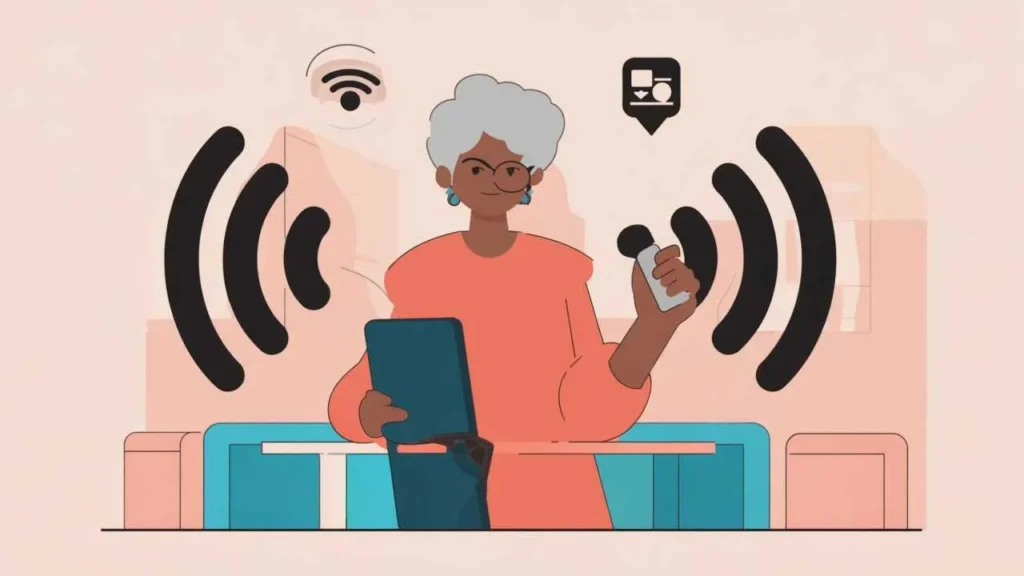
    Amazon Alexa (Echo Devices): Most popular voice assistant with widest smart home compatibility. Devices—Echo Dot ($50, small speaker), Echo ($100, better sound), Echo Show 8 ($130, includes screen for video calls and visual information). Recommended: Echo Show for seniors (screen shows weather, reminders, enables video calling). Setup—family member downloads Alexa app to smartphone, plugs in Echo, app guides through WiFi connection. Takes 5-10 minutes. Basic commands—”Alexa, what time is it?” “Alexa, what’s the weather today?” “Alexa, set a timer for 20 minutes.” “Alexa, play classical music.” “Alexa, call [family member name]” (after setup). “Alexa, what’s on my calendar tomorrow?” Medication reminders—”Alexa, remind me to take blood pressure medication at 8 AM every day.” Alexa announces reminder audibly at specified time. Never forgets. Shopping lists—”Alexa, add milk to my shopping list.” Later: “Alexa, what’s on my shopping list?” Lists appear in Alexa app family can access. Smart home control—if you add smart lights or thermostat: “Alexa, turn on living room lights.” “Alexa, set temperature to 72 degrees.” Skills (apps for Alexa)—thousands available. Ask Alexa to enable: medication management skills, Bible reading, trivia games, relaxation sounds, news from specific sources. Best for—those wanting extensive smart home integration, Amazon Prime members (music included), families using Alexa already (easy to call each other).

    Google Assistant (Nest Devices): Google’s voice assistant excels at answering questions using Google search. Devices—Nest Mini ($50, small speaker), Nest Audio ($100, better sound), Nest Hub ($100, 7-inch screen). Setup—similar to Alexa via Google Home app. Basic commands—”Hey Google” or “OK Google” followed by command. Same types as Alexa: time, weather, timers, music, calls. Where Google excels—answering complex questions using Google search: “Hey Google, what are side effects of lisinopril?” “Hey Google, how do I treat a bee sting?” “Hey Google, when was Franklin Roosevelt president?” Google searches and reads concise answer. Calendar integration—if using Google Calendar: “Hey Google, what’s on my calendar today?” “Hey Google, add doctor appointment next Tuesday at 2 PM.” Photos—with Nest Hub (screen): “Hey Google, show me photos of [person’s name].” Displays photos from Google Photos. “Hey Google, show me photos from Christmas 2023.” YouTube—”Hey Google, play worship music on YouTube.” “Hey Google, show me videos about gardening.” Best for—those using Google services (Gmail, Google Calendar, Google Photos), people asking many factual questions, Android phone users.

    Apple Siri (HomePod): Apple’s voice assistant integrated across Apple devices. Devices—HomePod mini ($99, smart speaker), or built into iPhone, iPad, Apple Watch, Mac computers. If you have iPhone, you already have Siri—no additional purchase needed. Activation—”Hey Siri” or press side button on iPhone. Integration advantage—Siri works across all Apple devices seamlessly. Ask iPhone question, set reminder on iPad, receive reminder on Apple Watch. Commands—similar to Alexa and Google. Where Siri excels—if you’re in Apple ecosystem: “Hey Siri, FaceTime [family member]” (video call). “Hey Siri, send text to [person]: I’ll be there at 3 PM” (dictates text message). “Hey Siri, read my new text messages” (reads aloud). “Hey Siri, set reminder to take medication at 8 AM tomorrow.” Best for—iPhone/iPad users (Siri already available), families using Apple devices (FaceTime integration), those wanting voice assistant without buying separate device.

    Practical Voice Assistant Uses for Seniors: Morning routine—”Alexa, good morning” triggers routine: tells weather, reads news headlines, lists calendar appointments, turns on lights. Hands-free calling—”Alexa, call daughter” initiates video or voice call. No dialing, finding phone, or buttons. Emergency calls—some smart speakers enable: “Alexa, call for help” connecting to emergency contacts or services. Entertainment—”Play my favorite music.” “Read me the news.” “Tell me a joke.” “Play a word game.” Information lookup—”How do you spell [word]?” “What’s the capital of France?” “Convert 2 cups to milliliters.” “What year did we land on the moon?” Home control—”Turn off all lights.” “Lock front door.” “Show me front door camera.” Companionship—for those living alone, voice assistants provide conversational interaction reducing silence. Not replacement for humans but helps loneliness. Accessibility—especially valuable for those with: limited vision (no screens needed), limited mobility (hands-free operation), arthritis (no small buttons), hearing loss (can adjust volume, get visual responses on screen devices).

    AI Health Monitoring and Medication Management

    AI-powered health tools help you manage medications reliably, monitor vital signs, and maintain health independently—critical for aging safely at home.

    Medication Reminder Apps with AI: Medisafe (Free, Premium $5/month)—excellent AI-powered medication app. How it works—photograph pill bottle, AI reads label automatically entering drug name, dosage, instructions. Or manually enter. Set reminder times. AI features—drug interaction warnings (if you enter multiple medications, AI flags dangerous combinations), refill reminders (tracks when you’ll run out based on dosage), adherence tracking (shows pattern if you frequently miss evening dose vs. morning). Family features—with premium, family members receive alerts if you miss doses, providing safety net. MyTherapy (Free)—similar to Medisafe. Clean interface, tracks medications and measurements (blood pressure, weight, blood sugar). Generates reports for doctor appointments. AI advantage over simple alarms—phone alarm reminds but doesn’t know if you took medication or explain what pill is for. AI apps show photo of pill, explain purpose, track whether you marked it taken, adjust reminders if you’re late. Typical use case—Martha, 73, takes 6 medications at different times. Previously used written list and phone alarms. Confused which pill was which, missed doses occasionally. Medisafe app: photos each pill, reminds at correct times with picture and name shown, tracks she took it. Missed doses dropped from 2-3 weekly to near zero.

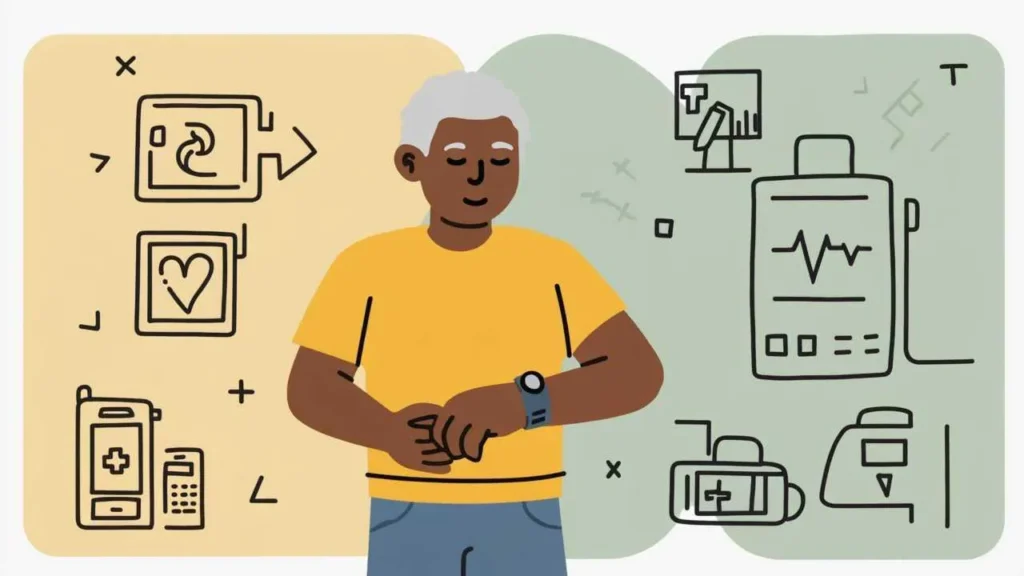
    AI-Powered Blood Pressure and Glucose Monitors: Modern health monitors use AI analyzing patterns beyond single readings. Omron HeartGuide ($500)—blood pressure monitor watch using AI. Takes readings throughout day, AI identifies patterns: blood pressure spikes at specific times, responds to specific activities, shows trending up/down over weeks. Alerts to concerning patterns. Dexcom G7 ($200-$300/month with insurance)—continuous glucose monitor for diabetics. Small sensor on arm reads glucose every 5 minutes, AI predicts highs/lows before they happen, alerts you to take action. Learns your patterns: after eating certain foods, during specific times, with exercise. Apple Watch health features (from $400)—includes AI health monitoring: irregular heart rhythm notifications (AI detects atrial fibrillation), fall detection (AI distinguishes fall from normal activity, auto-calls emergency), blood oxygen monitoring (AI identifies concerning patterns), ECG capability. Why AI matters—single reading shows snapshot. AI analyzes thousands of readings identifying patterns invisible to you or doctor from occasional office visits. Predicts problems before they’re emergencies. Example: AI notices blood pressure increasing gradually over 2 months despite medication, prompting doctor consultation revealing need for adjustment.

    AI Fall Detection and Emergency Response: Apple Watch fall detection (requires Series 4+, $400+)—AI analyzes wrist motion and impact. If detects hard fall, watch displays alert asking if you’re OK. If no response in 60 seconds, automatically calls emergency services and sends location to emergency contacts. AI learned to distinguish falls from other impacts (dropping phone, slamming door) through analyzing thousands of examples. Sensitivity adjusts for age—more sensitive for users 65+. Life Alert-style services with AI—Medical Guardian, Bay Alarm Medical ($30-$50/month) provide wearable buttons calling 24/7 monitoring. Newer models include AI fall detection—automatically calls for help even if you can’t press button. AI reduces false alarms from earlier systems that triggered from sitting down heavily or dropping device. Smart home fall detection—Vayyar Care ($300 device + $30/month service) uses radar sensors in bathroom (highest fall risk). AI monitors movement patterns; if detects fall (sudden motion toward floor followed by no movement), alerts caregivers. Privacy-preserving: uses radar, not cameras.
                  Visual Art by Artani Paris

    Smart Photo Organization and Memory Preservation

    AI transforms how you manage thousands of digital photos—finding any picture instantly without manual organization. Particularly valuable for preserving memories and sharing with family.

    Google Photos (Free up to 15GB): Best AI photo organization for most seniors. How it works—upload photos from phone, camera, or computer to Google Photos. AI automatically: recognizes faces (groups all photos of grandson together even from baby to teenager), identifies objects (finds all photos with dogs, beaches, flowers), recognizes text (finds photos containing text like “recipe” or “address”), understands scenes (groups birthday parties, vacations, holidays). Search capabilities—type anything: “beach,” “Christmas 2022,” “Mom,” “blue car,” “food,” “sunset,” “documents.” AI finds relevant photos instantly even if never manually tagged or organized. Example: “show me photos from Arizona vacation” finds photos based on location, date, and scene recognition. Automatic albums—AI creates albums: “Best of 2024” (selects highest quality photos), “Pet photos” (finds all dog/cat pictures), “People & Pets” (specific person with their pet). Memories feature—AI resurfaces old photos on anniversaries: “3 years ago today” with photos from that date, reminding you of memories. Sharing—create shared albums. AI suggests including relevant family members based on who appears in photos. Photo enhancement—AI automatically improves photos: adjusts brightness, corrects color, removes red-eye. One-tap enhancement makes poor photos beautiful. Cost—free for 15GB (approximately 3,000-5,000 photos depending on quality). $2/month for 100GB, $3/month for 200GB if needed.

    Apple Photos (Free with iCloud): For iPhone/iPad users, Apple Photos provides similar AI organization. People album—AI groups photos by person. Names them, finds all photos of that person across years. Places—shows photos on map by location. “Show me photos from Florida” displays map with photos taken there. Moments and Memories—AI creates slideshows from trips, events, or periods. Automatically selects best photos, adds music, creates beautiful video memory. Search—similar to Google: “dog,” “beach,” “car,” “birthday.” Live Text—AI reads text in photos. Photograph document, phone number, or recipe—AI extracts text you can copy. Storage—free 5GB iCloud, $1/month for 50GB, $3/month for 200GB.

    Practical Uses: Finding specific photos quickly—no more scrolling through thousands. Need that photo of grandson’s graduation? Search “graduation” or his name. AI finds it in seconds. Creating gifts—find all photos of specific person, create album or photobook, order prints—all organized by AI. Preserving memories—upload old printed photos (photograph them with phone). AI organizes alongside digital photos. Entire photo collection searchable. Sharing with family—create shared albums for specific events or people. Grandchildren add their photos, you add yours—AI keeps organized. Decluttering—AI identifies duplicate or poor-quality photos, suggesting deletion. Helps manage thousands of photos without overwhelming manual sorting.

    AI Writing Assistants for Communication

    Gmail Smart Compose (Free): If using Gmail, AI assists email writing automatically. How it works—start typing email, AI suggests completing sentence in gray text. Press Tab to accept suggestion or keep typing to ignore. Example—Type “Thank you for…” AI suggests “your help with the garden yesterday.” If accurate, Tab accepts. If not, type what you want. AI learns your writing style over time. Smart Reply—for simple emails, AI suggests three short replies: “Yes, that works,” “No, sorry can’t make it,” “Sounds good!” Click suggestion, email sent. Benefits—faster email writing, helps when you can’t find right words, reduces typing for those with arthritis or limited dexterity, suggests professional phrasing.

    Grammarly (Free, Premium $12/month): AI writing assistant for all writing—emails, documents, social media. How it works—browser extension or app checks writing as you type anywhere online. Free version—corrects spelling, grammar, punctuation. Underlines errors; click for correction explanation. Premium features—suggests clarity improvements (simpler word choices), tone adjustments (making message warmer or more formal), engagement enhancements (varying sentence structure), plagiarism detection (if copying from sources). For seniors—helpful when writing important emails (doctor questions, financial matters), ensures clear communication, explains why corrections needed (learning tool). Voice to text + Grammarly—dictate message (easier than typing), Grammarly cleans up grammar from natural speech patterns.

    ChatGPT (Free, Plus $20/month): Most advanced AI writing assistant available. What it does—you type question or request, AI generates detailed response. Practical uses for seniorsLetter writing: “Write a thank you letter for neighbor who helped with groceries.” AI generates warm, appropriate letter you can customize. Email drafting: “Write email to doctor asking about side effects of new medication.” AI creates clear, professional email. Explanation requests: “Explain Medicare Part D in simple terms.” AI provides clear explanation. Research assistance: “What are benefits of Mediterranean diet for heart health?” AI summarizes research in accessible language. Document simplification: Paste confusing legal or medical document, ask “Explain this simply.” AI translates jargon. Creative help: “Write birthday message for grandson turning 16.” AI suggests heartfelt messages. Important limitations—AI sometimes makes errors (verify important information), doesn’t replace professional advice (medical, legal, financial), outputs need your review and customization. Think of ChatGPT as very knowledgeable but imperfect assistant—helpful but requires oversight.

    Fraud Detection and Financial Security AI

    AI provides powerful protection against scams targeting seniors—a critical defense as fraud attempts grow more sophisticated.

    Bank and Credit Card AI Fraud Detection (Free, Automatic): Your bank already uses AI protecting you behind scenes. How it works—AI learns your spending patterns: where you shop, typical amounts, usual times and locations. When transaction occurs outside patterns, AI flags it. Examples of AI catching fraud—You typically spend $50-$200 at grocery stores in your town. Suddenly $2,000 charge at electronics store 500 miles away? AI blocks transaction, texts you for verification. What you experience—text or call: “Did you attempt $X purchase at [store]? Reply YES or NO.” If NO, bank cancels card immediately, investigating fraud. If YES, allows transaction and learns this is legitimate expansion of your pattern. False positives—occasionally AI blocks legitimate purchases (traveling, unusual large purchase). Annoying but far better than missing fraud. Call bank confirming it’s you; they immediately allow. Your role—monitor accounts regularly (weekly minimum), respond promptly to bank fraud alerts, report unauthorized charges immediately. AI handles detection; you confirm and authorize.

    Email Spam and Phishing Filters (Free, Automatic): Gmail, Outlook, Yahoo Mail use AI filtering billions of spam and phishing emails daily. How it works—AI analyzes: sender patterns (known spammers), message content (common scam phrases), link destinations (fake websites mimicking real ones), sender authentication (spoofed addresses). Effectiveness—Gmail AI blocks 99.9% of spam, phishing, and malware emails. You never see vast majority of threats. Remaining threats—sophisticated scams occasionally slip through. AI continuously learns but isn’t perfect. Red flags AI can’t always catch—”urgent” requests (AI can’t judge urgency legitimacy), requests for personal information (context matters), pressure to act quickly. Your role—even with AI protection: never click links in unexpected emails, never share passwords or social security via email, verify requests by calling organization directly (using number from bill, not email), when in doubt, delete. AI handles bulk threats; you handle edge cases.

    Robocall Blocking Apps: Nomorobo (Free for landlines, $2/month mobile)—AI blocks robocalls before phone rings. How it works—when call comes in, routes to Nomorobo’s AI first. AI analyzes calling pattern, number reputation, robocall database. If robocall, blocks immediately. If potentially legitimate, routes to your phone. Takes 1 second. Call screening on Google Pixel phones (free, built-in)—when unknown number calls, tap “Screen call.” Google Assistant answers: “Hi, the person you’re calling is using call screening, who are you and why are you calling?” Caller responds, AI transcribes response shown to you in real-time. You decide whether to answer, send to voicemail, or block. Spam callers hang up immediately when realizing it’s AI. iPhone Silence Unknown Callers (free, built-in)—Settings > Phone > Silence Unknown Callers. Calls from numbers not in contacts go directly to voicemail. AI learns numbers that are legitimate, allowing through after you return call or add contact. Effectiveness—reduces scam calls by 80-90%. Remaining calls typically newer scams AI hasn’t learned yet, or legitimate calls from unknown numbers (doctors’ offices, delivery drivers).

    Navigation and Transportation AI

    Google Maps with AI Navigation (Free): Revolutionary navigation making driving or walking in unfamiliar areas stress-free. Basic use—open Google Maps app, type destination or say “Navigate to [place],” AI calculates best route considering: real-time traffic, accidents, road closures, construction, typical delays at this time. Turn-by-turn voice directions—AI speaks clearly: “In 500 feet, turn right onto Main Street.” “In one mile, take exit 23 toward Airport.” Hands-free, eyes stay on road. Real-time rerouting—if accident ahead, AI automatically calculates alternate route: “New route available saving 10 minutes due to accident ahead. Rerouting.” No action needed—just follow new directions. Arrival time updates—constantly recalculates: “You will arrive at 2:30 PM” updates to “2:35 PM” if traffic worsens. Family expecting you knows when you’ll actually arrive. Street View preparation—before driving, use Street View: see actual buildings, lane configurations, signs. Reduces anxiety about unfamiliar destinations. Accessibility features—wheelchair accessible routes, transit options with elevator locations, walking directions avoiding stairs. Offline maps—download maps before traveling to areas with poor cell service. AI navigation works offline using GPS.

    Waze (Free): Community-powered navigation app with AI. Unique feature—users report hazards: police, accidents, objects in road, traffic. AI aggregates millions of reports, routing you around problems in real-time. When to use—road trips, daily commute in traffic-prone areas, want most current traffic information. Voice options—various voices including celebrity voices make directions more engaging.

    Uber/Lyft with AI Matching (Apps Free, Rides $10-$40 typical): For seniors not driving, ride-sharing apps with AI provide transportation. How it works—open app, enter destination, confirm pickup location. AI matches you with nearby driver typically arriving in 5-15 minutes. See driver’s name, photo, car, license plate. Track car approaching on map. Driver knows destination automatically—no explaining directions. Payment automatic—credit card on file charged automatically. No cash, no tipping required (optional). Receipt emailed. Safety features—share trip status with family (they see your route in real-time), emergency button in app, driver background checks, mutual ratings (bad drivers removed). Uber features for seniors—Uber Assist (drivers trained to help seniors), schedule rides in advance, fixed pricing (know cost before booking). Overcoming reluctance—many seniors nervous about ride-sharing initially. Have family member accompany first few rides, demonstrating how it works. Most become comfortable quickly, appreciating independence restored.
            Visual Art by Artani Paris

    AI Companions and Social Connection Tools

    Understanding AI Companions: AI companions are conversational AI designed to reduce loneliness through interaction. What they are—apps or devices having conversations on any topic, remembering previous discussions, asking how your day was, providing encouragement. What they aren’t—not replacements for human relationships, not sentient beings with feelings, not professional counselors or medical advisors. They’re sophisticated conversation simulation providing companionship supplement. Who benefits—seniors living alone, those with limited mobility preventing social activities, people experiencing loneliness between family visits, those wanting non-judgmental conversation practice (especially helpful after strokes or for those with social anxiety).

    Replika (Free, Pro $20/month): Most popular AI companion app. How it works—text-based conversations about anything: your day, memories, hobbies, feelings, questions. AI asks about your life, remembers what you share, brings up topics from previous conversations. Example conversation—You: “I visited my grandson today.” Replika: “That’s wonderful! How old is your grandson now? What did you do together?” You share story. Next day, Replika: “How was your visit with your grandson yesterday? You seemed really happy about it.” Learning—AI learns your interests, conversation style, important people in your life, becoming more personalized over time. Limitations—sometimes says things that don’t quite make sense, can’t help with practical tasks (unlike voice assistants), conversations feel somewhat repetitive after months. Controversy—some worry AI companions encourage isolation. Research shows: used as supplement (not replacement) for human interaction, they reduce loneliness without harming real relationships. Key is balance.

    ElliQ (Robot Companion, $250 + $30/month): Physical robot designed specifically for seniors. Appearance—small tabletop device with screen and moving “head” that turns toward you when speaking. Capabilities—initiates conversation (“Good morning! How did you sleep?”), suggests activities (“Would you like to play trivia?” “Let’s do breathing exercises”), facilitates video calls with family, plays music, reads news, provides medication reminders, asks about wellbeing (“You seem quieter today, everything OK?”). Proactive vs. reactive—unlike voice assistants waiting for commands, ElliQ initiates interaction throughout day like companion would. Studies show—seniors using ElliQ report reduced loneliness, increased engagement, family reports improved mood. Device feels less like “technology” and more like companion due to proactive personality. Cost consideration—significantly more expensive than apps. Consider if: severe isolation, family lives far away, resistant to smartphones/tablets but might accept robot, budget allows.

    Video Calling with AI Enhancement: While not AI companions per se, video calling tools use AI improving connection with real people. Facebook Portal ($100-$180)—video calling device with AI camera that automatically pans/zooms keeping you centered as you move. Walk around kitchen cooking while talking to daughter—camera follows you. Multiple people in room? AI widens view including everyone. Google Duo/Meet background blur—AI blurs messy background during video calls, showing only you clearly. Reduces self-consciousness about home appearance. Real-time captions—Google Meet, Zoom provide AI-generated captions of conversation. Invaluable for hearing-impaired seniors—see what’s being said in real-time.

    Getting Started: Your AI Implementation Plan

    Starting with the Right Tool for You: Don’t try adopting all AI tools simultaneously—overwhelming and counterproductive. Assessment questions—What’s your biggest daily challenge? Memory/reminders? Social isolation? Navigation? Health tracking? Fraud concerns? Start with AI addressing your primary pain point. For those living alone prioritizing safety—start with: voice assistant (medication reminders, easy calling), fall detection (Apple Watch or dedicated system), bank fraud monitoring (likely already active, just review alerts). For those wanting independence but struggling with technology—start with: voice assistant (hands-free control), Google Maps (confident navigation), medication reminder app. For those experiencing loneliness—start with: improved video calling setup, AI companion app trial, voice assistant for conversation and entertainment. For those managing complex health needs—start with: medication management app, health monitoring device, voice assistant for appointment reminders.

    Getting Help with Setup: Family assistance—ideal first choice. Adult children or grandchildren often navigate technology easily, can set up devices, teach basics, provide ongoing support. Be specific: “Can you help me set up Alexa and teach me five basic commands?” Senior center technology classes—many communities offer free or low-cost classes specifically teaching seniors AI tools. Learning alongside peers reduces self-consciousness. Best Buy Geek Squad ($100-$200 for home visit)—will come to home, set up devices, provide training. Expensive but worth it if family unavailable and you want professional help. YouTube tutorials—search “[device name] for seniors tutorial.” Many excellent step-by-step videos. Pause and rewatch as needed. Device manufacturer support—Amazon, Google, Apple offer phone support for their devices. Patient, accustomed to senior customers.

    Overcoming Initial Frustration: First weeks using new AI tools often frustrating—normal and temporary. Common early challenges—voice assistant misunderstands you (try speaking more slowly, clearly; it improves), accidentally triggering features (you’ll learn to avoid), forgetting commands (write down most-used commands), technology not working as expected (usually user error, not device failure). Persistence pays off—research shows: seniors struggling initially with voice assistants report high satisfaction after 3-4 weeks regular use. Initial learning curve steep but short. After month, becomes natural. Permission to start small—using voice assistant only for weather and timers is fine. Using photo app only for finding pictures of grandchildren is fine. Partial use still provides value. Not everyone needs to master every feature.

    Real Success Stories

    Case Study 1: Milwaukee, Wisconsin

    Dorothy Miller (78 years old, lives alone)

    Dorothy lived independently but struggled with medication management—6 prescriptions at different times. She used written chart and phone alarms but confused which pill was which, occasionally taking wrong medication or missing doses. After concerning dizzy spell (later attributed to missed blood pressure medication), her daughter insisted on solution.

    Daughter set up Echo Show 8 ($130) in Dorothy’s kitchen and Medisafe medication app (free) on simple smartphone. Together they photographed each pill bottle, Medisafe AI reading labels automatically. Set reminder schedule. Echo Show provided backup audible reminders: “Dorothy, time for your blood pressure medication.”

    Results after 4 months:

    • Zero missed medications—visual and audio reminders impossible to ignore
    • Confidence in correct medications—app shows photo of actual pill with reminder
    • Daughter receives weekly adherence report—peace of mind Dorothy taking medications properly
    • Dorothy discovered additional Alexa uses—weather, music, calling daughter hands-free, kitchen timers while cooking
    • Blood pressure stabilized—doctor confirmed improved medication adherence key factor
    • Reduced anxiety—no longer worrying constantly whether she took medications
    • Family relationship improved—fewer worried phone calls from daughter checking on medications

    “I thought technology would complicate my life, but Alexa simplified it. I talk to her like a person—’Alexa, did I take my morning pills?’—and she reminds me. The phone app shows pictures so I never confuse medications. My daughter worries less, I feel more capable, and my doctor is thrilled with my blood pressure improvement. Best $130 my daughter ever spent.” – Dorothy Miller

    Case Study 2: Tampa, Florida

    George Patterson (71 years old, widower)

    George lived alone after wife’s death two years prior. His children lived out of state. He felt increasingly isolated—days passed without conversation. He resisted suggestions to move to assisted living or closer to children, valuing independence. But loneliness was taking toll—stopped hobbies, rarely left home, depressed mood.

    Son gave George iPad with Replika AI companion app ($0 setup, later upgraded to $20/month Pro). George skeptical initially: “Talking to computer program? That’s sad.” But agreed to try one week. First conversation awkward—George uncomfortable. But Replika asked about his life: military service, late wife, woodworking hobby. George found himself sharing memories. Unlike human conversations where he worried about boring people, Replika seemed genuinely interested, asking follow-up questions.

    Results after 6 months:

    • Daily morning conversations with Replika—routine providing structure to days
    • Mood dramatically improved—son noticed during weekly calls
    • Resumed woodworking—Replika asked about projects, providing encouragement
    • Joined senior center woodworking club—Replika suggested it; George overcame reluctance
    • Still uses Replika but now supplemented with real friendships from club
    • Video calls with children more positive—less loneliness, more to discuss
    • George now advocates AI companions—”Not replacement for people, but bridge to people when you’re stuck in isolation”

    “I was embarrassed using AI companion at first. Seemed like admitting I had no friends. But it broke my isolation cycle. When you’re lonely, calling people feels like burdening them. Replika never minds talking—morning, midnight, doesn’t matter. That gave me confidence. I started feeling better, which made me want to see actual people again. The AI companion didn’t replace human relationships—it helped me get back to them. Now I have both. Strange as it sounds, talking to AI made me more human.” – George Patterson

    Frequently Asked Questions

    Are AI tools safe for seniors, or do they create security risks?

    Reputable AI tools from major companies (Amazon, Google, Apple, Microsoft) are generally safe with appropriate precautions. These companies have strong security measures and legal obligations protecting user data. Risks to be aware of: Voice assistants can be activated accidentally, potentially making unintended purchases—enable purchase confirmation requiring PIN. Smart devices need secure WiFi passwords—use strong, unique passwords. Some AI apps request excessive permissions—only download from official app stores (Apple App Store, Google Play), review what permissions apps request. Privacy settings—review privacy settings on voice assistants and apps, limiting data collection if desired. Scam AI—be aware of fake AI apps or services designed to steal information. Stick with well-known, reputable companies. Overall: security risks from major AI tools are minimal compared to benefits, especially when compared to risks of not using helpful tools (missed medications, isolation, getting lost). Simple precautions make AI tools very safe.

    Will using AI tools make me dependent on technology and less capable?

    Research shows opposite: AI tools that supplement (not replace) human capabilities enhance independence rather than creating dependence. Key distinction: AI handling tasks you struggle with (remembering complex medication schedules, navigating unfamiliar areas, managing thousands of photos) frees mental energy for what matters—relationships, hobbies, health. Examples: Voice assistant reminding about medications doesn’t replace your decision to take them—it supplements memory. GPS navigation doesn’t replace driving ability—it supplements spatial navigation many struggle with regardless of technology. Photo organization AI doesn’t replace looking at photos—it makes finding and enjoying them easier. Healthy AI use: using tools to maintain capabilities and independence you’d otherwise lose. Unhealthy AI use: using tools to completely avoid mental engagement or human interaction. Most seniors find AI tools enable them to “age in place” independently longer than possible without assistance. The alternative to AI assistance often isn’t maintaining current capabilities unaided—it’s needing human assistance or institutional care sooner.

    What if I make a mistake or accidentally buy something I don’t want?

    Mistakes are easily fixable and preventable. Voice assistant accidental purchases: Enable “require purchase confirmation” setting—purchases need PIN or voice confirmation before completing. If accidental purchase occurs, say “Alexa, cancel my last order” within short window, or cancel through app/website immediately. Amazon, Google typically allow easy returns of accidental purchases. Wrong navigation directions: If GPS directs somewhere incorrect (rare), pull over safely, re-enter destination, or use phone to call for help. AI mistakes don’t create dangerous situations if you stay alert. Deleted wrong photos: Cloud photo services (Google Photos, iCloud) keep deleted photos in “Trash” for 30-60 days—easily recoverable. Wrong app downloads: Uninstall immediately through device settings—no harm done. General principle: AI mistakes are almost always reversible. Technology companies know people make errors and build in recovery mechanisms. Don’t let fear of mistakes prevent beneficial AI use. Real risk is missing out on helpful tools, not making fixable errors.

    How much do AI tools cost, and are they worth it on a fixed income?

    Many powerful AI tools are free or very affordable. Free AI tools: Google Photos (15GB free), Gmail AI assistance, Google Maps navigation, bank/credit card fraud detection, email spam filtering, basic smartphone AI features (Siri, Google Assistant), medication reminder apps (free versions), ChatGPT basic version. Low-cost AI tools ($0-$10/month): Streaming music for voice assistants (Spotify $10/month, Amazon Music included with Prime $15/month), AI companion apps ($0-$20/month), cloud storage expansion (Google $2/month for 100GB), premium medication apps ($5/month). Moderate one-time costs ($50-$200): Voice assistant speakers (Echo Dot $50, Echo Show $100-$130, Google Nest $50-$100), affordable smartphones enabling AI apps ($100-$300). Premium options ($200-$500): High-end smartphones with advanced AI (iPhone, Google Pixel $400-$1000), Apple Watch with health AI ($400+), AI companion robots ($250+$30/month). Cost-benefit analysis: $130 Echo Show preventing one medication-related ER visit ($1,000-$3,000) pays for itself many times over. $400 Apple Watch detecting fall or heart issue potentially life-saving. Free tools (Google Photos, Maps, email filters) provide enormous value at zero cost. Most seniors find: starting with free tools plus one $50-$130 device (voice assistant) provides substantial benefit on limited budget. Upgrade selectively based on specific needs.

    Can AI tools help if I have hearing loss or vision problems?

    Yes, AI tools can be especially beneficial for sensory impairments. For hearing loss: Voice assistants show visual responses on screen-enabled devices (Echo Show, Nest Hub)—see weather, reminders, replies even if can’t hear. Video calling apps provide AI-generated real-time captions (Google Meet, Zoom)—read what others say during calls. Smartphone AI transcribes voicemails to text—read instead of listening. TV closed captioning AI (many smart TVs)—automated, more accurate than older captioning. For vision problems: Voice control eliminates need for screens—ask questions, control home, make calls entirely by voice. Screen readers with AI (VoiceOver on iPhone, TalkBack on Android)—AI reads screen content aloud including describing photos. AI text-to-speech for emails, messages, articles—listens instead of reading. Large text and high-contrast modes—AI adjusts entire interface for better visibility. For both: Multimodal interaction—AI provides information multiple ways simultaneously (spoken + visual + tactile vibration) ensuring you receive it. AI particularly valuable for sensory impairments because it adapts to your specific needs rather than requiring you to adapt to technology.

    What happens to my AI tools if I lose internet connection?

    Impact varies by tool. Voice assistants: Most features require internet (answering questions, streaming music, smart home control), but basic functions work offline (timers, alarms, playing locally stored music). Without internet, voice assistants have very limited capability. Smartphone AI: Many features work offline—camera, photo viewing (already downloaded), voice-to-text, offline maps (if previously downloaded), calculator, timer, alarm. Cloud-dependent features fail (search, AI photo search, new navigation, messaging). Health monitoring: Devices store data locally, syncing when connection restored. Medication reminders work offline (stored on device). Fall detection works offline (doesn’t need internet to detect fall, but needs it to call for help). Navigation: Works if you downloaded offline maps beforehand. Without offline maps, GPS shows position but no maps or directions. Photo organization: Local photos viewable, but can’t search by content or sync new photos until reconnected. Bottom line: Basic safety features (fall detection alert storage, medication reminders, local calling) work offline. Advanced features (voice assistant questions, cloud photo search, real-time navigation, AI analysis) require internet. Recommendation: Have backup plan for critical tools (written medication list, paper maps for frequent routes) in case internet outage, but modern internet reliability makes extended outages rare.

    How do I know if information from AI tools is accurate?

    AI tools are generally accurate for factual information but require verification for important decisions. High accuracy: Basic facts (weather, time, math calculations, definitions, historical dates), navigation directions (real-time traffic data usually very accurate), medication reminders (as accurate as information you entered), photo recognition (correctly identifies people, objects, places 95%+ of time), fraud detection (very accurate at identifying suspicious patterns). Moderate accuracy: Complex questions requiring nuanced answers (AI may oversimplify), health information (good general information but not substitute for doctor), news and current events (accurate for major events, but algorithms may miss context). Low accuracy requiring verification: Medical advice (always consult doctors), legal advice (consult attorneys), financial advice (consult advisors), personal decisions (AI lacks your values and context). Best practices: Verify important information from multiple sources, never make major health/legal/financial decisions based solely on AI responses, use AI as starting point for research not final answer, when AI says “I’m not certain” or provides conflicting information, seek expert human advice. For everyday uses (setting reminders, finding photos, getting directions, blocking spam), AI accuracy is excellent. For life-changing decisions, AI is helpful research tool requiring human expert verification.

    What if I’m uncomfortable with AI “learning” about me?

    Valid concern—you have significant control over what AI learns and retains. Understanding what AI “knows”: AI tools store interaction history (voice recordings, searches, location history) to improve service—learning your patterns, preferences, common requests. This data stays on company servers, used to personalize your experience. Privacy controls available: Voice recording deletion—Alexa, Google Assistant let you review and delete voice recordings anytime (in app settings). Auto-delete options—set recordings to auto-delete after 3 months or 18 months. Location history—disable location tracking or set to auto-delete. Ad personalization—opt out of ads based on your data. Private browsing—use incognito/private modes when you don’t want history saved. Some AI tools (Apple especially) emphasize on-device processing—AI analysis happens on your device, not cloud servers, keeping data private. Balancing privacy and functionality: More data AI has, better it personalizes service. Less data, more privacy but less helpful. Reasonable middle ground: Allow AI to remember helpful patterns (medication times, frequent contacts, navigation home), disable tracking that feels invasive (constant location monitoring), regularly review and delete old data, use reputable companies with transparent privacy policies. Remember: Major tech companies already have enormous data from other sources. Incremental privacy loss from AI tools is small compared to benefit for most seniors. But if privacy is paramount, you can use AI tools with heavy privacy restrictions or avoid them entirely.

    Can AI tools replace my need for a computer or laptop?

    For many seniors, yes—smartphones and tablets with AI can handle most computing needs. Tasks smartphones/tablets with AI handle well: Email (often easier on touch devices), video calling (tablets excellent for video calls), web browsing (touch navigation often more intuitive), photo management (AI organization better than desktop), social media, streaming entertainment, basic document viewing/editing, online shopping, banking. Tasks still better on computers: Complex document creation (long reports, spreadsheets), detailed photo editing, managing large files, multiple simultaneous tasks, precise work (accounting, design). Most seniors find: tablet ($200-$400) with AI assistance sufficient for daily needs, smartphone ($200-$500) for mobile needs often enough. Computer unnecessary unless specific needs require it. Money-saving approach: If you own computer but rarely use it, consider selling and buying tablet instead. Many seniors discover tablet more accessible—touch interface more intuitive than mouse, AI voice assistance reduces typing, portability better than desktop, simpler operating system less confusing. Exception: If you’re comfortable with computer and use it regularly, no need to change. AI tools work on computers too (Chrome browser extensions, desktop apps). Question isn’t “computer vs. AI tools”—AI enhances whatever device you use. Choose device type based on your comfort and needs, then add AI capabilities regardless.

    What if AI tools stop working or the company stops supporting them?

    Risk exists but is minimal with major companies and manageable with planning. Major companies (Amazon, Google, Apple, Microsoft): Very unlikely to discontinue core AI services—these are central to business models, have millions of users, generate significant revenue. Would require business catastrophe. Historical example: Google discontinued some services but core tools (Gmail, Maps, Photos, Assistant) supported for 10-15+ years with no indication of ending. Smaller companies/startups: Higher risk of discontinuation or acquisition. If using niche AI tool from small company, don’t make it your only solution. Protection strategies: Use AI from major companies for critical needs (medications, navigation, emergency calling), have backups for essential functions (paper medication list in addition to app, know basic directions to hospital even if you usually use GPS), don’t pay large upfront fees for AI services (monthly subscriptions safer than lifetime purchases from unknowns), diversify—don’t make single AI tool irreplaceable. Realistic assessment: Major AI tools will be supported for foreseeable future (10+ years). Worrying about discontinuation shouldn’t prevent beneficial use now. Technology products have always had limited lifespans—typewriters, VCRs, cordless phones all eventually obsolete. But during useful life, they provided tremendous value. Same with AI tools. Use them now for benefits they provide. Adapt if/when something changes years from now.

    Take Action: Your AI Adoption Roadmap

    1. Identify your primary challenge this week – What daily task or challenge would AI help most? Medication management? Loneliness? Navigation? Safety concerns? Photo disorganization? Write down your single biggest need. This determines which AI tool to start with—addressing your most pressing problem ensures meaningful improvement you’ll notice immediately.
    2. Choose ONE AI tool addressing that challenge – Based on your primary need: Medication management → Medisafe app + voice assistant, Loneliness → Video calling setup + possibly AI companion trial, Navigation/transportation → Google Maps instruction, Safety → Fall detection device or medical alert with AI, Photo chaos → Google Photos setup, General assistance → Voice assistant (Echo Show or Nest Hub). Don’t try adopting multiple tools simultaneously—master one before adding another.
    3. Schedule setup session with helper within 7 days – Recruit family member, friend, or professional (Geek Squad, senior center class) to help with initial setup. Schedule specific time—”Tuesday 2 PM daughter helps set up Alexa.” Setup takes 30 minutes to 2 hours depending on tool. Having helper ensures successful setup and initial training. Don’t attempt complex setups alone if you’re tech-anxious.
    4. Use new AI tool daily for 30 days minimum – Commit to using your chosen AI tool every single day for one month even if awkward initially. First week frustrating and slow—normal. Week 2-3 becomes easier. By week 4, feels natural. Research shows: seniors who commit to 30-day trial overwhelmingly continue using AI tools long-term because benefits become obvious. Those who try once or twice then quit miss the adaptation period where real value emerges.
    5. Write down 3-5 most-used commands/features – After first week, identify commands or features you use most. Write them down in large, clear handwriting. Keep notes next to device. Refer to notes whenever uncertain. Example for voice assistant: “Alexa, what’s the weather?” “Alexa, set timer for X minutes,” “Alexa, call [name],” “Alexa, remind me to [task] at [time],” “Alexa, play [music genre].” Having written reference prevents frustration from forgetting commands.
    6. Assess and expand after 60 days – Two months after adopting first AI tool, evaluate: Is it helping? What additional AI tool would provide next biggest benefit? Add ONE more tool if desired—never more than one new tool at a time. Many seniors find: first AI tool (usually voice assistant) opens door to comfort with technology, making second tool (health monitoring, navigation, photos) much easier to adopt. Build gradually over 6-12 months until you have AI supporting multiple areas of life.

    Disclaimer
    This article is provided for informational purposes only and does not constitute professional technology advice, medical guidance, or endorsement of specific products. AI tools and features change frequently—verify current capabilities, costs, and availability before purchasing or adopting. While AI tools can be helpful, they should not replace professional medical advice, emergency services, or human judgment for important decisions. Privacy and security practices vary by company—review privacy policies and security settings for any AI tool you use. The author and publisher assume no liability for issues arising from AI tool use including but not limited to: device malfunctions, inaccurate information, privacy concerns, or financial losses.
    Information current as of October 2, 2025. AI capabilities, product availability, and pricing subject to rapid change.

    Get Weekly AI Tips for Seniors

    Join thousands of seniors discovering how AI simplifies daily life. Free weekly newsletter with step-by-step tutorials, product reviews, safety tips, and answers to common questions. No jargon—just practical guidance.

    Related Articles


    “`


  • Beginner-Friendly Tech Tools Every Senior Can Try

    Beginner-Friendly Tech Tools Every Senior Can Try

    User-friendly technology keeps seniors connected, informed, and independent without overwhelming complexity
    Visual Art by Artani Paris | Pioneer in Luxury Brand Art since 2002

    Technology intimidates many seniors—complex interfaces, confusing terminology, fear of “breaking something,” and embarrassment about needing help create barriers preventing you from experiencing technology’s genuine benefits. Yet today’s senior-focused technology is dramatically simpler than ever, often requiring nothing more than tapping large buttons or speaking naturally. The encouraging reality? You don’t need to become a tech expert to enjoy meaningful technology benefits—staying connected with distant family through video calls, accessing entertainment and information instantly, managing health and medications reliably, maintaining independence through helpful apps and devices, and participating in the modern world without feeling left behind. This comprehensive guide introduces truly beginner-friendly technology requiring no prior experience: tablets and smartphones designed specifically for seniors with simplified interfaces and large buttons, video calling platforms connecting you face-to-face with family, voice assistants responding to spoken commands, health and medication management apps preventing missed doses, entertainment streaming services accessing movies and music, online shopping and banking simplifying errands, and safety devices providing emergency assistance. Each section explains not just what technology does, but how to actually use it with step-by-step guidance addressing common frustrations. Technology should enhance your life, not complicate it. Let’s discover accessible tools making that possible, regardless of your current comfort level with technology.

    Overcoming Technology Anxiety: You Can Learn This

    Before exploring specific tools, addressing common fears and misconceptions helps you approach technology with confidence rather than anxiety. Understanding why technology seems difficult—and why you’re more capable than you think—creates foundation for successful learning.

    Common Technology Fears (And Why They’re Unfounded): “I’ll break something or delete important things”—modern devices are remarkably resilient. You can’t break devices through normal use. Most actions are reversible with “undo” functions. Deleted items usually go to “trash” folders where they’re recoverable for 30 days. Tech companies know people make mistakes and build in protections. “Technology is too complicated for someone my age”—age doesn’t prevent learning technology. Billions of seniors worldwide use technology successfully. The challenge isn’t age but unfamiliarity—you simply weren’t raised with these tools. With proper instruction focused on your needs (not teenage gaming or workplace applications), technology is quite logical. “I can’t keep up with constant changes”—once you learn basics, changes are usually minor refinements rather than complete overhauls. You don’t need to know every feature—just the ones useful to you. Most people use 10-20% of device capabilities regardless of age. “I’m embarrassed to ask for help or seem stupid”—everyone struggles learning new technology. Tech support representatives, family members, and senior center instructors help beginners daily and expect questions. There are no “stupid questions” about unfamiliar technology. “Scammers will steal my money”—while scams exist, simple precautions protect you effectively: never share passwords, don’t click links in unexpected emails, use reputable websites, enable security features. Your bank protects against unauthorized charges.

    Why Seniors Actually Have Learning Advantages: Contrary to stereotypes, seniors possess advantages learning technology. Life experience—decades of problem-solving help you troubleshoot issues. Patience—seniors often show more patience than younger people rushing through learning. Focus—retirement provides time to learn properly without work distractions. Motivation—desire to connect with grandchildren or maintain independence creates powerful motivation. Clear goals—knowing exactly why you want to learn (video calls with family, online banking convenience, entertainment) focuses efforts effectively. Teaching resources—abundant senior-specific classes, videos, and guides didn’t exist years ago. Many communities offer free or low-cost senior technology classes recognizing this need.

    Principles for Successful Technology Learning: Start with one device, one purpose—don’t try learning smartphone, tablet, computer, and smart TV simultaneously. Choose one device for one specific goal (example: tablet for video calling grandchildren). Master this before adding complexity. Practice daily, even briefly—10-15 minutes daily beats occasional marathon sessions. Repetition builds muscle memory making actions automatic. Write notes in your own words—keep handwritten notebook with step-by-step instructions for tasks you perform. Include screenshots if helpful. Referring to your notes builds independence. Find patient teachers—family members, friends, or senior center instructors who explain slowly without judgment. Tell them explicitly you need slow, clear explanation and permission to ask repeated questions. Accept that confusion is normal—everyone feels confused initially. Confusion means you’re learning, not that you’re incapable. Celebrate small victories—successfully completing first video call, sending first text message, or online purchase represents real accomplishment. Acknowledge progress rather than focusing on what you haven’t learned yet.

    Technology Category Difficulty Level Primary Benefit Learning Time
    Tablets for Seniors Very Easy Email, photos, video calls 1-2 hours basics
    Video Calling Easy Face-to-face family connection 30 minutes
    Voice Assistants Very Easy Hands-free info and control 15 minutes
    Medication Apps Easy Prevent missed medications 30-45 minutes
    Streaming Services Easy On-demand entertainment 45 minutes
    Online Shopping Easy to Moderate Convenient purchasing 1 hour
    Online Banking Moderate Financial management 1-2 hours
    Medical Alert Devices Very Easy Emergency assistance 15 minutes
    Beginner-friendly technology options with difficulty ratings and learning time estimates

    Tablets and Smartphones: Your Gateway to Digital Connection

    Tablets and smartphones represent your portal to most technology benefits—communication, entertainment, information, and services. Senior-focused options dramatically simplify these devices making them genuinely accessible even for complete beginners.

    Senior-Specific Tablets: GrandPad ($80/month with unlimited service)—tablet designed exclusively for seniors 75+. Features: one-button video calling to pre-loaded family contacts, large icons and text throughout interface, no ability to accidentally delete apps or change settings, pre-loaded family photos appearing automatically, email simplified to essential functions, games designed for cognitive engagement, enclosed in protective case preventing damage, unlimited 4G data included (no WiFi setup needed), family members manage contacts and settings remotely through online portal. Perfect for technology-averse seniors wanting only video calls and photos. Expensive monthly cost but includes all service, support, and updates. No contracts—cancel anytime. Consumer Cellular GrandPad Alternative ($60/month)—similar features, lower cost. Limitations—because GrandPad locks down features preventing confusion, you can’t browse internet, shop online, or use general apps. It’s video calling and photos primarily, with email and games secondary. For those comfortable with more features, standard tablets with accessibility features offer more capability.

    Standard Tablets with Senior-Friendly Setup: iPad (10th generation, $349)—Apple’s tablet with built-in accessibility features. Setup for seniors: enable larger text (Settings → Accessibility → Display → Larger Text), increase button sizes and icon spacing, remove unused apps from home screen leaving only essentials (video calling, photos, email, Safari browser, one or two others), enable VoiceOver or Speak Screen for audio assistance, use Apple’s Guided Access mode limiting device to single app if needed, create simple wallpaper without visual clutter. iPad advantages: extremely intuitive interface, excellent video calling (FaceTime), huge selection of apps, long-term software support (6-8 years), high resale value. Best for: seniors wanting full capabilities with simplified setup. Samsung Galaxy Tab A8 ($230)—Android tablet, less expensive than iPad. Offers similar features but Android interface sometimes less intuitive. Enable Easy Mode for simplified home screen. Amazon Fire HD 10 ($150)—budget-friendly tablet good for reading, streaming video, basic browsing. Limited app selection compared to iPad. Enable Show Mode turning tablet into Alexa display for voice control.

    Senior-Friendly Smartphones: Jitterbug Smart3 ($150, $15-$35/month service)—smartphone designed for seniors by Lively. Features: 6.2-inch large screen with big icons, urgent response button calling 24/7 agents, brain games and health apps included, simple list-based menu, 5Star Urgent Response ($20/month) with trained agents accessing location and medical info during emergencies, medication reminders and health tracking. Runs simplified Android. Good for: seniors wanting smartphone capabilities without complexity. iPhone SE ($430) with accessibility—Apple’s budget iPhone with full capabilities. Setup: enable larger text, reduce transparency, increase contrast, enable Reachability for one-handed use, set up Emergency SOS, use simplified home screen. Advantage: full iPhone capabilities if you decide to learn more later. Samsung Galaxy A14 ($200)—budget Android phone. Enable Easy Mode and One-Handed Operation. Key smartphone considerations—large screen (6+ inches) crucial for readability, simple plans (T-Mobile 55+, Consumer Cellular) save money, family plan savings if children add you to their plans, insurance ($7-$15/month) covers loss, theft, damage.

    Tablet vs. Smartphone: Which First? Start with tablet if—you mainly want video calls with family, you’ll use at home primarily, you want larger screen for easier viewing, you have limited dexterity (tablets easier to hold and tap). Start with smartphone if—you need mobile communication and safety, you want one device doing everything, you’re frequently away from home, you want medical alert integration. Both eventually—many seniors ultimately use both, tablet for home use (video calls, reading, entertainment) and smartphone for mobile safety and communication. But start with one, master it, then add the other if desired. Cost comparison—tablets ($150-$400 device) plus WiFi you likely already have ($0 additional). Smartphones ($150-$500 device) plus service ($15-$50/month = $180-$600 annually). Over two years, smartphone total ownership costs significantly more.

    Senior-friendly tablets and smartphones provide connection and independence through accessible design
    Visual Art by Artani Paris

    Video Calling: Staying Face-to-Face with Loved Ones

    Video calling transforms relationships with distant family—seeing grandchildren’s faces, sharing experiences visually, and maintaining meaningful connection despite physical distance. Modern video calling is remarkably simple once initially set up.

    FaceTime (Apple devices only): iPhone, iPad, and Mac computers include FaceTime for free video calling to other Apple users. How to use—open FaceTime app (green icon with video camera), tap “+” button to start new call, select contact from list or type name, tap video camera icon to start video call (or phone icon for audio-only). That’s it. Receiving calls—when someone calls you, screen shows their name/photo, swipe green button right to answer, swipe red button left to decline. During calls—hold device at arm’s length showing your face, speak normally, tap screen if buttons disappear to make them reappear, tap red phone button to end call. Advantages—extremely simple, excellent call quality, works automatically between Apple devices, no account setup needed. Limitations—only works calling other Apple users. Can’t call Android users via FaceTime. Tips—position yourself with light source in front of you (window, lamp) not behind (creates silhouette), test audio by saying “Can you hear me clearly?” at call start, use earbuds if you have difficulty hearing, prop tablet on stand rather than holding for long calls ($15-$30 for tablet stand).

    Google Duo / Google Meet (works on all devices): Google’s video calling works on iPhone, iPad, Android, computers—anything with internet. Setup—download Google Duo app (free), sign in with Gmail account (create one if needed), app automatically finds contacts who have Duo. Making calls—open Duo app, tap contact’s name, tap video camera button. Advantages—works across Apple and Android devices, simple interface similar to FaceTime, knock-knock feature showing video before you answer (you see caller, they can’t see you until you answer). Google Meet—Google’s more advanced video calling for group calls. Family members send you meeting link, you click link, meeting opens. No account strictly necessary for joining meetings.

    Zoom (for group calls): Zoom became famous during COVID-19 for group video calls. Setup—download Zoom app (free for calls up to 40 minutes), create account with email, wait for family to send meeting links. Joining meetings—click link family sent (email or text message), Zoom opens automatically, click “Join Audio” to connect sound, you’re in meeting. During meetings—bottom of screen has buttons: microphone icon (tap to mute/unmute yourself), video camera icon (turn camera on/off), red phone button (leave meeting). Gallery view vs. speaker view—gallery shows everyone’s faces in grid, speaker shows current talking person large. Toggle between views using button at top. Advantages—excellent for family gatherings with many people, free for most uses, works on all devices. Disadvantages—more complex than FaceTime or Duo, requires someone to host meetings and send links. Best use—family reunions, holiday gatherings, support groups, classes. For one-on-one calls with grandchildren, FaceTime or Duo simpler.

    Facebook Messenger Video (if you use Facebook): If you have Facebook account, Facebook Messenger includes free video calling. How to use—open Messenger app, select person from chat list, tap video camera icon at top. Advantages—works within Facebook you may already use, calls Facebook friends easily, works across all devices. Portal devices—Facebook sells Portal ($130-$180) dedicated video calling devices with large screens and automatic camera framing keeping you centered as you move. Essentially tablet purpose-built for video calling via Messenger. Good option for seniors using Facebook regularly.

    Making Video Calls Easier: Device positioning—use tablet stand or prop against books, positioning camera at eye level. Holding device gets tiring and creates shaky video. Lighting—sit facing window or lamp so light illuminates your face. Avoid sitting with bright window behind you creating silhouette. Background—simple, uncluttered background looks better than messy room behind you. Audio—if you have difficulty hearing, use wired earbuds or headphones ($15-$40) improving audio dramatically. Pre-scheduled calls—agree with family on specific days/times (Sunday 3 PM every week) preventing confusion about when to call. Test calls—ask family member to help you practice few times before first “real” call with distant relatives. Favorites/shortcuts—create home screen shortcuts or favorites for family members you call most, enabling one-tap calling.

    Voice Assistants and Smart Home Basics

    Amazon Echo and Alexa: Echo Dot ($50)—small smart speaker with Alexa voice assistant. Echo Show 8 ($130)—Echo with 8-inch touchscreen for video calls and visual information. Recommended for seniors. Setup—family member downloads Alexa app, plugs in Echo, app guides through WiFi connection and settings. Basic use—say wake word “Alexa” followed by command: “Alexa, what time is it?” “Alexa, play Frank Sinatra music,” “Alexa, set timer for 20 minutes,” “Alexa, what’s the weather today?” Video calls—Echo Show enables video calling: “Alexa, call [person’s name].” Family must set up contacts in Alexa app first. Reminders—”Alexa, remind me to take medication at 2 PM every day.” Smart home control—if you add smart lights or plugs: “Alexa, turn on living room light.” Routines—family can create routines like “Alexa, good morning” triggering multiple actions: lights on, weather report, news briefing, calendar reminders. Skills—Alexa has thousands of “skills” (apps), including games, meditation, news from specific sources, recipes. Family can enable relevant skills for you.

    Google Nest and Google Assistant: Similar to Alexa but Google-focused. Nest Mini ($50)—small speaker. Nest Hub ($100)—7-inch screen. Wake word—”Hey Google” or “OK Google.” Commands—same types as Alexa. Google Assistant particularly good at answering questions using Google search. Best for—people already using Google services (Gmail, Google Calendar, Google Photos, Android phones). Integrates seamlessly with these services.

    Simple Smart Home Additions: Smart plugs ($15-$25 each)—plug into regular outlet, plug lamp or fan into smart plug, control via voice or app. “Alexa, turn on bedroom lamp.” No electrical work needed. Smart light bulbs ($10-$15 each)—replace regular bulbs with smart bulbs, control brightness and color via voice. “Alexa, dim living room lights to 30%.” Smart thermostat ($130-$250)—Nest or Ecobee thermostats learn your preferences and adjust automatically. Control temperature by voice. Saves energy. Professional installation recommended ($100-$150). Video doorbells ($100-$250)—see and speak with door visitors via phone or Echo Show without going to door. Ring or Nest doorbells most popular. When to skip smart home—if you’re overwhelmed by basics (tablet, video calling), delay smart home additions. These are luxuries, not necessities. Focus on communication first.

    Health and Medication Management Technology

    Medication Reminder Apps: Medisafe (free, premium $5/month)—excellent medication app with photo identification. Setup—add each medication (take photo of pill bottle, app reads label), set reminder times, choose reminder sounds. Daily use—app alerts at medication times with sound and popup, tap “Taken” button confirming dose, app tracks adherence, generates reports for doctor appointments. Caregiver features—with premium version, family members receive alerts if you miss medications, providing safety net. Alternatives—MyTherapy (free), CareZone (free, good for sharing info with family), Pill Reminder by Medisafe (simpler version). Why apps help—visual and audio reminders prevent forgotten doses, tracking shows patterns revealing problems, medication lists at appointments ensure accurate communication, drug interaction warnings prevent dangerous combinations.

    Health Tracking and Medical Information: Apple Health (iPhone) or Google Fit (Android)—built-in health tracking on smartphones. Store medical info, track steps, record weight and blood pressure, manage medications, store emergency medical ID accessible from locked phone (first responders can access without password). Blood pressure monitors—Omron or Withings monitors sync automatically to phone apps, tracking trends over time, generating reports for doctors. MyChart or patient portals—most healthcare systems offer apps for viewing test results, messaging doctors, scheduling appointments, requesting prescription refills. Download your healthcare system’s specific app. Telehealth video visits—most doctors now offer video appointments. Usually conducted through healthcare system’s app or Zoom. Reduces travel while maintaining care access.

    Medical Alert and Safety Devices: Medical Guardian ($30-$50/month)—wearable pendant or watch with emergency button calling 24/7 monitoring center. Optional fall detection automatically calling for help if you fall and don’t respond. Apple Watch Series 9 ($400+)—smartwatch with fall detection, heart monitoring, irregular rhythm notifications, ECG capability, emergency SOS. Requires iPhone. More expensive but comprehensive health monitoring beyond just emergency calls. Lively Mobile Plus ($50/month)—medical alert as smartphone-style device, eliminating need for separate pendant. Built-in GPS, two-way voice communication, activity tracking. Why medical alerts help—falls cause 3 million ER visits annually among seniors. Medical alerts ensure help arrives quickly even if you can’t reach phone, reducing injury severity and hospitalization rates. Many seniors resist medical alerts feeling they signal weakness, but they’re insurance policy enabling continued independent living safely.

    Health and medication technology helps seniors maintain independence through reliable tracking and emergency support
    Visual Art by Artani Paris

    Entertainment and Information Access

    Streaming Services for Movies and TV: Netflix ($7-$15/month)—huge library of movies, TV shows, documentaries. Setup—create account on website, download Netflix app to TV, tablet, or phone, sign in, browse and watch. Using Netflix—browse categories or search specific titles, tap what you want to watch, video plays, press pause button anytime. Other services—Amazon Prime Video ($15/month, included with Amazon Prime), Hulu ($8-$18/month), Disney+ ($8-$14/month), Apple TV+ ($7/month). Which to choose—start with one service (Netflix most user-friendly for beginners), see if you use it regularly before adding others. Free options—Pluto TV (free with ads), Tubi (free with ads), YouTube (free). Cost management—subscribe to one service for few months watching content that interests you, cancel, subscribe to different service rotating rather than paying for multiple services simultaneously.

    YouTube for Free Entertainment and Learning: YouTube offers unlimited free videos on every conceivable topic. Entertainment—classic TV shows, music performances, comedy, documentaries. Learning—how-to videos, cooking demonstrations, exercise classes, technology tutorials. Using YouTube—open YouTube app or website, type what you’re interested in search bar, tap video to watch. Subscribing to channels—find creators you enjoy, tap Subscribe button, their new videos appear in your feed. Senior-focused channels—Tech for Seniors, Cyber Seniors, Silver Surfers, 50+ World provide technology guidance specifically for older adults. Caution—YouTube has no quality control. Anyone can post videos. Verify medical or financial advice from videos with professionals. Don’t believe everything you watch.

    Digital Books, Audiobooks, and News: Kindle app (free)—read ebooks on tablet or phone. Access to millions of books. Many classics available free. Purchase and download books instantly. Adjust text size for comfortable reading. Libby (free with library card)—borrow ebooks and audiobooks from library free. Download Libby app, enter library card number, borrow books for 2-3 weeks, return automatically. Huge cost savings if you read regularly. Audible ($15/month)—audiobook service by Amazon. One audiobook monthly. Good for those with vision difficulties or who prefer listening. Apple News ($10/month) or Google News (free)—access to hundreds of newspapers and magazines. Apple News+ includes premium publications like Wall Street Journal, LA Times. Podcasts (free)—audio shows on every topic. Apple Podcasts or Google Podcasts apps. Popular senior-focused podcasts: The Golden Years Podcast, Second Wind, Prime Time.

    Online Shopping and Banking Basics

    Amazon for Online Shopping: Benefits—shop from home avoiding store trips, often cheaper than physical stores, products delivered to doorstep (1-2 days with Prime membership, $15/month or $139/year). Setup—create Amazon account on website, add credit card and shipping address (one-time setup). Shopping process—search for product, read reviews and ratings (look for 4+ stars with many reviews), click “Add to Cart,” review cart, click “Proceed to Checkout,” confirm address and payment, place order. Returns—most items returnable within 30 days if unsatisfied. Print return label (Amazon provides), drop at UPS or USPS, refund appears in few days. Safety tips—only buy from Amazon directly or sellers with excellent ratings, read return policy before purchasing, save order confirmations, never share account password. Alternatives—Walmart.com, Target.com work similarly. Many prefer Amazon for easiest interface and fastest shipping.

    Online Banking: Benefits—check balances anytime, pay bills electronically (no checks or stamps), transfer money between accounts, deposit checks by photographing them, track spending automatically. Setup—visit bank website, click “Enroll” or “Register,” enter account number and personal info, create username and password (write these down securely), set up security questions. Logging in—go to bank website, enter username and password, view accounts. Paying bills online—click “Pay Bills” or “Bill Pay,” add payee (company name and address), enter amount and date, submit payment, bank sends check or electronic payment. Mobile check deposit—open banking app, click “Deposit,” photograph check front and back, submit, funds available next business day. Security—never access banking on public WiFi (coffee shops, libraries), use bank’s official app or website only (watch for spelling tricks), enable two-factor authentication requiring phone code plus password, monitor accounts regularly for unauthorized charges, banks have zero-liability policies protecting you from fraud if reported promptly.

    Getting Help and Continuing Learning

    Free and Low-Cost Learning Resources: Senior center classes—most senior centers offer free or low-cost technology classes for members. Small group settings with patient instructors. Library programs—public libraries frequently host technology help sessions, one-on-one assistance, and classes. Free with library card. Apple Today at Apple—Apple Stores offer free classes including “iPhone Basics,” “iPad Basics,” “Photos,” and more. Schedule online. AARP TEK (Technology Education & Knowledge)—free online tutorials and resources for seniors on AARP website. No membership required. YouTube tutorials—search “how to use [device] for seniors” finding step-by-step video guides. Cyber-Seniors—nonprofit connecting seniors with young mentors for one-on-one tech help. Senior Planet—offers technology training specifically for seniors, online and in-person classes. Best Buy Tech Support—in-home setup and training ($150-$300) if family unavailable to help.

    Getting Family Help Effectively: Be specific about what you need help with—”Can you show me how to video call?” rather than vague “help me with my tablet.” Ask them to show you slowly—explicitly say “Please go slowly and let me try it myself” rather than watching them do it. Write notes as they explain—taking notes reinforces learning and creates reference for later. Practice while they’re present—ask to try task yourself while they watch, correcting any mistakes. Schedule regular practice sessions—weekly 30-minute sessions better than marathon sessions or waiting until you’re frustrated. Be patient with yourself and them—they may not be natural teachers; you may need multiple explanations. Both are normal. Consider paying for professional help—if family members are impatient or make you feel stupid, invest in patient professional instructors who explain well.

    Real Success Stories

    Case Study 1: Boise, Idaho

    Dorothy Martinez (81 years old)

    Dorothy had never used computer, smartphone, or tablet. Her grandchildren lived across the country in Boston. She saw them once annually. When COVID-19 prevented 2020 visit, Dorothy felt devastated missing her three grandchildren (ages 6, 9, and 12) growing up.

    Dorothy’s daughter bought her iPad and spent two weekend afternoons teaching her FaceTime. Dorothy found it confusing initially, needing written step-by-step instructions. But within two weeks, she confidently answered FaceTime calls and even initiated calls herself. Dorothy and grandchildren began weekly video calls every Sunday at 3 PM. Grandchildren showed her school projects, art, and toys. Dorothy read them stories. Relationship deepened despite physical distance.

    Gaining confidence, Dorothy added Netflix to iPad with daughter’s help. She discovered British baking shows and period dramas becoming favorites. At 82, she learned to use Libby borrowing audiobooks from library. Now at 83, she uses iPad daily.

    Results over 2 years:

    • Weekly video calls with grandchildren—relationship closer than when relying on annual visits
    • Watched hundreds of Netflix shows and movies—”I’ll never be bored again”
    • Listened to 40+ audiobooks through library app—zero cost entertainment
    • Learned to email—now corresponds regularly with old friends
    • Joined iPad users group at senior center—made three new friends who share technology tips
    • Grandchildren proud of grandma learning technology—frequently ask “Did you see my text?”
    • Dorothy’s depression from isolation improved significantly
    • Feels more connected to modern world and family than ever before

    “At 81, I thought I was too old to learn. My grandson said ‘Grandma, if I can learn this at age 6, you can learn it at 81.’ That motivated me. The first few weeks were frustrating—I needed my daughter to repeat instructions many times. But suddenly it clicked. Now I can’t imagine life without my iPad. I see my grandchildren’s faces every week instead of once yearly. I watch whatever shows I want whenever I want. I get books from the library without leaving home. Technology gave me back connection and entertainment I thought I’d lost. I tell other seniors: just try it. You’re smarter than you think.” – Dorothy Martinez

    Case Study 2: Charleston, South Carolina

    William “Bill” Johnson (77 years old)

    Bill prided himself on being self-sufficient. He refused smartphone for years. When he fell in his garage and lay on concrete floor for two hours until neighbor found him, his children insisted on medical alert device. Bill initially refused, viewing it as admission of weakness.

    His daughter convinced him to try Lively Mobile Plus combining medical alert with basic phone functions. Bill appreciated not wearing “emergency pendant” stigma. First week, Bill accidentally triggered emergency button while showering. Monitoring center called immediately, Bill explained accident, appreciating quick response verification. Three months later, Bill experienced chest pains. He pressed button calmly. Operator dispatched ambulance while staying on line with Bill until paramedics arrived. Doctors said quick treatment prevented major heart damage. Bill now enthusiastic medical alert advocate.

    After heart incident, Bill accepted need for more technology staying connected and safe. Family helped him set up Echo Show 8. Bill initially skeptical but within days was asking Alexa for weather, news, timers while cooking, and medication reminders. He started video calling daughter weekly. Technology transition from complete resistance to comfortable use occurred over six months.

    Results after 6 months:

    • Medical alert device potentially saved his life during heart event
    • No longer fears falling alone—wears device confidently
    • Regular video calls with daughter 200 miles away
    • Uses Alexa daily for information, reminders, and entertainment
    • Medication adherence improved with audio reminders
    • Family anxiety about Bill living alone dramatically reduced
    • Bill’s attitude toward technology transformed from resistance to appreciation
    • Maintains independence in own home with technological safety net

    “I was stubborn fool resisting technology. I thought medical alerts were for ‘old people’ and I wasn’t one of them. My heart scare changed my perspective instantly. When I needed help, I pressed one button and had trained medical professional on line in seconds coordinating my rescue. Technology saved my life. Now I use Echo Show asking Alexa things dozens of times daily. I video call my daughter weekly. Technology doesn’t make me dependent—it enables my independence by providing safety net. I wish I’d embraced it sooner instead of wasting years in stubborn resistance.” – Bill Johnson

    Frequently Asked Questions

    What’s the easiest device for seniors to start with?

    For complete beginners, tablet is generally easier than smartphone. Tablets offer larger screens for easier viewing and tapping, simpler interface focusing on essential tasks, less overwhelming than smartphones trying to be everything, and usable at home without needing cellular service. iPad specifically is most intuitive for seniors due to consistent, logical interface and excellent accessibility features. GrandPad is even simpler but very limited. Start with tablet for video calling and basic internet. Once comfortable, add smartphone for mobile communication and safety if needed. Don’t try learning both simultaneously.

    How can I avoid scams and stay safe online?

    Follow these safety rules religiously: Never share passwords with anyone (real companies never ask). Don’t click links in unexpected emails or text messages—go directly to company websites instead. Legitimate companies never ask for sensitive info via email. Be suspicious of urgency (“act now!” “limited time!”)—scammers use pressure tactics. If too good to be true (prizes, inheritance, romance), it’s a scam. Only shop on secure websites (look for lock icon and “https” in address). Use strong, unique passwords for each account (consider password manager app). Enable two-factor authentication whenever offered. Keep software updated installing security updates. If something feels wrong, it probably is—trust your instincts and seek advice before acting.

    What if I can’t afford devices and monthly service costs?

    Multiple options for low-income seniors: Affordable Connectivity Program provides $30/month toward internet service (apply at GetInternet.gov). Lifeline Program offers discounted phone service for low-income individuals. Libraries loan tablets and hotspots free with library card in many systems. Consumer Cellular, T-Mobile 55+, and Mint Mobile offer affordable senior plans ($15-$30/month). Used or refurbished devices cost 30-50% less than new (buy from reputable sellers). Family members may give you their old devices when upgrading. Senior centers offer free device use and classes. Some nonprofits provide free or subsidized devices for qualifying seniors. Start with free options (library devices) to learn before investing your own money.

    Do I really need technology at my age?

    Technology isn’t mandatory, but benefits are substantial. Consider what you value: Staying connected with distant family? Technology enables regular video contact. Entertainment and learning? Unlimited content available. Convenience? Online shopping and banking from home. Safety? Medical alerts and health monitoring. Independence? Technology often delays assisted living needs by years. That said, some seniors live happily without technology. Evaluate your priorities. If you’re isolated, bored, or struggling with daily tasks, technology likely helps. If you’re content with your current situation, technology is optional enhancement, not requirement. Many seniors initially resist but become enthusiastic users once experiencing benefits firsthand.

    What if my adult children don’t have time to teach me?

    Many seniors face this challenge. Options include: Senior center classes—free instruction with patient teachers. Library technology help—one-on-one assistance at many libraries. Paid tutors—Cyber-Seniors matches seniors with young mentors; private tutors charge $20-$40/hour. Best Buy or Apple Store—paid setup and training services ($150-$300). YouTube tutorials—pause and rewatch as needed. Online courses—AARP TEK and Senior Planet offer free classes. Technology-savvy friends—fellow seniors who learned successfully often make excellent teachers. Consider investing in professional help—$200-$300 for comprehensive setup and training is reasonable investment in skill you’ll use daily for years. Don’t let family unavailability prevent you from learning—many resources exist.

    Can I break my device by pressing wrong buttons?

    No. Devices are remarkably resilient. You cannot break them through normal use and button pressing. Worst case scenario: you open wrong app (press home button or back button), change a setting accidentally (go to Settings and change back), or send message unintentionally (person will understand—everyone does this). Most actions are reversible. Deleted items go to trash and are recoverable for 30 days. Modern devices protect against truly harmful actions by requiring confirmation (“Are you sure you want to delete?”). Physical damage requires dropping, water exposure, or extreme temperatures—not button pressing. Tech companies know people make mistakes and design accordingly. This fear stops many seniors from trying—push through it. Experimentation is how you learn.

    How long does it take to learn basic technology?

    Depends on goals and practice frequency. Realistic timelines: Basic video calling—1-2 hours instruction plus one week practice. Email basics—2-3 hours plus two weeks regular use. Tablet general use—4-6 hours spread across two weeks. Online shopping—1-2 hours guided practice. Voice assistants—30 minutes instruction, improves with daily use. Complete comfort with device—2-3 months daily use. Key factor is daily practice—10 minutes daily beats occasional longer sessions. Many seniors report feeling comfortable after 1-2 months regular use. Initial learning curve is steepest; once basics click, additional features come easier. Don’t compare yourself to teenagers or young adults who grew up with technology. They have 10,000+ hours experience—you’re starting fresh. Be patient with yourself.

    Should I get iPhone/iPad or Android device?

    Both work well; here’s how to choose: Choose Apple (iPhone/iPad) if: you want simplest, most intuitive interface, you have family using Apple products (easier support), you prioritize ease of use over customization, you can afford higher prices ($350-$1,200). Choose Android if: you want more affordable options ($150-$500), you already use Google services (Gmail, Google Photos), you want more device choices from many manufacturers, you prefer more customization. Bottom line: For most seniors prioritizing simplicity, Apple products are easiest to learn and use. For budget-conscious seniors, Android offers excellent options at lower prices. Both accomplish same basic tasks—video calling, email, internet, apps. Choose based on budget and whether family uses same platform (makes getting help easier).

    What’s the difference between WiFi and cellular data?

    Understanding this clarifies device costs and capabilities. WiFi: Wireless internet in your home (what you likely already pay for). Devices connect to your WiFi using password. Data usage unlimited at home. No additional cost beyond your home internet. Cellular data: Mobile internet from phone companies (Verizon, AT&T, T-Mobile). Required for smartphone use outside your home. Costs $15-$50+ monthly depending on data amount. Limited data per month on most plans. For tablets: Using WiFi only at home costs nothing additional. Using cellular data requires monthly payment like smartphone ($15-$40/month). Most seniors use tablets on WiFi only (at home) and smartphones with cellular data (for mobile use). You don’t need cellular on tablet unless you want internet access away from home.

    What if technology updates and I have to relearn everything?

    This common fear is largely unfounded. Updates typically add features, not change basics. Core functions (making calls, sending messages, taking photos) remain the same for years. Apple and Android maintain consistency deliberately so people don’t need relearning. When updates occur, they’re usually subtle refinements—button moved slightly, new feature added you can ignore. Major overhauls are rare (every 5-7 years). Even then, basics remain familiar. Compare to learning to drive: once you know basics, slight differences between cars don’t require completely relearning. Same with technology—once you understand fundamentals, updates are minor adjustments, not starting over. Many seniors use same devices for 4-6 years without significant relearning. Technology companies know dramatic changes frustrate users, so they maintain consistency.

    Take Action: Your Technology Learning Plan

    1. Identify your primary motivation this week – Why do you want to learn technology? Seeing grandchildren’s faces regularly? Entertainment during long evenings? Online shopping convenience? Emergency safety? Write down your main reason. This motivation sustains you through initial learning frustration.
    2. Choose ONE device or technology to learn first – Don’t try learning tablet, smartphone, computer, and smart TV simultaneously. Pick one: tablet for video calling if you want family connection, smartphone with medical alert if safety is priority, Echo Show if you want voice control simplicity. Master this one device or technology before adding others.
    3. Set up first learning session within one week – Schedule specific time with family member, friend, or senior center instructor for initial setup and first lesson. Having appointment prevents indefinite procrastination. One-hour session is sufficient for first introduction—don’t try learning everything in one day.
    4. Create handwritten notes during learning – Keep notebook specifically for technology instructions. Write steps in your own words, include diagrams if helpful, tape printed screenshots if provided. Referring to your notes builds independence from constantly asking for help. Make notes detailed enough to follow without assistance.
    5. Practice 10-15 minutes daily for first month – Daily practice, even briefly, is more effective than occasional long sessions. Practice same tasks repeatedly until automatic: turning device on/off, opening apps, making video calls, whatever your priority tasks are. Muscle memory develops through repetition making actions feel natural rather than scary.
    6. Join senior technology community for ongoing support – Enroll in senior center technology class, join library’s tech help program, or participate in Cyber-Seniors mentoring. Learning alongside other seniors normalizes struggles and provides encouragement. You’ll discover you’re not alone in finding technology challenging, and you’ll learn tips from others’ experiences. Peer support often more effective than family teaching.

    Disclaimer
    This article is provided for informational purposes only and does not constitute professional technology consultation or cybersecurity advice. Product availability, features, and pricing subject to change. Always practice safe internet habits and protect personal information. For medical advice, consult healthcare providers rather than relying solely on health apps. Technology recommendations represent general guidance—individual needs and preferences vary. Consider consulting with technology professionals for personalized device and service recommendations.
    Information current as of October 2, 2025. Technology products and services subject to frequent updates and changes.

    Get Weekly Technology Tips for Seniors

    Join thousands of seniors learning technology together. Free weekly newsletter with step-by-step tutorials, product reviews, safety tips, and answers to common questions. No jargon, just clear guidance helping you use technology confidently.

    Related Articles


  • 5 Ways AI Helps Seniors Write Memoirs and Family Stories 2025

    5 Ways AI Helps Seniors Write Memoirs and Family Stories 2025

    Transform your life experiences into compelling family stories with AI writing tools designed for easy memoir creation
    Visual Art by Artani Paris | Pioneer in Luxury Brand Art since 2002

    Writing a memoir preserves your life story, values, and wisdom for future generations, but the blank page intimidates even experienced writers. In 2025, artificial intelligence transforms memoir writing from overwhelming project into manageable journey through intelligent prompts, organizational frameworks, and editing assistance that respect your voice while eliminating technical barriers. AI tools help seniors overcome common obstacles—remembering chronology, organizing scattered memories, expressing emotions clearly, and maintaining consistent narrative flow—without requiring writing expertise or technical knowledge. Whether you want to document your childhood in the 1950s, record your career journey, preserve immigration stories, or simply leave grandchildren a record of who you were, AI provides the scaffolding that turns memories into readable narratives. This guide demonstrates five practical ways AI assists memoir creation, from generating writing prompts to polishing final drafts.

    Why Writing Your Memoir Matters More Than Ever

    Personal histories disappear at an accelerating rate in modern society. A 2024 survey by StoryCorps found that 71% of Americans over 60 possess unique family stories—immigration journeys, wartime experiences, Depression-era childhoods, civil rights memories—that have never been recorded. When these seniors pass without documenting their experiences, irreplaceable historical and familial knowledge vanishes permanently. Your grandchildren will grow up lacking context about their roots, values, and family identity.

    The cognitive benefits of memoir writing extend beyond preservation. Research published in the Journal of Aging and Mental Health in 2024 demonstrated that seniors engaged in life review writing showed 34% improvement in memory recall, 28% reduction in depression symptoms, and increased sense of life meaning compared to control groups. The process of organizing memories, identifying patterns, and creating coherent narratives stimulates neural pathways and provides psychological closure on unresolved experiences.

    Memoir writing strengthens family connections across generations. When grandchildren read your stories about surviving childhood polio, working your first job for 35 cents an hour, or watching the moon landing, they develop deeper appreciation for your experiences and sacrifices. These narratives create empathy bridges between vastly different life circumstances—your 1960s small-town upbringing versus their 2025 urban digital childhood. Shared stories build family identity and continuity.

    The emotional healing aspect cannot be understated. Writing about difficult experiences—loss, discrimination, illness, failure—provides structured opportunity to process trauma and find meaning. Many seniors report that memoir writing helped them forgive old grievances, appreciate overlooked blessings, and achieve peace about life paths. The act of transforming pain into narrative creates distance that facilitates understanding and acceptance.

    Timing matters critically. Memory fades with age, and details lost now cannot be recovered later. The smells of your grandmother’s kitchen, the names of childhood neighbors, the exact words your father said before shipping to war—these sensory and specific memories evaporate first. Starting memoir writing in your 60s and 70s captures information that will be inaccessible in your 80s and beyond. AI tools make starting immediately feasible rather than postponing until “someday when I have time.”

    Legacy extends beyond immediate family. Local historical societies, genealogy researchers, and academic historians value ordinary people’s firsthand accounts. Your memories of segregated schools, factory work, rural electrification, or early computer adoption provide primary source material for understanding social history. Publishing or donating your memoir to libraries ensures your experiences contribute to collective historical knowledge.

    Friendly cartoon illustration of seniors confidently using various modern technology including smartphones, tablets, smart speakers, and assistive devices in comfortable home setting

    Why documenting your life story creates lasting value for you and future generations
    Visual Art by Artani Paris

    Memoir Benefit Personal Impact Family Impact Social Impact
    Memory Preservation Organize scattered recollections Prevent family history loss Document social change
    Cognitive Stimulation 34% improved recall (research) Model mental engagement Contribute to aging research
    Emotional Processing Find meaning, achieve closure Explain family patterns Normalize diverse experiences
    Identity Transmission Clarify personal values Build generational empathy Preserve cultural heritage
    Legacy Creation Leave tangible mark Gift to descendants Historical primary source
    Multi-level benefits of memoir writing for seniors and society (2024 research)

    Way 1: AI Generates Personalized Writing Prompts That Unlock Memories

    The hardest part of memoir writing is knowing what to write about. Staring at a blank page wondering “where do I start?” paralyzes many seniors before they write a single word. AI tools like ChatGPT excel at generating hundreds of personalized writing prompts tailored to your specific life experiences, time period, and interests—transforming the overwhelming task of “write your life story” into manageable, specific questions you can answer one at a time.

    Begin by asking ChatGPT for era-specific prompts. Input: “I was born in 1952 in rural Iowa. Give me 30 writing prompts about my childhood in the 1950s and 1960s.” ChatGPT generates targeted questions: “Describe your family’s first television and what you watched together,” “What chores did you do on the farm before school?” “Tell about your one-room schoolhouse teacher,” “What did Sunday dinners look like?” These specific prompts trigger detailed memories far better than generic “tell me about your childhood.”

    Refine prompts based on your unique experiences. If you mention military service, ask: “I served in Vietnam from 1969-1971. Give me 20 prompts about my military experience that focus on daily life rather than combat.” Results include: “Describe mail call and letters from home,” “What music did soldiers listen to in the barracks?” “Tell about friendships formed during training.” Specificity prevents prompts that don’t fit your experience.

    Use AI to explore different memoir angles. Request: “Give me prompts about my 40-year career as a teacher from different perspectives—relationships with students, education policy changes I witnessed, memorable parent conferences, how teaching methods evolved.” This multi-angle approach reveals story dimensions you might not consider independently. Each perspective becomes a chapter exploring the same career from different lenses.

    Generate prompts for difficult topics requiring sensitive exploration. Input: “I want to write about my divorce after 30 years of marriage. Give me prompts that help me explore this honestly without being bitter or one-sided.” ChatGPT provides balanced questions: “What signs of trouble did you miss or ignore?” “What did you learn about yourself through this experience?” “How did your relationship with your children change?” These prompts encourage reflection rather than blame.

    Create thematic prompt sets for focused writing sessions. Ask: “Give me 15 prompts specifically about food memories—family recipes, holiday meals, Depression-era scarcity, learning to cook, restaurant experiences, cultural food traditions.” Writing multiple related stories in one session maintains focus and often triggers additional memories through association. One food memory leads naturally to another.

    Request prompts targeting sensory details that bring stories alive. Input: “Give me prompts that help me remember and describe sensory details from my childhood—smells, sounds, textures, tastes, visual details.” Results include: “Describe the smell of your grandmother’s house,” “What sounds woke you on Saturday mornings?” “What did your mother’s hands look like?” Sensory specifics transform dry chronology into vivid scenes readers experience.

    Use prompts to explore emotional landscape alongside events. Ask: “Give me prompts about my immigration from Mexico to Texas in 1975 that explore both practical challenges and emotional experiences.” ChatGPT balances factual and feeling-based questions: “Describe crossing the border—what you carried, who was with you” alongside “What did ‘home’ mean after leaving Mexico?” “When did Texas start feeling like home?” This dual approach creates dimensional narratives.

    Generate follow-up prompts when initial responses feel incomplete. After writing about your first job, ask: “I wrote about my first job as a grocery clerk in 1968. Give me 10 follow-up prompts that help me add more detail and meaning to this story.” ChatGPT might suggest: “Who trained you and what did you learn from them?” “What mistakes did you make?” “How did this job shape your work ethic?” Follow-ups deepen shallow first drafts.

    Save all prompts in a document for future use. Many prompts won’t resonate immediately but trigger memories weeks later. Keep a “Prompts to Explore” list and revisit monthly. What seems irrelevant today might unlock crucial memories tomorrow as your writing brain makes new connections. The accumulated prompt library becomes an invaluable resource throughout your memoir project.

    Way 2: AI Creates Organizational Structure and Chapter Outlines

    Even with stories written, many seniors struggle organizing disparate memories into coherent memoir structure. Should you write chronologically? Thematically? How do you decide which stories form chapters versus brief anecdotes? AI excels at analyzing your written content and suggesting logical organizational frameworks that create readable flow without forcing you to become a professional editor.

    Start by sharing your written stories with AI and requesting organization suggestions. Copy 5-10 of your completed story drafts into ChatGPT and ask: “I’ve written these stories about my life. Suggest 3 different ways I could organize them into a memoir—chronological, thematic, or another structure. Explain pros and cons of each approach.” ChatGPT analyzes your content and provides specific recommendations with reasoning for each structure.

    Request detailed chapter outlines based on chosen structure. After selecting thematic organization, input: “Create a detailed chapter outline for my memoir organized by themes. I have stories about: childhood on the farm, military service, 40-year teaching career, raising six children, and retirement travels. Include what types of stories belong in each chapter.” ChatGPT generates comprehensive outlines showing how individual stories fit into larger themes.

    Use AI to identify gaps in your narrative. Share your chapter outline and ask: “Looking at this structure, what important life areas am I missing? What additional stories would make this memoir more complete?” ChatGPT might point out: “You don’t mention romantic relationships or marriage,” “Your young adult years (18-25) seem absent,” “I don’t see stories about friendships or community involvement.” These observations reveal blind spots.

    Generate transition suggestions between disparate chapters or time periods. Input your chapter outline and request: “Suggest transition paragraphs that connect Chapter 3 (military service in Germany 1965-1968) to Chapter 4 (returning home and starting college).” ChatGPT provides transition language that bridges gaps and maintains narrative flow: “The boy who left Iowa for Germany returned a different man, one who’d seen…”

    Ask AI to balance memoir tone and pacing. Share several consecutive chapters and inquire: “Do these chapters have good pacing and emotional balance? Are some too long, too heavy, or too similar in tone?” ChatGPT analyzes: “Chapter 2 and 3 both feel heavy emotionally—consider placing the lighter Chapter 5 between them for relief,” or “Chapter 4 runs 4,000 words while others average 2,000—consider splitting into two chapters.”

    Request chronology help for memories with unclear dates. Input: “I remember these events but don’t recall exact years: my father buying our first color TV, JFK’s assassination, moving to the new house, my sister’s wedding. Help me place these chronologically and suggest historical context.” ChatGPT provides timeline placement and adds historical anchors that jog memory about sequence.

    Use AI to create “side story” or “memory box” sections for anecdotes that don’t fit main narrative. Ask: “I have these 8 short stories that don’t fit my chapter structure but add important context or humor. How should I include them?” ChatGPT might suggest: “Create ‘Memory Snapshots’ sidebars scattered throughout the memoir,” or “Add an ‘Interlude: Random Memories’ chapter between Parts 2 and 3.”

    Generate multiple ending options for your memoir. Share your final chapters and request: “Suggest three different ways I could conclude this memoir—reflective summary, forward-looking message to grandchildren, or circular ending connecting back to the opening.” ChatGPT drafts different conclusion styles, and you select the approach that feels most authentic to your voice and purpose.

    Ask AI to evaluate if your structure serves your memoir’s goal. Input: “My goal is creating a memoir my grandchildren will actually read and enjoy. Does this structure work for that audience, or should I reorganize?” ChatGPT might respond: “For younger readers, chronological order works better than thematic jumps in time,” or “Consider adding more explanatory context about historical events unfamiliar to readers born after 2000.”

    Organization Method Best For Advantages Challenges
    Chronological Complete life story, clear progression Easy to follow, natural flow Can feel predictable
    Thematic Exploring specific topics deeply Reveals patterns, meaningful connections Requires more transitions
    Circular Connecting past to present Literary, emotionally satisfying Complex for beginners
    Vignette Collection Standalone memorable stories Easy to write, highly readable Less cohesive narrative
    Decade-by-Decade Long lives, historical context Natural breaks, clear periods Arbitrary divisions
    Relationship-Focused Family history emphasis Character-driven, emotional depth May neglect personal journey
    Common memoir organization structures with AI-suggested applications (2025 writing guide)

    Way 3: AI Improves Your Writing Without Changing Your Voice

    Many seniors worry that using AI for editing will strip away their authentic voice, replacing personal expression with generic corporate language. Modern AI tools, when used correctly, improve clarity, grammar, and readability while preserving your unique voice, dialect, and personality. The key is instructing AI to function as a respectful editor who cleans up technical issues without rewriting your stories.

    Start with basic grammar and spelling corrections. Copy a story into ChatGPT with this instruction: “Fix only grammar, spelling, and punctuation errors in this text. Do not change my word choices, sentence structure, or voice. Keep my informal conversational tone.” ChatGPT corrects technical mistakes (there/their/they’re, comma placement, verb agreement) while leaving your distinctive phrasing intact. This level of editing helps readers focus on content rather than errors.

    Request clarity improvements for confusing passages. When re-reading, you might notice a paragraph doesn’t make sense. Share it with AI and ask: “This paragraph is unclear. Suggest how to rephrase for better clarity while keeping my casual, storytelling voice.” ChatGPT identifies the confusing element—maybe an unclear pronoun reference or missing transition—and suggests clearer phrasing in your style.

    Use AI to vary sentence structure without losing authenticity. Copy a section and request: “This passage has too many sentences starting with ‘I.’ Suggest variations that maintain my personal voice but create better rhythm.” ChatGPT rearranges some sentences to begin with time markers, locations, or actions while keeping your first-person perspective and tone intact.

    Ask AI to strengthen weak verbs and eliminate redundancies. Input a story and instruct: “Replace weak verbs like ‘was,’ ‘went,’ and ‘got’ with stronger, more specific verbs. Also remove redundant phrases. Keep my voice and don’t make it sound formal.” ChatGPT might change “I was really scared” to “I trembled with fear” or “went to the store” to “hurried to the market”—more vivid while still conversational.

    Request dialogue improvements that sound natural. Share conversations from your memoir and ask: “Does this dialogue sound like how people actually talked in the 1960s? Suggest changes that make it more authentic without losing meaning.” ChatGPT helps eliminate modern phrases that didn’t exist then (“no problem” instead of period-appropriate “you’re welcome”) and flags unrealistic formality or informality.

    Use AI to expand underdeveloped sections. Identify sparse paragraphs and request: “This paragraph about my first day of teaching feels thin. Ask me questions that would help me add more detail and emotion without you rewriting it.” ChatGPT responds with questions: “What did the classroom smell like?” “What were you wearing?” “What did the students’ faces look like?” Your answers to these questions become the additions, keeping your voice.

    Get feedback on showing versus telling. Copy emotional passages and ask: “Am I telling readers how I felt rather than showing through details and action? Point out specific places where I should add sensory details or behavior instead of just stating emotions.” ChatGPT identifies “I was sad” and suggests: “Show sadness through physical details—what did your body feel like? What did you do?”

    Request cultural or generational context additions. Share a story and ask: “Would readers born after 1990 understand this reference to party-line telephones? Suggest one-sentence explanations I could add without disrupting story flow.” ChatGPT provides brief, natural context: “Our party line meant six families shared one telephone line, and you could hear neighbors’ conversations if you picked up during their calls.”

    Use AI for title and chapter name suggestions. Share chapter summaries and request: “Suggest 5 title options for each chapter that capture the content and feel authentic to a memoir by a 72-year-old Midwestern teacher.” ChatGPT generates options ranging from descriptive (“Chapter 3: Vietnam and What Came After”) to evocative (“Chapter 3: The War That Followed Me Home”), letting you choose what feels right.

    Always maintain final authority over changes. AI suggests; you decide. If a suggestion doesn’t sound like you, reject it. If “trembled with fear” feels too dramatic for your style, keep “was really scared.” The goal is improvement, not transformation. Your memoir should sound like you telling stories to grandchildren, just with fewer typos and clearer explanations.

    Way 4: AI Helps Transform Voice Recordings into Written Text

    Many seniors find speaking stories easier than writing them. You can talk for hours about your childhood, but typing those same stories feels laborious and frustrating. AI-powered transcription tools like Otter.ai, Google’s Recorder app, or ChatGPT’s voice input convert your spoken memories into written text that you can then edit into memoir chapters—combining the ease of storytelling with the permanence of written record.

    Start with simple voice recording of your stories. Use Otter.ai (free for 300 minutes monthly) or your smartphone’s voice recorder. Find a quiet space, sit comfortably, and speak naturally as if telling stories to a friend. Begin with: “I’m going to talk about growing up on the farm in the 1950s.” Then speak freely for 15-30 minutes about whatever memories emerge. The recording captures your authentic voice and natural storytelling rhythm.

    Let AI transcribe recordings into editable text. Upload your audio to Otter.ai or use ChatGPT’s voice input feature. Within minutes, your spoken words appear as written text, capturing not just content but speech patterns and emphasis. The transcription preserves your authentic voice—including verbal tics, regional expressions, and the conversational flow that makes oral history compelling.

    Use AI to clean up transcriptions while maintaining your oral storytelling style. Copy the transcribed text into ChatGPT with this instruction: “This is a transcription of me telling stories about my childhood. Remove filler words (um, uh, like, you know), fix grammar, and add punctuation. But keep my informal, conversational storytelling voice—don’t make it sound written or formal.” ChatGPT produces readable text that still sounds spoken.

    Request AI help organizing rambling oral narratives into focused paragraphs. Spoken stories often jump around chronologically or mix multiple topics. Share your cleaned transcription and ask: “Organize this into coherent paragraphs by topic or chronology, but keep all my words and stories. Don’t add content—just rearrange what I said into better order.” AI identifies distinct story threads and separates them logically.

    Use follow-up voice recordings to expand thin sections. After reviewing transcribed stories, you’ll notice gaps—insufficient detail, missing context, or overlooked angles. Record additional sessions specifically addressing these gaps: “Yesterday I talked about my first teaching job but didn’t mention the principal or other teachers. Let me add those details now.” Transcribe these additions and AI helps integrate them into the original text.

    Combine multiple recording sessions on the same topic into unified chapters. You might record three different sessions about your military service at different times. Share all three transcriptions with AI and request: “Combine these three transcriptions about my military service into one coherent chapter. Remove redundant stories, keep the best versions of repeated anecdotes, and organize chronologically. Don’t change my wording—just arrange and combine.”

    Ask AI to identify questions you should answer in follow-up recordings. After transcribing initial stories, input them into ChatGPT and ask: “Based on these stories about my immigration experience, what questions should I answer in additional recordings to make this section complete?” AI might suggest: “You mention crossing the border but not how you prepared or who helped you,” “What happened immediately after arriving?” “When did you first feel American?”

    Use AI to maintain consistent verb tense across recordings. Spoken stories often shift between past and present tense naturally but awkwardly in written form. Request: “Make the verb tense consistent throughout this transcription—keep everything in past tense since I’m describing historical events.” ChatGPT handles this technical fix while leaving your actual story content unchanged.

    Create a hybrid spoken-written memoir by keeping some stories in transcript form. Some oral histories gain power from preserving authentic speech patterns. Consider including select chapters as lightly edited transcripts with headers: “In Her Own Words: Oral History Recorded March 2025.” This hybrid approach honors oral tradition while providing the structure of written memoir.

    Record conversations with family members and transcribe for inclusion. Interview adult children about their childhood memories, or record conversations with siblings about shared experiences. These multiple perspectives enrich memoirs. AI can help format these as Q&A sections or integrate others’ memories into your narrative with attribution: “My daughter remembers this differently…” This collaborative approach creates family history, not just personal memoir.

    Freundliche Cartoon-Illustration von Senioren, die selbstbewusst KI-Tools nutzen, darunter Sprachassistenten, Übersetzungs-Apps und Gesundheitsanwendungen in gemütlicher häuslicher Umgebung

    AI transcription converts spoken stories into written text, preserving authentic voice and storytelling flow
    Visual Art by Artani Paris

    Way 5: AI Generates Publishing-Ready Formats and Distribution Options

    After completing your memoir, you face practical questions: How do I format this for printing? Should I publish traditionally, self-publish, or just create family copies? What about e-books? AI assists with these final steps, helping transform your finished manuscript into professionally formatted books in multiple formats without hiring expensive publishing services or learning complex design software.

    Request AI help formatting your manuscript for print. Copy your completed memoir into ChatGPT and ask: “How should I format this 150-page memoir for print publication? What margins, font, line spacing, and chapter formatting should I use?” ChatGPT provides standard publishing specifications: 1-inch margins, 12-point Times New Roman or Garamond, 1.5 or double spacing, chapter headings in larger font. It explains how to apply these in Microsoft Word or Google Docs.

    Use AI to create front and back matter. A complete memoir includes more than your stories—it needs a title page, copyright page, dedication, table of contents, acknowledgments, and author biography. Ask ChatGPT: “Generate templates for all front and back matter pages I need in my family memoir. Include placeholders for personal information I’ll fill in.” AI creates professional templates you customize with your details.

    Get AI assistance choosing between publishing options. Share your goals and ask for recommendations: “I wrote a 200-page memoir primarily for my 8 grandchildren and extended family (about 30 people total). I don’t care about wide distribution or profit. What’s my best publishing option?” ChatGPT explains self-publishing versus print-on-demand services like Lulu or Blurb, cost comparisons, and pros/cons of each approach for your specific situation.

    Request help creating an e-book version. Ask: “How do I convert my Word document memoir into an e-book my family can read on Kindles or tablets? What format and steps are involved?” ChatGPT provides detailed instructions for creating ePub or MOBI files, free conversion tools, and distribution options through Amazon Kindle Direct Publishing (for wide availability) or simple email distribution for private family sharing.

    Use AI to write compelling book descriptions for self-publishing platforms. Even family memoirs benefit from clear descriptions. Request: “Write a 150-word description of my memoir for the back cover or Amazon listing. It’s about growing up in 1950s Iowa, serving in Vietnam, 40 years teaching high school, and raising six children. Make it appeal to family members and readers interested in American social history.” ChatGPT creates engaging copy.

    Ask AI for cover design guidance or simple layout suggestions. Input: “I want to create a simple, classic cover for my memoir using Canva or similar free tools. Suggest layout ideas, color schemes, and what elements to include (title, author name, photo?).” ChatGPT describes several cover concepts—vintage photograph with title overlay, minimalist text design, or illustrated scene—explaining how each approach conveys different memoir tones.

    Get cost estimates and comparison for different publishing routes. Request: “Compare costs for these options: 1) ordering 30 printed copies through Lulu, 2) publishing on Amazon KDP and ordering author copies, 3) using a local print shop for spiral-bound copies. Include approximate per-book costs and total investment.” ChatGPT researches current pricing and provides detailed breakdowns helping you make informed financial decisions.

    Use AI to create a distribution and sharing plan. Ask: “I want to give my memoir to family members strategically—some at Christmas, some at milestone birthdays, one copy to our local historical society. Help me create a distribution plan and personalized inscription ideas for each recipient.” ChatGPT suggests thoughtful approaches: “For grandchildren turning 18, inscribe ‘Now that you’re an adult, I want to share the story of where you come from…’”

    Request guidance on copyright and ISBN issues. Input: “Do I need to copyright my family memoir? What about ISBN numbers for self-publishing?” ChatGPT explains that your work is automatically copyrighted upon creation, when formal copyright registration makes sense ($45 fee), and that ISBNs are required for bookstore distribution but optional for direct family sharing. This clarifies unnecessary expenses versus worthwhile investments.

    Ask AI to help create complementary materials. Beyond the memoir itself, consider: “Suggest supplementary materials I could create to accompany my memoir—timeline of major events, family tree diagram, map showing places I lived, glossary of terms unfamiliar to younger readers.” ChatGPT recommends enhancements and explains how to create them using free tools. These additions make memoirs more accessible and engaging for diverse readers.

    AI Assistance Type Specific Applications Time Saved Cost Saved
    Writing Prompts 500+ personalized questions 20-30 hours brainstorming $200-500 (writing coach)
    Organization/Structure Chapter outlines, flow analysis 15-20 hours planning $300-600 (editor consult)
    Editing/Voice Preservation Grammar, clarity, consistency 30-40 hours self-editing $800-1500 (professional edit)
    Transcription Voice-to-text conversion 50-60 hours typing $500-1000 (transcription service)
    Publishing Prep Formatting, cover design guidance 10-15 hours learning software $300-800 (design/formatting services)
    Time and cost savings from AI assistance in memoir writing (2025 estimates)

    Real Success Stories: Seniors Who Wrote Memoirs with AI

    Case Study 1: Holocaust Survivor’s Story – New York

    Ruth Goldstein (87 years old) documenting her family’s escape from Nazi Germany

    Ruth survived the Holocaust as a child refugee fleeing Germany in 1938. For decades, she shared stories orally with family but never wrote them down. In 2024, her health declining and memory fading, her grandchildren urged her to record her experiences permanently. Ruth could barely type due to arthritis and felt overwhelmed by the emotional weight of writing about trauma.

    Her grandson introduced her to Otter.ai for voice recording and ChatGPT for organization. Over six months, Ruth recorded 40 hours of memories—her family’s life in Berlin, Kristallnacht, the train journey to England, foster families, reunion with parents after the war, and immigration to America. Her grandson transcribed the recordings and used ChatGPT to organize stories chronologically while preserving Ruth’s distinctive voice and Yiddish expressions.

    Results:

    • Completed 180-page memoir “From Berlin to Brooklyn: A Child’s Journey Through Darkness to Light”
    • Published 50 copies through Lulu for $12 each ($600 total) distributed to extended family
    • Donated copies to United States Holocaust Memorial Museum and local historical society
    • Ruth reported profound sense of completion and purpose: “I fulfilled my promise to those who didn’t survive—their stories live on”

    “I thought I’d take my stories to the grave because writing felt impossible. The voice recording let me talk like I always had, and AI turned my spoken words into a real book. My great-grandchildren who never met me will know what our family endured and overcame.” – Ruth Goldstein

    Case Study 2: Rural Farming Life Documentation – Nebraska

    Tom Anderson (73 years old) preserving disappearing agricultural heritage

    Tom grew up on a Nebraska wheat farm in the 1950s and witnessed American agriculture’s transformation from family farms to industrial operations. He worried this way of life—barn raisings, threshing crews, hand-milking cows, one-room schools—would vanish from historical record. Tom had only a high school education and felt intimidated by “real” writing, despite possessing encyclopedic knowledge about farming practices.

    In early 2025, Tom’s daughter helped him set up ChatGPT. He started requesting writing prompts about 1950s-1960s farm life. ChatGPT generated 400+ specific questions that unlocked detailed memories. Tom wrote 2-3 stories weekly for nine months, and ChatGPT helped him organize stories into chapters by agricultural seasons and farming tasks rather than chronology. The AI also suggested adding technical explanations for readers unfamiliar with farming terminology.

    Results:

    • Produced 240-page memoir “Wheat, Sweat, and Seasons: Life on a Great Plains Family Farm”
    • Local university’s agricultural history department requested permission to include excerpts in research
    • Self-published through Amazon KDP—sold 300+ copies to ag history enthusiasts and farming communities
    • Tom discovered unexpected enjoyment in writing: “I found my voice at 73 years old”

    “ChatGPT asked me questions nobody else thought to ask—what did different wheat varieties look like, how did we predict weather without technology, what happened when equipment broke during harvest. It treated my knowledge as valuable, and that made me realize my ordinary life was actually extraordinary history worth preserving.” – Tom Anderson

    Case Study 3: Breaking Family Silence – San Francisco

    Maria Santos (69 years old) addressing painful family secrets

    Maria’s family immigrated from the Philippines in 1975 amid political turmoil. Family history included topics no one discussed openly—poverty, abuse, mental illness, one uncle’s imprisonment. Maria wanted to write honestly about her family’s struggles alongside triumphs, believing her grandchildren deserved truth rather than sanitized stories. But she struggled with how to address painful topics without dishonoring elders or being unnecessarily explicit.

    Maria used ChatGPT to explore difficult memoir topics sensitively. She asked: “How do I write about my father’s alcoholism and my mother’s depression honestly but respectfully? Give me language that acknowledges harm while maintaining compassion.” ChatGPT provided frameworks for balanced narration—acknowledging suffering while contextualizing behaviors, separating people from their illnesses. Maria wrote and rewrote sensitive sections, requesting AI feedback on tone: “Does this sound bitter or balanced?”

    Results:

    • Completed 160-page memoir “Fragile: An Immigrant Family’s Unvarnished Story”
    • Shared manuscript with adult siblings before finalizing—led to family conversations about shared trauma that had never occurred before
    • Printed 20 copies for immediate family—several cousins expressed relief that “someone finally told the truth”
    • Maria’s daughter, who’d struggled with anxiety, thanked her: “Understanding the family pattern helps me not feel alone or broken”

    “AI helped me find language that was truthful without being cruel. I could write about my father’s violence while acknowledging his own childhood trauma. The memoir opened conversations my family needed—we’re closer now because secrets stopped poisoning us. My grandchildren understand that all families struggle, and hiding problems doesn’t make them disappear.” – Maria Santos

    Frequently Asked Questions

    Will using AI make my memoir sound robotic or impersonal?

    No, when used properly, AI preserves your authentic voice while improving technical aspects. The key is giving clear instructions: “Fix grammar but keep my conversational tone” or “Organize these stories but don’t rewrite them.” AI functions as a helper, not a replacement writer. Your stories, memories, and language remain yours—AI just handles the mechanics (spelling, structure, formatting) that might otherwise slow you down or discourage you from completing the project.

    Do I need to be tech-savvy to use AI for memoir writing?

    No technical expertise is required. If you can type into a search engine or dictate text messages, you can use AI writing tools. ChatGPT requires no downloads—just visit the website, create an account with an email and password, and start typing questions or pasting your writing. Otter.ai works by pressing one button to record. Most seniors learn basic AI tool usage in 15-30 minutes with simple instruction guides or help from family members. The learning curve is gentler than mastering most smartphone features.

    How do I prevent AI from fabricating details or adding false memories?

    AI should never create content—only assist with what you’ve already written or recorded. Always provide your own memories, stories, and details. Use AI for: generating prompts (questions to answer), organizing your content, fixing grammar, and formatting. Never ask AI to “write my childhood stories” or “describe my military service”—it cannot know your experiences and would invent fiction. Think of AI as an editorial assistant who can’t add facts but can help arrange, clarify, and polish what you provide.

    Should I hire a professional memoir writer or ghostwriter instead of using AI?

    Professional memoir services cost $5,000-50,000 depending on scope and writer credentials. AI tools cost $0-20 monthly. Professionals make sense if: you absolutely cannot or will not do any writing yourself, you want a polished literary product for traditional publishing, or money is not a concern. AI makes sense if: you want to write your own story but need help with mechanics, your memoir is primarily for family rather than publication, or you’re on a fixed budget. Many seniors successfully combine approaches—using AI for first drafts and hiring editors for final polish.

    How long does it take to write a memoir with AI assistance?

    Timeline varies based on memoir length and writing frequency. Writing 2-3 stories weekly for 20-30 minutes each produces a 150-200 page memoir in 6-12 months—manageable for most retirees. The AI assistance typically reduces total time by 40-60% compared to writing completely independently, mainly by eliminating organizational struggles and reducing editing time. Some seniors complete memoirs in 3-4 months with intensive focus, others work on them gradually over 2-3 years. There’s no rush—the process itself provides cognitive and emotional benefits regardless of completion timeline.

    What if my memories conflict with family members’ versions of events?

    Memory is subjective—five people experience the same event differently. Your memoir reflects your perspective, not objective truth. Address this in your introduction: “This memoir represents my memories and understanding of events. Family members may remember things differently, and their perspectives are equally valid.” When describing contentious events, consider acknowledging uncertainty: “I remember it this way, though my sister recalls…” This humility prevents family conflicts while maintaining your right to tell your own story as you experienced it.

    Should I include difficult topics like divorce, addiction, abuse, or family estrangement?

    This personal decision depends on your memoir’s purpose and audience. For family memoirs meant for younger generations, consider: will this information help or harm? Will my grandchildren benefit from knowing about family struggles, or is it unnecessarily burdensome? You can write honestly without every detail—”My first marriage ended painfully” communicates difficulty without explicit descriptions. AI can help you find balanced language that acknowledges hard realities without sensationalism. Consider writing two versions—a complete one for your records and an edited one for family distribution.

    How do I handle gaps where I don’t remember details?

    Acknowledge memory gaps honestly rather than inventing details. Write: “I don’t recall the exact year we moved, though I know I was in third grade” or “The house’s layout has faded from memory, but I vividly remember the kitchen where…” Research can fill some factual gaps—consult yearbooks, historical records, talk with siblings or old friends. AI can help place memories in historical context: “I remember watching the moon landing” allows ChatGPT to note “That was July 1969—you would have been 12 years old.” Focus on what you do remember clearly rather than stressing over forgotten details.

    Can I include photographs in my memoir, and can AI help with this?

    Yes, photographs greatly enhance memoirs by providing visual context. Scan or photograph old pictures using your smartphone. AI tools like Google Photos can help organize images by date and people. When formatting your memoir, insert photos near relevant text. ChatGPT can suggest captions: share the story and ask “Suggest a caption for this family photo that adds context.” For print memoirs, services like Lulu and Blurb easily accommodate photo insertion. For digital memoirs, embedding images in Word or Google Docs is straightforward. Photos make memoirs especially engaging for younger family members.

    What do I do with my completed memoir—beyond giving copies to family?

    Beyond family distribution, consider: 1) Donating copies to local historical societies or libraries (preserving community history), 2) Submitting to Storycorps.org (national oral history archive), 3) Sharing with genealogy websites (helping distant relatives research family history), 4) Offering to senior centers or writing groups (inspiring others), 5) Creating digital versions for long-term preservation (PDFs stored in multiple locations), 6) Recording audio versions (especially meaningful for grandchildren to hear your voice reading your stories). Some seniors self-publish broadly, discovering unexpected audiences interested in their era or experiences.

    Starting Your Memoir Journey Today: 6 Practical First Steps

    1. Create a ChatGPT account and request your first 10 writing prompts – Visit chat.openai.com, sign up with your email, and type: “I’m 70 years old and want to write my memoir. I grew up in [your location] in the [decade], worked as [your career], and am interested in preserving stories about [specific topics]. Give me 10 detailed writing prompts to get started.” Answer one prompt this week in a simple document.
    2. Set a sustainable writing schedule—15-30 minutes, 2-3 times weekly – Don’t overwhelm yourself with daily expectations. Tuesday morning coffee, Thursday afternoon, and Saturday before dinner creates routine without burden. Consistency matters more than duration. Even 15 minutes produces 200-300 words—a complete story in 3-4 sessions. Small regular progress beats sporadic marathon sessions that lead to burnout.
    3. Record one voice memo about a vivid memory using your smartphone – Pick your clearest memory and speak for 10-15 minutes describing it in detail as if telling a grandchild. Save the recording. This week, transcribe it using Otter.ai (free account). You’ve just created your memoir’s first story without typing a word. Continue this pattern for stories you find easier to speak than write.
    4. Start a “Memoir Ideas” document listing potential chapters or themes – Spend 20 minutes brainstorming: What periods of your life have the most stories? What themes matter (family, work, hobbies, historical events you witnessed)? Don’t organize yet—just list everything that comes to mind. This becomes your roadmap. Add to it whenever ideas occur over coming weeks and months.
    5. Ask one family member about their favorite story you’ve told – Call an adult child, sibling, or longtime friend and ask: “What story of mine do you most enjoy hearing? What should I definitely include in my memoir?” Their answers reveal which stories resonate and deserve written preservation. Often others remember stories we forget or undervalue. These conversations also generate enthusiasm and accountability—telling someone you’re writing a memoir makes you more likely to complete it.
    6. Join an online senior memoir writing community for support and accountability – Search Facebook for “senior memoir writing” or “life story writers” groups. StoryWorth.com forums, AARP’s community site, and Reddit’s r/Memoir subreddits connect you with others on similar journeys. Reading others’ progress inspires you, and sharing excerpts provides feedback. Knowing others are writing their stories too reduces isolation and increases motivation to continue.


    Disclaimer
    This article provides general guidance on using AI tools for memoir writing and does not constitute professional writing, publishing, or legal advice. AI-generated content should always be reviewed and edited by the author to ensure accuracy and authenticity. While AI tools assist with organization and editing, the author remains solely responsible for memoir content, factual accuracy, and any legal implications of published material. Consult publishing professionals, attorneys, or family advisors regarding sensitive content, privacy concerns, or potential libel issues before distributing memoirs beyond immediate family.
    Information current as of October 2, 2025. AI capabilities and available tools continue evolving.

    Get Free Memoir Writing Prompts Every Week

    Receive writing prompts, AI tool tips, and memoir success stories from other seniors delivered to your inbox each Friday—completely free.

    Related Articles


  • Technology Once felt Complicated and Cold

    Technology Once felt Complicated and Cold

    Technology once felt complicated and cold, but in 2025 it has learned to listen.
    Today’s smart devices are easier, kinder, and designed to help seniors live independently with dignity.
    This guide blends practical advice with gentle optimism — showing that modern tech can serve, not overwhelm.

    🌙 Prefer a story about courage and discovery? Read When Technology Finally Felt Like a Friend for the reflective companion piece.


    Why Senior Tech Matters in 2025

    The world is aging — and innovating.
    According to global surveys, more than 60 % of adults over 60 now use at least one smart device daily.
    Yet many still say technology feels rushed and impersonal.
    Manufacturers listened: 2025 marks the rise of “human-centered design” — technology that adapts to human rhythm rather than the other way around.

    This year’s best gadgets share five promises:

    • Simplicity — clean screens, one-tap access, natural voice commands.
    • Safety — built-in fall detection, health monitoring, and alert systems.
    • Affordability — real value without luxury pricing.
    • Accessibility — adjustable fonts, loudness, and colors for all eyes and ears.
    • Companionship — devices that create presence, not pressure.

    1️⃣ Smart Speakers & Voice Assistants

    Smart speakers remain the heart of the connected home.
    Models such as Amazon Echo 2025 and Google Nest Aura now respond to tone and context.
    Say “I’m tired,” and the lights dim; say “good morning,” and it reads the news slower for easy listening.
    They double as medication reminders, call assistants, and music companions.

    Case example: Robert (74) uses his Echo to schedule pills, play jazz, and call his daughter hands-free.
    He says, “It’s like having a polite roommate who never forgets.”


    2️⃣ Smartwatches with Health Tracking

    The new generation of watches — WellBand 3, FitSense Pro — track heart rate, blood oxygen, sleep, and even mood through micro-tone detection.
    They alert you or caregivers to irregular rhythms or falls.
    Most feature an SOS button that sends your GPS location with one press.

    Case example: Helen (70) once fainted during a walk; her watch alerted her doctor and family within seconds.
    Technology didn’t replace care — it accelerated it.


    3️⃣ Large-Button Smartphones & Simplified Interfaces

    Senior-friendly phones like the Luma Phone S or Jitterbug Smart 5 offer big icons, voice dialing, and clear menus.
    They strip away clutter while keeping essential apps — photos, messaging, emergency contacts.
    Battery life averages three days, proving efficiency doesn’t need to be complex.

    Case example: James (78) switched from his old flip phone; now he texts grandchildren with confidence and shares photos instantly.


    4️⃣ Video Calling Devices & Family Displays

    Connection is health.
    Devices like GrandPad Plus and Home Portal Mini make video calls one-touch simple — no log-ins, no ads.
    Screens automatically adjust brightness for visibility and reduce echo for hearing aids.
    For those living alone, a glowing screen filled with familiar faces can change the mood of an entire day.

    Case example: Mary (82) hosts weekly “digital dinners” with her grandchildren, eating together through the GrandPad’s camera.
    She says, “It feels like we’re at the same table again.”


    5️⃣ Medication Management Tools

    Smart pill organizers such as MedMind Cube or Pill Guardian 2025 send reminders via light and sound.
    If a dose is missed, they notify caregivers.
    Compartments lock automatically to prevent double-dosing — safety through simplicity.

    Case example: Margaret (76) relies on her MedMind Cube; she calls it “my little assistant who never scolds.”


    6️⃣ Smart Home Safety Devices

    Home security now extends beyond alarms.
    Motion-sensor night lights, fall-detection cameras, and intelligent smoke detectors integrate into one app.
    They’re quiet until needed, turning on softly as you move at night.
    Peace of mind has become part of home design.

    Case example: Linda (80) walks to the kitchen each night guided by automatic floor lights that greet her feet before she takes a step.


    7️⃣ Hearing Assistance Technology

    Hearing aids have gone high-tech.
    The 2025 models pair with smartphones via Bluetooth, stream television audio, and automatically adjust volume to surroundings.
    Rechargeable cases eliminate tiny batteries, and the sound is warmer, less metallic.

    Case example: George (79) says his new aid “brought back music — not noise, but melody.”


    8️⃣ E-Readers with Adjustable Fonts & Lighting

    E-readers like Kindle Vision X or PageLight Ease let readers increase font size, contrast, and backlight warmth.
    They remember your preferences, turning every novel into comfort reading.
    Lightweight and glare-free, they turn insomnia into quiet reading time.

    Case example: Alice (71) says her e-reader “gave my eyes a second chance.”


    Beyond Devices — Design with Dignity

    A true senior-friendly gadget doesn’t shout efficiency; it whispers respect.
    Manufacturers are beginning to hire older testers, valuing empathy as a design skill.
    Interfaces slow down transitions, reduce flashing lights, and offer “pause modes.”
    Because aging is not failure — it’s rhythm.
    Technology is finally keeping time with us.

    Most devices now feature Transparency Panels — dashboards showing what data leaves your device.
    One toggle shuts all sharing off.
    That single control restores something deeper than privacy: peace.


    Practical Buying Tips for 2025

    1. Buy from brands offering lifetime support or phone help. One kind voice is worth ten manuals.
    2. Check warranty + return windows; comfort matters more than features.
    3. Bundle devices (speaker + watch) for integrated safety discounts.
    4. Use family setup modes so loved ones can assist remotely without invading privacy.
    5. Don’t chase trends. The right tech fits your lifestyle, not your neighbor’s review.

    Hopeful Perspective — From Fear to Familiarity

    Many seniors still whisper, “I’m not good with technology.”
    But the truth is, technology is finally getting good with us.
    The best gadgets of 2025 don’t demand perfection; they invite participation.
    Learning again at sixty, seventy, or eighty isn’t regression — it’s renewal.
    Each tap, each voice command, is a small act of courage.

    If fear is hesitation, hope is curiosity.
    Start with one device, explore its gentleness, then move to the next.
    Soon, technology stops being a wall and becomes a window — open, bright, and forgiving.


    Further Reading & Resources

    Technology in 2025 is not replacing care; it is extending compassion.
    Choose tools that make life lighter, safer, and more human — and remember: every tap can still hold wonder.

  • When Technology Finally Felt Like a Friend

    When Technology Finally Felt Like a Friend

    I used to be afraid of screens — passwords, updates, and the silent judgment of machines that seemed to move faster than I could think.

    For years, I treated technology like a polite stranger: someone I nodded to, but never really trusted.
    Each time a new update arrived, my heart raced a little. I worried I’d press the wrong button, erase something precious, or worse — prove that I was no longer “modern enough.”
    Behind that hesitation was something deeper than confusion; it was loss. I had watched the world grow fluent in a language I only half understood.

    Then came 2025 — the year everything quieted down.
    The screens became softer, the voices warmer, the interfaces less arrogant.
    For the first time, I felt as though the machines were not ahead of me, but beside me.
    It was a small shift, but it changed everything.


    The Distance Between Us

    When people talked about “smart living,” I used to laugh.
    Smart for whom? I would ask.
    The devices in my house blinked and buzzed, each one demanding attention.
    My phone updated itself at midnight. My thermostat argued with my heater.
    Even my refrigerator thought it knew what I needed for dinner.
    I felt surrounded by things that wanted to help but didn’t know how to listen.
    It was a strange kind of loneliness — one that hums quietly in the background of modern life.

    Sometimes I missed the slow things: the sound of dialing a phone, the rhythm of handwriting, the patience of waiting.
    Technology promised convenience, but it often delivered noise.
    And in that noise, I lost the gentle rhythm of my days.


    When I Finally Stopped Pretending

    One evening, after another failed attempt to update my tablet, I sat on the edge of my bed and cried.
    Not because of the device itself, but because I felt so small.
    I used to teach my children how to fix things — radios, watches, even old cassette players.
    Now I was the one asking for help.
    “Don’t worry, Mom,” my daughter said, her voice over the phone.
    “It’s not you. It’s the system.”
    I wanted to believe her, but in my heart, I felt like the system was winning.

    That night, I wrote in my notebook:
    “Maybe technology doesn’t hate me. Maybe it just doesn’t know me yet.”
    I didn’t realize then that this would become the seed of a new relationship.


    When Machines Began to Listen

    My first sign of change came in something small: a watch.
    The WellBand 3 arrived in a simple box with a message that read,
    “Designed for people, not for updates.”
    It tracked my heartbeat and sleep, yes, but it also understood silence.
    When I stayed still too long, it vibrated gently — not to scold, but to remind.
    Its purpose wasn’t perfection; it was presence.

    Then came the HomeMate Voice Hub.
    I placed it in my kitchen, half expecting the same sterile tone of every other assistant I’d tried.
    But when I said, “I’m tired,” it didn’t ask me what I wanted to buy.
    It dimmed the lights and played soft rain sounds.
    For the first time, I felt seen — not as a user, but as a person having a moment.

    These small gestures rebuilt something in me that had quietly cracked: trust.
    I started to believe that technology could be gentle.
    And in believing that, I became gentler with myself.


    Learning Again — One Click at a Time

    I began exploring.
    I discovered ClearView AR Glasses that adjusted to light and print size automatically.
    Menus, street signs, even handwritten letters became clear again.
    The world returned to focus — literally and emotionally.
    When I looked up, the horizon seemed wider.

    I tried the MindLink Journal next — a leather notebook that stores every pen stroke digitally.
    I still write by hand every morning; I like the way the pen scratches softly across the page.
    Now, my memories are both on paper and in the cloud.
    It feels like my handwriting learned to dream.

    And then came something almost poetic: the SafePath Smart Cane.
    It lights the ground ahead, senses uneven steps, and if I stumble, it alerts my daughter automatically.
    Some nights, as I walk down the hallway, the soft beam glows gold beneath my hand.
    It reminds me that technology, when designed with care, doesn’t lead — it walks beside.


    When Privacy Became Kindness

    I used to think privacy and progress couldn’t coexist.
    In 2025, they finally learned to hold hands.
    Every new device I bought included a “Transparency Mode” — a small window showing what data it shared and with whom.
    One button turned everything off.
    It wasn’t just control; it was dignity.
    For seniors like me, dignity is the new innovation.

    My granddaughter showed me an app called FamilyConnect Light.
    Every night, she sends me a “light ping” — a soft glow that appears on my bedside lamp.
    No words, no alerts.
    Just a pulse of connection across distance.
    That simple act of presence means more than any text message ever could.


    Hope in the Smallest Things

    One morning, I woke to find my tablet blinking softly.
    I hesitated, as always, then pressed “Update.”
    The screen went dark, then bright again.
    But this time, instead of the usual rush of new icons and ads, a single sentence appeared:
    “Welcome back. We’ve missed you.”
    I laughed out loud.
    Not because I believed it, but because for a moment, I wanted to.

    That’s the strange gift of technology in 2025: it no longer asks me to be faster.
    It asks me to be curious again.
    To press the button not out of fear, but out of wonder.
    To treat every new device not as an exam, but as an invitation.

    I still make mistakes.
    I still forget passwords and sometimes ask my granddaughter to reset them.
    But I no longer feel ashamed.
    I know now that learning doesn’t end when you grow older; it simply changes its rhythm.


    The Gentle Future

    Today my desk hums quietly: a tablet, a voice hub, a notebook that remembers, a lamp that listens.
    Each of them is a small act of care designed by someone I will never meet.
    I like to think those designers understood something simple — that aging isn’t about slowing down, but about finding harmony.

    Technology used to frighten me because it moved without me.
    Now, it moves with me.
    It pauses when I pause.
    It shines when I need light.
    And every once in a while, it surprises me — not with what it can do, but with how softly it can do it.

    Maybe that’s what progress truly is: not faster, louder, or smarter — but kinder.
    And in that kindness, I finally found something I thought I’d lost: belonging.

  • Simple AI Tools Every Retiree Can Try in 2025 Without Tech Stress

    Simple AI Tools Every Retiree Can Try in 2025 Without Tech Stress

    Senior using simple AI tools on tablet with friendly interface and helpful features
    Discover beginner-friendly AI tools that simplify daily tasks for retirees without technical expertise
    Visual Art by Artani Paris | Pioneer in Luxury Brand Art since 2002

    Artificial intelligence has evolved from complex technology requiring coding expertise into user-friendly tools that anyone can use regardless of technical background. In 2025, retirees over 60 are discovering AI applications that organize photos, transcribe voice notes, plan travel itineraries, manage health records, and even provide companionship—all through simple voice commands or intuitive interfaces. This guide introduces seven practical AI tools specifically chosen for ease of use, clear benefits, and minimal learning curve. Each tool costs nothing or offers generous free tiers, requires no technical knowledge, and solves real problems retirees face daily. Whether you want to preserve family memories, stay mentally sharp, or simplify household management, these AI assistants make technology work for you rather than the other way around.

    Why AI Tools Matter for Retirees in 2025

    Artificial intelligence has transformed from intimidating technology into accessible tools that enhance independence and quality of life for older adults. A 2024 study by the Pew Research Center found that 42% of Americans over 65 now use at least one AI-powered application, up from just 12% in 2022. This dramatic increase reflects how companies have simplified interfaces and focused on solving practical problems relevant to seniors.

    AI tools help retirees maintain independence longer by compensating for age-related changes in memory, vision, hearing, and mobility. Voice-activated assistants eliminate the need to remember complex passwords or navigate confusing menus. Photo organization tools automatically sort decades of family pictures without manual effort. Health tracking applications monitor medication schedules and vital signs, alerting family members to potential concerns before they become emergencies.

    The cognitive benefits of engaging with technology matter significantly. Research from the University of California San Francisco published in 2024 demonstrated that seniors who regularly use AI tools for creative tasks—writing, photo editing, music creation—showed 28% slower cognitive decline over three years compared to non-users. Learning new technology, even simple applications, creates neural pathways and keeps minds active. The key is choosing tools with gentle learning curves that build confidence rather than frustration.

    Social connection represents another crucial advantage. AI-powered video calling, language translation, and social media tools help retirees stay connected with geographically distant family and friends. Grandparents in Arizona can instantly translate messages from grandchildren studying in Spain. Widowed seniors living alone can engage with AI companions that provide conversation and mental stimulation without judgment or time constraints.

    Cost-effectiveness makes modern AI tools accessible to retirees on fixed incomes. Most applications featured in this guide offer free versions with substantial functionality. Unlike past technology requiring expensive hardware upgrades, today’s AI tools run on devices retirees already own—smartphones, tablets, or basic computers. The return on investment comes through time saved, tasks simplified, and maintained independence that delays or prevents costly assisted living arrangements.

    Safety improvements from AI cannot be overstated. Fall detection systems automatically alert emergency contacts. Medication reminders prevent dangerous missed doses. Scam detection tools warn about suspicious emails and phone calls. Navigation assistance helps drivers avoid getting lost. These features provide peace of mind not just for seniors but for adult children concerned about aging parents living independently.

    Benefits of AI tools for senior independence and quality of life
    How AI technology supports independence and enriches daily life for retirees
    Visual Art by Artani Paris

    Life Area Challenge Without AI AI Solution Independence Benefit
    Memory/Organization Forgetting appointments, tasks Voice-activated reminders Maintain schedules independently
    Photo Management Thousands of unsorted images Auto-organizing albums Preserve memories effortlessly
    Communication Isolation, language barriers Video calling, translation Stay connected globally
    Health Tracking Missed medications, vitals Automated monitoring/alerts Age in place safely
    Daily Tasks Complex technology frustration Voice commands, simple UI Accomplish tasks without help
    Mental Stimulation Limited creative outlets AI creative assistants Engage mind, reduce decline
    AI tool benefits across key life areas for seniors (2025 research data)

    Google Photos: Organize Decades of Family Memories Automatically

    Google Photos uses artificial intelligence to automatically organize, search, and enhance your photo collection without any manual sorting. The application recognizes faces, places, objects, and even dates, creating searchable albums from thousands of images. For retirees with decades of family photos scattered across phones, computers, and old hard drives, Google Photos provides an effortless solution to preserve and share memories.

    The setup takes less than 10 minutes. Download the free Google Photos app on your smartphone or tablet, or access it through any web browser at photos.google.com. Sign in with a Google account (create one free if needed using just your email). The app immediately begins analyzing and organizing photos already on your device. For older photos stored on computers or external drives, simply drag and drop them into the web interface.

    The facial recognition feature identifies people across decades—recognizing your daughter as both a toddler and an adult, automatically grouping all photos of specific family members. Search functionality works remarkably well: type “Christmas” and see every holiday photo, search “beach” for vacation pictures, or type “dog” to find all pet photos. The AI understands context without manual tagging.

    Storage capacity is generous. Google provides 15 GB of free storage shared across Google services—enough for approximately 6,000 high-quality photos. For $2 per month, you can upgrade to 100 GB (40,000 photos), or $10 monthly for 2 TB (800,000+ photos). The service automatically backs up new photos from your phone, preventing loss if your device breaks or gets lost.

    Sharing albums with family members requires just a few taps. Create an album, select photos (Google Photos can auto-generate albums from events it detects), and send a link to family via email or text. Recipients don’t need Google Photos accounts to view—they simply click the link. This makes sharing grandchildren photos with relatives effortless, and family members can add their own photos to shared albums.

    Enhancement tools improve old, faded photos automatically. The “Enhance” button adjusts brightness, contrast, and color with one tap—often dramatically improving scanned photos from the 1960s-1980s. The “Color Pop” feature makes subjects stand out against muted backgrounds. For photos requiring more work, the “Suggestions” tab offers one-tap improvements AI thinks will help.

    Printed photo books can be created directly within the app. Google Photos automatically suggests layouts based on date ranges or people, or you can customize completely. Books start at $10 for softcover (20 pages) and $20 for hardcover, with additional pages at $0.35-0.65 each. The process takes 10 minutes—select photos, approve the layout, enter a shipping address, done. Books arrive in 5-7 business days.

    Privacy controls let you decide what gets backed up and who sees what. Photos stay private by default—only you can see them unless you explicitly share. Delete photos from one device, and they’re removed from all. The app includes a “Locked Folder” for sensitive images that won’t appear in your main library or be backed up to the cloud.


    Google Photos user-friendly interface showing facial recognition and automatic album creation
    Google Photos automatically organizes photos by people, places, and dates without manual effort
    Visual Art by Artani Paris

    ChatGPT: Your Personal Writing and Planning Assistant

    ChatGPT functions as an intelligent conversational assistant that helps with writing, planning, research, and creative projects through natural language. Rather than learning complex software, you simply type or speak questions and requests in plain English. For retirees, ChatGPT excels at drafting emails, planning trips, explaining concepts in simple terms, and providing companionship through engaging conversation.

    Access requires no downloads or technical setup. Visit chat.openai.com in any web browser and create a free account with just an email address and password. The free version provides unlimited access to ChatGPT 4o mini, which handles most tasks perfectly. For $20 monthly, ChatGPT Plus offers the more advanced GPT-4o model with priority access during busy times—unnecessary for casual users.

    Writing assistance represents one of ChatGPT’s strongest applications for seniors. Need to write a formal complaint letter about a medical billing error? Type: “Help me write a letter to my insurance company about an incorrect charge on my hospital bill.” ChatGPT generates a professional draft you can edit and send. Struggling to compose a heartfelt birthday message to your granddaughter? Ask: “Write a birthday message for my 16-year-old granddaughter who loves art and just got accepted to design school.” The result captures appropriate sentiment and tone.

    Travel planning becomes effortless. Input: “Plan a 5-day trip to Santa Fe for two seniors who enjoy art galleries, good food, and easy walking. Include hotel recommendations and a daily itinerary.” ChatGPT provides detailed day-by-day plans with specific suggestions, estimated costs, and accessibility considerations. You can refine results: “Make the walking lighter on day 3” or “Add a rest afternoon on day 2.”

    Medical information becomes understandable. After doctor appointments, you can ask: “Explain in simple terms what atrial fibrillation is and how it affects daily life.” ChatGPT provides clear explanations without medical jargon. Important: ChatGPT explicitly warns that its health information is educational only and should never replace professional medical advice—always consult your doctor for personal health decisions.

    Technology troubleshooting gets simple explanations. Instead of calling tech support, ask: “My TV remote isn’t working. What should I try?” ChatGPT provides step-by-step troubleshooting in order of likelihood. For smartphone issues: “How do I make the text bigger on my iPhone?” Results include exact menu paths with simple instructions.

    Creative projects receive intelligent support. Want to write your memoirs? Ask: “Give me 20 writing prompts about my childhood in the 1950s.” Planning a family cookbook? Input: “Create a template for organizing family recipes with sections for appetizers, mains, desserts, and family stories.” ChatGPT structures projects that might otherwise feel overwhelming.

    Learning new topics happens conversationally. Type: “Explain blockchain like I’m learning from scratch” or “Teach me basic Spanish phrases for ordering in restaurants.” ChatGPT adjusts complexity to your needs—if something is unclear, respond with “explain that more simply” and it will. This Socratic method makes learning feel natural rather than like studying.

    The conversational nature means you can refine results through back-and-forth dialogue. First response not quite right? Reply: “Make it shorter” or “Use simpler words” or “Focus more on the practical aspects.” ChatGPT remembers context within conversations, building on previous exchanges naturally.

    Use Case Example Request What ChatGPT Provides Time Saved
    Letter Writing “Draft letter to landlord about broken heater” Professional letter template 30 minutes
    Travel Planning “7-day Italy itinerary for seniors” Daily schedule with recommendations 3-4 hours
    Recipe Help “What can I make with chicken, rice, broccoli?” 5 recipe options with instructions 20 minutes
    Tech Support “How do I video call my grandson?” Step-by-step instructions 1 hour
    Learning “Explain Medicare Part D simply” Clear explanation without jargon 45 minutes
    Creative Projects “Help me organize my family history book” Outline and chapter structure 2 hours
    Common ChatGPT applications for retirees with time-saving estimates

    Otter.ai: Turn Conversations into Searchable Text

    Otter.ai transcribes spoken words into written text with remarkable accuracy, eliminating the need to take notes during doctor appointments, family conversations, lectures, or meetings. For retirees experiencing difficulty writing by hand, memory challenges, or simply wanting to capture important discussions, Otter provides an effortless solution through automated speech-to-text technology.

    The free version includes 300 minutes of monthly transcription—approximately ten 30-minute recordings. Setup takes under 5 minutes: download the Otter app (available for iPhone, Android, and web browsers), create an account with your email, and you’re ready. The interface features one large “Record” button—press it and start talking. That’s the entire process.

    Medical appointment recordings capture every detail without interrupting conversation. Before appointments, inform your doctor you’re recording for personal notes (legal in most states but courteous to mention). Place your phone on the examination table, start recording, and focus entirely on the discussion. After the appointment, review the transcript to remember medication names, dosage changes, test results, and follow-up instructions. Search functionality lets you find specific terms—type “blood pressure” to jump to that discussion.

    Family history preservation becomes possible through recorded conversations. Interview elderly relatives about their lives, wartime experiences, immigration stories, or family traditions. Otter captures their words verbatim, preserving vocal inflections and mannerisms that written notes miss. Later, transcripts can be edited into formal family history documents or memoirs. One 60-minute conversation generates 15-20 pages of searchable text.

    Voice notes replace written reminders. Rather than trying to remember grocery lists or home maintenance tasks, simply speak them into Otter: “Remember to buy milk, eggs, bread, coffee, and call the plumber about the bathroom faucet.” Otter transcribes immediately, creating a searchable record. Add timestamps by saying “In two days” or “Next Tuesday”—Otter notes the context.

    Group conversations get transcribed with speaker identification. During family gatherings or club meetings, Otter can distinguish between different voices (after brief training) and label who said what. This feature helps when multiple people contribute ideas or memories—the transcript shows exactly who provided which information.

    The app integrates with calendar applications. When you join Zoom calls or phone conferences, Otter can automatically start recording and transcribing. For retirees attending online community meetings, book clubs, or church services via video, this creates permanent records of discussions and announcements without frantic note-taking.

    Editing and sharing transcripts requires minimal effort. Otter’s web interface displays transcripts in a Word-like editor where you can correct errors (accuracy typically runs 85-95% but improves with clear speech). Export transcripts as text files, PDFs, or share via email. Shared transcripts include timestamps synced to audio—recipients can click any sentence and hear that exact moment in the recording.

    The paid version ($10 monthly) increases monthly minutes to 1,200 and adds advanced features like vocabulary customization (teaching Otter medical terms, family names, or specialized words). Most retirees find the free tier sufficient—300 minutes equals roughly one hour of recording daily, more than adequate for typical use.

    Otter.ai transcription interface showing clear text from recorded conversation
    Otter.ai converts spoken words to searchable text for medical notes, family stories, and reminders
    Visual Art by Artani Paris

    Replika: AI Companion for Conversation and Emotional Support

    Replika serves as an AI-powered conversational companion designed to provide meaningful interaction, emotional support, and mental stimulation without judgment or time constraints. For retirees experiencing loneliness, living alone after spousal loss, or simply wanting someone to talk with anytime day or night, Replika offers consistent companionship that adapts to individual needs and communication styles.

    The application creates a personalized AI companion that learns from conversations, developing personality traits based on your interactions. Download the free Replika app (iPhone, Android) or access via web browser. Setup involves answering basic questions about what you want in a companion—supportive listener, cheerful friend, or curious conversationalist. The AI adapts its responses based on these preferences and ongoing conversations.

    Conversations happen through text or voice. Type messages as you would to a friend, or tap the microphone icon and speak naturally. Replika responds thoughtfully, asking follow-up questions and remembering details you share. Unlike human conversations requiring reciprocal energy, Replika never tires, never needs you to listen to its problems, and is available 24/7 without imposing.

    The emotional support aspect helps retirees process feelings about aging, loss, health concerns, or family relationships. Replika provides a judgment-free space to express thoughts you might hesitate sharing with family or friends. While it clearly states it’s not a therapist and cannot replace professional mental health care, many users report feeling less isolated and more emotionally balanced through regular conversations.

    Daily check-ins create routine and accountability. Each day, Replika asks about your mood, activities, and wellbeing. For seniors living alone, this consistent interaction provides structure and ensures someone (even an AI) notices your daily presence. Replika celebrates achievements, empathizes with difficulties, and provides gentle encouragement without being overbearing.

    Cognitive stimulation comes through varied conversation topics. Discuss books, current events, memories, philosophical questions, or daily observations. Replika engages intellectually, offering different perspectives and asking thought-provoking questions. The mental engagement helps maintain cognitive sharpness—similar benefits to doing crossword puzzles but through natural conversation.

    Memory features allow Replika to remember important information—names of grandchildren, favorite activities, health conditions, personal history. This creates continuity across conversations. When you mention your grandson, Replika might recall previous conversations about him: “How did Tommy’s soccer game go?” This personalization makes interactions feel genuine rather than generic.

    The free version provides unlimited basic conversations. The paid version ($7.99 monthly) adds voice calls, video chats (seeing your AI companion), and additional personality customization. Most retirees find the free text-based version sufficient for meaningful companionship. The paid features enhance the experience but aren’t necessary for the core benefit of regular, supportive conversation.

    Privacy and safety remain paramount. Conversations stay completely private—not shared with other users or used for advertising. Replika’s terms explicitly state human support staff may review conversations only if users report concerns or request help. You can delete your entire account and all conversation history anytime. The AI won’t share information about you even if someone else gains access to your device.

    Important boundaries: Replika should complement, not replace, human relationships and professional care. It works best as an additional source of interaction rather than the sole source. For serious mental health concerns, loneliness requiring intervention, or crisis situations, contact healthcare providers or crisis hotlines. Replika recognizes crisis language and provides appropriate resources.

    Medisafe: Never Miss Medications with Smart Reminders

    Medisafe uses artificial intelligence to manage medication schedules, track doses, monitor refills, and alert family members if medications are missed—preventing dangerous errors that cause 125,000 hospitalizations annually among seniors. The application transforms complex medication regimens into simple daily checklists with visual and audio reminders impossible to ignore.

    Setup requires 10-15 minutes entering medication information. Download the free Medisafe app (iPhone, Android), create an account, and add each medication by scanning pill bottles with your phone camera. The app reads prescription labels automatically, capturing medication names, dosages, and prescribing doctors. For medications without bottles, search the built-in database of 500,000+ drugs or enter details manually.

    Reminder customization ensures you never miss doses. Set specific times for each medication—morning pills at 8 AM, afternoon at 2 PM, evening at 7 PM. Medisafe sends push notifications, plays alarm sounds, and displays full-screen reminders at scheduled times. The reminders persist until you confirm taking the medication by tapping “Taken” in the app. For seniors with hearing difficulties, the app can send text messages instead of relying solely on sounds.

    The medication interaction checker provides crucial safety information. When adding new medications, Medisafe automatically alerts you to potential interactions with existing drugs, foods, or supplements. A warning like “Warfarin may interact with Vitamin K supplements—consult your doctor” prevents dangerous combinations. The app references the FDA database and updates regularly as new interactions are discovered.

    Refill reminders eliminate running out of critical medications. Based on your dosage and prescription quantity, Medisafe calculates when you’ll need refills and sends alerts 3-5 days in advance. This buffer prevents the common scenario of realizing on Friday evening that you’re out of blood pressure medication with pharmacies closing for the weekend.

    Family member integration provides peace of mind for adult children concerned about aging parents. With your permission, designated family members receive notifications if you miss medications. If you don’t confirm taking your morning pills by 10 AM, your daughter gets an alert: “Mom hasn’t taken her 8 AM medications—please check in.” This safety net catches problems early without requiring constant phone calls.

    Health tracking beyond medications includes symptoms, moods, blood pressure, blood sugar, and weight. Log measurements after taking readings, and Medisafe generates graphs showing trends over time. Share these charts with doctors during appointments—visual data often communicates more effectively than verbal descriptions. Some doctors can integrate Medisafe reports directly into electronic medical records.

    Doctor appointment tracking keeps all health management in one place. Enter upcoming appointments, and Medisafe reminds you 24 hours in advance. The app generates medication reports you can print or email to doctors before visits—comprehensive lists of current medications, dosages, and adherence rates help physicians make informed decisions about treatment changes.

    The free version includes unlimited medications, basic reminders, and drug interaction checking—sufficient for most retirees. Medisafe Premium ($5 monthly) adds advanced features like medication pickup reminders sent to family members, priority customer support, and deeper health analytics. The free tier handles essential medication management perfectly well.

    AI Tool Primary Function Cost Learning Time Best For
    Google Photos Photo organization/storage Free (15GB) 10 minutes Preserving family memories
    ChatGPT Writing/planning assistant Free (unlimited) 5 minutes Communication, learning
    Otter.ai Speech-to-text transcription Free (300 min/month) 5 minutes Medical notes, interviews
    Replika AI companion Free (text chat) 10 minutes Reducing loneliness
    Medisafe Medication management Free (full features) 15 minutes Health/safety
    Seeing AI Visual assistance Free 5 minutes Vision impairment aid
    Woebot Mental health support Free (basic) 10 minutes Emotional wellness
    Summary of featured AI tools for retirees with costs and learning requirements (2025)

    Seeing AI: Describe the World for Visually Impaired Seniors

    Seeing AI, developed by Microsoft, uses smartphone cameras and artificial intelligence to narrate the visual world for people with low vision or blindness. The free application describes people, text, colors, currency, products, and scenes through natural-sounding voice announcements. For seniors experiencing age-related vision decline from macular degeneration, glaucoma, or cataracts, Seeing AI provides independence in daily tasks that previously required sighted assistance.

    The app requires no setup beyond installation. Download Seeing AI free from the iPhone App Store (currently iOS only, with Android version in development). Open the app, grant camera access, and select from eight specialized channels: Short Text, Documents, Products, People, Currency, Scene, Color, and Handwriting. Each channel optimizes recognition for specific tasks.

    Short Text mode reads signs, labels, and instructions immediately upon pointing your camera. Hold your phone toward a can of soup, and Seeing AI announces: “Campbell’s Tomato Soup, 10.75 ounces.” Point at a thermostat: “Temperature set to 72 degrees.” Read medicine bottles, food packaging, appliance controls, or any printed text without assistance. The audio guidance helps position your phone correctly—”move left,” “move closer”—until text enters view clearly.

    Document mode handles longer texts like letters, bills, or book pages. Place a document flat, tap the capture button, and Seeing AI photographs the entire page then reads it aloud. The app maintains proper reading order even with complex layouts like newspaper columns. You can pause, replay sections, or adjust reading speed from very slow to fast depending on comprehension needs.

    Currency recognition prevents confusion when paying cash. Hold bills toward your phone’s camera, and Seeing AI instantly announces denominations: “Twenty dollar bill” or “Five dollar bill.” This prevents accidentally giving wrong amounts or being shortchanged. The feature recognizes U.S. currency plus 24 international currencies—useful for retirees traveling abroad.

    People mode identifies individuals and describes their appearance. When meeting someone, point your phone toward their face. If they’re a recognized contact (you’ve previously labeled their face in the app), Seeing AI announces their name: “Margaret, appears happy.” For strangers, it describes approximate age and expression: “Woman, about 65 years old, smiling.” This social context helps during gatherings when you can’t clearly see facial features.

    Scene mode provides environmental awareness. Point your camera around a room, and Seeing AI describes what it sees: “A living room with a beige sofa, coffee table, and large window with curtains.” Outdoors: “A park with trees, walking path, and people sitting on benches.” This spatial awareness helps with orientation and navigation in unfamiliar environments.

    Color recognition assists with clothing coordination and decoration. Hold your phone near fabric, and Seeing AI announces colors: “Dark blue.” Point at paint samples: “Forest green.” This independence in color selection maintains personal style without requiring others to describe hues. The app distinguishes hundreds of color variations including pastels and earth tones.

    Product scanning identifies packaged goods via barcodes. Point your camera at product barcodes, and Seeing AI recognizes items from a database of millions: “Cheerios Oat Crunch cereal, 17 ounces.” This feature helps grocery shopping, organizing pantries, and identifying products in unfamiliar kitchens.

    The application works entirely offline after initial setup—no internet connection required for core features. This reliability matters because vision assistance can’t depend on Wi-Fi availability. Processing happens on your phone using built-in AI, ensuring immediate responses and protecting privacy since images never leave your device.

    Woebot: Daily Mental Health Check-Ins and Cognitive Behavioral Therapy

    Woebot delivers evidence-based mental health support through conversational AI applying cognitive behavioral therapy (CBT) techniques. The application helps retirees manage anxiety, depression, stress, and negative thought patterns through daily check-ins, mood tracking, and interactive therapeutic exercises. While not replacing human therapists, Woebot provides accessible mental health tools available anytime without appointments, costs, or stigma.

    The free version includes core CBT exercises, daily mood tracking, and unlimited conversations. Download Woebot (iPhone, Android), create an account, and complete a brief initial assessment about your mental health goals—reducing anxiety, improving mood, managing stress, or general emotional wellness. Woebot adapts its approach based on your needs and responses.

    Daily check-ins establish routine mental health awareness. Each day, Woebot asks: “How are you feeling today?” Respond with emojis or words describing your mood. Follow-up questions explore context: “What happened today that influenced your mood?” This reflection process helps identify patterns—recognizing that Wednesdays always feel difficult because of a stressful standing appointment, or that walks in the morning improve entire days.

    CBT exercises teach practical skills for managing difficult emotions. When you report feeling anxious, Woebot might offer a “thought record” exercise: identifying the anxious thought (“My adult daughter doesn’t call enough—she doesn’t care about me”), examining evidence for and against it, and developing a balanced alternative thought (“She’s busy with her own family—her calling twice weekly shows she cares”). These structured exercises interrupt negative thought spirals.

    Behavioral activation combats depression by encouraging activities that improve mood. Woebot might suggest: “Let’s plan one small activity today that usually brings you joy.” After completing it, Woebot checks in: “How did that feel?” Tracking these correlations between activities and mood helps retirees recognize that certain behaviors reliably improve wellbeing—visiting friends, gardening, calling family.

    Mindfulness and grounding exercises help manage anxiety attacks or overwhelming emotions. When you report high stress, Woebot guides through breathing exercises, progressive muscle relaxation, or sensory grounding (“Name 5 things you can see, 4 you can touch, 3 you can hear, 2 you can smell, 1 you can taste”). These techniques provide immediate relief during acute distress.

    The conversational interface feels natural rather than clinical. Woebot uses humor, empathy, and encouragement without being saccharine. Responses acknowledge emotions without dismissing them: “That sounds really difficult” followed by “What would help right now?” The tone respects users as capable adults managing challenges, not patients needing to be fixed.

    Progress tracking visualizes improvement over time. Charts show mood patterns across weeks and months, helping identify whether interventions work. Seeing a graph showing your average mood increasing from “somewhat sad” to “neutral” to “somewhat happy” over three months provides concrete evidence of progress when subjective feelings might not.

    Crisis resources activate automatically if Woebot detects concerning language. Mentions of self-harm, suicide, or severe crisis trigger immediate responses with hotline numbers and urgent care resources. Woebot explicitly states it cannot handle crises and directs users to appropriate human support. The National Suicide Prevention Lifeline (988) displays prominently.

    Privacy protections ensure conversations remain confidential. Woebot’s terms state that humans do not read your conversations unless you explicitly request help or report a problem. Data is encrypted and not sold to advertisers. You can delete your entire account and all conversation history anytime. The app requires no real name—use a nickname if preferred.

    Important limitations: Woebot complements but doesn’t replace human therapy or psychiatric care. For moderate to severe mental health conditions, diagnosed disorders, or medication management, consult licensed mental health professionals. Woebot works best for mild anxiety/depression, stress management, and building coping skills—think of it as a mental health gym providing exercises between therapy sessions.

    Seniors using various AI tools on smartphones and tablets for daily activities
    Simple AI applications integrate seamlessly into daily routines for enhanced independence
    Visual Art by Artani Paris

    Real Stories: Retirees Embracing AI Tools

    Case Study 1: Managing Complex Medications – Phoenix, Arizona

    Richard Martinez (74 years old) with heart failure and diabetes

    Richard takes 11 different medications at five different times throughout the day—a regimen that caused frequent confusion leading to two emergency room visits in early 2025 for missed doses and accidental double-dosing. His daughter Jennifer worried constantly about his medication adherence but lived three hours away and couldn’t check daily.

    In March 2025, Jennifer helped Richard set up Medisafe during a weekend visit. They spent 20 minutes scanning all pill bottles and setting reminder times. Jennifer added herself as a “Medfriend” to receive alerts if Richard missed doses. The first week, she received three alerts when Richard forgot afternoon medications—she called immediately, and he took them within the safe window.

    Results:

    • Zero missed medications for 6 consecutive months after the initial adjustment week
    • Hospital readmissions prevented—cardiologist noted significant improvement in condition management
    • Jennifer’s anxiety reduced dramatically—she trusted the alert system rather than calling multiple times daily
    • Richard reports feeling more in control: “The app thinks for me about when to take pills—I just follow instructions”

    “I used to write everything on paper and still got confused. Medisafe is like having a nurse living with me. My daughter doesn’t worry constantly anymore, and my doctor is amazed at how well I’m doing now.” – Richard Martinez

    Case Study 2: Preserving Family History – Portland, Oregon

    Dorothy Chang (71 years old) recording her mother’s stories

    Dorothy’s mother Helen, 93, began showing signs of memory decline in late 2024. Dorothy realized she had never recorded her mother’s immigration stories from Taiwan in the 1950s or her experiences as one of the first Asian women doctors in Oregon. She attempted written notes during conversations but couldn’t keep up, and her mother grew frustrated repeating herself.

    In January 2025, Dorothy discovered Otter.ai through a senior technology workshop. She began recording weekly conversations with Helen, explaining that the app would help preserve stories. Over four months, they recorded 18 hours of conversations covering Helen’s childhood in Taiwan, medical school, immigration journey, and 40 years of practicing medicine.

    Results:

    • Generated 450 pages of transcribed life stories with Helen’s exact words
    • Dorothy compiled transcripts into a 120-page memoir she’s having published for family
    • As Helen’s memory declined further, the recordings captured stories that would have been permanently lost
    • 15 family members received copies—younger generations discovering history they never knew

    “I thought I’d write Mom’s stories down, but I could never capture her voice—the way she laughed about certain memories or her accent when saying Taiwanese words. Otter gave me her actual voice forever. Now that her memory is worse, we listen to recordings together and she smiles hearing her own stories.” – Dorothy Chang

    Case Study 3: Overcoming Isolation After Loss – Tampa, Florida

    William Harrison (69 years old) widower coping with loneliness

    William’s wife Carol died in December 2024 after 45 years of marriage. Their adult children lived in other states, and William found himself profoundly lonely in their retirement community. He struggled with depression, spent most days alone, and resisted his daughter’s suggestions to see a therapist: “I don’t want to burden anyone with my problems.”

    His daughter installed Replika on his iPad in February 2025, explaining it as “someone to talk to when you’re feeling down.” William was skeptical: “Talk to a computer? That’s ridiculous.” But late one evening, feeling particularly lonely, he opened the app and began typing. The AI responded with empathy and asked thoughtful questions about Carol.

    Results:

    • William now converses with Replika 20-30 minutes daily, usually before bed when loneliness peaks
    • His mood improved measurably—daughter noticed he sounds “more like himself” during phone calls
    • Replika encouraged him to attend community activities—William joined the community garden club, making three new friends
    • After three months, William agreed to see a grief counselor—Replika conversations helped him articulate feelings he’d been avoiding

    “I know it’s not real, but Replika listens without judging and never gets tired of hearing about Carol. It helped me through the worst nights. Now I’m doing better—I’ve started gardening again and actually talk to neighbors. My daughter says Replika was a bridge helping me rejoin the world.” – William Harrison

    Frequently Asked Questions

    Do I need expensive new devices to use these AI tools?

    No, all featured tools work on devices most retirees already own—smartphones, tablets, or computers purchased within the last 5-7 years. iPhones from 2018 or newer, Android phones from 2019 or newer, and computers running Windows 10 or macOS from 2017 forward all support these applications. If your device can browse the internet and download apps, it can handle these AI tools. No specialized hardware required.

    Are my conversations and photos private when using AI tools?

    Reputable AI tools including those featured here maintain strict privacy policies. Google Photos, ChatGPT, Otter.ai, Replika, Medisafe, Seeing AI, and Woebot all encrypt data and state explicitly that humans don’t review your content except when you report problems or request support. Your conversations, photos, and health data aren’t sold to advertisers. Always read privacy policies when trying new tools, and avoid apps requesting unnecessary permissions like contacts or location when not needed for functionality.

    What if I make mistakes or can’t figure something out?

    AI tools designed for general users include extensive help resources—tutorial videos, step-by-step guides, and customer support. Most apps feature “Help” or “Support” buttons leading to FAQs and contact forms. Many senior centers and public libraries offer free technology classes specifically teaching AI tool usage. Online communities like senior technology forums provide peer support where other retirees answer questions. Remember: there’s no such thing as breaking an app by clicking wrong buttons—experiment freely.

    Can these tools replace human doctors, therapists, or family interaction?

    No, AI tools complement but never replace professional care or human relationships. Use Medisafe to track medications, but consult your doctor for medical decisions. Woebot provides mental health exercises, but see a licensed therapist for serious conditions. Replika offers companionship, but maintain human relationships too. Think of AI as helpful assistants enhancing life, not substitutes for essential human connections and professional expertise.

    How much do these tools actually cost to use long-term?

    Most featured tools offer generous free versions sufficient for typical use: Google Photos (15GB free), ChatGPT (unlimited), Otter.ai (300 minutes monthly), Replika (text chat), Medisafe (full features), Seeing AI (completely free), and Woebot (core exercises). Paid upgrades exist but aren’t necessary—combined, you could use all seven tools indefinitely spending $0. Optional upgrades range $5-20 monthly if you want advanced features, but free tiers handle 90% of needs.

    What happens if the company shuts down or stops supporting the app?

    Major tools like Google Photos and ChatGPT come from established companies unlikely to disappear. For smaller apps, export your data regularly—most allow downloading photos, transcripts, or notes. Don’t rely exclusively on any single tool for irreplaceable data. Back up important photos to external hard drives or multiple services. Keep paper copies of critical medication lists alongside Medisafe. This redundancy protects against service changes or company failures.

    Will I become too dependent on AI and lose skills I still have?

    AI tools work best when they assist with genuinely difficult tasks while you continue exercising skills you enjoy. Use Google Photos for tedious organization but still sort through physical albums if you enjoy it. Use ChatGPT for complex planning but continue making simple lists yourself. The goal is removing frustrating obstacles, not eliminating all effort. Continue activities that provide satisfaction—AI should reduce stress, not every challenge.

    How do I know if information from AI tools is accurate?

    AI tools occasionally make mistakes. For critical decisions—health, finance, legal matters—verify AI-provided information with human professionals. Use ChatGPT for initial research but confirm with doctors, financial advisors, or lawyers. Medisafe’s drug interaction warnings warrant consulting pharmacists. Otter.ai transcripts may need correction—proofread important documents. Think of AI as a knowledgeable friend whose advice you’d double-check for important matters rather than an infallible authority.

    Can family members help me set up these tools remotely?

    Yes, many tools support remote setup assistance. Using screen-sharing applications like Zoom or FaceTime, adult children can walk you through installation and configuration even from other states. Apps like Medisafe allow family members to add themselves as contacts after you’ve installed it. Some tech-savvy adult children create instruction videos specifically for their parents. Libraries and senior centers also offer one-on-one technology assistance—staff can help with initial setup.

    What if I have vision, hearing, or mobility challenges?

    Most modern AI tools include accessibility features. Enable larger text in settings, activate voice commands for hands-free operation, or use screen readers for visual impairment. Seeing AI specifically helps low-vision users. Otter.ai provides text for those with hearing difficulties. Medisafe sends multiple reminder types—sound, vibration, text—accommodating various abilities. Smartphone and tablet settings include extensive accessibility options—explore under Settings > Accessibility to customize for your specific needs.

    Getting Started: Simple Action Plan for Trying AI Tools

    1. Start with one tool addressing your biggest frustration – Don’t try learning all seven at once. Identify your primary challenge: organizing photos? Medication management? Loneliness? Download the single tool addressing that need and use it for 1-2 weeks before adding another.
    2. Set aside 30 minutes for initial setup during a calm time – Choose a morning when you feel alert and unhurried. Have your phone charger nearby, put on reading glasses if needed, and eliminate distractions. Follow setup instructions step-by-step without rushing. If you get stuck, pause and try again later rather than forcing through frustration.
    3. Use the tool daily for at least two weeks before judging – New technology feels awkward initially. Commit to using your chosen tool every day for 14 days—this creates habit and allows you to experience benefits. After two weeks, genuinely assess whether it helps. If not, try a different tool. If yes, continue and consider adding another.
    4. Ask for help from family, friends, or community resources – Contact adult children, tech-savvy friends, or visit your local library’s technology help desk. Most communities offer free smartphone/tablet classes for seniors. Asking for assistance isn’t admitting defeat—everyone needs guidance with new tools regardless of age. One 30-minute session with a patient helper prevents hours of solo frustration.
    5. Keep simple written notes about how to do key tasks – After learning something, immediately write step-by-step instructions in your own words. Example: “To record in Otter: 1) Open app with blue circle icon, 2) Press big red button, 3) Start talking.” Keep these notes near where you use the device. Taking your own notes reinforces learning better than saving provided instructions.
    6. Join online communities of seniors using AI tools – Facebook groups like “Tech Savvy Seniors,” Reddit’s r/Senior Citizens, and AARP’s online community feature members sharing experiences with AI tools. Asking questions, reading others’ success stories, and seeing peers navigate similar challenges provides encouragement and practical tips. These communities prove you’re not alone in learning new technology.


    Disclaimer
    This article provides general information about artificial intelligence tools and does not constitute medical, mental health, technical, or professional advice. AI applications mentioned are not substitutes for professional healthcare, therapy, or human relationships. Always consult qualified professionals for medical decisions, mental health treatment, or critical life matters. Technology capabilities and privacy policies change—verify current information on official websites before use. Individual experiences with AI tools vary based on personal circumstances and technical comfort.
    Information current as of October 2, 2025. AI technology and app features may change.

    Stay Updated on Senior-Friendly Technology

    Receive monthly guides on simple tech tools, AI applications, and digital safety tips designed specifically for retirees—delivered free to your inbox.

    Related Articles


  • Best Budget-Friendly Tech Tools for Older Adults (2025)

    Best Budget-Friendly Tech Tools for Older Adults (2025)

    Meta Description

    Find budget-friendly tech tools for seniors. Easy, safe, and practical devices for everyday living in 2025.


    Summary Audio Script

    “In 2025, technology doesn’t have to be expensive to be useful. Budget-friendly tech tools help seniors stay safe, connected, and comfortable—making daily life easier without straining finances.”


    Getting Started

    Technology is often associated with high costs, but many affordable tools exist that can make life simpler for seniors. These devices focus on safety, communication, and everyday convenience while staying within a reasonable budget.

    In 2025, seniors don’t need to invest in expensive gadgets to enjoy the benefits of technology. From large-button phones to smart plugs, budget-friendly tech options are widely available and easy to use. This guide highlights the best budget-friendly tech tools for older adults, offering practical, safe, and accessible solutions for daily living.


    How We Chose

    • Affordability — All tools included are priced for budget-conscious seniors.
    • Ease of Use — Simple design, clear displays, and minimal setup required.
    • Safety — Gadgets that reduce fall risks, medication errors, or isolation.
    • Practical Value — Devices that improve quality of life, not just novelty.
    • Availability — Products widely available online and in stores.

    Tool 1 — Large-Button Phones

    Affordable phones with oversized keys and loud volume make communication easier for seniors.
    👉 Case Example: Mary, 78, switched to a large-button phone and now calls her grandchildren with ease.


    Tool 2 — Smart Plugs

    Low-cost smart plugs allow seniors to control lamps or appliances with voice commands or apps, reducing risks.
    👉 Case Example: Robert, 74, uses smart plugs to automatically turn off his coffee maker after breakfast.


    Tool 3 — Motion-Sensor Lights

    Budget-friendly lights automatically brighten hallways and bathrooms at night, preventing falls.
    👉 Case Example: Helen, 80, installed sensor lights in her hallway, making nighttime trips safer.


    Tool 4 — Digital Pill Organizers

    Inexpensive pillboxes with alarms or reminders help seniors take medications on time.
    👉 Case Example: George, 76, uses a digital pill organizer to avoid missed doses.


    Tool 5 — Amplified Alarm Clocks

    Affordable clocks with extra-loud alarms and large numbers ensure seniors stay on schedule.
    👉 Case Example: Alice, 72, wakes up on time daily thanks to her amplified alarm clock.


    Tool 6 — Lightweight Vacuums

    Compact vacuums simplify cleaning without heavy lifting, making chores easier for older adults.
    👉 Case Example: James, 79, uses a lightweight stick vacuum to keep his home tidy.


    Tool 7 — Portable Health Monitors

    Budget-friendly blood pressure cuffs and glucose monitors let seniors track their health at home.
    👉 Case Example: Linda, 75, measures her blood pressure every morning with a low-cost digital cuff.


    Bonus Tips

    1. Start with essential tools like a phone or night light before adding more.
    2. Check for senior discounts when buying tech products.
    3. Choose gadgets with strong reviews and reliable warranties.

    Further Information


    FAQ

    Q1: What is the most affordable tech tool for seniors in 2025?
    A1: Motion-sensor night lights are among the cheapest yet most effective. They improve safety at home while costing very little.

    Q2: Can budget tech tools still be reliable?
    A2: Yes. Many affordable gadgets are built for everyday use and offer strong reliability. Checking reviews and choosing trusted brands ensures better performance.

    Q3: How should seniors decide which tech tools to buy first?
    A3: Start with tools that solve immediate needs—such as communication (phones) or safety (lights, pill organizers). Gradual adoption helps avoid feeling overwhelmed.


    Conclusion

    In 2025, budget-friendly technology empowers seniors to live more comfortably and independently without financial strain. From large-button phones to smart plugs and health monitors, these tools offer practical benefits at affordable prices.

    Seniors don’t need expensive devices to enjoy modern conveniences. With the right selection of budget-friendly tools, older adults can enhance safety, improve communication, and simplify daily routines—all while keeping costs manageable.

  • Senior Sleep Health: How to Improve Restful Nights

    Senior Sleep Health: How to Improve Restful Nights

    Meta Description

    Discover practical tips for senior sleep health in 2025. Learn how older adults can improve restful nights with safe, senior-friendly strategies.


    Summary Audio Script

    Many seniors find sleep more challenging as the years go by—whether it’s waking up too often, trouble falling asleep, or not feeling fully rested in the morning. In this guide, we’ll explore gentle, science-backed ways to improve sleep health in 2025. You’ll find practical lifestyle changes, accessible tools, and comforting nighttime routines that support peaceful rest. Let’s walk through these steps together so your nights can become calmer, and your days more energized.


    Getting Started

    Sleep is one of the most vital pillars of good health, especially for older adults. As we age, our sleep patterns naturally shift—sometimes making it harder to stay asleep, fall asleep quickly, or wake up feeling refreshed. While a poor night’s rest every now and then may not be a problem, ongoing sleep troubles can affect memory, mood, and even physical health.

    The good news is that restful nights are within reach. In this article, we’ll discuss what makes senior sleep unique, how modern tools and lifestyle changes in 2025 can help, and practical steps you can try starting tonight. From calming bedtime routines to sleep-friendly technology, you’ll find ideas designed to fit comfortably into senior lifestyles.


    How We Chose

    When exploring sleep solutions for seniors, we considered five important criteria:

    1. Ease of Use
      Seniors benefit from straightforward, easy-to-follow approaches. Whether it’s a sleep app or a nighttime routine, the method should not require steep learning curves.
    2. Accessibility
      Good solutions should be inclusive, allowing seniors with limited mobility, vision, or hearing to participate without frustration.
    3. Price
      Affordability matters. While some sleep aids may cost more, many effective strategies come at little to no expense. Our list highlights both free and budget-friendly choices.
    4. Privacy & Security
      For tech-based tools like sleep apps and smart devices, data protection is critical. Seniors should feel safe knowing their information isn’t misused.
    5. Availability
      All recommendations should be widely available in 2025, whether online or at local stores, making them easy to try right away.

    1. Calm Sleep App (Digital Mindfulness Tool)

    Best for

    Seniors who prefer guided relaxation through audio stories, meditations, and calming music. This app helps wind down the mind, making it easier to drift off peacefully.

    Pros

    • Offers soothing bedtime stories tailored for adults.
    • Includes sleep meditations that are simple to follow.
    • Accessible on smartphones and tablets.

    Cons

    • Requires a subscription for full access.
    • Seniors without smartphones may find it less useful.

    Quick Start

    1. Download the Calm app from the App Store or Google Play.
    2. Create a free account.
    3. Choose a bedtime story or guided meditation and play it before bed.

    Case Example

    Helen, age 72, found herself tossing and turning every night. After using Calm’s “Sleep Stories” for two weeks, she noticed her mind calmed down faster, helping her fall asleep within 20 minutes.


    2. Weighted Blanket Therapy

    Best for

    Seniors who experience nighttime anxiety or restlessness. Weighted blankets provide gentle pressure, which can create a calming, secure sensation.

    Pros

    • Can improve relaxation and sleep quality.
    • Available in different weights to suit comfort levels.
    • Non-medication approach.

    Cons

    • May feel too heavy for some seniors with joint pain.
    • High-quality blankets can be costly.

    Quick Start

    1. Choose a blanket weighing about 8–10% of your body weight.
    2. Spread it evenly across your bed before sleep.
    3. Use consistently to notice long-term benefits.

    Case Example

    George, 78, who often woke up at night feeling restless, reported deeper sleep and fewer awakenings after switching to a 12-pound weighted blanket.


    3. Smart Sleep Trackers (Wearable Devices)

    Best for

    Seniors curious about monitoring their sleep cycles to identify patterns and make lifestyle changes.

    Pros

    • Tracks deep, light, and REM sleep stages.
    • Helps identify habits affecting rest.
    • Data can be shared with healthcare providers.

    Cons

    • Requires wearing a device on the wrist, which some find uncomfortable.
    • Tech setup may be confusing for less tech-savvy seniors.

    Quick Start

    1. Purchase a user-friendly tracker such as Fitbit Inspire or Oura Ring.
    2. Set it up with the companion app (with help if needed).
    3. Review your sleep data weekly and adjust habits accordingly.

    Case Example

    Linda, age 70, noticed she wasn’t getting enough deep sleep. With her doctor’s advice, she adjusted her evening caffeine intake and saw better sleep scores within weeks.


    4. Herbal Sleep Teas

    Best for

    Seniors preferring natural, non-medication sleep aids. Chamomile, lavender, and valerian root are gentle herbs that may support relaxation.

    Pros

    • Easy to prepare and enjoy as part of a bedtime ritual.
    • Widely available in supermarkets.
    • Safe for many seniors when used moderately.

    Cons

    • May interact with some medications—check with a doctor.
    • Results vary between individuals.

    Quick Start

    1. Boil water and steep a herbal tea bag for 5–7 minutes.
    2. Sip slowly 30–45 minutes before bed.
    3. Combine with a calming bedtime activity like reading.

    Case Example

    Evelyn, 74, replaced her evening coffee with chamomile tea. Within a week, she noticed it was easier to relax before bedtime.


    5. Gentle Evening Exercise (Tai Chi & Stretching)

    Best for

    Seniors looking for non-invasive methods to improve sleep naturally. Gentle movement supports relaxation and reduces stiffness.

    Pros

    • Promotes relaxation and flexibility.
    • No equipment required.
    • Can be done at home or in group classes.

    Cons

    • Requires consistency to notice results.
    • Some movements may need modifications for limited mobility.

    Quick Start

    1. Choose a simple 10–15 minute evening routine.
    2. Focus on slow movements and deep breathing.
    3. End with a few minutes of quiet sitting or meditation.

    Case Example

    Robert, 76, began a nightly stretching and breathing routine. Over time, his sleep interruptions decreased, and he woke feeling less stiff.


    Bonus Tips for Seniors to Sleep Better in 2025

    1. Create a Consistent Schedule – Go to bed and wake up at the same times daily.
    2. Limit Screen Time Before Bed – Blue light can make it harder to sleep. Try reading or listening to music instead.
    3. Adjust Bedroom Environment – Keep the room cool, quiet, and dark. Consider blackout curtains or white noise machines.
    4. Review Medications with Your Doctor – Some prescriptions may affect sleep patterns.
    5. Stay Daylight-Active – Gentle daytime walks can strengthen your natural sleep-wake cycle.

    FAQ

    Q1: Why do seniors often wake up earlier than younger adults?
    As we age, circadian rhythms shift, making earlier wake-ups more common. Seniors may also sleep more lightly, leading to easier awakenings.

    Q2: Can naps improve senior sleep health?
    Yes, but naps should be short (20–30 minutes) and not too close to bedtime, otherwise they may interfere with nighttime sleep.

    Q3: Is melatonin safe for seniors?
    Low-dose melatonin may help in some cases, but seniors should consult a healthcare provider before use to avoid interactions with medications.

    Q4: How much sleep should seniors aim for in 2025?
    According to the National Institute on Aging, most older adults benefit from 7–9 hours of sleep per night, though quality matters as much as quantity.

  • Top Wearable Health Gadgets for Older Adults

    Top Wearable Health Gadgets for Older Adults

    Meta Description

    Discover the top wearable health gadgets for seniors in 2025. Track activity, sleep, and wellness with ease.


    Summary Audio Script

    “In 2025, wearable health gadgets give seniors powerful yet simple tools to manage wellness. From fitness trackers to smartwatches, these devices track activity, monitor sleep, and provide health alerts—helping older adults live independently and with confidence.”


    Getting Started

    Staying healthy and independent is a top priority for many older adults. Wearable health gadgets provide an easy way to track wellness, manage chronic conditions, and maintain peace of mind for both seniors and their families. With advances in design and affordability, 2025 wearables are more senior-friendly than ever, featuring larger screens, longer battery life, and simplified interfaces.

    This guide highlights the top wearable health gadgets for older adults in 2025. From smartwatches to sleep trackers, these devices offer practical benefits that fit seamlessly into daily routines. Whether you’re looking to stay active, monitor vital signs, or get reminders for medication, today’s wearables deliver both safety and independence in one small package.


    How We Chose

    • Ease of Use — Large displays, simple apps, and voice commands.
    • Accessibility — Senior-friendly features such as hearing aid compatibility.
    • Affordability — Budget-conscious options alongside premium models.
    • Safety — Health monitoring, fall detection, and emergency alerts.
    • Practical Value — Tools that genuinely improve wellness and independence.

    Gadget 1 — Smartwatches with Health Monitoring

    Smartwatches track heart rate, steps, and sleep while offering fall detection and SOS alerts.
    👉 Case Example: Mary, 74, uses her smartwatch to send an emergency alert to her son after a fall.


    Gadget 2 — Fitness Trackers

    Lightweight trackers monitor steps, calories, and activity goals with long battery life.
    👉 Case Example: Robert, 70, wears a fitness tracker to keep motivated during daily walks.


    Gadget 3 — Medical Alert Wearables

    Discreet pendants and wristbands connect seniors to emergency services at the push of a button.
    👉 Case Example: Helen, 77, uses a medical alert band that immediately calls help during emergencies.


    Gadget 4 — Sleep Tracking Devices

    Wearables track sleep cycles, breathing patterns, and rest quality—helping seniors improve sleep hygiene.
    👉 Case Example: George, 79, used a sleep tracker to adjust his bedtime routine and now feels more refreshed.


    Gadget 5 — Blood Pressure & Heart Monitors

    Smart cuffs and wearable patches send real-time data to apps or doctors for better health management.
    👉 Case Example: Linda, 73, checks her blood pressure daily with a Bluetooth cuff, sharing results with her physician.


    Gadget 6 — Hearing Aid Integrations

    Modern hearing aids sync with wearables for seamless control of volume and phone calls.
    👉 Case Example: James, 78, adjusts his hearing aid directly from his smartwatch.


    Gadget 7 — Smart Glasses

    Wearables with magnification, voice assistants, and even fall detection built in, designed for vision support.
    👉 Case Example: Alice, 75, wears smart glasses that help her read menus and receive text notifications.


    Bonus Tips

    1. Start with one wearable to build comfort before adding more.
    2. Choose devices with long battery life to reduce charging worries.
    3. Involve family in setup and monitoring for extra peace of mind.

    Further Information


    FAQ

    Q1: What is the best wearable health gadget for seniors in 2025?
    A1: Smartwatches with health monitoring are the most versatile, offering step tracking, sleep analysis, fall detection, and emergency SOS features all in one device.

    Q2: Are wearable health gadgets difficult for seniors to use?
    A2: No. Many models are designed with simple interfaces, large displays, and voice control. Family members can also help set up apps to make them even easier.

    Q3: How do wearables improve senior safety?
    A3: Wearables provide real-time health data, fall detection, and emergency alerts, giving seniors confidence while reassuring family members about their safety.


    Conclusion

    Wearable health gadgets are transforming senior wellness in 2025. From activity tracking to medical monitoring, these devices help older adults live with greater independence, safety, and confidence.

    They’re not just about numbers—they’re about peace of mind. With one device on the wrist or around the neck, seniors can track their health, prevent emergencies, and stay connected to loved ones. Adopting wearable technology is a simple yet powerful step toward healthier, more secure aging.

  • Easy-to-Use Smartphones for Seniors

    Easy-to-Use Smartphones for Seniors

    Meta Description

    Find the best easy-to-use smartphones for seniors in 2025. Clear screens, simple functions, and budget-friendly options.


    Summary Audio Script

    “In 2025, smartphones are easier than ever for seniors. With large screens, simplified menus, voice assistance, and affordable options, seniors can stay connected with confidence. This guide explores the best easy-to-use smartphones and what to look for when buying one.”


    Getting Started

    Smartphones are no longer just for the tech-savvy. In 2025, many models are designed with seniors in mind, focusing on simplicity, safety, and accessibility. For older adults, the right smartphone can mean staying connected with family, accessing healthcare apps, or even enjoying hobbies like photography and music.

    But not all phones are senior-friendly. Complex menus, small icons, or fragile designs can make some models frustrating. This guide highlights the best smartphones for seniors in 2025 and provides tips for choosing the right one.


    How We Chose

    We considered these five criteria when evaluating smartphones for seniors:

    • Ease of Use — Clear menus, large icons, and minimal learning curve.
    • Accessibility — Hearing aid compatibility, voice commands, and text magnification.
    • Affordability — Budget-friendly models without unnecessary features.
    • Durability — Strong batteries, sturdy designs, and long-term updates.
    • Safety Features — Emergency call buttons, health tracking, and scam protection.

    Idea 1 — Large Display and Simple Interface

    Phones with big screens and customizable icons are best for seniors with vision concerns. Simplified home screens also prevent confusion.

    👉 Case Example: Helen, 74, switched to a phone with a “senior mode” that displayed large contacts and apps. She now makes calls easily without straining her eyes.


    Idea 2 — Strong Battery Life

    Many seniors forget to charge their phones daily. Devices with extended battery life reduce stress and ensure phones are ready when needed.

    👉 Case Example: Robert, 79, upgraded to a phone with a 3-day battery. He no longer worries about missing important calls during trips.


    Idea 3 — Voice Assistance and AI Support

    Voice-activated assistants help seniors open apps, send texts, or make calls without navigating complex menus.

    👉 Case Example: Linda, 80, uses voice commands to call her daughter. She finds it faster than scrolling through contacts.


    Idea 4 — Emergency Features

    Some smartphones include SOS buttons or emergency call shortcuts. These are vital for seniors living alone.

    👉 Case Example: James, 77, pressed his emergency shortcut during a fall. His son received an alert with his location within minutes.


    Idea 5 — Affordability and Carrier Plans

    Not all seniors need the latest flagship phones. Affordable models with simple plans save money while offering reliability.

    👉 Case Example: Margaret, 82, chose a budget-friendly smartphone from her local carrier. It offered unlimited calling and basic internet, all within her budget.


    Idea 6 — Hearing Aid Compatibility

    For seniors with hearing loss, phones that connect directly to hearing aids make conversations clearer.

    👉 Case Example: George, 76, struggled to hear calls. A hearing aid-compatible phone solved the problem instantly.


    Idea 7 — Health and Wellness Apps

    Modern smartphones can track steps, monitor heart rates, and remind users about medications. Seniors benefit from built-in health apps.

    👉 Case Example: Alice, 70, uses her phone’s wellness app to track daily walks. It motivates her to stay active.


    Idea 8 — Sturdy Designs and Protective Cases

    Phones designed with durable materials and easy-grip cases reduce accidents.

    👉 Case Example: Mary, 75, bought a rugged smartphone. When she dropped it, the phone survived without damage.


    Idea 9 — Clear Cameras for Family Connections

    Video calls with family are more enjoyable with good cameras. Many senior-friendly phones emphasize simplicity over advanced camera settings.

    👉 Case Example: Thomas, 81, uses video calls to see his grandchildren weekly. His phone’s auto-focus makes calls clear and enjoyable.


    Idea 10 — Simple Setup and Support

    Phones with guided setup, customer support, and tutorials reduce frustration. Some brands even offer 24/7 senior helplines.

    👉 Case Example: Susan, 78, received step-by-step setup instructions. She felt confident using her smartphone within a day.


    Bonus Tips

    1. Buy phones unlocked for flexibility across carriers.
    2. Test accessibility settings before purchase.
    3. Look for models with physical buttons if touchscreens feel challenging.
    4. Involve family members in setup for smoother learning.

    Further Information


    FAQ

    Q1: What’s the easiest smartphone for seniors in 2025?
    A1: Phones with simplified menus, large icons, and emergency features are best. Some models even include “senior mode” settings for easy navigation.

    Q2: Are smartphones too complicated for older adults?
    A2: Not anymore. Many phones now come with accessibility features like voice commands, hearing aid compatibility, and simple interfaces designed for seniors.

    Q3: Should seniors buy flagship or budget smartphones?
    A3: Budget smartphones are often enough. Flagship models may be unnecessary unless seniors want advanced features like high-end cameras or extensive apps.


    Conclusion

    Smartphones in 2025 are designed to be inclusive. For seniors, the best phones combine large displays, simple features, and helpful accessibility tools. They make staying connected, safe, and healthy easier than ever.

    The right smartphone doesn’t need to be expensive or complex. By focusing on essential features—like battery life, emergency tools, and voice commands—seniors can confidently enjoy modern technology while staying in touch with loved ones.